Screenshot app
Your screenshot leaves as a link, not a file on your desktop.
Zight is a free screenshot app for Mac, Windows, Chrome, and iOS that lets you capture, annotate, and share screenshots with a link.
Free plan covers screenshots, annotation and sharing · no credit card
Trusted by 5m+ people who would rather show than tell









What is the Zight screenshot app?
Zight is a free screenshot tool for Mac, Windows, Chrome and iOS. Capture the full screen, one window or a region, annotate it with arrows, text and blur, and the image uploads as you take it with a share link on your clipboard. The link opens in any browser — no account, no install, no attachment.
What it captures
A picture of a screen is not the same as an explanation
Every operating system takes screenshots. What they leave you with is a file you then have to name, find, attach, and explain in a paragraph underneath.
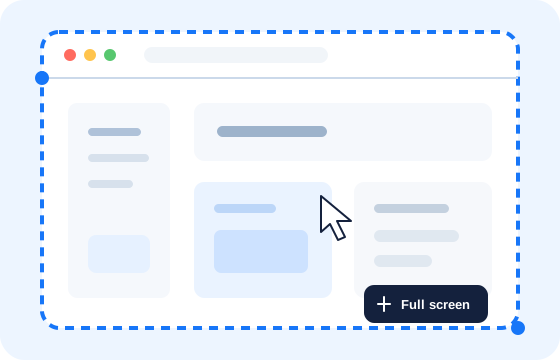
The whole screen, or the one thing
Full screen, a single window, or a region you drag. A keyboard shortcut gets you there without opening anything first.
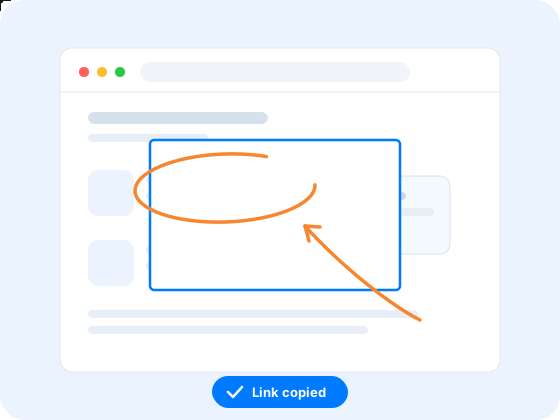
Mark up the part you mean
Arrows, boxes, text and highlights, so nobody has to hunt for what you are pointing at. Blur covers the account number that should not travel with it.
It leaves as a link, not a file
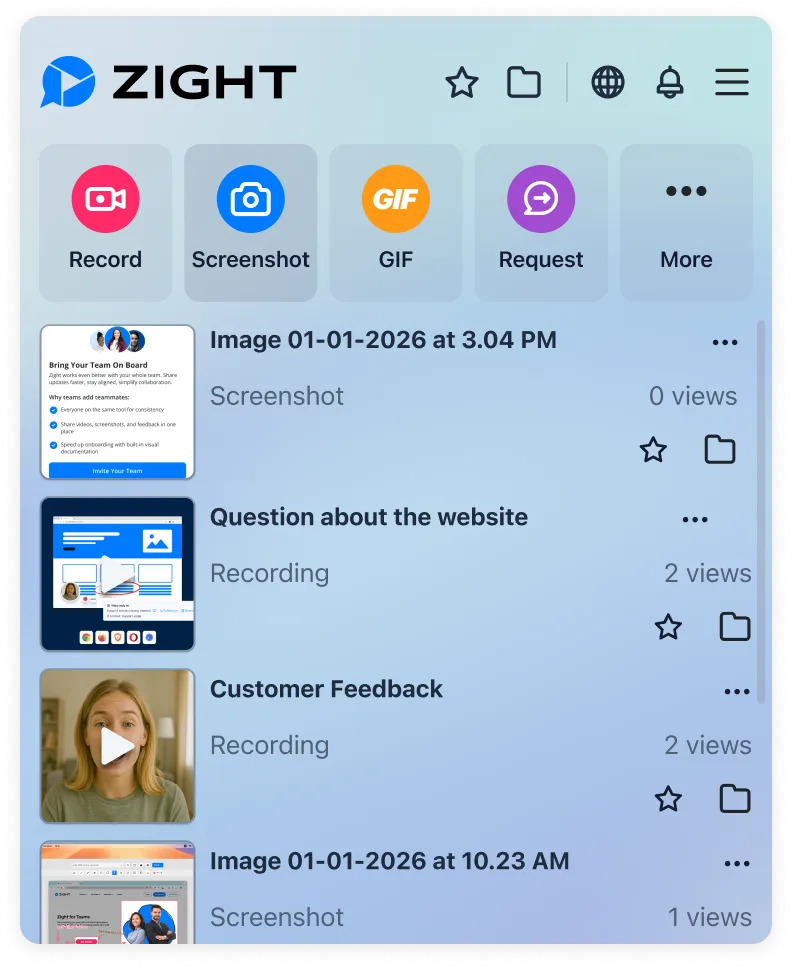
The capture uploads as you take it and the URL is on your clipboard. Nothing to attach, nothing too large for email, and the same link works in Slack, a ticket or a doc.
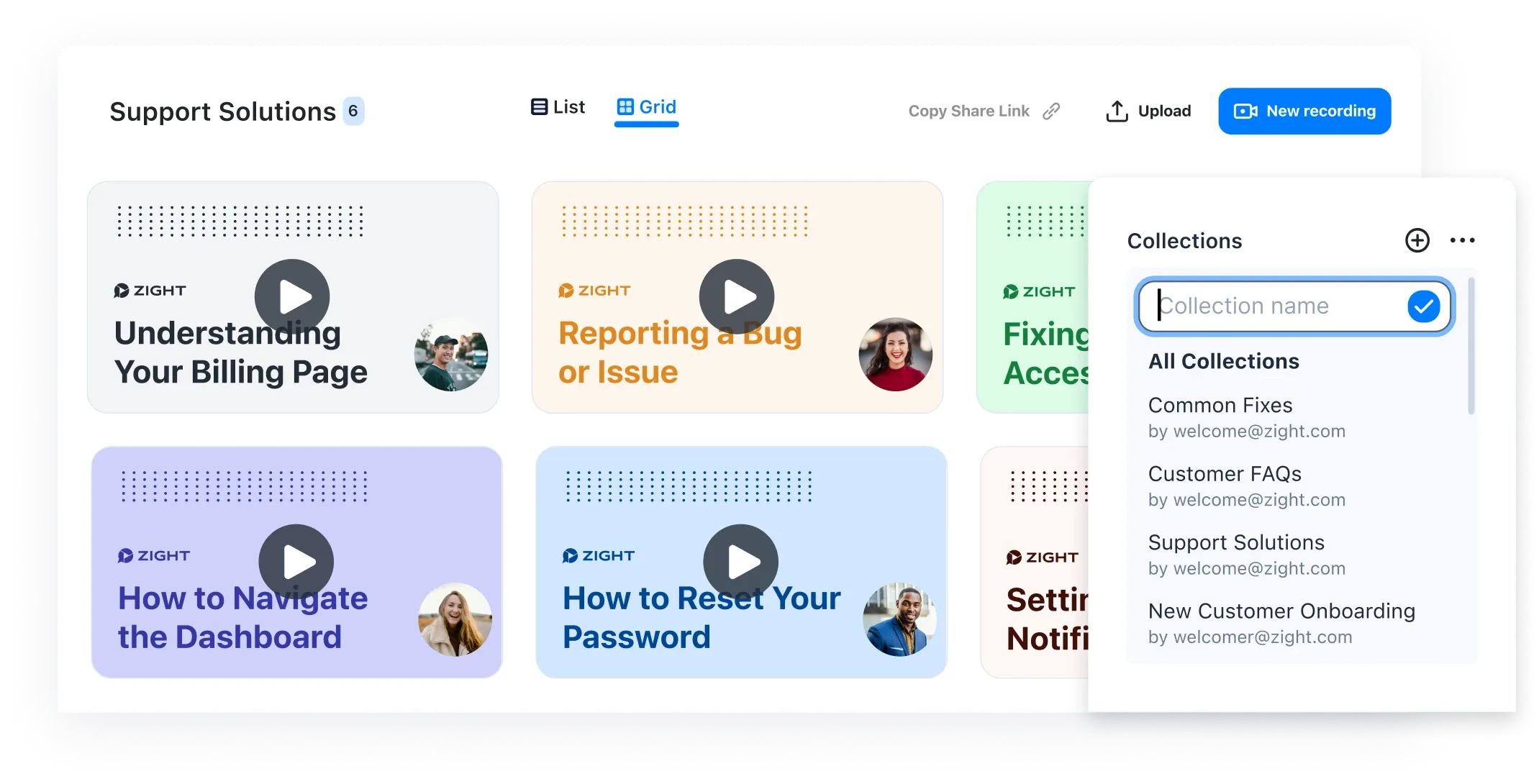
It lands somewhere you can find it
Every capture goes to your library rather than piling up on the desktop, so the screenshot you sent last month is still where you left it — behind the same link.
“I can share those links directly, both internally and externally… it's so easy to edit the picture, and add arrows and squares to really make your point stand.”
How to take a screenshot with Zight
Four steps, and the last one is paste
-
1
Hit the shortcut
From the Mac or Windows app, the Chrome extension, or your phone. Nothing to open first — the capture tool is already running.
-
2
Drag the area
Full screen, one window, or a region. It uploads while you are still looking at it.
-
3
Point at the thing
Arrow, box, a line of text, blur over anything sensitive. This is the step that turns a picture of a screen into an explanation.
-
4
Paste the link
It is already copied. Drop it in the ticket, the thread, or the doc — the recipient opens it in a browser with nothing installed.

The other direction
A screenshot tool can only send. This one can also ask.
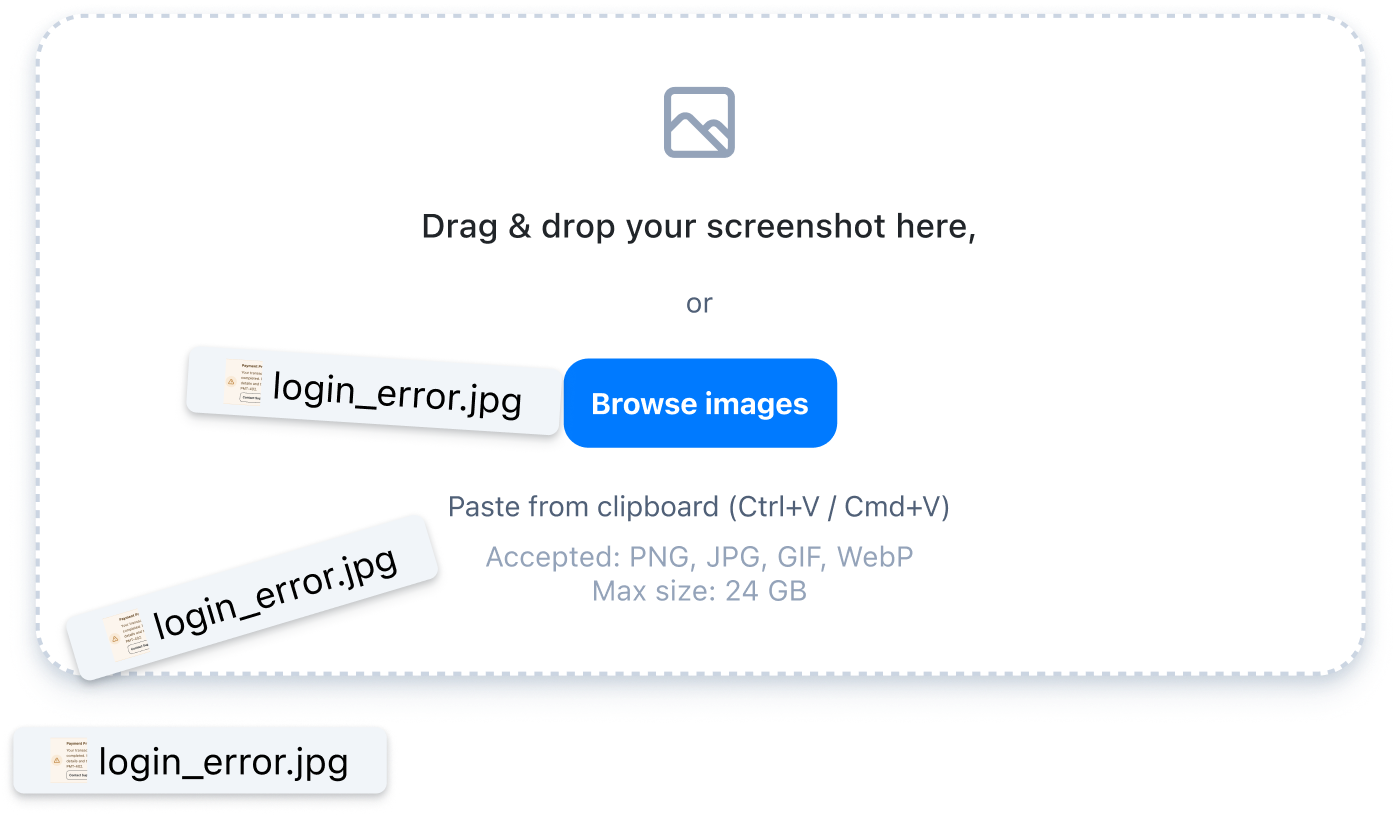
Half the screenshots you need are on somebody else’s screen, and “can you send me a screenshot of the error?” starts a thread that runs all afternoon. Send a request link instead: they capture it in the browser, with no account and no install, and it comes back attached to the thing you are already working on.
“We use it to send help videos and screenshots to our customers.”
Screenshot or recording
One frame, or a sequence
Screenshot This page
The thing you are explaining fits in one frame: a layout, an error message, a number that looks wrong. Capture, arrow, link — faster than describing where to look.
Screen recording
The explanation has an order to it — a sequence of steps, or a bug that only appears while you click through. Comes back with a transcript and chapters.
See the screen recorderRequest an image
The frame you need is on someone else’s screen. They capture it from a link, with no account and no install on their end.
See request linksAll three land in the same library, behind the same kind of link.
Where it runs
One library, four places to capture from
A screenshot taken on Windows opens from the same link on a colleague’s Mac. There is no per-device folder to go looking through.
- macOS
- Desktop app, with the Mac App Store build
- Windows
- Desktop app
- Chrome
- Extension — capture from the tab you are on
- iOS
- Capture and share from a phone
Teams whose screenshots do the most work
Customer Support ·Customer Success ·Design ·Engineering ·Product ·Marketing ·Training & Onboarding ·IT & Internal Support
How-tos
Taking one on the device in front of you
Shortcuts differ by machine, and the built-in tools all stop at the same place — a file. These cover the capture; the link and the arrow are what Zight adds.
On a Mac
On Windows
On another device
FAQ
Questions people ask first
Yes. Screenshot capture, annotation and link sharing are on the free plan, along with screen recording, video requests and 15-second GIFs, and there is no credit card. The free plan keeps your last 50 captures; the paid plans lift that.
To your Zight library, not your desktop. The capture uploads as you take it and the share link is copied to your clipboard, so the image is findable a month later instead of being one of forty PNGs named Screenshot 2026-08-11.
Yes. Arrows, boxes, highlights, text and a blur tool for anything that should not travel with the image. Annotation is the difference between sending a picture of a screen and sending an explanation.
No. A Zight link opens in any browser, on any device, with nothing installed and no account on their side. That is also why it works for customers and people outside your company.
Yes, and this is the part a screenshot tool usually cannot do. Send a request link and the other person captures their screen from the browser — no account, no install — and it comes back to you attached to the thread you are already working in.
Yes. There are Mac and Windows desktop apps, a Chrome extension and an iOS app, and they share one library — a screenshot taken on Windows opens from the same link on a colleague’s Mac.
A screenshot is right when the thing you are explaining is in one frame — a layout, an error message, a number that looks wrong. Record when the explanation has an order to it, like a sequence of steps or a bug that only shows up while you click through. Both end up in the same library behind the same kind of link.
Stop describing where to look.
Free on Mac, Windows, Chrome and iOS. Capture it, point at it, paste the link.