Using a Mac is generally straightforward, but some features can be a bit hidden, especially for new users. Capturing what’s on your screen is one of those tasks that might seem tricky, whether you’re a newbie or a seasoned Mac user. Taking a scrolling screenshot, in particular, can be a bit of a challenge.
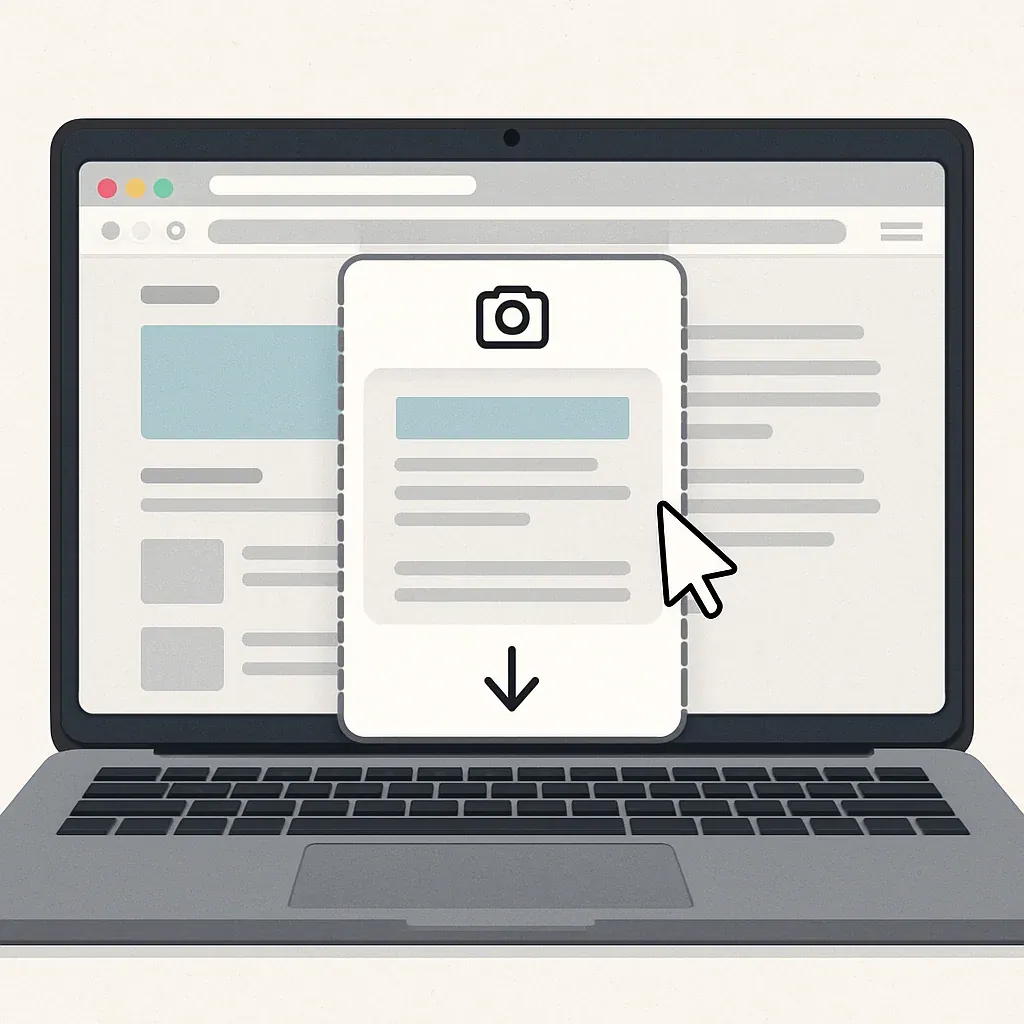
Why Would You Need to Take a Scrolling Screenshot on Mac
Instead of capturing multiple screenshots and piecing them together, you can capture everything in one shot. This can be beneficial in some scenarios especially when you need to share or save information comprehensively and contextually. Some of the scenarios where scrolling screenshots can come in handy:
Ways to Capture Scrolling Screenshots on Mac
There are several ways to capture scrolling screenshots on Mac and we have listed all the possible ways with their step-by-step guides. Let’s look at each method below.
1. Best Third-Party Tool- Zight
Taking screenshots of extra-long web pages can be tricky. Sure, you could stitch together multiple screenshots in an image editor like Adobe Photoshop, but that’s a hassle. For Mac users, there’s a better way: Zight .
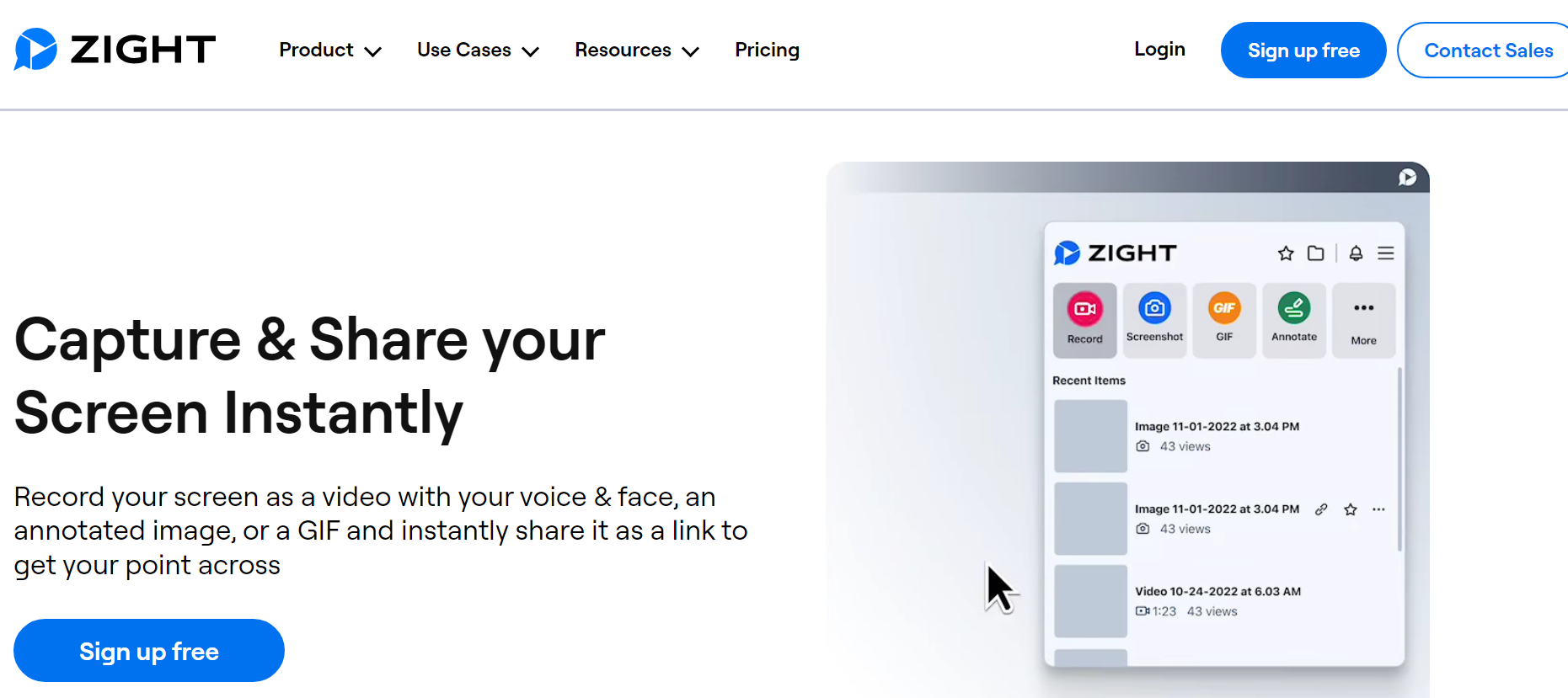
- Open Zight and Select GIF : Launch your Zight app and click on the GIF option. This feature lets you scroll through all the content on your screen and record it in a looping video that can be uploaded anywhere.
- Set Up Recording : Choose Full Screen and Screen Only, then click Start Recording. After the three-second countdown, begin scrolling through your page to capture all the content.
- Annotate as Needed : You can pause the recording at any time to add annotations. Zight offers various annotation tools, including a line, highlighter, ellipse, rectangle, and arrow.
- Finish and Upload : Once you’re finished, click the finish button. Your GIF will automatically upload to the cloud. You can then share it as a video link, avoiding the hassle of downloading and re-uploading files and making communication quick and efficient.
- Screenshot : Capture specific areas, windows, or even delayed screenshots for perfect timing. Edit and annotate your screenshots directly within Zight.
- Crystal-Clear Screen Recordings : Record your entire screen or a selected area with audio. Zight lets you pause and resume recordings, add a webcam overlay, and choose between video or GIF formats. Perfect for creating tutorials or product demos .
- Webcam Recordings : Record videos with just your webcam or add a webcam overlay to your screen recordings. Add a personal touch and stand out in your communication.
- GIF Maker : Explain complex concepts or give clear instructions with loopable GIFs. Zight lets you record your screen as a GIF , eliminating the need for lengthy explanations in emails.
- Effortless Sharing : Zight creates easy-to-share links for any content you capture. You can also upload existing files like PDFs, JPGs, and GIFs and turn them into sharable links with optional password protection and expiration dates.
- Annotations : Add clarity to your screenshots and recordings with annotations . Use arrows, lines, emojis, shapes, and even blur sensitive information. Ensure your message is clear and nothing gets overlooked.
- Actionable Insights : See how many people have viewed your content and who they are with Zight’s analytics . Track your productivity with weekly reports that show items viewed and time saved.
- Flexible Editing : Don’t worry about getting it perfect the first time. Zight lets you edit your content after creation . Trim or clip recordings, crop screenshots, and make adjustments for optimal impact.
- Effortless Embedding : Share your content anywhere with Zight’s embed codes . Simply copy and paste the code wherever you want your screenshot, recording, or GIF to appear.
- Organized Collections : Create folders to keep your Zight creations organized . Find items faster and share them with team members more easily.
- Security First : Zight prioritizes your data security . With SOC2 Type II compliance certification , you can rest assured your information is protected.
- Customizable Workflow : Tailor Zight to your preferences. Set up custom shortcuts for a streamlined workflow and add a call-to-action button to your videos for increased engagement.
- Brand Consistency : Enhance brand recognition by adding your logo, custom redirect URLs , and custom domains to your Zight content.
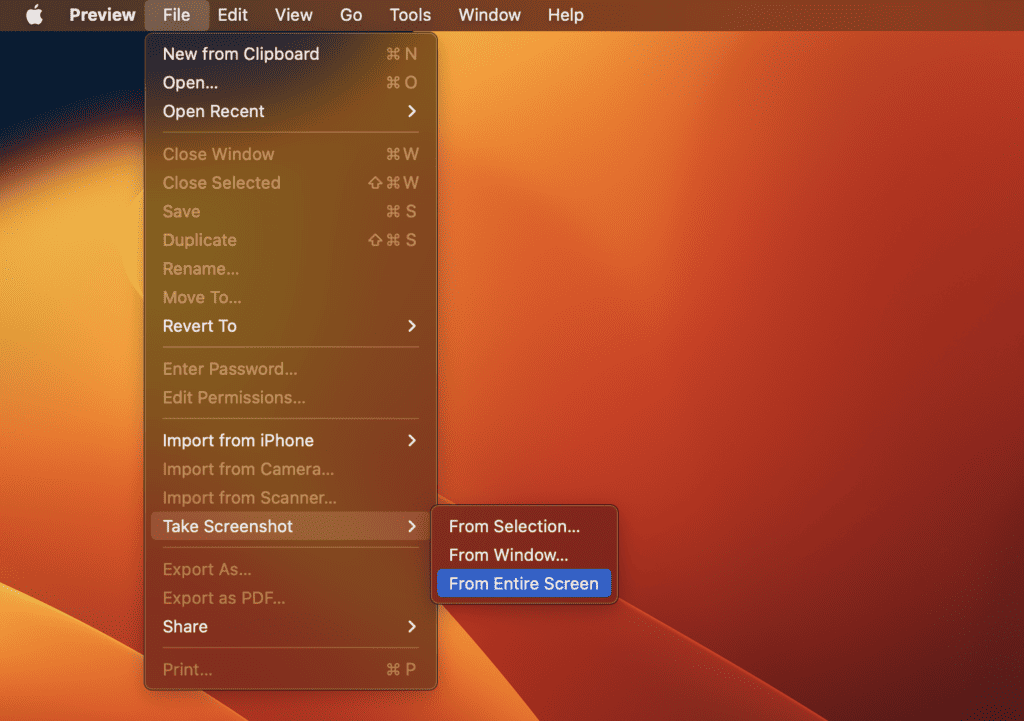
2. Using Preview
Did you know your Mac’s built-in Preview app (it’s already there!) can capture entire web pages or documents in a single shot? Although this is not the most efficient method, it can work easily. Also, it’s not suitable for capturing long content and it’s more suitable for shorter scrolling captures.
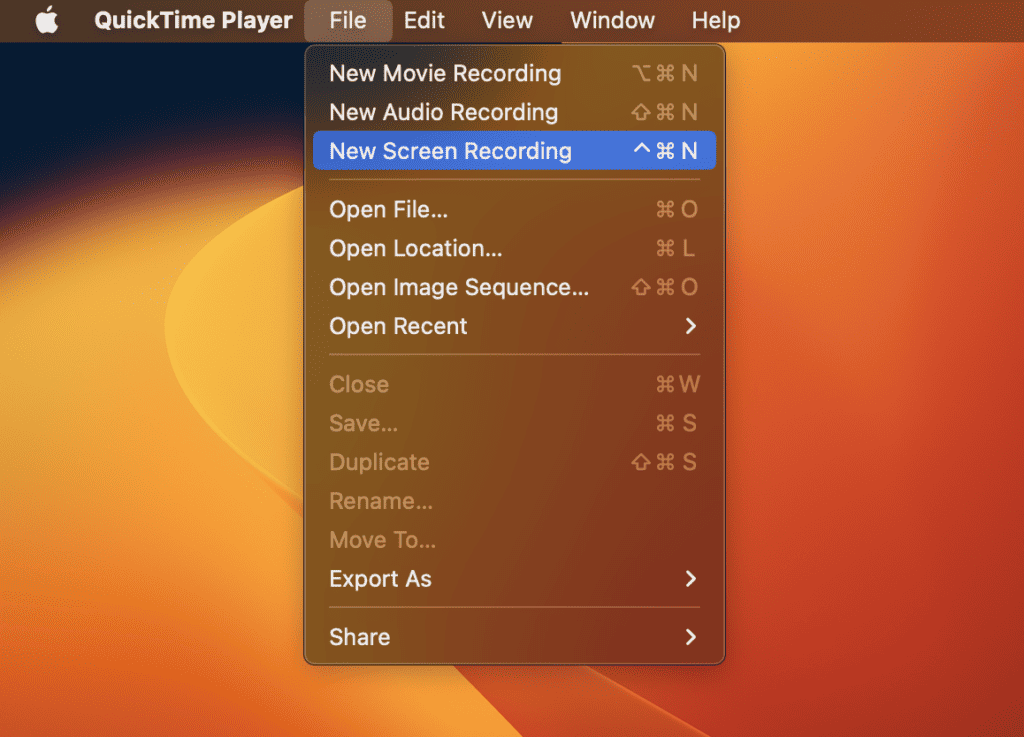
3. QuickTime Player
Your Mac’s built-in QuickTime Player isn’t just for watching videos anymore. It also doubles as a handy screenshot tool, and the best part? No extra downloads are required.
4. Hotkeys
Forget downloading extra apps! Mac lets you capture screenshots on the fly using handy keyboard shortcuts (hotkeys). These built-in shortcuts let you grab your entire screen, a specific window, or just a custom area you choose – all without opening another program.
5. Browser Extensions for Chrome
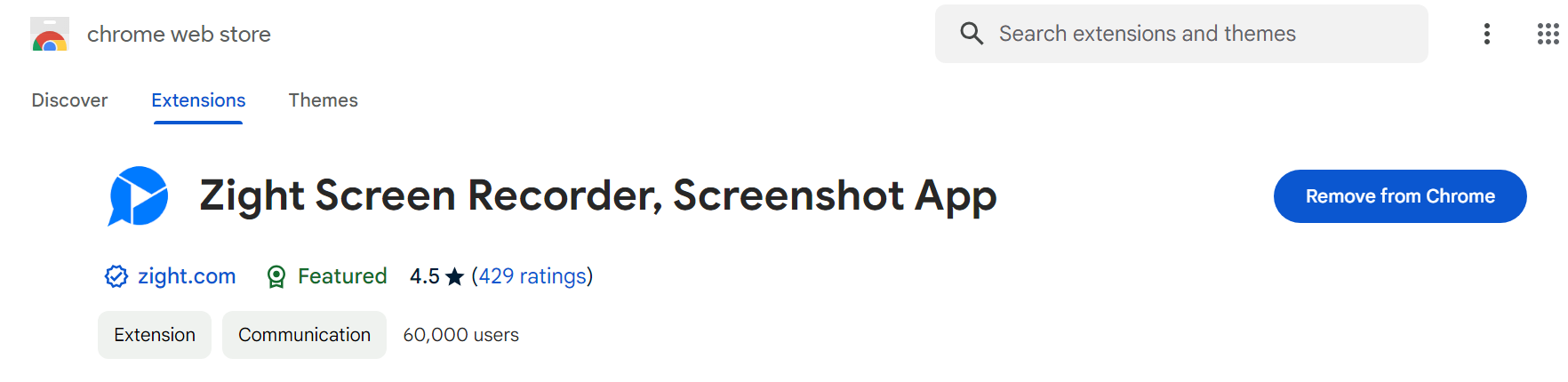
If you don’t want to install an app and are looking for an easy way to go about it, the Zight Chrome extension is it. A quick and straightforward solution.
- To get started, search for Zight on the Chrome web store on your Mac
- Click ‘Add to Chrome’
- Once you see the popup, click ‘Add Extension’
- The extension will then download and appear in your toolbar
- You can also choose to ‘pin’ the Zight extension to get even quicker access
6. Developer Tools
Alternatively, Chrome users can also use developer tools to capture scrolling screenshots. Although it is a hidden menu bar, it can help to capture screenshots too. However, this is not the easiest method to take a scrolling screenshot, so it can be confusing for beginners. Luckily, we’ll break it down for you.

7. Safari Screenshot Tool
If you want to capture a full-page screenshot on your Mac using Safari, there’s a workaround you can try. However, it’s tricky and might not deliver the best results. For a smoother experience, we recommend using Firefox or Chrome to take your scrolling screenshots.

8. Save as PDF
This method of capturing scrolling screenshots on your Mac is suitable for capturing text-heavy content because it preserves the original format of the content. This might seem a bit like a cheat. You act as if you’re going to print the webpage, but instead of printing, you save it as a PDF file on your computer! It’s faster than using extensions or online recorders.

Turn a long screenshot into instructions
A full-page capture preserves context, but the reader still needs to know what to do. Pair the relevant areas with written steps in a screenshot guide. When movement matters more than the whole page, compare the Mac recording options and share a short walkthrough.