Typically, screenshots only capture what fits within the confines of your screen, leaving out content that requires scrolling to access. The challenge is when you want to capture everything in a single frame, from the top to the bottom, including those small bits that often get left behind.
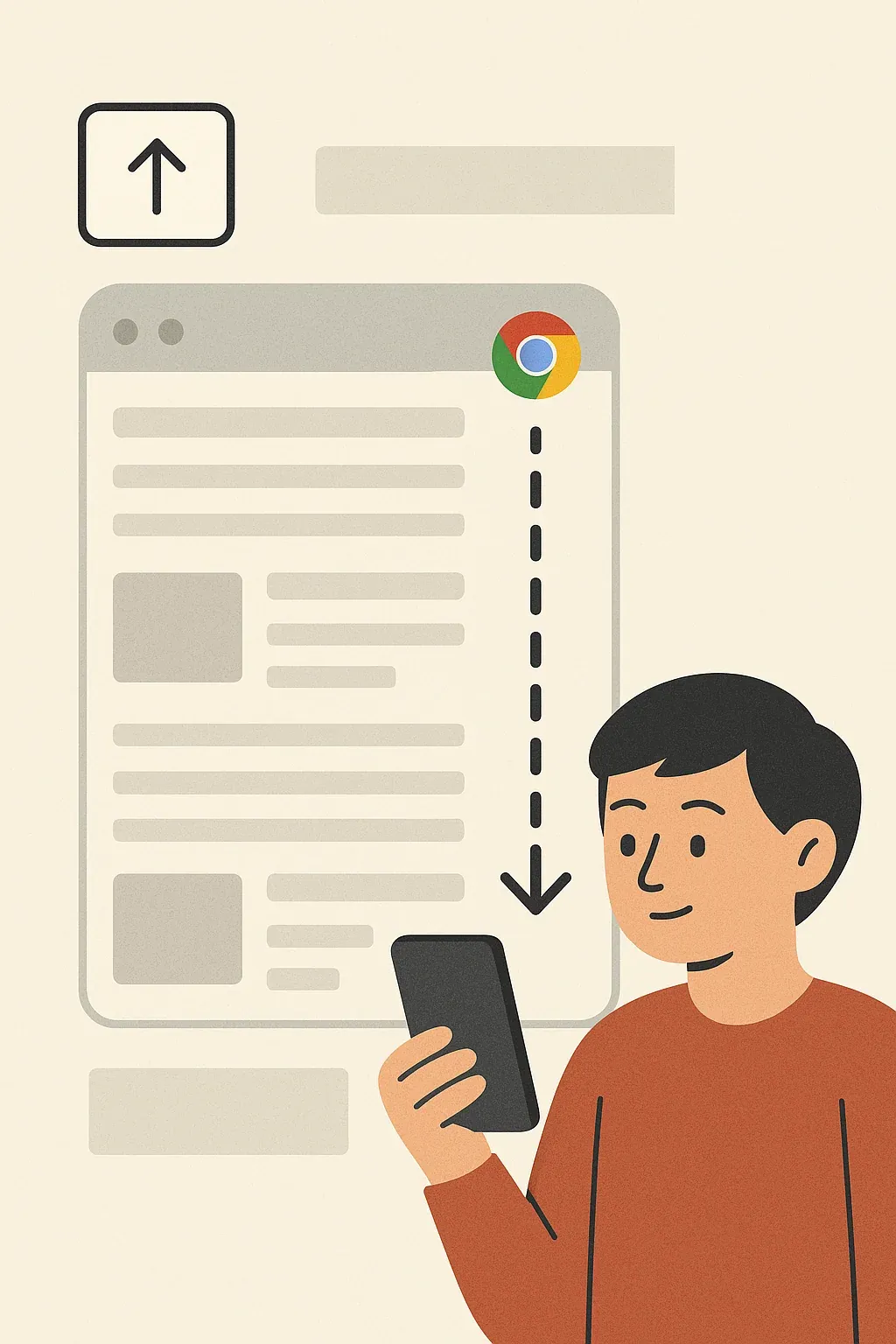
How to Take a Scrolling Screen Capture on Chrome
If you don’t know how to take a full-page screenshot on Chrome, we are going to help you out by providing step-by-step guides on different ways, starting with the best.
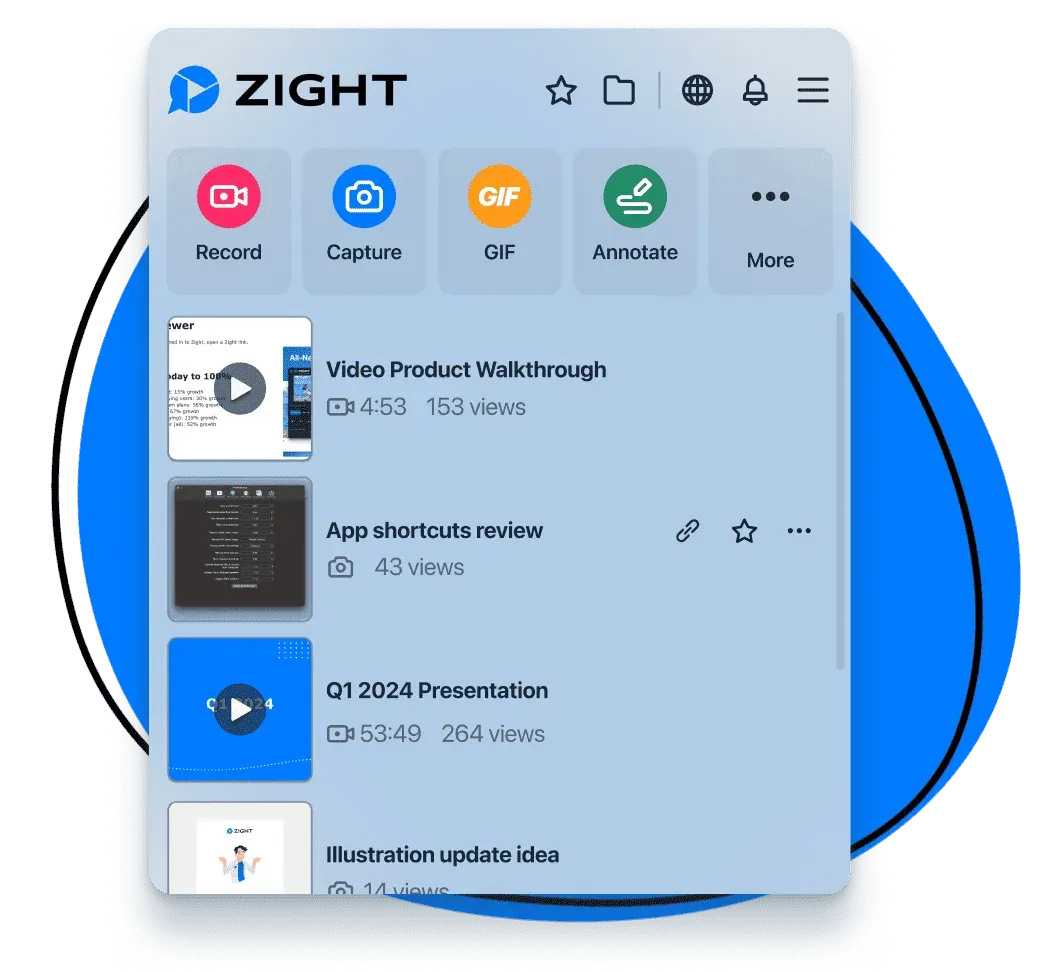
1. Using a Dedicated Software- Zight
Is there an easier way to do things than using the dedicated method? We could think of many reasons why not to use native screenshot tools and, instead, use Zight.
- To get started, click here to navigate to the Zight extension on the Chrome web store
- Click ‘Add to Chrome’
- Click ‘Install Extension.’ The extension is free to install.
- A new window will open. Click ‘add to chrome’ and then select ‘add extension’ in the pop-up window
- You may also opt to ‘pin’ the Zight extension to your taskbar for even quicker access
2. Use Developer Tools
You’ve probably heard about capturing screenshots using developer tools in Google Chrome, and you already know the struggle is real. Although it may sound difficult, it’s not only for developers, and we’ll guide you below.

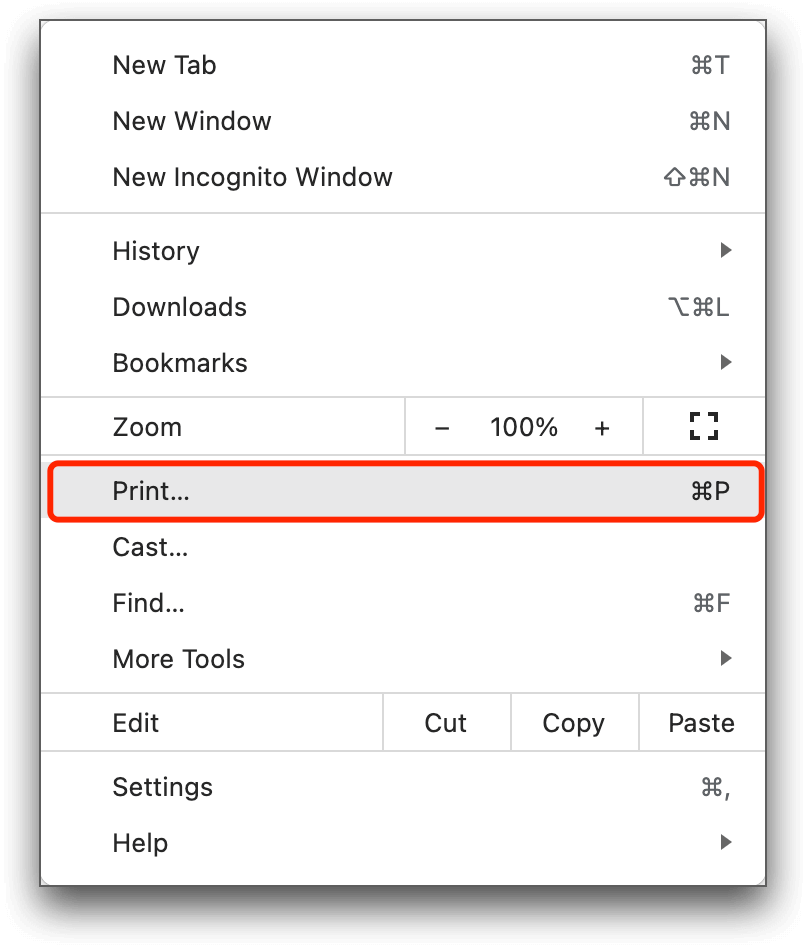
3. Save the page as a PDF
So, it’s a picture you need, but will a PDF work? If a PDF works, there is a solution to save your web page in PDF format if you want to save it completely and not in JPG, PNG, or any other image format. Follow the steps:
4. Use a Browser Extension to Capture a Full-Page Screenshot
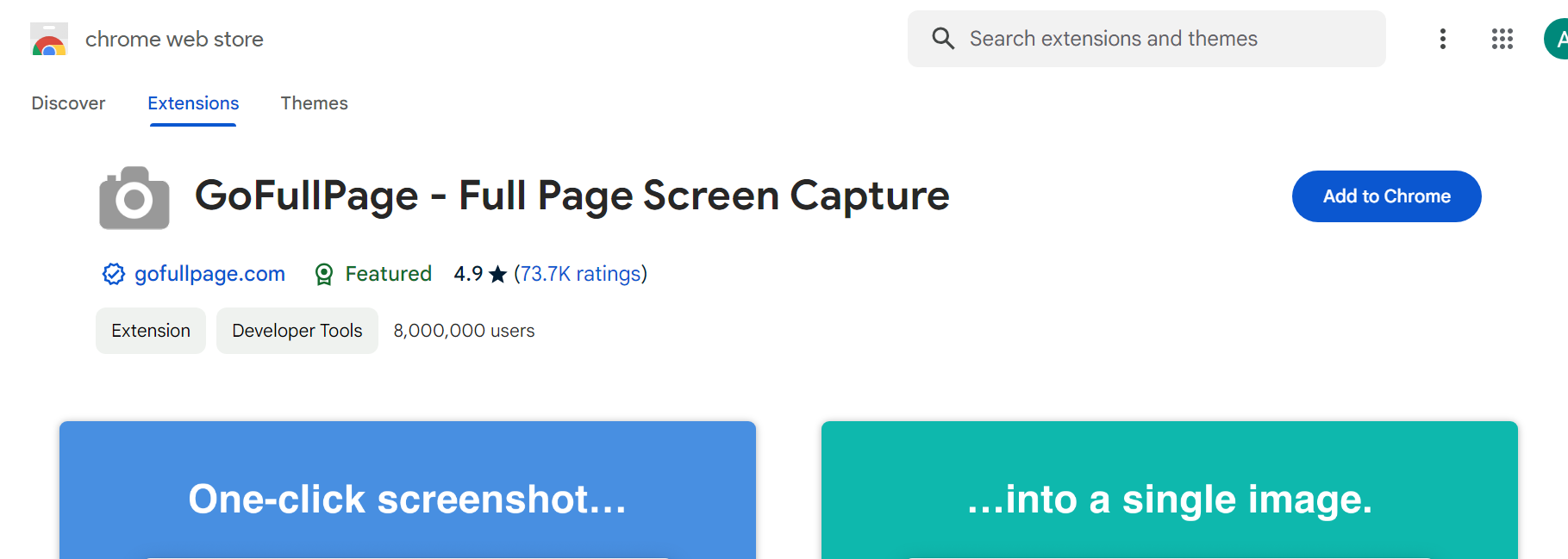
Another similar way to using Zight, the all-in-one tool, is using a browser extension for a Chrome full-page screenshot. Browser extensions enhance your browsing experience by adding extra features. One of the Chrome extensions that stands out is the GoFullPage Screen Capture, which enables you to capture full-page screenshots effortlessly.
Choose a still image or a recording for the reply
Use the long screenshot when the layout is the explanation. The Zight Chrome extension is the browser-specific capture route for full-page screenshots and tab recordings. When the problem appears only after a click or a page transition, request a recording of the customer’s screen. The support workflow shows how that evidence can become a visual reply and a reusable answer.
Conclusion on Ways to Take a Scrolling Screen Capture- Chrome
Capturing scrolling screenshots on Chrome doesn’t have to be a daunting task. These four easy methods allow you to seamlessly capture and share entire web pages. Let’s not forget the all-in-one tool waiting to elevate your screen capture game- Zight.