Zight for Mac
Free screen recorder and screenshot app for Mac.
Record your screen, capture and annotate screenshots, and share everything instantly from your Mac.
Free plan · no credit card · macOS .pkg installer
Trusted by 5m+ people who would rather show than tell









What is the best screen recorder for Mac?
Zight is a free screen recorder and screenshot app for macOS. It records the full screen, a window or a region with system audio and your microphone, captures and annotates screenshots, trims recordings, and uploads each capture as you make it so the share link is already on your clipboard. It is on the Mac App Store and as a direct .pkg download.
What it does on Mac
Five jobs, one app
The set that usually needs a screenshot utility, a recorder, an editor and a file-sharing account between them.
Screen recording
Show exactly what happened.
Record a window, region, or your entire screen with system audio and your mic.
Learn more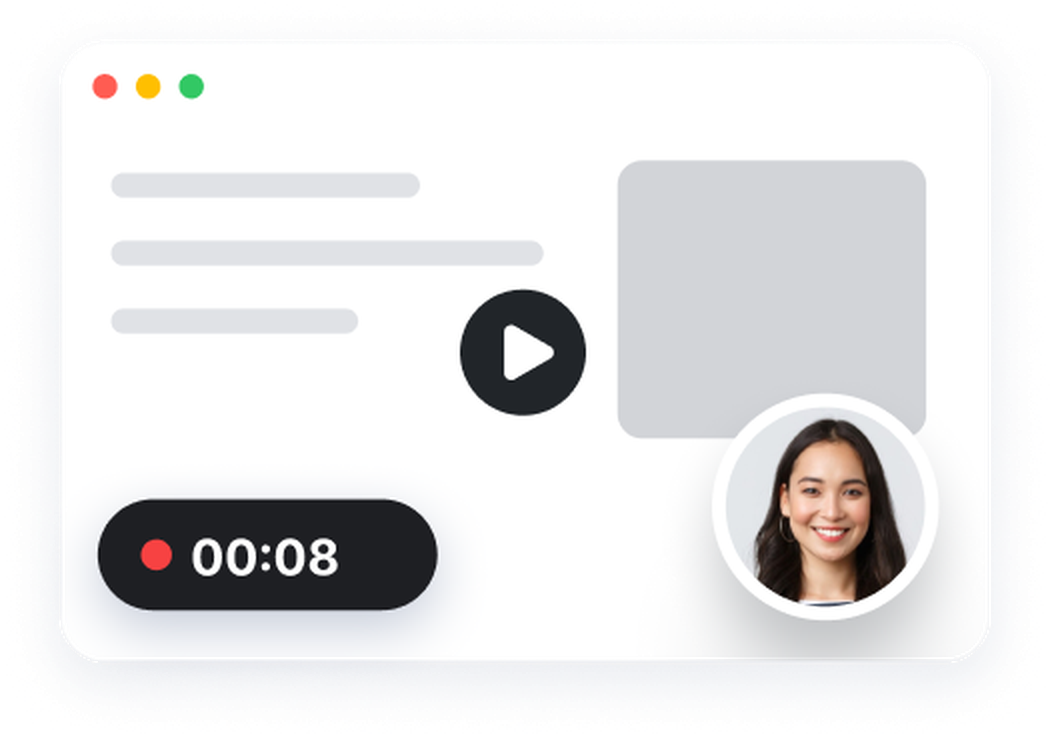 00:08
00:08
Screenshots
Capture the moment.
Grab a window or a region, then get a shareable link without a file hunt.
Learn more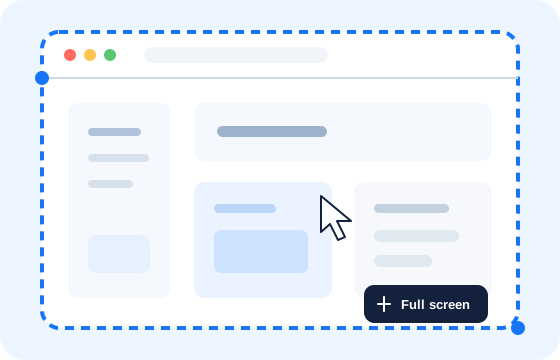
Annotation
Make the important part obvious.
Use arrows, text, highlights, and blur to turn a screenshot into a clear next step.
Learn more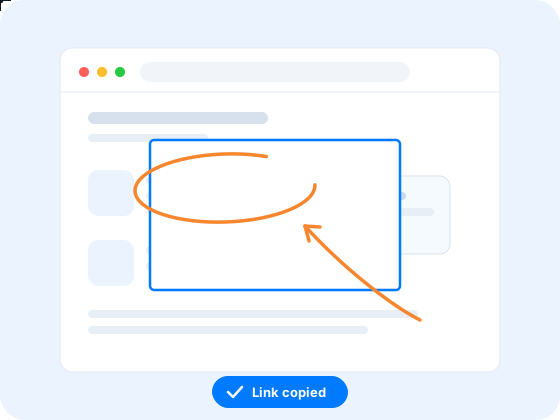
Video editing
Cut to the useful part.
Trim the false start, remove the middle, and share the finished take from the same link.
Learn more
Request links
Get the screen you need.
Ask anyone for a recording, screenshot, or file—no account or app install required.
Learn more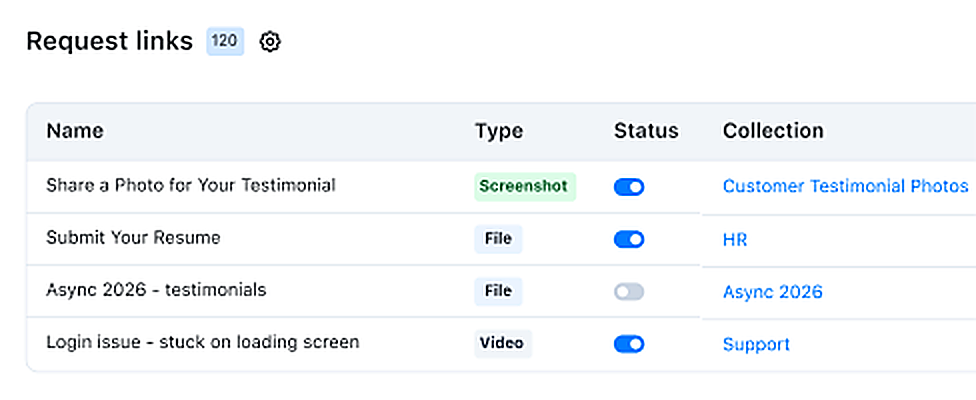
Getting started on Mac
Four steps, and the last one is paste
-
1
Install the menu-bar app
The .pkg from downloads.zight.com, or the Mac App Store build. Signing up is free.
-
2
Click the menu bar, or press the shortcut
⇧ ⌘ 5 for a screenshot, ⇧ ⌘ 6 to record. Drag the region you want, or take the whole screen.
-
3
Mark it up
Arrows, boxes and text on a screenshot; annotate live during a recording; trim or cut once you stop.
-
4
Paste
The link is already copied. It opens in any browser, on any OS, with nothing installed on the other end.
Keyboard shortcuts
The defaults, all of them remappable in Preferences → Shortcuts if they collide with something you already use.
- Take a screenshot
- ⇧ ⌘ 5
- Start or stop a recording
- ⇧ ⌘ 6
- Copy the link
- ⌘ C
- Copy a direct link
- ⇧ ⌘ C
- Copy the content itself
- ⌃ ⌘ C
- Download the file locally
- ⌘ D
The other direction
Every capture app sends. This one also asks.
Whatever you install on your own machine, it cannot see what is happening on someone else’s — and “can you send me a screenshot?” is where the afternoon goes. Send a request link instead: they capture their screen from the browser, with no account and no install, whatever they are running.
“Request Video is so much better than users trying to explain what’s happening in an e-mail… I can see exactly when an issue occurs and what is causing it.”
How-tos
Screenshots and recording on macOS
The built-in shortcuts, what they can and cannot do, and where the files end up.
FAQ
Questions people ask about Mac
Yes. The free plan covers screen recording, screenshots, video requests and 15-second GIFs, with recordings up to five minutes and no credit card. Unlimited recording time starts on the Create plan.
macOS gives you a file on the desktop. Zight gives you a link: the capture uploads as you take it, the URL is on your clipboard, and the image is annotated before it goes. The built-in tool also cannot record a colleague’s screen for you — a request link can.
Yes, system audio and your microphone together, so what the app is doing and what you are saying about it end up on the same recording. macOS asks for screen and microphone permission the first time, in System Settings → Privacy & Security.
Both are the same app. The .pkg from downloads.zight.com updates itself to the latest build; the Mac App Store version is there if your organisation prefers store-managed installs.
Yes. A Zight link opens in any browser on any operating system, with the transcript and chapters beside it, and nothing to install. The same is true in reverse — a Windows colleague’s capture opens on your Mac from the same kind of link.
Yes, there is an iOS app, and it shares the same library as the Mac app — a capture from your phone shows up alongside the ones from your desk.
Show it, instead of typing it out.
Free on Mac. Capture, point at the thing, paste the link.