








Make a walkthrough someone can follow
Show the steps in a mobile app or capture an issue you need help with. A screen recording gives the other person a view of what happened.
Zight for iPhone and iPad
Capture a walkthrough, upload a photo or video, and share it with a Zight link. Show someone what is happening on your device without writing out every step.
For iPhone and iPad. Check the App Store for current device compatibility.
Trusted by 5m+ people who would rather show than tell
Zight is a screen recording and sharing app for iPhone and iPad. Record your screen, upload photos and videos from your device, and create links you can send to colleagues or customers. Browse your captures in the app when you need to find an item again.
Mobile App Preview
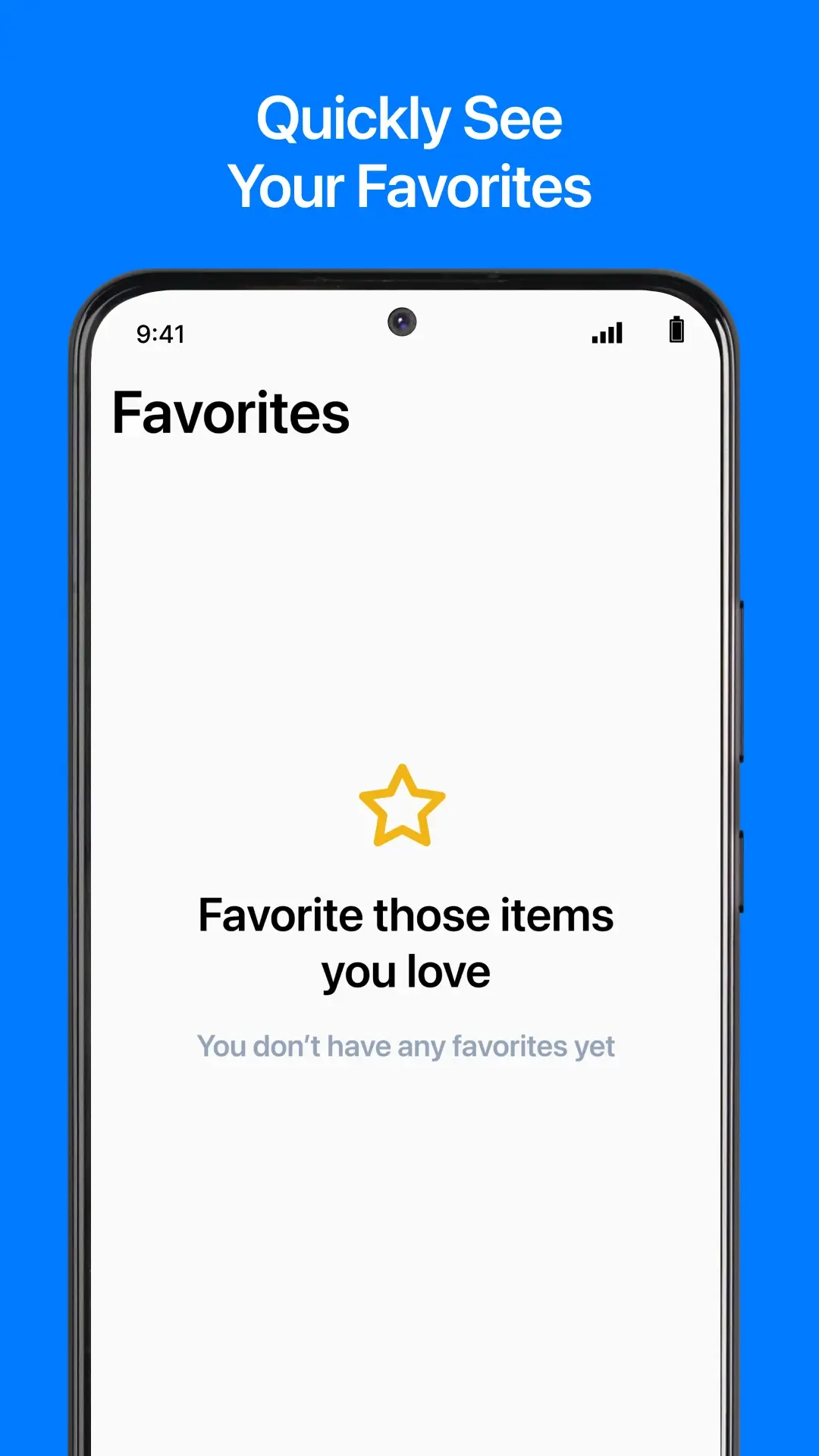
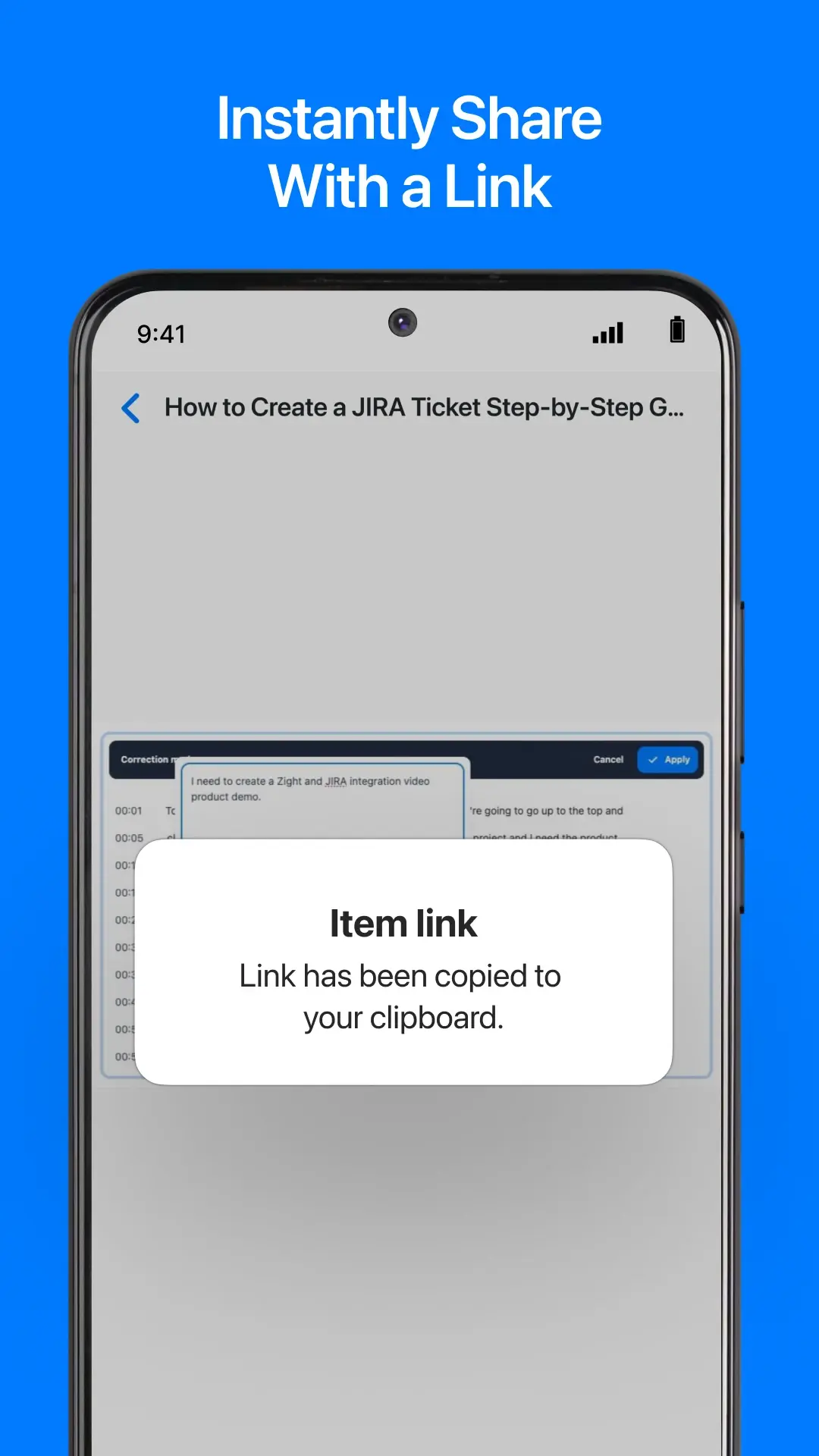
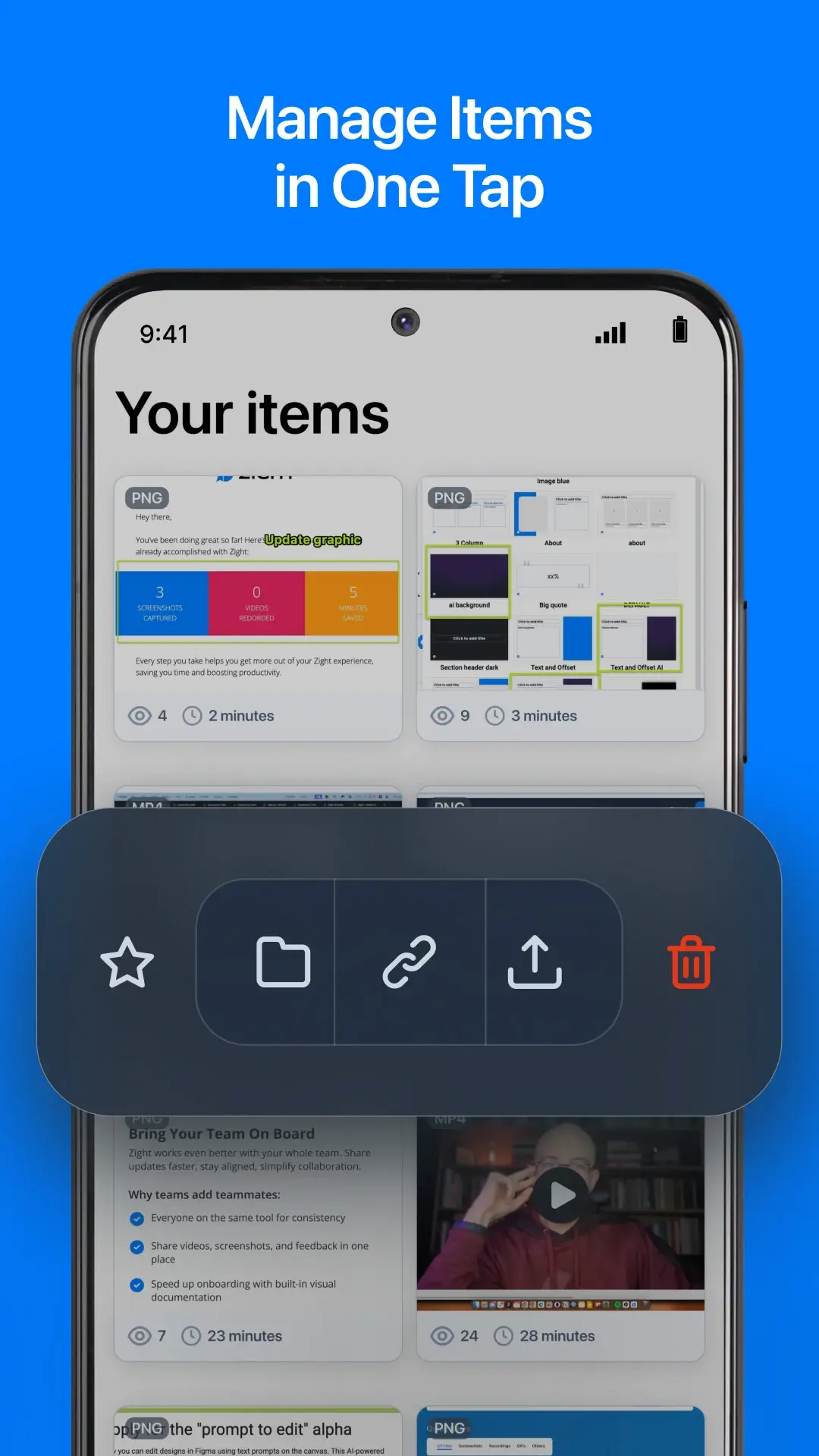
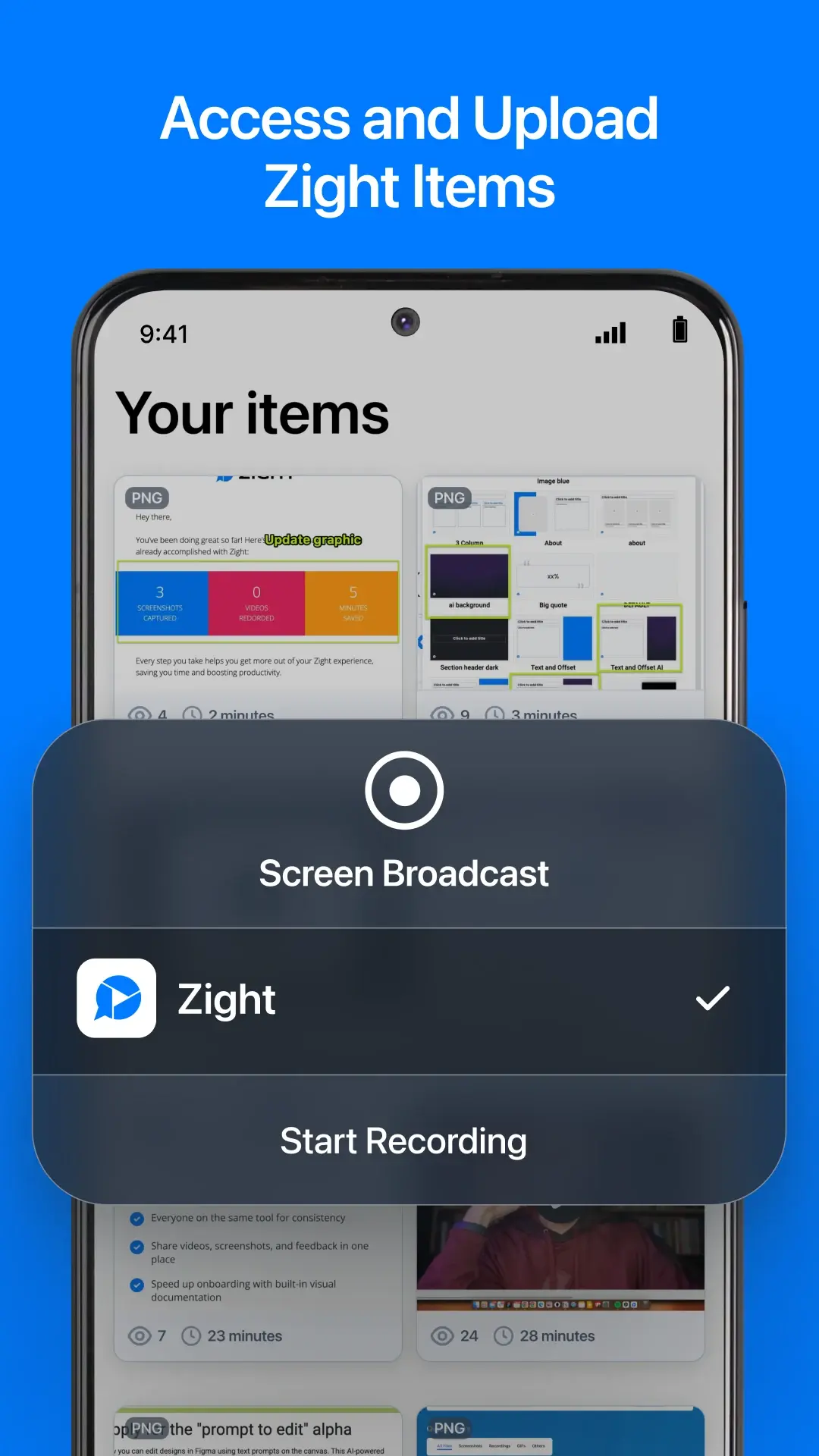
Find important items, copy a shareable link, manage content, and start an iOS Screen Broadcast with Zight selected.
What You Can Do
Show the steps in a mobile app or capture an issue you need help with. A screen recording gives the other person a view of what happened.
Upload content from your device and get a shareable link. Send a screenshot of the problem or a video that explains the process.
Browse your content in Zight’s thumbnail view. Open an existing capture and share it when the same question comes up again.
Getting Started
Install the app from the App Store and sign in to your Zight account.
Use Zight to record your screen, or upload an existing photo or video from your device.
Let the upload finish, then get the link to your content.
Paste the link into an email, message or support conversation. Tell the recipient which step or detail to look at.
Built-In Recorder Comparison
Apple includes a screen recorder in Control Center. Zight adds a workflow for uploading, browsing and sharing your content by link.
Built Into iPhone and iPad
Apple’s built-in recorder starts in Control Center and saves recordings in Photos. Some apps may restrict audio or video recording.
Read the official instructionsWith Zight
Record with Zight or upload a photo or video you already have, browse the result in your Zight library, and share the link with the person who needs it.
A Clearer Mobile Explanation
Capture the problem on your phone, then send the link with what you were trying to do. A teammate can see the sequence instead of reconstructing it from a written description. For a single detail, upload a screenshot instead.
FAQ
Yes. Zight is available for iPhone and iPad. The App Store lists the current device and operating-system requirements.
Yes. Zight includes screen recording for tutorials, walkthroughs and demonstrations.
Yes. Upload photos and videos from your device, then create a link to share them.
Yes. You can upload a screenshot from your device and share the resulting link.
Apple’s recorder saves a video in Photos. Zight provides a place to upload and browse your captures and generate links for sharing them.
Not always. Some apps do not allow audio or video recording. Respect those restrictions and check your recording before sharing it.
Yes. The App Store lists Zight as free to download. See Zight’s pricing page for current account plans and limits.
Record what you want someone to see, or upload an existing photo or video. Share the Zight link in your next conversation.