How to Record and Export Meeting Notes with Zight
This quick guide shows you how to record a meeting and export notes with Zight to simplify follow-ups and keep your team aligned.
Step 1: Join Your Meeting and Start Your Recording
- Start by going to your meeting platform, e.g., Google Meet.
- Navigate to Zight and begin recording your screen.
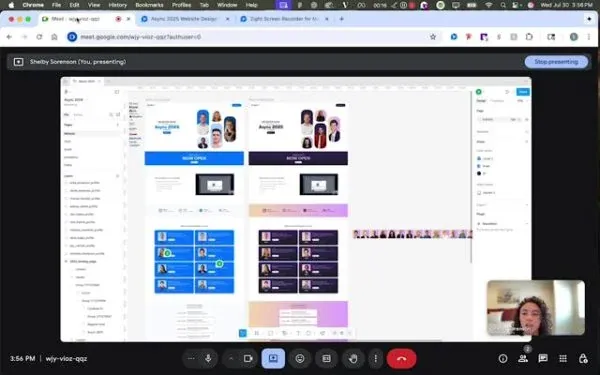
Step 2: Conduct the Meeting
- Proceed with the meeting, sharing updates and discussions.
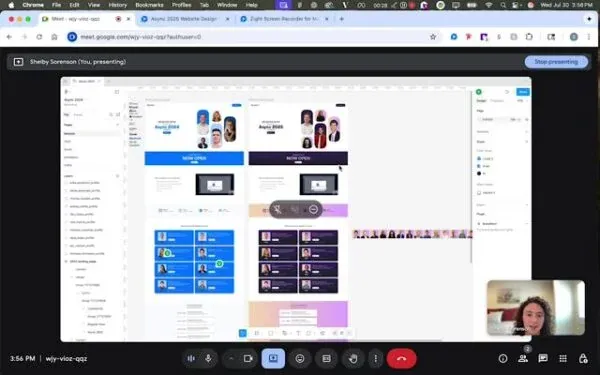
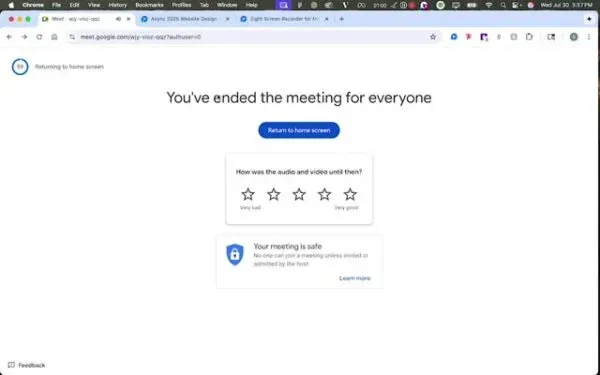
Step 3: End the Meeting
- Conclude the call for everyone and stop the recording.
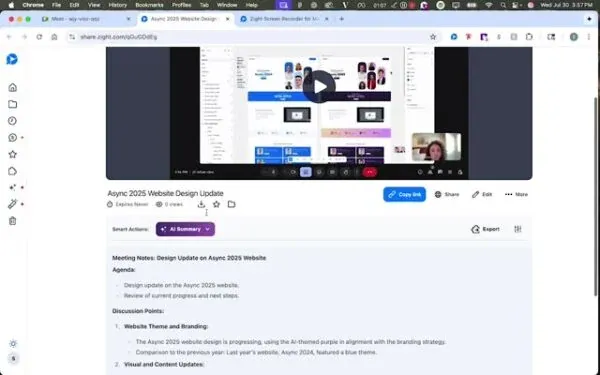
Step 4: Accessing Meeting Notes
- Return to Zight and access the auto-generated meeting notes.
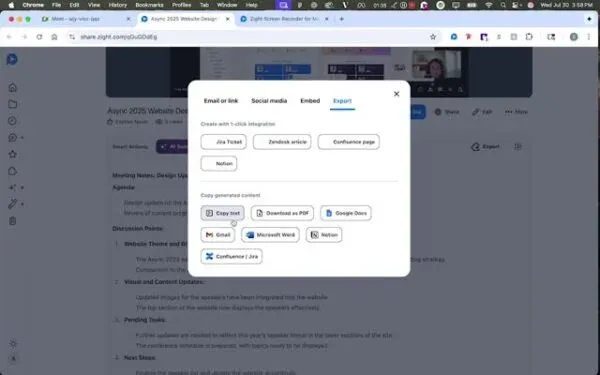
Step 5: Exporting Notes
- Export notes to platforms like Google Docs, Word, or email.
- Copy text to clipboard for sharing via Slack, Teams, etc.
The Ultimate Guide to Recording and Exporting Meeting Notes with Zight
Meetings are where decisions happen, ideas form, and strategies move forward. But without organized notes, even the best discussions can lose momentum once the call ends. That is where Zight comes in.
Zight makes it easy to record your meetings, capture key takeaways, and export notes directly to your preferred workspace. Whether your team uses Google Docs, Slack, or Microsoft Teams, Zight simplifies post-meeting workflows and helps everyone stay on the same page.
Why recording and exporting meeting notes matters
In fast-paced environments, it is easy to miss key details or action items during meetings. Manual note-taking can be distracting, especially when you are also presenting or collaborating. Zight removes that burden by automatically recording your meeting and generating clear, structured notes.
With one tool, you can document discussions, highlight follow-ups, and share outcomes quickly. This ensures your team does not just meet but also acts on what was discussed.
How Zight simplifies meeting documentation
Zight’s Video Recording and AI features work together to turn meetings into actionable insights. When you record your meeting using Zight, the platform automatically processes the video and generates a transcription with summarized notes.
You can easily access the notes afterward, copy key points, or export them into other tools your team uses. This eliminates the need to rewatch entire recordings or piece together information from memory.
It is perfect for remote teams, client calls, internal syncs, and brainstorming sessions where alignment is key.
Streamlining your workflow with Zight
Zight integrates seamlessly with popular collaboration tools like Slack, Microsoft Teams, and Google Docs. After your meeting ends, you can review the transcript, extract highlights, and export the content in just a few clicks.
Whether you want a clean summary for internal documentation or detailed notes for project follow-up, Zight gives you flexibility. You can send notes directly to teammates, paste them into shared documents, or attach them to your project management tools.
The process keeps your entire team aligned, reduces misunderstandings, and saves time spent manually compiling notes.
How Zight’s AI improves meeting notes
Zight’s built-in AI not only transcribes meetings but also summarizes key points and action items automatically. It identifies important themes and separates discussion topics from decisions, giving you structured notes that are easy to review.
This AI-powered summary helps you focus on outcomes rather than logistics. You can quickly find what was said, who said it, and what needs to happen next.
For teams that manage multiple projects or clients, this makes reviewing meetings more efficient and ensures no detail is overlooked.
Benefits of recording meetings with Zight
Recording and exporting meeting notes through Zight offers several benefits:
-
Improved accuracy: Automated transcription eliminates missed details.
-
Time savings: Quickly review summaries instead of replaying full recordings.
-
Enhanced collaboration: Share notes instantly with team members or clients.
-
Centralized information: Keep recordings and notes in one secure location.
-
Increased accountability: Documented takeaways help ensure follow-ups happen.
With Zight, you can transform every meeting into a productive, trackable asset for your team.
Best practices for capturing effective meeting notes
To make the most of Zight’s meeting recording and export features, start by ensuring clear audio quality during your call. Speak clearly, minimize background noise, and encourage participants to use good microphones.
After your meeting, review the AI-generated notes and make small edits if needed. Add context to action items or tag responsible team members before exporting. This small step ensures that your notes remain actionable and relevant.
Finally, organize your meeting notes in a shared space so team members can access them easily. Over time, these notes can become a valuable knowledge base for future reference.
Conclusion
Zight makes meeting documentation effortless by combining screen recording, AI transcription, and export capabilities in one platform. You can capture every conversation, generate structured notes, and share them instantly without juggling multiple tools.
Recording and exporting meeting notes is not just about keeping records; it is about enabling faster follow-ups, better collaboration, and clearer accountability.
With Zight, your meetings do not end when the call does, they turn into valuable resources that keep your team aligned and informed.
Frequently Asked Questions
No. Zight automatically records your meeting and generates notes using AI transcription, so you can stay focused on the conversation.
Yes. Zight allows you to record your screen during meetings on platforms like Google Meet, Zoom, or Microsoft Teams.
Zight’s AI produces highly accurate transcriptions and summaries. You can review and make minor edits before sharing or exporting.
You can export your notes to tools like Google Docs, Microsoft Word, or email, or copy them directly to Slack or Teams for quick sharing.
Yes. Zight keeps your recordings and notes private and encrypted, ensuring only authorized team members can access them.
Absolutely. You can share a secure Zight link or export your notes to a document that can be shared externally.
Yes. Zight captures both your screen and system audio, giving you a complete record of what was discussed.
While Zight does not automate scheduling, you can quickly start a new recording for recurring meetings to keep your notes consistent and organized.


