How to Use Avatars in Zoom Video Meetings
This guide walks you through how to use Zoom’s animated avatars to add fun and expression to your video calls.
Step 1: Navigate to the Video Settings
- Click on the arrow next to the video icon to open options.
- Select “Choose Avatar” from the menu.
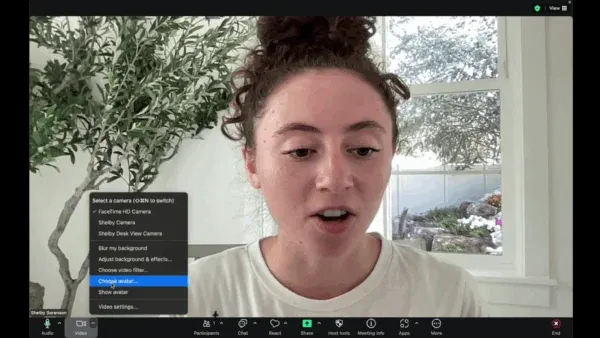
Step 2: Browse the Available Avatars
- Browse through the available animal avatar options, such as cat, cow, dog, and bunny.
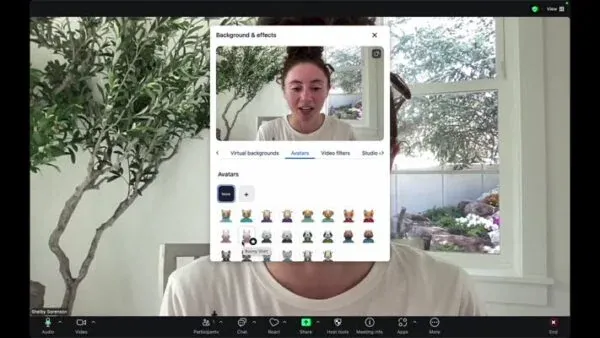
Step 3: Select an Avatar
- Choose your preferred avatar and click the ‘X’ button to confirm. The avatar’s mouth syncs up with your speech, and blinking is also synchronized.
- Note that only the face syncs with your actions; hand movements are not captured.
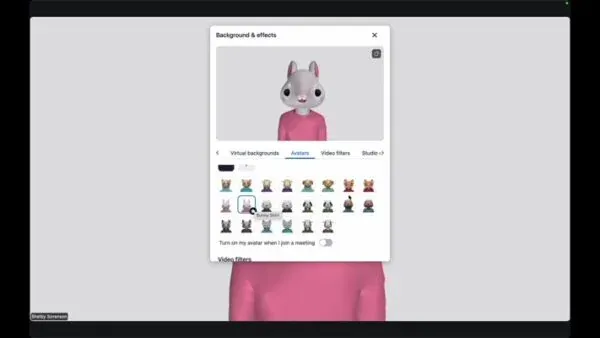
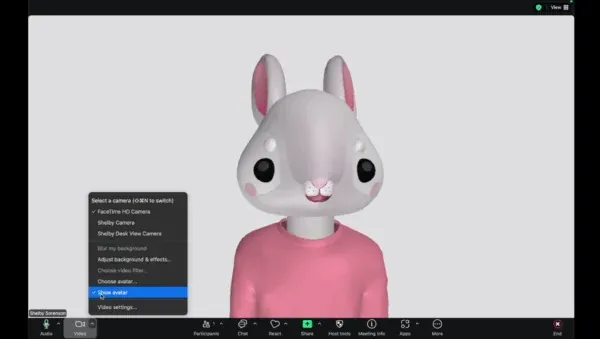
Step 4: Select “Show Avatar” to Remove
- If you wish to remove the avatar, go back to the video settings, click the arrow, and select “Show Avatar” to revert to your original video.
The Ultimate Guide to Using Avatars in Zoom Video Meetings
Virtual meetings can sometimes feel repetitive or formal, but Zoom’s animated avatars bring a bit of personality and fun to your calls. Whether you’re joining a team check-in, hosting a class, or attending a casual catch-up, avatars let you express yourself in a new way.
With this feature, you can replace your live video feed with a virtual animal avatar that mirrors your facial movements. It’s a creative and lighthearted way to show up on screen without having to be camera-ready.
Why Zoom avatars are useful
Avatars aren’t just for fun — they can help make remote meetings more engaging. If you’re working from home and prefer not to turn on your camera, an avatar allows you to remain visually present in a way that feels more personal than just an empty name tile.
They also help reduce screen fatigue by adding animation and variety to otherwise static meetings. Educators, presenters, and team leads often use avatars to make sessions more interactive and approachable, especially when working with large or mixed audiences.
How avatars work in Zoom
Zoom’s avatars use facial recognition to mirror your expressions in real time. When you speak, the avatar’s mouth moves in sync with your words. It also blinks and subtly shifts to simulate natural movement.
Currently, avatars are limited to animal characters like cats, cows, dogs, and bunnies. Each avatar maintains your facial expressions but does not capture your hand gestures or body movement.
When you activate an avatar, it replaces your video feed during the meeting. Others will see your chosen character animated as you talk, making your presence more dynamic and friendly.
Getting started with avatars
To start using avatars, make sure your Zoom app is updated to the latest version, as the feature is available only on newer releases. You can access avatars through the video settings while in a meeting.
Once inside, browse through the available options and choose the one that best fits your style or mood. You can switch avatars at any time, allowing for a more playful or professional look depending on your audience.
When you’re done using the avatar, simply return to your video settings and select the option to turn it off. Your camera will return to showing your live feed instantly.
Adding personality to your meetings
Avatars are a creative way to show up authentically while maintaining a relaxed environment. They’re especially popular in casual team check-ins, brainstorming sessions, and online classrooms where keeping the energy high is important.
You can use avatars to express how you’re feeling, react to jokes, or make presentations a bit more memorable. While they’re playful by design, they still serve a practical purpose by helping participants feel connected, even without turning on their cameras.
When to use avatars professionally
Although avatars are fun, they should still be used thoughtfully in professional contexts. For team bonding, remote socials, or informal brainstorming sessions, avatars can lighten the mood. However, for formal client meetings, interviews, or executive presentations, it’s best to keep your camera on or use a professional virtual background instead.
If you’re leading a team, setting expectations about when avatars are appropriate can help keep meetings productive and engaging. The goal is to balance fun with focus.
Benefits of using Zoom avatars
Using avatars in Zoom meetings has both creative and practical advantages:
-
Comfortable presence: Participate without feeling pressured to appear on camera.
-
Engagement: Keep conversations lively with visual animation.
-
Inclusivity: Help participants who feel shy or anxious about being on video.
-
Variety: Break the monotony of standard meetings with something fresh.
-
Ease of use: Activate avatars directly from your Zoom settings in seconds.
These benefits make avatars a simple yet effective feature for boosting morale and making virtual interactions feel more human.
Conclusion
Zoom avatars are a fun and modern way to add expression to your video meetings. They help you stay visually present without always turning on your camera, making conversations feel lighter and more engaging.
Whether you’re teaching a class, collaborating with teammates, or just looking to bring some joy to your workday, avatars let you express yourself in a creative way. With a few clicks, you can transform your on-screen presence and make your meetings more dynamic than ever.
So next time you’re joining a casual call, try out an avatar and see how it changes the vibe of your meeting. Sometimes a little animation goes a long way.
Frequently Asked Questions
Zoom avatars are animated characters that replace your live video feed during meetings while mirroring your facial movements and expressions.
Avatars are available on desktop and laptop versions of Zoom. Mobile users may have limited functionality depending on their device and app version.
While in a meeting, click the arrow next to your video icon, open video settings, and select the “Choose Avatar” option.
No. The avatar feature relies on your camera to track facial movements, so you’ll need your camera enabled for it to work.
Currently, Zoom offers animated animal avatars, but more customization options may be added in future updates.
As of now, Zoom does not support uploading or designing custom avatars. You can only choose from the available options.
Not significantly. However, using avatars may slightly increase CPU usage since your camera remains active for motion tracking.
Simply go back to the video settings, select the same menu, and choose the option to show your camera again. Your regular video feed will reappear.


