How to Extract the Color Code Using Zight’s Free Tool
This quick guide shows you how to extract the exact color code from any image using Zight’s free color picker tool.
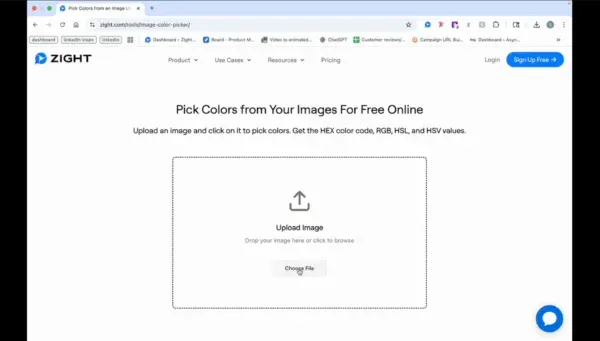
Step 1: Upload Your Image
- Click on “choose file” or drag and drop your image into the designated area.
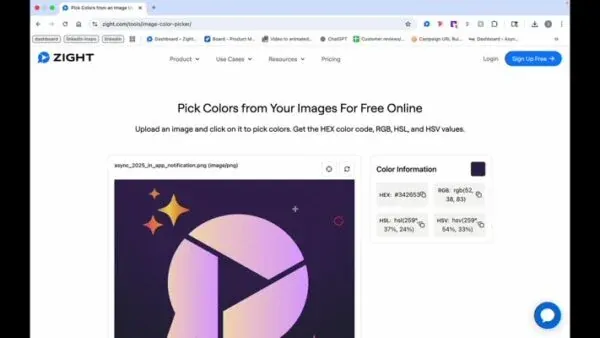
Step 2: Select a Color
- Click on the area with the color you want to analyze.
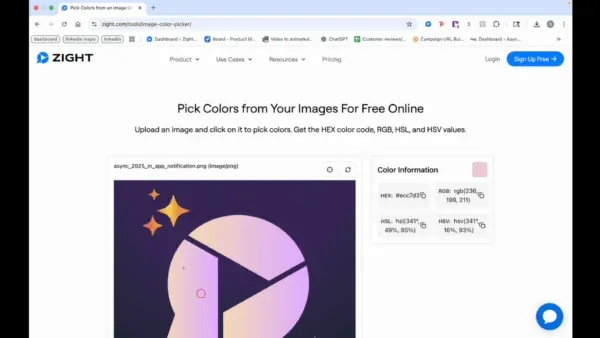
Step 3: Change Color Selection
- If needed, click on a different area to change the color information.
The Ultimate Guide to Extracting the Color Code Using Zight’s Free Tool
Color plays a major role in design, branding, and visual communication. Whether you’re creating a presentation, updating your website, or designing marketing materials, having the right color consistency can make all the difference. Zight’s free color picker tool makes it simple to extract the exact color code from any image in just a few clicks.
This easy-to-use online tool helps designers, marketers, and creators capture precise color values without needing advanced software. It’s perfect for anyone who wants to maintain visual consistency or quickly match a color from an image to their digital projects.
Why you should use a color picker tool
If you’ve ever seen a color you loved in a photo or graphic and wondered what exact shade it was, a color picker tool can solve that instantly. Instead of guessing or using design software, Zight’s free color extractor gives you the exact hex code, RGB, or HSL value right away.
This is especially useful for brand design, where color consistency is key. Using the same shades across your website, logo, and marketing materials helps create a cohesive look that your audience instantly recognizes.
For content creators, it’s also a great way to keep visuals on-brand, ensuring every thumbnail, banner, and background aligns perfectly with your company’s palette.
How Zight’s color picker tool works
Zight’s color picker is designed for simplicity. You start by uploading an image directly from your device — it can be a photo, screenshot, or design file. Once the image loads, click anywhere on it to select the color you want.
The tool instantly displays the corresponding color code so you can copy and reuse it in your design software or web projects. If you change your mind or want to compare other shades, you can click on a different area of the image to extract another code.
Everything happens directly in your browser, so there’s no need for downloads or sign-ups. It’s quick, accurate, and completely free to use.
Benefits of extracting color codes with Zight
There are many reasons to use Zight’s free color picker over traditional design tools.
-
No software required: You can access it directly online from any device.
-
Fast and accurate: Get instant color values without complex setup.
-
Perfect for branding: Easily extract and match your brand colors.
-
Ideal for web and design projects: Copy hex or RGB codes directly into tools like Figma, Canva, or Adobe Creative Cloud.
-
Free forever: Zight’s color picker is available at no cost, making it a convenient solution for individuals and teams alike.
Whether you’re creating a mood board, designing a presentation, or adjusting your website’s theme, Zight makes it easy to stay visually consistent.
How it helps designers and creators
Designers and marketers often need to identify and reuse colors from different sources. With Zight, you can upload product photos, screenshots, or marketing images and instantly get the color details you need.
For instance, if you’re designing social media graphics and want to match your background color to your brand’s logo, the color picker gives you that exact match within seconds. This ensures every design feels intentional and unified, even when working with multiple visual assets.
Freelancers, content creators, and in-house teams can all benefit from this streamlined workflow. It saves time, eliminates guesswork, and helps maintain a consistent look across digital materials.
Adding extracted colors to your design projects
Once you’ve copied your color code, you can easily add it to your preferred design tool. In Figma, for example, you can paste the hex code directly into the color selector. In Canva or Photoshop, the same code can be entered to ensure perfect color matching.
This level of precision helps maintain brand alignment and ensures that your projects look professional across platforms. Whether you’re building a website, editing a presentation, or designing printed materials, using the exact same color code guarantees visual consistency.
Zight’s tool also allows for quick experimentation. You can sample multiple areas of an image to build a palette that complements your brand’s existing color scheme.
Best practices for color consistency
When working with colors across different platforms, it’s important to follow a few best practices:
-
Keep a record of your color codes. Create a simple brand guide that includes hex and RGB values for quick reference.
-
Use the same color profiles. Consistency between RGB (for digital) and CMYK (for print) ensures accurate reproduction.
-
Test on different screens. Colors can look different depending on the device or display settings.
-
Stick to your brand palette. Too many variations can make your designs look inconsistent.
By using Zight’s color picker regularly, you’ll always have your colors ready and accurate for any project.
Conclusion
Extracting color codes doesn’t have to be complicated. With Zight’s free color picker tool, you can capture the exact shade you need from any image in seconds. It’s a simple, reliable way to maintain brand consistency and improve your design workflow without downloading extra software.
Whether you’re building a presentation, designing a website, or curating your brand palette, Zight gives you everything you need to work smarter and faster.
Try it out today and see how easy it is to bring precision and consistency to every color in your creative projects.
Frequently Asked Questions
A color code is a digital identifier, usually in hex or RGB format, that represents a specific color used in design or web development.
Yes. Zight’s color picker tool is completely free to use and requires no sign-up.
You can upload most common image formats, including JPEG, PNG, and GIF.
Yes. It typically provides hex and RGB codes so you can use them in various design tools.
Absolutely. You can click on different parts of the image to pick and compare multiple color codes.
No. Zight’s tool works entirely in your web browser, so there’s no need for installation.
Yes. The tool is mobile-friendly and works on both smartphones and tablets.
You can copy the code and paste it into any design software, web project, or brand document to ensure color consistency.


