Extract OCR from Screenshots Using Zight Mac App
Easily extract text from images using Zight’s OCR feature for the Mac app. Note that for now this is only available on Mac. This guide walks you through how to take a screenshot, access it in the Zight Mac desktop app, and use built-in OCR to quickly copy and reuse text from the image—perfect for grabbing content from websites, documents, or apps in just a few clicks.
Step 1: Take a Screenshot
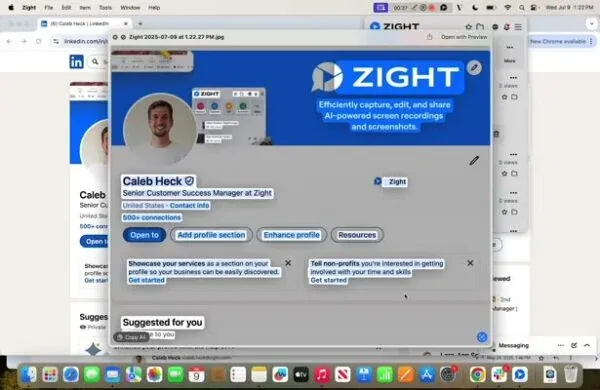
- Hover over your LinkedIn profile or the area you want to capture.
- Capture the screenshot.
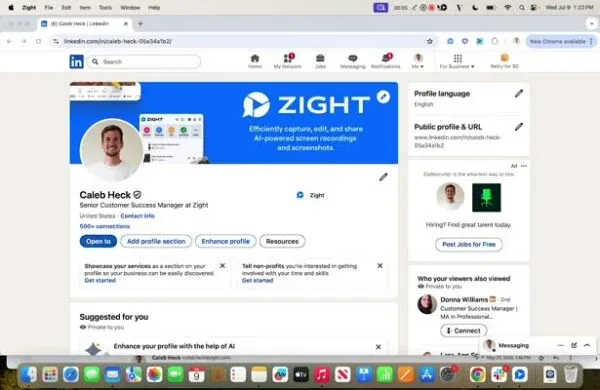
Step 2: Open the Desktop App
- After capturing the screenshot, open your desktop app.
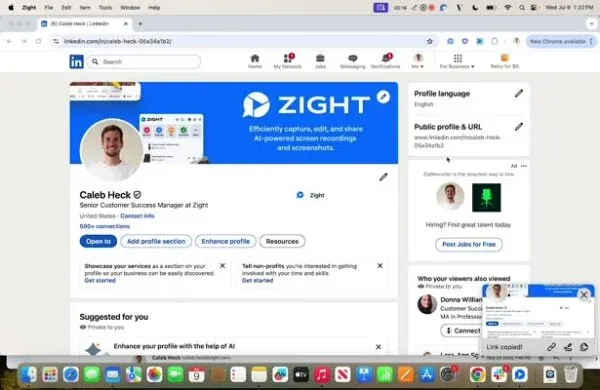
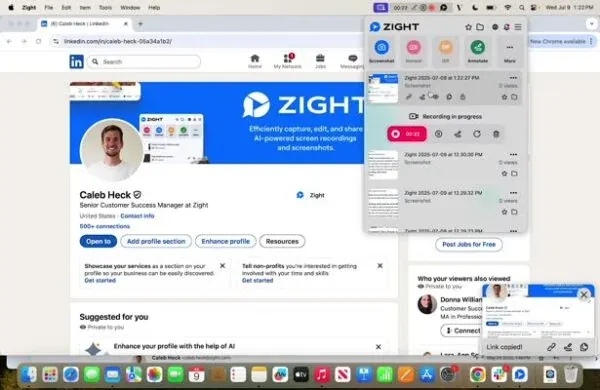
Step 3: Hover Over the Screenshot
- Find the screenshot you just took and hover over it.
- Press the spacebar to open options.
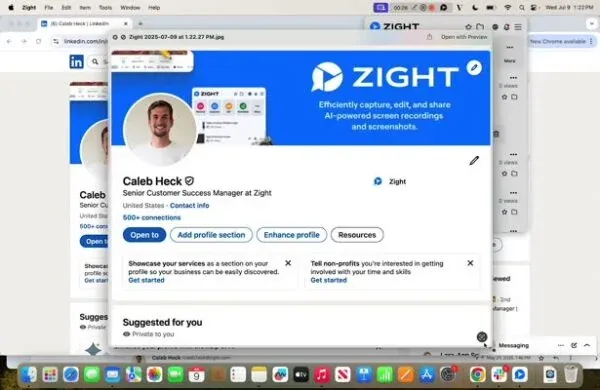
Step 4: Select Text to Copy
- At the bottom right, choose whether to copy all text or hover over the specific text you need.
Step 5: Paste the Text
- The text is now ready to be pasted wherever necessary.
The Ultimate Guide to Extracting OCR from Screenshots Using the Zight Mac App
If you’ve ever found yourself retyping text from an image, document, or webpage, you know how tedious it can be. Optical Character Recognition, or OCR, makes that problem disappear. Zight’s OCR feature for the Mac app lets you capture a screenshot and instantly extract text from it, saving you time and effort.
With this tool, you can quickly grab text from websites, PDFs, or applications and paste it directly into your notes, documents, or chat messages. It’s fast, accurate, and built directly into Zight’s Mac app, making it easy to use without switching between multiple tools.
What is OCR and how does it work
OCR stands for Optical Character Recognition. It’s a technology that converts text within images into editable and searchable text. For example, if you take a screenshot of a web page, Zight’s OCR can identify the words in that image and let you copy them as plain text.
This technology uses advanced pattern recognition to detect letters, numbers, and even punctuation marks. Once recognized, you can copy and paste the extracted content anywhere you like. It’s ideal for anyone who frequently works with visual content, such as designers, marketers, educators, or customer support professionals.
Why Zight’s OCR feature is a game changer
Zight’s OCR feature simplifies workflows by combining two powerful tools: Screenshots and Text Extraction. Instead of juggling different apps to capture an image and pull text from it, you can do everything directly in Zight.
You can take a screenshot of any area on your screen—like a quote from an article, code from a developer console, or a section of a PDF—and instantly convert it to text. The process takes seconds and works seamlessly within the Zight Mac app.
It’s particularly useful when you need to copy content from files or apps that don’t allow direct text selection.
How OCR improves productivity
Manually retyping text wastes valuable time and introduces errors. Zight’s OCR tool eliminates those issues by accurately capturing every word from your screenshot. This is especially helpful for:
-
Copying information from static images or scanned documents
-
Extracting text from slides, infographics, or PDFs
-
Capturing quotes from videos, presentations, or web pages
-
Collecting data from software tools or dashboards
By automating this process, teams can focus on using the information instead of reproducing it.
A closer look at how it works in Zight
When you capture a screenshot with the Zight Mac app, it automatically appears in your library. From there, you can hover over the screenshot to access additional options. Zight’s OCR feature lets you copy all detected text at once or highlight and extract only the parts you need.
Once copied, you can paste the text wherever you need—into an email, document, or Slack message. The extracted text maintains its formatting and accuracy, even for complex layouts.
It’s a lightweight, efficient feature that fits naturally into your existing workflow.
Benefits of using OCR with Zight
Zight’s OCR is designed to make information more accessible and usable. Some key benefits include:
-
Speed: Convert images to text instantly without leaving the app.
-
Accuracy: Get reliable text recognition with minimal errors.
-
Simplicity: Access the feature directly from the Zight Mac app.
-
Versatility: Works across web pages, apps, documents, and PDFs.
-
Convenience: Copy and paste extracted text anywhere you need it.
By integrating OCR into your daily routine, you can streamline repetitive tasks and improve efficiency.
Practical ways to use Zight’s OCR
There are countless ways to apply OCR in your daily work. For example, customer support teams can capture screenshots of error messages and extract the text for documentation or troubleshooting. Marketers can grab text from visual reports or competitor sites for reference.
Educators can extract content from slides or course materials to create summaries or study guides. Developers can copy error logs or code snippets from screenshots. In short, anyone who works with visual information can benefit from OCR.
Conclusion
Zight’s OCR feature for the Mac app is a powerful tool that transforms how you handle visual information. By allowing you to extract text directly from screenshots, it removes the need for manual typing and makes data capture quick and efficient.
Whether you are gathering research, documenting feedback, or collecting information from web pages, OCR helps you get more done in less time.
If you are a Mac user, explore Zight’s OCR feature today and see how easily you can convert images into usable text with just a few clicks.
Frequently Asked Questions
OCR stands for Optical Character Recognition. It is the technology that identifies text within images and converts it into editable text.
Currently, OCR is available only in the Zight Mac desktop app.
No. OCR works directly within the Mac app, so you can extract text even when offline.
Yes. Zight lets you choose whether to copy all text or highlight and copy specific portions of it.
High-quality screenshots or images with clear, legible text provide the most accurate results.
Yes, but accuracy may vary if annotations overlap the text you are trying to extract.
Yes. You can open any existing screenshot in your library and use the OCR feature to extract text.
Yes. Zight’s OCR can recognize and extract text from multiple languages, though accuracy may vary depending on the font and image clarity.


