
Instead of repeating a screen walkthrough in every Microsoft Teams conversation, record it once in Zight and paste its shareable link into the relevant chat or channel. This 2026 workflow covers capture, access checks, posting, and follow-up; it uses link sharing rather than assuming a native connector or automatic synchronization.
- Use the Zight Microsoft Teams integration workflow below for screen recording and shareable links, without assuming automatic synchronization.
- Test recording access separately from Microsoft Teams membership before posting a link.
- Keep the recording, written summary, and requested action together in the same conversation.
- Use synthetic examples for healthcare training; require organizational approval before handling patient information.
Why this matters
A recording without context makes the recipient investigate. A Teams message without visual evidence makes the sender explain the same problem again. Put the recording link beside the symptom, expected behavior, and next action so the recipient knows what to inspect.
Zight screen recording is best for teams that need to explain a workflow or troubleshoot asynchronously through shareable links. Its role in this workflow is capture and sharing; Teams provides the conversation around the recording. The Zight website describes the screen recording, screenshot, and documentation software behind that capture step.
Keep the limitation clear: posting a recording link is not the same as installing an integration. This guide does not require an app installation, automated notification, or account connection between the services. A successful post also does not prove that every recipient can open the recording.
Before you start
- Prepare your accounts and destination. You need access to the recording software, permission to capture the material, and a Teams chat or channel where you can post. Identify the person responsible for the next action.
- Prepare a clean example. Close unrelated windows, silence notifications, and replace customer or employee information with synthetic material. For a 2026 training example, use a fictional task rather than an active customer case.
- Check the access boundary first. Teams membership and recording access are separate checks. Test the recording with an intended recipient before treating a pasted link as a finished handoff, especially when guests or external organizations are involved.
Decide what the viewer must do before you record. Reproduce an error, approve a change, or follow a procedure: choose one outcome and show only the material needed to reach it.
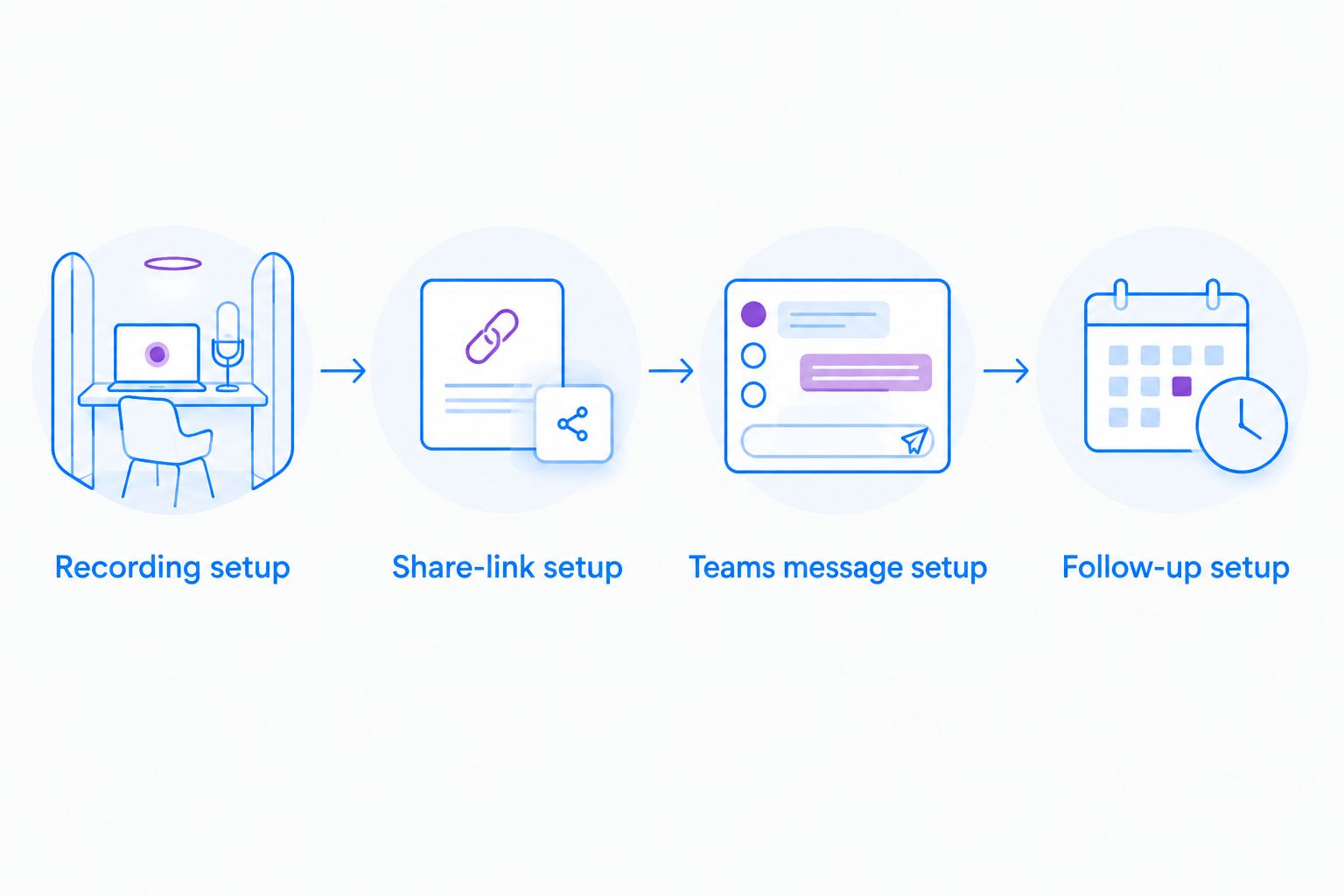
Recording setup
- Define the outcome. Write a sentence that finishes this instruction: after watching, the recipient should be able to perform or decide something specific. Use that sentence as your recording brief.
- Prepare the starting state. Open the relevant application and place it at the point where the explanation begins. Remove unrelated tabs and sensitive information before capture starts, not during the explanation.
- Select the capture area. Use the recording controls to choose the screen content you intend to show. Check the boundary carefully so menus and error messages remain visible without exposing unrelated work.
- Check your narration. If the explanation needs speech, confirm that your intended microphone is selected in the recording software. Make a 10-second test and play it back before recording the full walkthrough.
- Record the task. State the goal, demonstrate the relevant actions, and finish with the decision or next step. Aim for a 60-second first version when the task is narrow; split a longer procedure at meaningful task boundaries rather than rushing.
- Review the result. Watch the recording before sharing it. Confirm that text is readable, the important action appears on screen, and no private information entered through a notification or background window.
Expected result: you have a reviewed recording that answers a defined question. The viewer should not need an additional meeting just to understand what the recording is about.
A screenshot is sufficient when the issue is a static state, such as a misplaced field or an error message. Use video when the order of actions matters. Neither format replaces a written statement of the requested outcome.
Share-link setup
- Obtain the recording link. Use the recording's sharing controls to copy its shareable link. Keep that link with the reviewed recording rather than substituting a link to an unrelated account page.
- Inspect the sharing conditions. Review the access controls available for the recording and your organization's sharing rules. Choose the audience deliberately; do not broaden access simply to remove a sign-in obstacle.
- Test the recipient's experience. Ask an intended recipient to open the link using the account they normally use for work. For external handoffs, test with the intended external recipient rather than relying on your own authenticated session.
- Check the content again. Confirm that the link opens the correct recording, that playback works, and that the recording still matches the task you plan to describe.
Expected result: the intended recipient can reach the correct recording under the approved access conditions. A successful test in your own browser is not a substitute for this check.
Treat the recording link as part of the information being shared. Avoid pasting it into broader conversations, reusable templates, or public documentation unless that audience is approved for the content. Apply the same review to screenshots included in the handoff.
Teams message setup
- Open the destination. Choose the Teams chat or channel associated with the work. Put a support investigation with the support case discussion, and place a procedure update where its owners already coordinate.
- Write the summary first. Name the task or problem before adding the recording link. A reader scanning the conversation should understand the subject without opening the video.
- Paste the shareable link. Keep the link next to its explanation. If Teams displays a preview, inspect it for unintended information; a preview is not evidence that recipients have playback access.
- Request a specific action. Ask the recipient to reproduce the issue, review the proposed change, or confirm the procedure. Include a deadline only when the work has a real deadline.
- Select the recipient deliberately. Address the person or team responsible for the next step rather than notifying a wider group without a clear reason.
- Select Send. Use Send after checking the destination, link, and action. Keep subsequent discussion in the same conversation so the explanation and its resolution stay connected.
Expected result: your Teams message contains the subject, recording link, and requested action together. The recipient knows both what to watch and what response you need.
Use this message pattern, replacing the descriptive text with your actual task:
- Subject: settings change does not persist after reopening the page.
- Evidence: paste the reviewed recording link.
- Expected result: the selected setting remains after reopening.
- Requested action: reproduce the behavior and report the result in this conversation.
The example describes a fictional software issue. Keep real credentials, customer records, and confidential identifiers out of the message and recording.
Follow-up setup
- Request confirmation. Ask whether the recipient can open the recording and understand the next action. Separate an access problem from disagreement about the underlying work.
- Record the outcome. Add the resolution or decision to the original conversation. Do not leave the final answer only inside a later recording that other participants must discover.
- Label changed instructions. If the process changes, identify the newer recording clearly and explain which instruction replaces the earlier one. A label such as “2026 procedure revision” needs a specific subject alongside it.
- Retest access when the audience changes. Moving a discussion to another team or adding an external collaborator creates a new handoff. Check the recording's intended audience again.
Expected result: the conversation contains a usable explanation and a visible outcome, with changes distinguished from the original instructions.
Share a new recording whenever a procedure changes
For recurring work, use an update workflow rather than reposting an unexplained link. Capture the changed steps, identify the procedure, and state what the new explanation replaces. This is a repeatable manual process, not a claim that either service detects changes automatically.
| Workflow | Best for | Main advantage | Main limitation |
|---|---|---|---|
| One-off recording handoff | Support investigations and specific review requests | Keeps evidence beside the immediate question | Does not create a maintained procedure by itself |
| Procedure-update handoff | Operations training and repeatable team tasks | Explains the change and preserves discussion | Requires an owner to maintain instructions and identify replacements |
For the update workflow, assign a procedure owner before sharing. Ask that owner to verify the demonstration against the written instructions and acknowledge the update in the conversation. Keep the authoritative procedure separate from informal discussion so staff know which instructions to follow.
For a 2026 onboarding procedure, include the task name, intended audience, and revision context in the message. Do not rely on a recording date alone: it tells the reader when something was captured, not whether the procedure is approved.
Apply the workflow to healthcare safely
Use synthetic examples for healthcare demonstrations. A screen recording shared in Teams is not automatically HIPAA compliant, and a link-sharing workflow does not establish a compliant configuration.
Before recording protected health information, have your security and compliance owners verify current plan requirements, BAA availability and coverage, permitted features, recipient access, and organizational policies with the relevant providers. This guide does not authorize a patient-data workflow.
Apply that boundary equally across healthcare teams:
- Support and IT troubleshooting: reproduce an application issue in a test environment with fictional records. Show the error and reproduction steps, not a live patient chart.
- Clinical teams recording or requesting videos: use synthetic demonstrations for workflow training. Require organizational approval of the recording or request process before anyone submits patient information.
- Operations training and SOPs: demonstrate scheduling, routing, or administrative procedures with fictional details. Have the procedure owner review the instructions before distribution.
For a 2026 healthcare rollout, complete the approval and access review before inviting staff to submit recordings. Training material should show the approved process rather than asking staff to decide which patient information is safe to share.
Troubleshooting
The recipient cannot open the recording
Check recording access separately from Teams access. Confirm that the recipient is using the intended account and that the recording's sharing conditions permit that audience. Do not make the recording broadly accessible as a shortcut around an organizational restriction.
The link works for you but fails for a guest
Your signed-in session does not reproduce the guest's experience. Ask the guest to test through the approved external-sharing process, then have the appropriate administrator review restrictions if access remains blocked.
The message has no preview
Test the link directly before treating a missing preview as a broken recording. Keep the written summary and requested action in the message so the handoff remains understandable without a preview card.
The recording has missing narration or unreadable text
Review the source recording before changing Teams settings. Repeat the microphone test for missing speech, or recapture a narrower area when essential text is too small. Post the corrected explanation with a clear replacement note.
Viewers follow an outdated procedure
Add a correction to the original conversation and identify the current instructions. Ask the procedure owner to review other places where the older recording was shared; correcting one message does not update every reference.
Customize your workflow
Standardize the message before adding automation. A consistent subject, recording link, expected result, and action gives support, product, and engineering teams the same handoff structure without requiring the same business process.
For Zight screen recording handoffs, keep capture quality and recipient access as separate acceptance checks. A technically clear video still fails if the audience cannot open it; an accessible recording still fails if it does not answer the question.
Before purchasing software for a wider rollout, test an internal handoff and an approved external handoff. Ask evaluators to judge the complete workflow: capture, playback, sharing controls, recipient effort, and maintenance. Use those findings to define requirements rather than assuming a connector name proves workflow fit.
FAQ
How do I use the Zight Microsoft Teams integration workflow?
Record your screen, copy the recording's shareable link, and paste it into the relevant Teams conversation with a summary and requested action. This guide describes link sharing, not a native connector or automatic synchronization.
Do I need to install a Teams app to follow this guide?
This link-sharing workflow does not require installing a Teams app. You need permission to post in the destination and an approved way to share the recording with its intended audience.
Can everyone in a Teams channel open the recording?
Channel membership does not establish recording access. Test the link with an intended recipient and check the recording's sharing conditions separately.
Should I share a screenshot or a screen recording?
Use a screenshot for a static state and a screen recording when the sequence of actions matters. Add a written summary and requested action with either format.
Can I share patient information in a screen recording?
Do not share patient information through this workflow without organizational approval of the complete configuration. Verify current plan requirements, BAA coverage, permitted features, and access controls; use synthetic examples for training.
Will Teams automatically update my procedure when I record a replacement?
This workflow includes no automatic procedure-update step. Identify the replacement recording in the conversation and have the procedure owner update the authoritative instructions.
One last thing
Test the handoff as the recipient, not just as the sender. Ask someone unfamiliar with the task to open the link, explain the requested action, and identify the expected result. If they need a second explanation, fix the message or recording before distributing it more widely.