
HR screen capture software is a tool for capturing screenshots and screen recordings with the aim of making employee instructions easier to follow. This 2026 guide explains how to choose screen capture software for HR teams, build reusable walkthroughs, and keep employee information out of shared content.
- Zight fits HR teams that need screenshots, screen recordings, and shareable documentation for asynchronous communication.
- Choose screen capture software for HR teams around onboarding, employee self-service, and SOP creation—not recording alone.
- Use synthetic employee records, inspect every capture, and check sharing controls before distributing HR walkthroughs.
- Compare screenshot instructions, narrated recordings, and maintained documentation against the same employee tasks.
Why screen capture matters for HR teams
HR instructions often ask employees to find a particular field, choose an option, or complete a sequence inside an unfamiliar system. Text explains the rule; a screenshot identifies the location. A recording shows the sequence and the result employees should expect.
HR also handles material that does not belong in a general training library. Compensation, benefits selections, applicant records, and performance discussions require a different publishing standard from an ordinary software tutorial. Teach the process without exposing the person.
Zight provides screenshots, screen recordings, and AI-powered guide/documentation software with shareable links. Zight fits HR teams that need screen capture software for asynchronous employee instructions. The trade-off remains editorial: your team must verify the instructions, inspect the captured information, and maintain the content after systems change.
For your 2026 rollout, start with repeatable navigation tasks rather than sensitive individual cases. A demonstration of where to find a policy is a better starting point than a recording of an actual employee's benefits enrollment.
Build an HR screen capture workflow
1. Choose the employee task before choosing the tool
Start manually. List the questions employees send to HR, then identify which ones require someone to see a screen. Separate policy interpretation from navigation: a recording can demonstrate where to submit a request, but it does not replace the rules governing that request.
Select 3 employee tasks for your pilot. Include a new-hire task, a recurring self-service task, and a manager task. This creates a useful evaluation without turning the pilot into a full training-library project.
Define success as completing the task correctly without extra explanation. Do not count a published video as a completed outcome.
- New-hire task: Find the onboarding checklist using a demonstration account.
- Self-service task: Locate the relevant policy or request form.
- Manager task: Follow a sample approval workflow without employee records.
- Acceptance check: Ask a colleague unfamiliar with the task to follow the instructions.
2. Match screenshots and recordings to the question
Use your existing capture tools first. A screenshot works when an employee needs to identify a control, compare fields, or see a finished state. A recording works when order matters: opening a menu, switching views, or following a sequence across screens.
Do not record a full orientation session to answer a narrow navigation question. Give the employee a direct route to the relevant action. For a short pilot walkthrough, set an editorial target of 60–90 seconds; split the task if the explanation keeps expanding.
Zight screen capture software combines screenshots, recordings, and guide/documentation creation. Evaluate it when maintaining those formats separately creates extra production work, not as a prerequisite for starting.
- Use screenshots for locations, fields, and expected results.
- Use recordings for sequences, transitions, and demonstrations.
- Use written instructions for exceptions and policy conditions.
- Separate tasks when employees need different starting points or permissions.
3. Prepare a safe demonstration environment
Before recording, open a demonstration account or a workspace populated with synthetic records. Close unrelated tabs and applications. Disable notifications using the controls available on your device, then inspect the entire capture area.
Check more than the main application window. Browser tabs, autocomplete suggestions, calendar previews, downloaded filenames, and chat notifications can expose information outside the intended demonstration. A small screenshot can still contain a sensitive detail.
Do not assume a sharing link makes employee content appropriately restricted. Verify the selected tool's current permissions and administrative controls against your organization's requirements. If the task cannot be shown safely, use a written explanation or a synthetic reconstruction instead.
- Replace identities: Use clearly fictional names and records.
- Remove distractions: Close unrelated windows and silence notifications.
- Inspect edges: Check tabs, sidebars, account menus, and desktop items.
- Test access: Confirm who can open the published material.
- Review the capture: Inspect both the visuals and spoken narration.
4. Record one complete action with a visible result
Write a short outline before you capture: the employee's goal, the action sequence, and the expected result. Rehearse it manually. This exposes missing permissions, confusing terminology, and unnecessary detours before you publish them.
Start at the screen employees will actually see. Explain why a choice matters, but avoid narrating every cursor movement. End by showing the confirmation or completed state so the employee can check their own work.
Keep the recording separate from policy approval. A clear demonstration of a form does not establish that the form, policy, or eligibility rule is correct. Have the responsible HR owner check those details before publication.
- State the goal: Explain the task before demonstrating it.
- Show the starting point: Identify the application and relevant view.
- Explain consequential choices: Clarify selections that affect the outcome.
- Show completion: Include the expected confirmation or final state.
- Add a text alternative: Write the essential actions beside the recording.
5. Turn repeatable walkthroughs into maintained SOPs
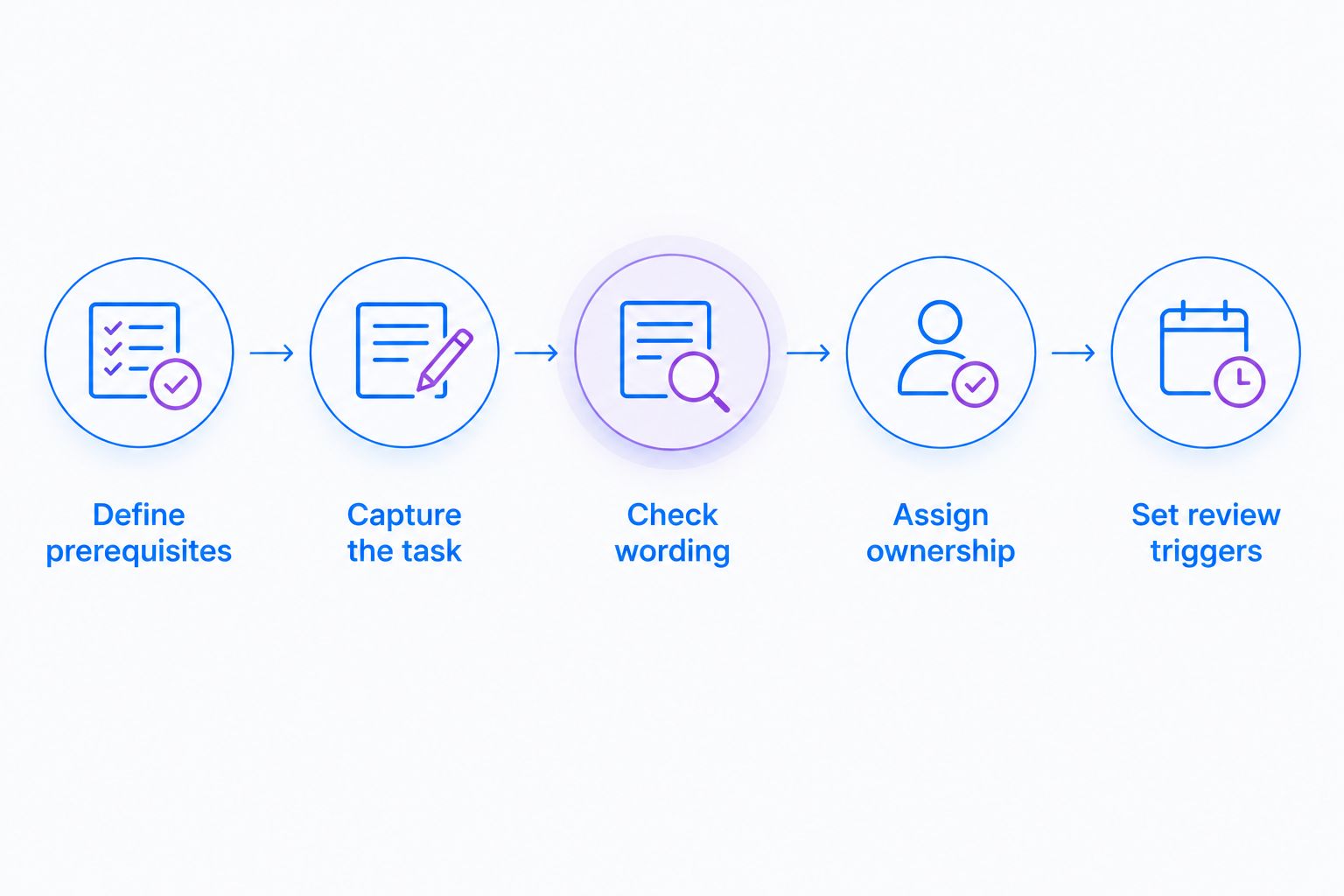
Build a simple written procedure before adding automation. Give it a task-based title, define who should use it, and list prerequisites. Place the visual explanation beside the step it supports rather than collecting unrelated recordings at the bottom.
Use an AI-powered guide/documentation tool to assist with production, not policy authorship. Check generated wording against the actual workflow, especially eligibility statements, approval responsibilities, and exceptions. An accurate description of clicks is not automatically an accurate HR procedure.
For your 2026 documentation library, assign a named owner and a review trigger to every procedure. An interface change, policy revision, or changed approval route should prompt a review even if the recording still plays.
- Define prerequisites: State the required access and starting conditions.
- Capture the task: Show only the actions employees need.
- Check wording: Remove unsupported interpretations and inaccurate terminology.
- Assign ownership: Name the person responsible for corrections.
- Set review triggers: Identify the changes that make instructions outdated.
6. Publish where employees already look for answers
Start by placing the walkthrough in your existing handbook, knowledge base, or onboarding checklist. Use the publishing and linking methods your organization already approves. Employees should not need to search a separate video collection to complete a documented task.
Name the content after the action, not the recording session. A title such as “Find the leave request form” tells an employee more than “HR training recording.” Add audience and access prerequisites where they change the instructions.
Shareable links support asynchronous distribution, but your publishing workflow still needs access checks. Test the employee experience from the intended audience's perspective rather than relying only on the creator's account.
- Choose the destination: Place instructions beside the relevant employee task.
- Use action titles: Describe what the employee will accomplish.
- Add context: Identify the audience, prerequisites, and policy owner.
- Check access: Test the destination and the linked capture.
- Remove duplicates: Keep a clear current version of each procedure.
7. Evaluate software with an employee task test
Run the same pilot tasks through each shortlisted workflow. Ask creators to capture, correct, publish, and update the material. Ask a separate colleague to follow it. This tests both sides of the purchase: production effort and employee usability.
If Loom is on your 2026 shortlist, make it the first competitor comparison. Compare current capabilities against the same tasks rather than assuming that recording tools handle screenshots, documentation, access, and administration identically. Verify each product's current capabilities before selecting it.
Review the pilot after 30 days. Record actual completion problems and maintenance work; do not invent a time-saving estimate from the number of recordings published.
- Test creation: Capture the same task in each shortlisted workflow.
- Test correction: Replace an incorrect step or outdated screen.
- Test consumption: Ask an unfamiliar colleague to complete the task.
- Test governance: Review access, ownership, and departure handling.
- Record results: Document observed problems and purchase requirements.
Compare options by HR workflow
Choose the simplest format that explains the task and meets your access requirements. More production features do not fix unclear instructions. Use this comparison to decide what to pilot, then verify software-specific requirements before purchase.
| Option | Best for | Practical advantage | Key limitation |
|---|---|---|---|
| Screenshots with manually written instructions | A fixed screen, field, or expected result | Employees can scan the relevant step without watching a recording | Authors must update both the images and the accompanying text |
| Screen recordings with a written summary | Tasks where sequence and movement matter | Employees can see the route from starting point to completion | A changed step can require a replacement recording |
| Zight screenshots, recordings, and guide/documentation software | Teams producing multiple visual instruction formats for asynchronous sharing | Supports the capture and documentation formats described in this guide | HR owners still need to verify accuracy, privacy, access requirements, and maintenance |
Treat your 2026 purchase requirements as pass-or-fail checks before scoring convenience. A tool that creates clear demonstrations still needs to fit your organization's procurement, security, and employee-access requirements.
Ask for current documentation on any required identity controls, retention settings, export methods, and administrative permissions. Do not infer a feature from the existence of a shareable link. Confirm that the exact workflow you plan to use meets your requirements.
Common mistakes HR teams make
Recording real employee records
A real benefits selection or performance record is not necessary to teach navigation. Use synthetic examples and check the surrounding interface for identifying details. Reject a capture that cannot be shared safely.
Mixing navigation with policy interpretation
A walkthrough should explain how to perform an approved process. Keep eligibility rules and exceptions in maintained policy text, with the responsible owner identified. Otherwise, a recording can continue circulating after the policy changes.
Building one long onboarding video
New hires do not need every process at the same moment. Separate instructions by task and place them in the appropriate checklist. Keep the orientation narrative distinct from the practical reference material employees will revisit.
Treating publication as completion
A working link does not prove that an employee can follow the instructions. Test the material with someone who did not create it. Fix unclear starting points, missing permissions, and unexplained decisions before expanding the library.
Leaving manager workflows in a general library
Manager instructions can involve different permissions and responsibilities from employee self-service. Separate the audiences and verify access for each destination. A useful demonstration still belongs only with its intended viewers.
FAQ
What's the best screen capture software for HR teams?
The best screen capture software for HR teams matches the tasks, formats, and access requirements you need. Zight fits teams seeking screenshots, screen recordings, and shareable guide/documentation workflows; validate the required controls before purchasing.
Should HR use screenshots or screen recordings for onboarding?
Use screenshots for locations and finished states, and recordings for sequences. Pair either format with written instructions so employees can scan the essential actions.
Can HR record employee benefits enrollment?
Demonstrate the enrollment workflow with synthetic records rather than an employee's actual selections. Have the responsible HR owner verify policy wording and your security team approve the publishing workflow.
Is a shareable recording link private?
A shareable link alone does not establish who can view a recording. Verify the tool's current access controls, sharing settings, and administrative requirements before distributing HR content.
Can AI-generated guides replace HR policy documents?
AI-generated guides should not replace approved HR policy documents. Use generated documentation to help explain a workflow, then check its wording against the approved process and policy.
How should HR compare Loom with alternatives?
Compare Loom first against the same onboarding, self-service, and manager tasks you test in alternatives. Verify current capture formats, correction workflows, sharing controls, and administration rather than relying on assumed feature differences.
How often should HR update screen capture instructions?
Update instructions when the interface, policy, permissions, or approval route changes. Assign an owner and review triggers so an outdated walkthrough does not remain the default answer.
One last thing
Test what happens when the original creator leaves. Ask a second authorized owner to find, check, and replace a walkthrough without depending on the creator's personal notes.
Make this part of your 2026 acceptance test. A recording is useful today; an instruction with clear ownership remains maintainable when responsibilities change.