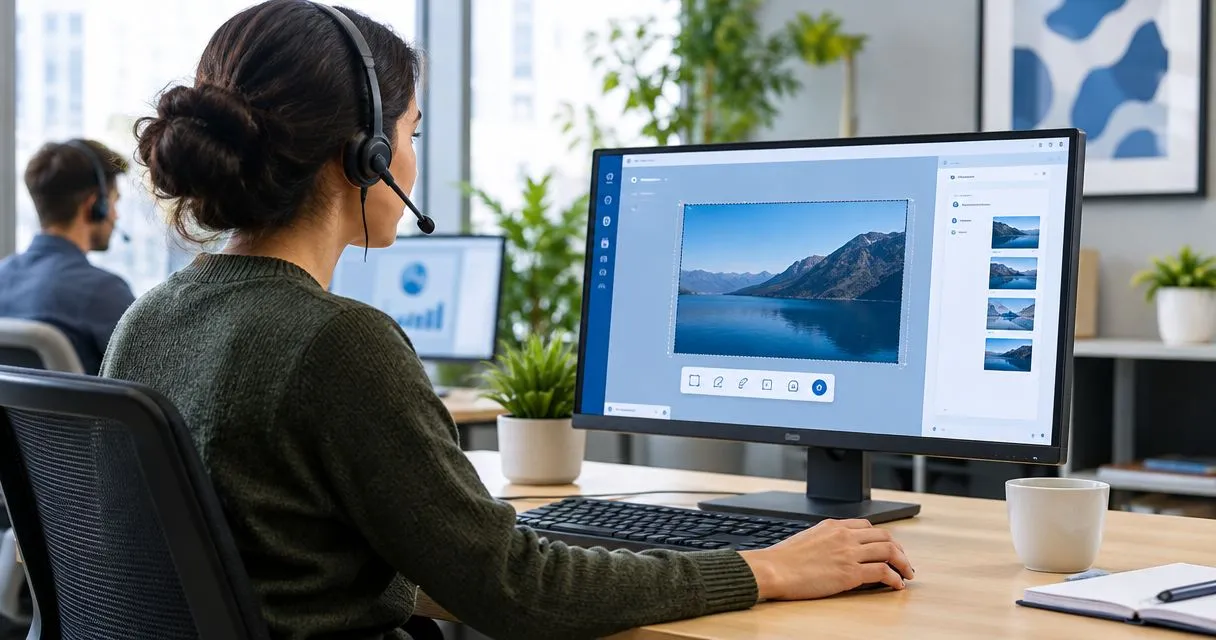
IT help desk screenshot software is a way to capture visible problems and instructions with the aim of resolving support requests without repeated explanations. This 2026 guide to screenshot tools for IT help desk teams shows you how to choose between a screenshot, a recording, and a written ticket while keeping sensitive information out of the capture.
- Zight fits help desk teams that need screenshot tools for IT help desk workflows alongside shareable screen recordings.
- Use screenshots for visible states, screen recordings for sequences, and written tickets for searchable diagnostic details.
- Evaluate capture quality, recipient access, sensitive-data handling, and documentation reuse before choosing software.
- For healthcare workflows, verify current plan requirements, BAA availability, and feature limitations before capturing protected health information.
Why screenshot tools matter for IT help desk teams
A help desk needs evidence that another person can act on. An error description alone leaves room for interpretation; an image shows the message, selected setting, or application state that needs attention. A recording serves a different purpose: it shows the sequence that produces the problem.
Zight is best for help desk teams that need screenshots and screen recordings shared through links. Zight provides both capture formats, alongside AI-powered guide and documentation software. That combination fits troubleshooting and documenting the resolution, but a capture still needs written context.
In 2026, evaluate the entire handoff, not just the capture button. A useful screenshot becomes a poor support artifact when the requester cannot open it, the technician cannot identify the affected environment, or an unrelated account detail appears in the frame.
The goal is specific: give the next person enough evidence to take the next action. Keep ticket ownership, priority, diagnostic notes, and resolution status in your support process rather than expecting an image to carry everything.
Build a capture workflow your help desk can repeat
1. Match the capture format to the question
Start with the screenshot shortcut already available on the technician's computer. Capture a harmless test error and paste it into a draft ticket. This manual test establishes what your team can accomplish without introducing another application.
Choose the format by asking what the recipient needs to understand. A static permission message calls for a screenshot. An intermittent menu problem calls for a recording of the actions leading to it. A text-based error code belongs in the ticket as text, even when the screenshot also shows it.
Use the smallest artifact that explains the problem. A long recording should not replace a readable image when the relevant evidence is a single dialog box. Conversely, a collection of disconnected images should not force the technician to reconstruct an interaction.
- Capture 1 issue per image so the recipient knows what to inspect.
- Copy error codes into the ticket as searchable text.
- Record a sequence only when the order of actions matters.
- Write the expected result beside the observed result.
- Keep the affected application and environment in the ticket description.
2. Standardize what requesters send
Build a short request template before introducing new software. Ask the requester what they were trying to do, what happened instead, and where the problem occurred. Then ask for the capture that answers the remaining question.
Avoid broad requests to record the entire desktop. A narrow instruction produces more focused evidence and reduces unrelated exposure. For example, ask someone to show the selected setting and resulting error using a test account, rather than recording their whole work session.
Use 3 sample tickets for your initial workflow check: a visible error, a problem triggered by several actions, and a setup question. These are evaluation cases, not a performance benchmark. Each should produce a ticket another technician can understand without a separate explanation.
- Name the application or page the requester should capture.
- Specify the window or region instead of the whole desktop.
- Ask for the action immediately before the failure.
- Tell the requester which account details to exclude.
- Include a text-only route when recording is inappropriate.
3. Make the technician's response actionable
First, write a short response and attach a manually captured image. Put the requested action before the attachment so the recipient knows why they are opening it. A screenshot without an instruction still leaves the user to interpret the fix.
Zight screenshot and screen recording software offers a shared-link route for visual replies. Use a screenshot to show a setting and a recording to demonstrate a sequence. Its guide and documentation software is another route when the explanation should become a repeatable procedure rather than remain a one-off answer.
The advantage is choosing a format that matches the task. The limitation remains the same across capture tools: showing a screen does not supply missing context. Keep prerequisites, warnings, and the success condition in the response.
- State the action the user should take before sharing the capture.
- Keep unrelated windows and notifications outside the frame.
- Identify the setting or control in plain language.
- Explain what the user should see after completing the action.
- Ask for a specific result rather than a general confirmation.
4. Check access and sensitive-data boundaries
Test your manual workflow with harmless content first. Send the capture through your approved support channel and open it as the intended recipient. Check the actual viewing experience rather than assuming that successful delivery means successful access.
For any shared-link software, assess access requirements, sharing controls, and content handling before rollout. These are purchasing questions, not features to assume. A capture workflow that works inside the IT team needs a separate test for employees, contractors, or external requesters.
Healthcare requires a separate approval path in 2026. Verify current Zight plan requirements, BAA availability, and capture, request, sharing, and support-integration limitations through official documentation and your security review. Do not treat a product-level statement as approval for every workflow.
- Support troubleshooting: reproduce a login or application problem with a synthetic account.
- Clinical training: demonstrate recording or requesting a training video using synthetic content only.
- Operations SOPs: document administrative steps without patient records or identifying details.
- Check desktop notifications, browser tabs, filenames, and account menus before capture.
- Confirm approved storage, access, retention, and deletion requirements before use.
5. Turn repeat fixes into maintained instructions
Begin with a manually maintained document. Give each repeatable fix a clear title, prerequisites, actions, expected result, and owner. Add screenshots only where they resolve ambiguity; do not turn every click into another image.
Zight's AI-powered guide and documentation software is an option for turning visual explanations into documentation. Evaluate the resulting instructions against your actual procedure. Software-generated steps still need review for omitted prerequisites, environment differences, and outdated screens.
In your 2026 documentation process, separate an incident from a reusable procedure. An incident capture explains what happened to one requester. An SOP explains how an authorized person should complete a task consistently, including what to do when the expected result does not appear.
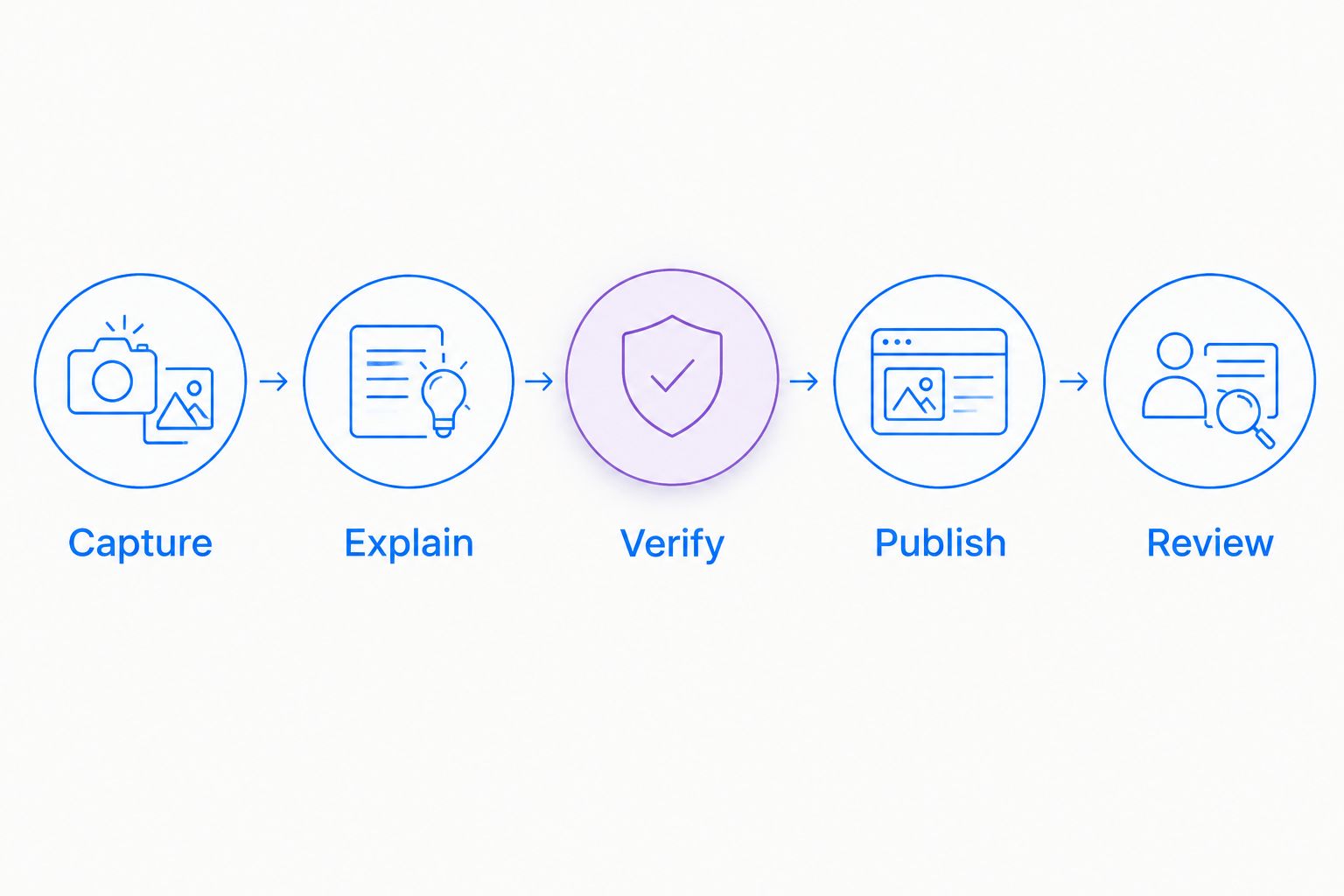
- Capture: preserve the evidence needed to understand the task.
- Explain: add prerequisites, actions, and the expected result.
- Verify: have another technician follow the instructions.
- Publish: place the approved procedure in its intended documentation location.
- Review: assign an owner to update instructions when the workflow changes.
6. Evaluate the handoff before choosing software
Run the same sample tickets through each candidate. Start with your manual process, then repeat the tasks using the software under consideration. Keep the task, recipient, and success condition consistent so you compare workflows rather than demonstrations.
For a 2026 evaluation, record whether the recipient opens the capture, understands the next action, and completes the task. Also record technician effort and any access questions. Do not substitute a feature checklist for a completed support handoff.
If Loom is on your shortlist, compare it first against the same screenshot, recording, and documentation tasks. Add other candidates only when they address a defined requirement. Verify current features and limitations for each product before drawing a conclusion.
- Repeat the same visible-error, sequence, and setup cases for each candidate.
- Test 2 recipient roles: an internal employee and an external requester.
- Check supported environments against the devices your help desk actually serves.
- Verify required administration and content-management features directly.
- Review Zight's plan details against your documented requirements.
- Record a pass, a failure, or an unanswered question for each requirement.
Compare options by help desk workflow
The options below describe ways to handle a support request, not interchangeable products. Choose the format first, then evaluate software that supports it. A screenshot workflow and a recording workflow solve different communication problems.
| Option | Best for | Main advantage | Key limitation |
|---|---|---|---|
| Built-in capture plus manual attachment | Teams validating a basic screenshot workflow | Starts with the capture method already on the device | Sharing and documentation require separate handling |
| Zight | Teams combining screenshots, recordings, and guide creation | Provides those formats for asynchronous communication through shareable links | You still need to verify plan-specific requirements and your complete workflow |
| Screen-recorded walkthrough | Problems where the sequence of actions matters | Shows the actions leading to the result | The recipient must inspect a sequence instead of a static state |
| Written ticket with selected images | Requests requiring searchable diagnostic detail | Keeps error text, environment, and visual evidence together | The writer must assemble and maintain the explanation |
| Maintained SOP with screenshots | Repeat tasks with a defined procedure | Gives the next technician an instruction to follow | Screens and instructions need review when the procedure changes |
For a candidate such as Loom, require the same evidence you require from every other product: completion of the test task, acceptable recipient access, and documented fit with your security requirements. Brand familiarity is not a substitute for a successful handoff.
Do not choose a recording-first workflow for every ticket. A password-reset instruction, an application crash, and a multi-step setup question need different evidence. Standardize the decision, not the format.
Common mistakes IT help desk teams make
Capturing the entire desktop by default
A full-desktop image includes material that the technician does not need. It also makes the relevant detail compete with unrelated windows. Capture the affected region and preserve necessary context in the ticket.
Replacing diagnostic text with an image
A screenshot preserves appearance, but copying an error from an image adds work. Put the error message, application name, and relevant environment details into text. Use the image to show the state around the error.
Choosing from the technician's view alone
The technician can create and open the capture, so the team considers the workflow finished. The requester then encounters an access question or cannot identify the next action. Test the recipient's side before approving the process.
Publishing a resolved ticket as an SOP
A ticket contains incident-specific details and assumptions. A reusable procedure needs prerequisites, an expected result, an owner, and instructions that another authorized person can follow. Rewrite the resolution instead of copying the whole exchange.
Treating healthcare approval as a product checkbox
A healthcare team must assess the actual recording, requesting, sharing, and documentation workflow. Keep evaluations synthetic until the required contractual, technical, and organizational approvals are complete. Never assume that one approved use covers another.
FAQ
What's the best screenshot tool for an IT help desk?
Zight fits help desk teams that need screenshots, screen recordings, and guide documentation for asynchronous communication. Validate recipient access, supported environments, and plan-specific requirements against your own support tasks before selecting it.
Should I send a screenshot or a screen recording with a support ticket?
Send a screenshot when the visible state explains the issue, and a recording when the order of actions matters. Include error text and environment details in the ticket so the capture does not carry all the context.
Can our help desk start with built-in screenshot tools?
Yes, built-in screenshot tools are a starting point for testing a manual capture-and-attachment workflow. Evaluate shared-link software when your requirements include combining screenshots, recordings, and reusable documentation.
How should we compare Loom with other help desk tools?
Compare Loom first using the same support tasks, recipients, and success conditions you use for other candidates. Verify current capture, sharing, documentation, and administration features rather than assuming that every product supports the same workflow.
Can healthcare help desks capture patient information?
Healthcare help desks should not capture patient information without an approved workflow. Verify current plan requirements, BAA availability, feature limitations, and organizational controls; use synthetic information throughout evaluation and training examples.
What should a useful troubleshooting screenshot include?
A useful troubleshooting screenshot shows the relevant application state and the visible problem without unrelated sensitive information. Put the expected result, error text, and environment details in the accompanying ticket.
How do we turn support screenshots into an SOP?
Turn support screenshots into an SOP by adding prerequisites, explicit actions, an expected result, and an owner. Have another technician follow the procedure before publishing it, then review it when the workflow changes.
One last thing
Test whether the next technician can use the capture without asking its creator for help. In your 2026 rollout, hand over a completed sample ticket without a verbal explanation. If the recipient cannot identify the problem and next action, revise the capture or its accompanying text before changing software.