Instead of reopening recordings and typing summaries, connect Claude to an authorized recording source so you can ask questions and check the supporting evidence. For a Zight MCP Claude integration in 2026, start with an official MCP server and documented authentication—not a recording’s shareable link—and use a transcript workflow if that connection is not documented for your account.
- A Zight MCP Claude integration requires a documented MCP server; a recording link is not a server address.
- Claude recording search needs accessible content, correct permissions, and source references you can verify.
- Test with synthetic recordings before connecting customer, employee, or healthcare information.
- Use selected transcripts when a documented MCP connection is unavailable; this is not live recording search.
Why this matters
A useful recording-search workflow does more than produce a summary. It finds the right recording, answers from its contents, and lets you inspect the source. A confident answer without supporting evidence is not a successful setup.
Zight screen recording is best for teams sharing visual troubleshooting context asynchronously. Connecting that context to Claude is a separate access and retrieval task. Do not treat the ability to share a recording as proof that another application can search its contents.
For your 2026 implementation, distinguish these capabilities:
- Discovery: Find relevant recordings within the authorized collection.
- Retrieval: Read the content needed to answer a question.
- Verification: Return a source reference that the reader can inspect.
Model Context Protocol, or MCP, provides a way for applications to connect to external tools and data. It does not establish which recording content a particular server exposes or which permissions your organization has approved.
Before you start
- Confirm the connection materials. Obtain the official server address or installation instructions, authentication method, supported Claude client, and required account permissions. Use the provider’s current documentation rather than an address copied from an unofficial tutorial.
- Prepare a safe test collection. Create 3 synthetic recordings: a support reproduction, an engineering walkthrough, and an operations procedure. Give each a distinctive title and keep a reference copy of its spoken content.
- Check the non-obvious gotcha: searchable content. A connector can authenticate successfully without exposing the transcripts, recording contents, or search capability your workflow needs. Confirm the supported content types before spending time on setup.
For healthcare work, keep this evaluation synthetic. Before introducing protected health information, verify current Zight plan requirements, BAA availability, feature limitations, and the separate requirements for Claude and the connection between them. Approval for one application does not approve the entire workflow.
Connection requirements
Establish the supported route
- Find the provider’s official MCP setup instructions. Confirm that the instructions explicitly cover the recording service and the Claude application you intend to use.
- Identify the documented connection method. Follow the hosted-server instructions or local-server installation instructions exactly; do not substitute one for the other.
- Check account and administrator requirements. Confirm who can authorize access and which content that authorization includes.
- Record the expected capabilities: searching recordings, reading transcripts, retrieving metadata, or another explicitly documented function.
- Stop if the official instructions do not identify a supported connection. Move to the transcript workflow below instead of guessing an endpoint or installing an unverified server.
Expected result: You have a documented route, a known authorization owner, and a clear statement of what the connection can retrieve.
Do not turn a plausible-looking URL into a configuration value. A recording share link identifies content for viewers; it is not interchangeable with an MCP server address. Likewise, an account login page is not an authentication configuration you can reuse without instructions.
Define the search boundary
- Choose the smallest approved collection that contains your test recordings.
- List the information Claude should access: titles, spoken content, source references, and any other explicitly supported fields.
- Separate required content from unnecessary context. Exclude customer names, credentials, private browser tabs, and unrelated recordings from the test material.
- Identify who should be able to repeat the search. Test the workflow under that person’s intended access level, not only an administrator’s account.
Expected result: Your test has an explicit content boundary and a defined user. You can distinguish a search failure from an authorization failure.
Claude connection configuration
Apply the official settings
- Open the connector or MCP configuration area identified in the current instructions for your Claude client.
- Enter the server address or local configuration exactly as documented. Interface labels and configuration fields depend on the supported client and connection method; use the official instructions for those details.
- Complete the documented authentication process with the approved account. Do not paste passwords or secret tokens into a conversation.
- Inspect the requested permissions before authorizing access. Escalate permissions that exceed your approved test scope rather than accepting them to get past setup.
- Confirm that the connection is active using the status or connection test documented for that client.
Expected result: Claude recognizes the configured connection, and authorization completes under the intended account.
An active connection is only the first checkpoint. It does not prove that recording search works, that transcripts are accessible, or that source references will appear in answers. Verify those separately before inviting the wider team.
Inspect exposed capabilities
- Review the tools or capabilities the connection makes available, using the inspection method in its documentation.
- Check for the specific operation your workflow requires. A metadata lookup does not establish that Claude can read spoken content.
- Request one known test recording by its exact title.
- Compare the returned title and source reference with the original recording.
Expected result: You know what the connection actually exposes, and you can retrieve a known item without relying on a broad question.
Recording search validation
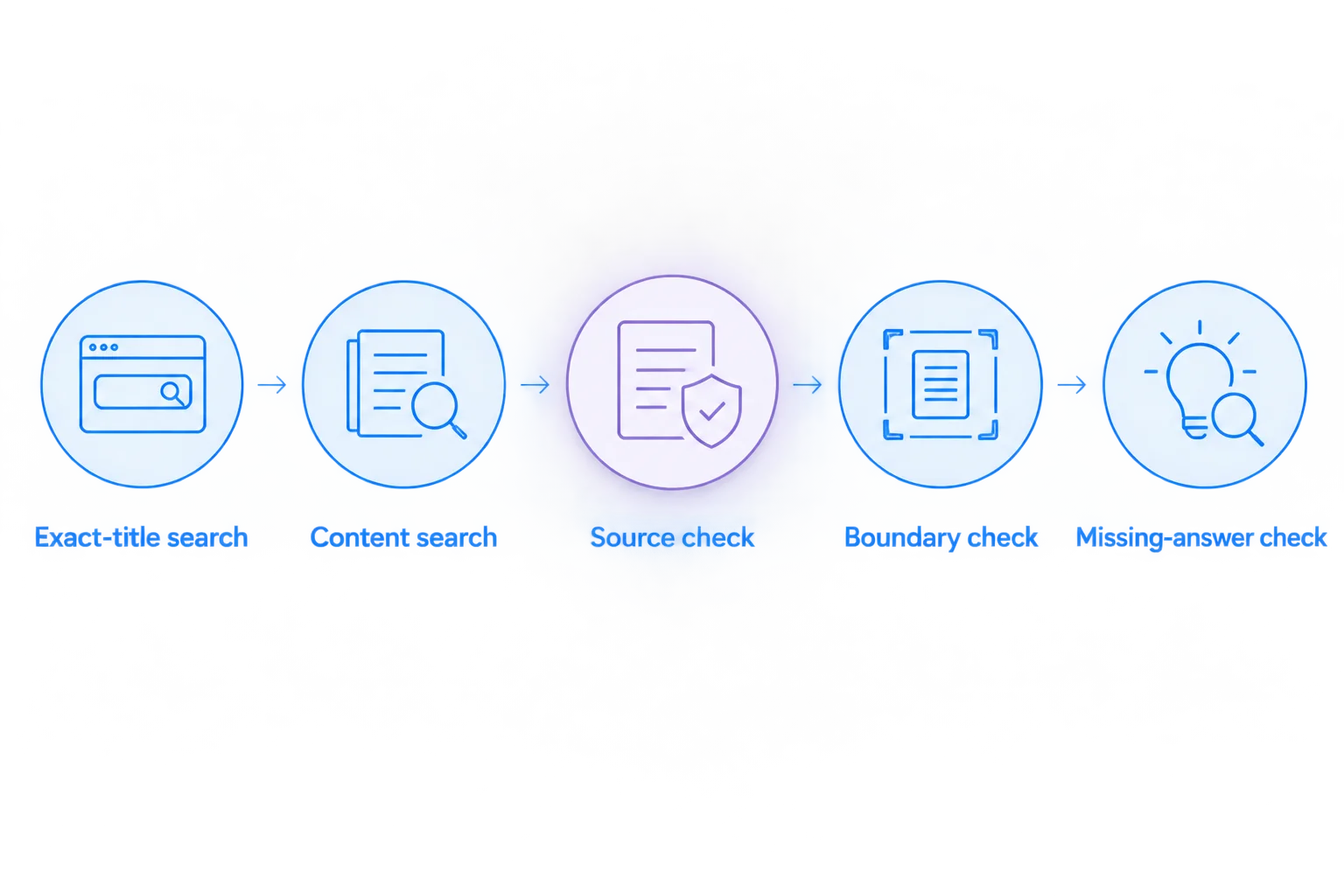
Run this sequence before calling the workflow ready for use. Keep the test questions and expected answers alongside your 2026 setup notes so another administrator can repeat the checks.
- Exact-title search: Ask Claude to find the synthetic support recording by its full title. Check that the result points to the intended item.
- Content search: Ask about a distinctive phrase spoken inside the engineering recording but absent from its title. This separates content retrieval from title matching.
- Source check: Ask for the recording reference supporting the answer. Open that reference and verify the claim against the recording.
- Boundary check: Test with a separate, lower-permission account and an approved synthetic item outside that account’s access. Do not use real confidential material for this check.
- Missing-answer check: Ask a question that none of the synthetic recordings answers. The response should acknowledge the lack of supporting evidence rather than invent a procedure.
Expected result: The workflow finds authorized content, supports answers with inspectable sources, and handles missing evidence honestly.
Use a prompt that defines both the task and the evidence standard:
Find the synthetic recording about the failed file upload. Summarize the reproduction steps using only accessible recording content. Include the supporting recording reference. If the content does not establish the answer, say what is missing.
Avoid prompts that quietly add an unsupported requirement. For example, requesting an exact timestamp does not establish that the connection exposes timestamps. Ask for them only when the documented capability and your test results support them.
Search after a recording changes
An updated recording creates a second workflow: confirm that answers reflect the revised content rather than an earlier version. Do not assume immediate refresh or automatic synchronization unless the connection’s documentation states that behavior.
- Change a harmless instruction in a synthetic recording or its supported source content.
- Note what changed in your test record.
- Follow the documented refresh or synchronization process, if one exists.
- Ask the same content question again and inspect the supporting source.
- Replace or reconnect source material only through the documented process when the answer remains outdated.
Expected result: You understand how changes reach search results and can explain that behavior to users without promising an unverified refresh interval.
For a 2026 operating checklist, record the source owner, last successful validation date, and the documented update procedure. A search workflow needs maintenance ownership just as an SOP does.
Transcript workflow without a documented MCP connection
Use selected transcripts when you need answers from specific recordings but cannot establish a supported server connection. This provides analysis of supplied material, not live search across your recording library.
- Obtain the spoken content through an authorized transcript, export, or manual transcription process supported by your tools.
- Remove confidential information that is unnecessary for the task.
- Label each transcript with its recording title and an approved source reference.
- Supply the selected text through an input method supported by your Claude account.
- Ask 2 questions: one answered by the text and one deliberately unanswered. Check both responses against the supplied material.
- Replace the supplied text when the recording changes. Do not assume that a source link updates text already included in a conversation.
| Workflow | Best for | Advantage | Limitation |
|---|---|---|---|
| Documented MCP connection | Repeated questions across an authorized collection | Connects questions to the capabilities exposed by the server | Requires verified setup, permissions, and retrieval testing |
| Selected transcripts | Questions about a defined set of recordings | Makes the source material explicit and easy to inspect | Requires manual selection and replacement when content changes |
Neither route establishes reliable interpretation of visual details by itself. A transcript can omit cursor movements, error messages, or an unlabeled control shown on screen. Check the recording when the answer depends on those details.
Troubleshooting
The connection works, but search finds nothing
Start with an exact-title query for a known synthetic recording. Confirm that the authorized account can access it, then check whether the connection exposes search, transcript retrieval, or only metadata. Fix the access or capability mismatch before rewriting broad prompts.
Claude finds a recording but cannot explain it
Check whether the returned material contains the recording’s content rather than only its title and link. If content retrieval is unsupported, use an authorized transcript workflow. A different prompt cannot create a capability the connection does not expose.
Answers describe an older procedure
Compare the answer with the current source, then follow the documented update process. For manually supplied transcripts, replace the old text explicitly. Mark the old procedure as superseded in your team’s documentation to prevent reuse.
A source reference will not open
Open the reference with the intended reader’s account. Check sharing permissions and whether the link identifies the correct recording. Require at least 1 working source reference for every answer used to change a procedure. Do not broaden access to confidential content simply to make a citation work.
Customize your workflow
Start with one approved use case rather than connecting every recording your organization holds. Support can search synthetic issue reproductions; engineering can inspect implementation walkthroughs; operations can turn approved demonstrations into draft procedures that a process owner checks.
For healthcare, evaluate support and IT troubleshooting, clinical teams recording or requesting videos, and operations training separately. Use synthetic examples in each evaluation. Verify the relevant plan, agreements, permissions, and feature restrictions before introducing sensitive information into any route.
For engineering adoption, use the screen recording guide for engineering teams to plan the recording side of the workflow. Search quality starts with source material that clearly explains the problem and the action taken.
FAQ
How do I set up a Zight MCP Claude integration?
Start with an official MCP server and setup instructions that explicitly support your recording source and Claude client. Configure the documented authentication, inspect the available capabilities, and test retrieval with synthetic recordings before using sensitive information.
Can I paste a recording link into Claude instead of configuring MCP?
A recording link is not an MCP connection. Whether Claude can retrieve its contents depends on supported access methods and permissions; supplying an authorized transcript is a separate workflow.
Does connecting MCP make every recording searchable?
No. Search depends on the server’s exposed capabilities, the authorized account’s permissions, and the content available through that connection. Test title search and content search separately.
Can Claude answer questions about something shown but not spoken?
Do not assume a transcript-based workflow can answer questions about visual-only details. Inspect the recording directly unless your documented connection supports the required visual content and you have verified that behavior.
Can healthcare teams use this workflow with patient information?
Use synthetic information until the entire workflow is approved for protected health information. Verify current plan requirements, BAA availability, feature limitations, and the requirements of every service receiving the information.
What should I do if there is no documented MCP server?
Use selected, authorized transcripts rather than guessing a server address. Label the source material clearly, verify answers against it, and replace it when the recording changes.
One last thing
A successful negative test is part of a successful integration. Before approving Zight recording search for your 2026 workflow, ask something the recordings do not answer. A response that clearly identifies missing evidence is more useful than a polished instruction with no source.