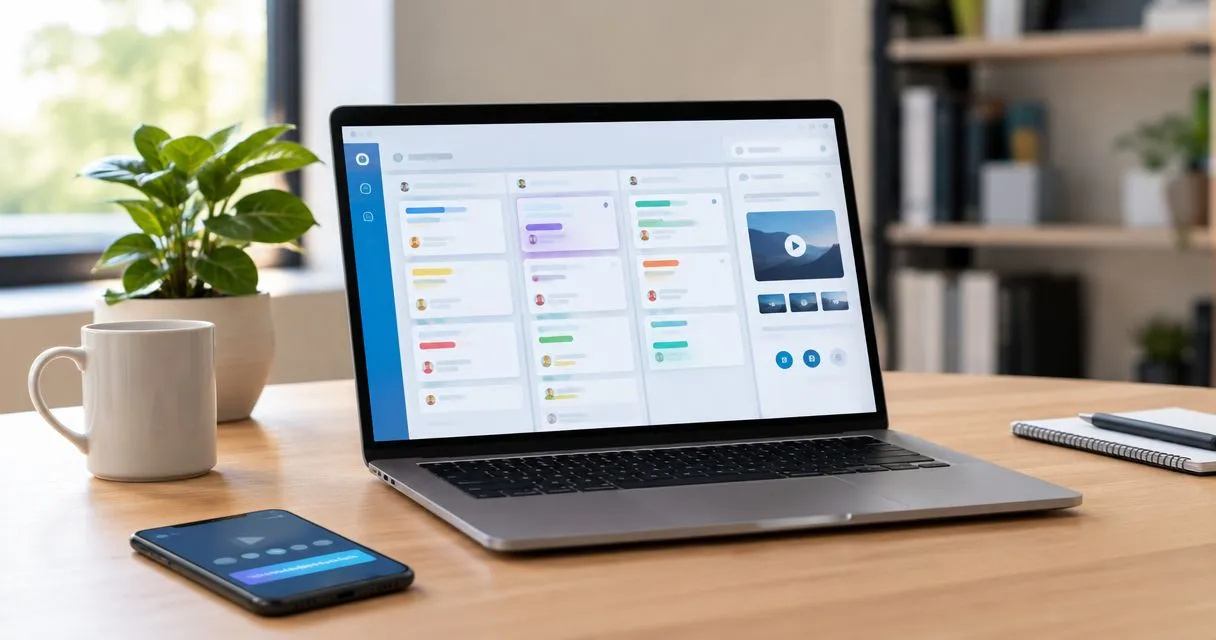
Instead of retyping a bug report or repeating a walkthrough, use a link-based zight trello integration: record the screen, copy the shareable link, and attach it to the relevant Trello card. Keep the recording beside the task so reviewers can watch the evidence before responding.
- Use a link-based zight trello integration to attach screen recordings to the tasks they explain.
- Zight fits support and engineering teams that communicate through shareable screen recording links.
- Attach the recording for lasting reference; add a comment when reviewers need an update.
- Check recording access separately from Trello board access before handing off the card.
Why this matters
A Trello card can describe a problem without showing the sequence that caused it. Screen recordings supply that missing context: what you selected, what happened next, and where the result differed from your expectation.
Zight screen recording fits support and engineering teams that need to explain Trello tasks with shareable video links. The benefit is visual context beside the work; the limitation is that a shared recording still needs its own access check. Zight provides the recording and shareable link, while Trello holds the task, discussion, and handoff.
This 2026 workflow uses a recording URL rather than a downloaded video file. It does not require a native connector, and it does not create automatic synchronization between the recording and the card.
Before you start
- Prepare both workspaces. Have access to your recording account and permission to edit the destination Trello card. Open the exact card before capturing so you know which task the recording must explain.
- Prepare a safe recording. Use a demonstration account or synthetic example, close unrelated windows, and silence notifications. For a first attempt, set yourself a suggested limit of 60 seconds to keep the explanation focused.
- Check the access boundary. Trello access and recording access are separate. A teammate who can open the card still needs permission to view the recording; an external collaborator needs the same check before handoff.
Treat the access check as part of setup, not cleanup. A working link in your own browser only proves that you can open it while signed in.
For healthcare work, use synthetic examples throughout this guide. Before handling patient information, obtain confirmation of current plan requirements, BAA availability, approved sharing settings, and feature limitations from official product documentation and your organization's compliance owner. Attaching a recording to Trello does not establish HIPAA compliance.
Recording setup
Capture the task, not the entire session
- Define the question. Write the outcome the reviewer needs to understand: reproduce an error, approve a change, or follow a procedure. Keep unrelated requests on separate cards.
- Prepare the starting state. Open the relevant application and remove unrelated tabs, messages, and account details from view. Use synthetic records when demonstrating customer-facing or healthcare workflows.
- Record the sequence. Start with the relevant screen, perform the action, and explain what you expected versus what happened. State the important observation aloud rather than relying on cursor movement alone.
- Review the result. Watch the recording before sharing. Confirm that the text is readable, the pointer identifies the right control, and any necessary narration is audible.
- Copy the shareable URL. Use the recording's sharing controls to obtain its link. Open that link once before moving to Trello to confirm that it points to the intended recording.
Expected result: you have a reviewed recording and its shareable link, ready to attach to a specific task.
For a bug report, aim to show the starting state within the first 15 seconds. This is an editorial target, not a recording limit: the reviewer should recognize the relevant application and action without watching an unrelated introduction.
A screenshot is better when a single static detail answers the question. Use video when movement, timing, or a sequence matters; do not record a walkthrough merely to point at one error message.
Trello card setup
Attach the recording and explain its purpose
- Open the destination card. Confirm that its title describes the same task as the recording. Avoid placing the evidence on a general discussion card when a specific work item already exists.
- Choose the attachment action. Open Attachment from the card's available actions. Paste the recording URL into the link field, rather than selecting a local video file.
- Name the attachment clearly. If the attachment dialog offers display text, use a task-specific label such as “Checkout error reproduction.” Select Insert to add the link.
- Add a short explanation. In the card description, state why the recording matters and what action you need. Use 2 sentences as a drafting limit: one for the observation and one for the request.
- Test the attached link. Open it from the Trello card and confirm that it reaches the intended recording, not another capture or an account-management page.
Expected result: the card contains a recording attachment and enough written context for a reviewer to act without guessing.
For a 2026 team template, keep the description consistent:
- Observed result: the action and the unexpected outcome.
- Expected result: what should happen instead.
- Requested action: reproduce, investigate, approve, or revise.
- Recording: identify the relevant attachment by its descriptive name.
Do not paste the same URL into every field. A single attachment supplies the recording; the description supplies the reason to watch it.
This structure also supports engineering handoffs where a visual reproduction needs written acceptance criteria. The guide to screen recording for engineering teams covers that broader use case.
Verify the recipient's experience
- Identify the actual audience. Separate internal reviewers from customers, contractors, or other external collaborators. Test for the person who needs to act, not just the person who created the card.
- Check recording permissions. Confirm that sharing matches your organization's requirements. Do not widen recording access simply to make a failed test disappear.
- Test as a recipient. Use an appropriate separate browser session or ask an authorized reviewer to open the attachment. Check both the Trello card and the recording.
- Publish the handoff. Add a comment naming the requested action and the relevant attachment. Use the team's normal assignment process to establish who owns the next step.
Expected result: an intended reviewer can find the task, open the recording, and understand the requested response.
The 2026 handoff check is simple: correct card, correct recording, correct audience, clear action. A visible attachment alone does not satisfy all four conditions.
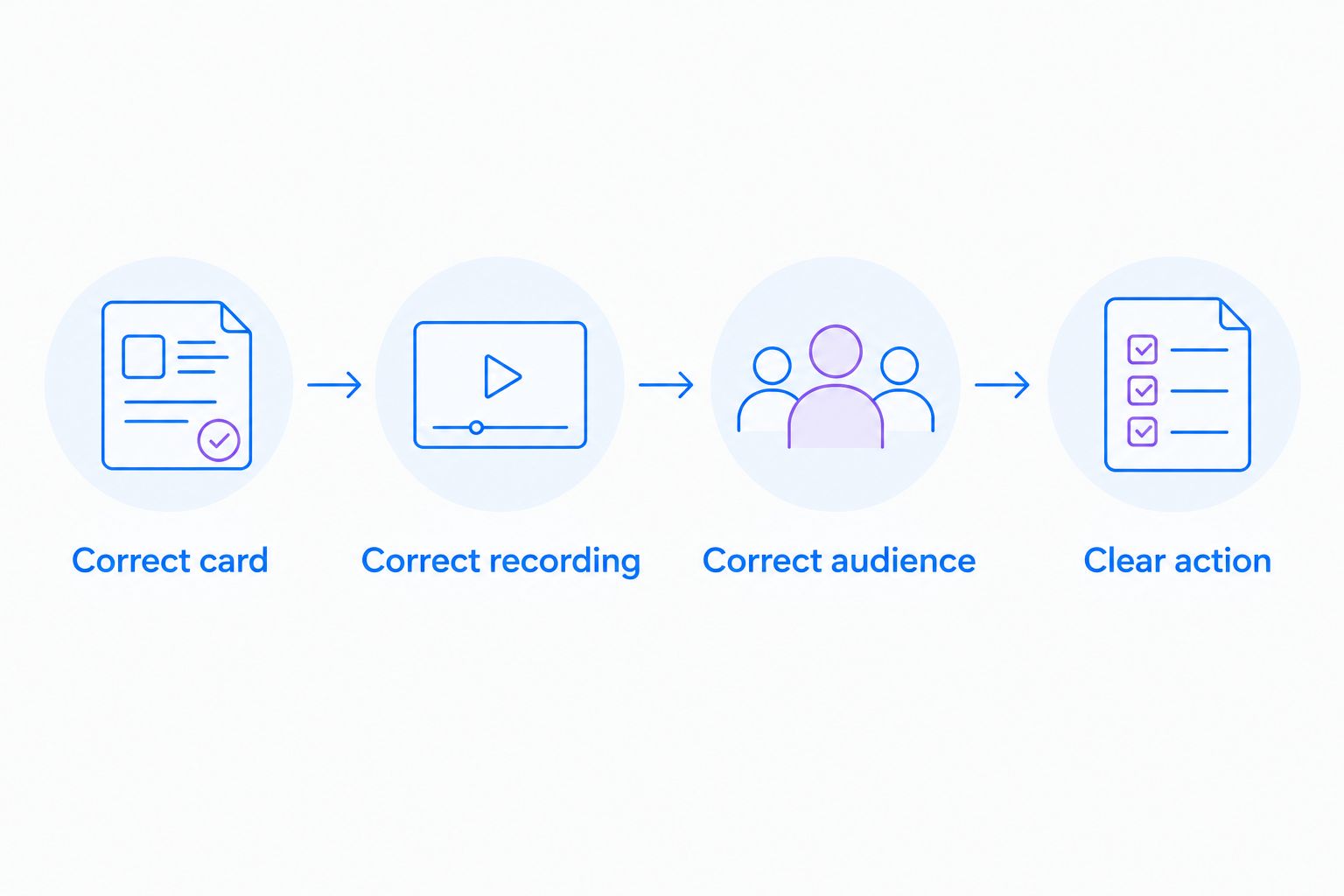
A recipient check also catches the wrong-link problem. Opening a valid recording is not enough if it explains a different bug, revision, or customer request.
Updated recordings and review comments
Use a second workflow when the task changes after the first recording. Keep the original evidence attached when it remains useful, then add the new recording with a clear explanation of what changed.
- Record the changed state. Show the revised behavior or the remaining problem. Avoid repeating the entire original walkthrough unless the sequence has changed.
- Attach the new link. Use a descriptive label that distinguishes the update from the original evidence, such as “Validation after correction.”
- Add a review comment. Identify the new attachment, summarize the change, and state whether you need validation or further investigation.
- Clarify the current reference. Update the description when an older recording no longer represents the task. Preserve or remove historical material according to your team's retention rules.
Expected result: reviewers can distinguish the original observation from the current state without opening every attachment.
This is a manual update workflow. Adding a new recording does not, by itself, update a Trello card or notify the correct owner.
Choose the right placement
Both placements have a role. Use an attachment for the durable reference and a comment for the review event.
| Placement | Best for | Advantage | Limitation |
|---|---|---|---|
| Card attachment | A recording that explains the task | Keeps the reference in the card's attachment area | Needs a descriptive name and surrounding context |
| Comment with recording reference | A new review request or changed result | Explains what changed at that point in the discussion | Becomes harder to find as discussion grows |
You do not need competing copies of the same link. Refer to an existing attachment by name when the comment concerns that recording; attach a new URL only when there is a new recording to review.
Troubleshooting
The card opens, but the recording does not
Check recording permissions separately from board permissions. Confirm that the recipient is using the intended account and that the recording's sharing rules permit access. If broader sharing is prohibited, use your approved access process rather than making the recording public.
Trello displays a plain link rather than a player
Test playback at the destination before treating the presentation as a failure. A clickable attachment is sufficient for this workflow; an embedded player is not required. Give the attachment a meaningful name and keep the viewing instruction in the card description.
The recording opens, but reviewers cannot follow it
Fix the recording rather than adding another long explanation. Re-record unreadable text, missing narration, or a sequence that starts after the important action. For visual-only instructions, make the selected controls and resulting screen changes clear.
Reviewers keep opening an outdated recording
Identify the current reference in the description. Rename attachments where your card controls permit it, and distinguish original evidence from validation. Do not silently remove material that your team's audit or retention process requires.
A new capture never appears on the card
Attach the new link manually. This guide does not configure an event trigger or automatic card update. If automation is a requirement, verify an explicitly supported integration path, its permissions, and its failure handling before building around it.
Customize your workflow
Start with one repeatable handoff before adding more card types. Your 2026 template should specify the recording's purpose, the written context, the recipient check, and the owner of the next action.
- Support and IT troubleshooting: show the reproducible sequence, attach the evidence to the investigation card, and write the requested diagnostic action. Use synthetic account details in demonstrations.
- Product and engineering review: show the behavior under discussion, then state acceptance criteria in text. A recording explains the observation; it does not replace the decision the team must make.
- Healthcare clinical teams: demonstrate approved software workflows with synthetic examples. If recording requests form part of the process, assess that collection workflow separately from attaching the resulting link.
- Operations and training: attach a walkthrough to the task that owns the procedure. When producing an SOP or generated guide, review the written instructions against the approved process before distributing them.
Zight's screenshot, screen recording, and guide/documentation capabilities serve different parts of this work. Choose the smallest useful artifact: a still image for a visible detail, a recording for a sequence, or a reviewed guide for a repeatable procedure.
Create your first visual handoff
Record the task, review the capture, and attach its shareable link to the relevant card.
FAQ
How do I set up a Zight Trello integration?
Use a shareable recording link: create and review the recording, copy its URL, and attach it to the relevant Trello card. This guide describes a manual link workflow, not a native connector or automatic synchronization.
Can I attach a screen recording without downloading the video?
Yes. Attach the recording's shareable URL to the Trello card instead of uploading a downloaded video file. Check that the intended reviewer can open the destination.
Should I put the recording in a Trello attachment or a comment?
Use an attachment for the lasting reference and a comment to explain a review request or update. Give the attachment a descriptive name so later comments can identify it without repeating the URL.
Why can my teammate open the Trello card but not the recording?
The card and the recording have separate access controls. Check the recording's sharing permissions and the recipient's account without broadening access beyond your organization's rules.
Will a new recording automatically update my Trello card?
Not in the workflow described here. Attach the new recording link and add a comment explaining what changed; verify a supported automation path separately if automatic updates are required.
Can healthcare teams use this recording workflow?
Healthcare teams can evaluate the workflow using synthetic examples. Before handling patient information, confirm current plan requirements, BAA availability, sharing restrictions, and limitations for every service involved; attaching a link does not establish HIPAA compliance.
What should a screen recording on a Trello card show?
Show the relevant starting state, the action, and the resulting behavior. Add written context stating the expected result and the next action so the reviewer knows what decision to make.
One last thing
A recording preserves an observation, not necessarily the current state of the task. When you close a card, check whether its description identifies the final result or still presents the original failure as current.
Make that check part of your 2026 closing routine. The next person opening the card should know whether the video shows the problem, the proposed change, or the validated outcome.