How to Add a Custom Emoji in Slack
Want to make your Slack messages more fun and personalized? Custom emojis are a great way to add team culture, inside jokes, or brand flair to your conversations. This step-by-step guide walks you through how to upload and start using your own emoji in Slack, no design skills needed.
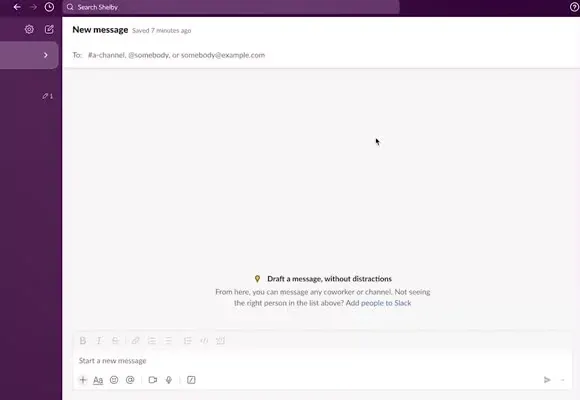
Step 1: Open a Message in Slack

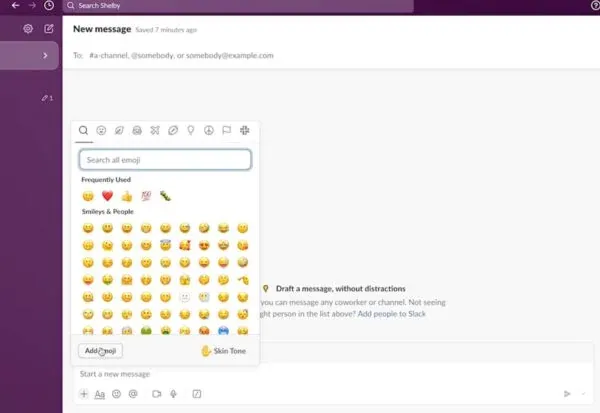
Step 2: Click on the Smiley Face at the Bottom to Open the Emoji Menu
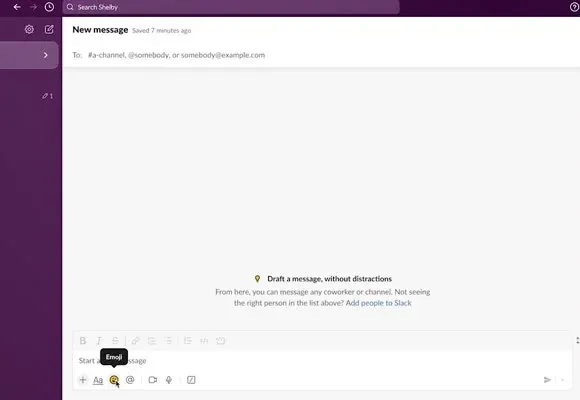
Step 3: Click “Add Emoji”

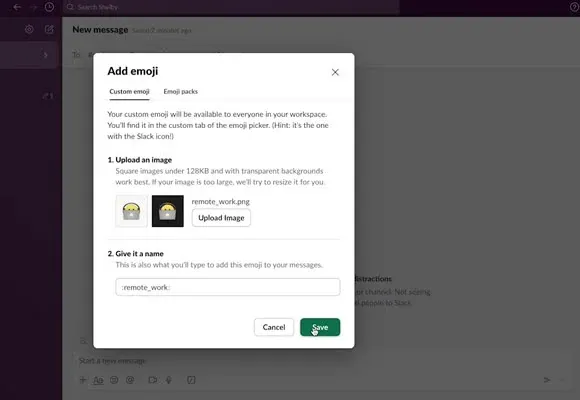
Step 4: Upload Emoji
- Find an emoji you like, save it to your laptop, and click on “Upload Image.”
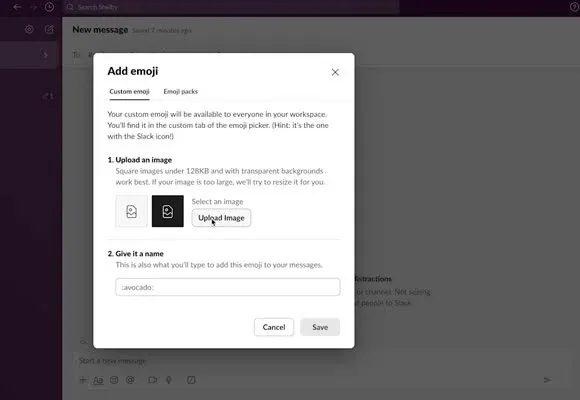
Step 5: Save the Emoji

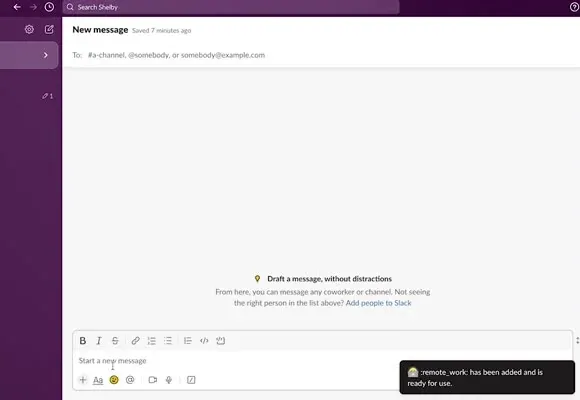
Step 6: Emoji is Ready to Use

The Ultimate Guide to Adding a Custom Emoji in Slack
Slack is where teams collaborate, share updates, and sometimes, express themselves with the perfect emoji. But what if you could take it a step further and bring your team’s personality into the mix? That’s where custom emojis come in.
Adding your own emoji in Slack is a simple way to make conversations more fun and personal. Whether it’s your company logo, an inside joke, or a favorite meme, custom emojis add a touch of creativity to everyday messages. Best of all, you don’t need any design experience to create them.
Why use custom emojis in Slack
Custom emojis aren’t just about fun; they help build culture and connection within your workspace. Teams often use them to represent achievements, reactions, or brand symbols that everyone recognizes.
For example, marketing teams might upload a campaign logo as an emoji, while sales teams could create one to celebrate a big win. Custom emojis make your Slack channels feel more alive and tailored to your organization’s identity.
They also make communication faster. Instead of typing out long responses, a single custom emoji can capture a mood, confirm a task, or celebrate a moment with personality.
How adding custom emojis works
Creating a custom emoji in Slack is easy and only takes a few minutes. You can upload any image file (PNG, JPG, or GIF) and Slack automatically resizes it for emoji use. Once added, anyone in your workspace can use it, depending on your admin settings.
After uploading, your emoji becomes searchable like any other. Simply type :emoji_name: and watch it appear in messages or reactions. You can even use animated GIFs to make your emoji move and stand out in the conversation thread.
Tips for creating great custom emojis
If you want your emoji to look clear and recognizable, start with a small, simple image. Slack’s recommended emoji size is 128×128 pixels, but it will automatically resize it to 32×32 pixels in chats.
Here are a few tips to make your emoji stand out:
-
Use images with transparent backgrounds so they look clean against Slack’s interface.
-
Avoid too much detail since smaller icons lose clarity.
-
Test your emoji in both light and dark mode to ensure it looks right for everyone.
-
Keep file names short and descriptive for easier searching.
A little preparation goes a long way in making your emoji both fun and functional.
Encouraging team participation
One of the best parts of custom emojis is that everyone can contribute. Encourage your team to create and share their own emojis that reflect your company’s culture, milestones, or fun moments.
Some organizations even host “emoji challenges,” where team members submit creative designs for recognition or just for laughs. It’s a small gesture that helps strengthen connection and morale, especially in remote or hybrid teams.
Admins can also set permissions to control who can upload new emojis, ensuring that the collection stays relevant and professional while still being playful.
Maintaining a clean emoji library
As your workspace grows, it’s easy for the emoji library to become cluttered. To keep things organized, set a few simple guidelines for naming and categorizing new emojis.
For example, use short, descriptive names like :logo:, :happyfriday:, or :saleswin:. Avoid duplicate uploads by encouraging team members to check if an emoji already exists before creating a new one.
Slack admins can also review and manage emojis under the Customize Slack settings to remove outdated or unused ones. This keeps your emoji list fresh, relevant, and easy to navigate.
Why custom emojis strengthen team communication
Custom emojis make conversations more expressive and inclusive. They break down communication barriers by allowing people to react visually, especially in fast-paced channels where messages move quickly.
Instead of lengthy replies, a simple emoji can convey support, approval, or excitement instantly. It also helps remote teams maintain connection and personality through shared visual language.
Adding humor, emotion, or brand identity into Slack messages transforms communication from routine into something more human and engaging.
Conclusion
Custom emojis in Slack are a simple but powerful way to make your workspace more engaging and personalized. They bring team culture to life, making communication more expressive and fun.
With just a few clicks, you can add your logo, celebrate team wins, or inject humor into everyday conversations. Whether for productivity or personality, custom emojis help teams connect and collaborate in a more authentic way.
If you haven’t already, take a moment to add your first custom emoji in Slack. It’s one of the easiest ways to make your messages stand out and strengthen team spirit.
Frequently Asked Questions
You can upload images in PNG, JPG, or GIF formats. PNG with transparent backgrounds works best for clean, polished results.
Slack automatically resizes images, but for best quality, upload square images around 128×128 pixels.
Yes. Animated GIFs work perfectly as custom emojis and can add fun motion to your workspace.
Workspace owners and admins can always add emojis. Depending on your workspace settings, other members may also be allowed to upload them.
Go to your Slack workspace in a browser, visit Customize Slack, and click the Emoji tab. You can delete or replace emojis from there.
Yes. Under Customize Slack, find your emoji and edit its name directly in the list.
Yes. Once uploaded, they appear in Slack on all platforms, including desktop, mobile, and web.
Try re-uploading a sharper, square image and ensure it is not being stretched or resized. Avoid adding thin lines or text that can blur at smaller sizes.