
Instead of retyping bug reports, use a Zight Jira integration workflow: capture the failure, add the shareable link to a Jira bug, and keep reproduction steps beside the evidence. This guide shows you how to connect Zight screen captures to actionable tickets through a link-based handoff, without assuming automatic ticket creation.
- The Zight Jira integration workflow connects visual bug evidence to tickets through shareable links.
- Use screenshots for visible defects and screen recordings for bugs that depend on a sequence.
- Keep reproduction steps, expected behavior, and actual behavior inside Jira—not only inside the recording.
- Test evidence access with a teammate before handing the ticket to engineering.
Why this matters
A recording shows what happened. A useful bug ticket also tells the engineer where to start, what should have happened, and how to check the fix. Without that written context, the recording becomes another item someone must inspect before deciding what to do.
Zight screen recording is best for teams that need to show a reproducible bug rather than describe every interaction. The trade-off is maintenance: the capture and the ticket are separate records, so you must keep the evidence accessible and the written report current.
For your 2026 workflow, treat Jira as the work record and the capture as supporting evidence. This guide uses a manual link-based handoff; it does not require or describe a native connector, automatic field mapping, or background synchronization.
Before you start
- Prepare both accounts. You need access to Zight and permission to create or edit work in the intended Jira project. Confirm that the project accepts bug reports and identify who receives them.
- Prepare a safe reproduction. Use a test account, synthetic records, and a repeatable starting state. Close unrelated windows and disable notifications before capturing anything.
- Check recipient access first. A capture that opens for its author does not prove it opens for the engineer. Test the link using the intended recipient’s access before building the handoff around it.
Healthcare teams need an additional gate. Before using any real patient information, verify current plan requirements, BAA availability, sharing controls, and workflow limitations against official vendor documentation and your organization’s requirements. The healthcare examples below use synthetic data only; a shareable link alone does not establish HIPAA compliance.
Evidence format
Choose the smallest capture that explains the failure. A screenshot keeps a visible defect easy to inspect; a recording preserves the interactions that produced it. Neither replaces the written reproduction steps.
| Evidence format | Best for | What it preserves | Limitation |
|---|---|---|---|
| Screenshot | Layout defects, error messages, incorrect field values | A specific visible state | Does not show how the reporter reached that state |
| Screen recording | Failed interactions, navigation problems, intermittent sequences | The visible sequence leading to the failure | Requires playback and can include unrelated activity |
| Recording plus screenshot | A sequence ending in an important error state | The interaction and a still image of the result | Adds another evidence item to maintain |
Capture preparation
- Establish 1 bug per ticket unless the failures clearly share the same cause. Separate unrelated symptoms so engineering can assign, reproduce, and close each independently.
- Write the starting conditions before recording: account role, application area, browser or device, and any prerequisite state that affects reproduction.
- Perform the sequence once without recording. Remove irrelevant actions and confirm that the failure is still reproducible.
- Capture the relevant window or region. For a recording, show the starting state, the triggering action, and the resulting failure.
- Review the capture before sharing. Check that the error is readable and that no credentials, unrelated customer records, or private notifications appear.
Expected result: You have evidence that shows the failure without requiring the viewer to reconstruct the reporter’s environment or inspect unrelated activity.
If the problem involves application behavior rather than a single visible defect, use the same preparation principles described in the screen recording for engineering teams guide.
Jira ticket configuration
Build the ticket around the reproduction, not around the attachment. Jira interfaces vary by project configuration, so select your project’s bug work type and complete its required fields rather than assuming every project uses the same form.
Ticket creation
- In Jira, select Create and choose the intended project. Confirm the destination before entering the report, especially when your team works across several products.
- Select Bug where that work type is configured. If the project uses a different intake type, follow its established bug-reporting process.
- Enter a Summary that names the affected area, the triggering action, and the failure. Prefer “Report export stops after selecting a date range” to “Export broken.”
- In Description, add the environment, preconditions, reproduction steps, expected result, actual result, and evidence link. Use separate labels so an engineer can scan the report.
- Complete the project’s required routing fields. Assign ownership and priority according to your team’s rules, not according to how frustrating the bug felt to the reporter.
- Submit the ticket using Create, then reopen it to confirm that the description and evidence link were saved correctly.
Expected result: The Jira ticket explains the bug without requiring playback, while the capture gives the engineer visual confirmation.
Description template
Copy this structure into the ticket and replace every instruction with the actual report. Delete fields that do not apply rather than leaving ambiguous blanks.
Environment:
Application area, browser or device, and relevant build identifier.

Preconditions:
Account role and required starting state.

Steps to reproduce:
List each action in order.

Expected result:
Describe the intended behavior.

Actual result:
Describe the observed failure and exact visible error text.

Evidence:
Paste the capture link and explain what it shows.

Reproduction status:
State whether the failure repeated under the same conditions.

Verification:
Describe the behavior that will demonstrate the fix.
Keep the visible error text in the description even when it appears in the recording. Written text lets a teammate search for the message without opening every capture.
For a 2026 intake template, record a build identifier only when you know it. A guessed version is worse than a clear statement of the environment you actually used.
Evidence access and handoff
The link is not the handoff. The handoff is complete when the person responsible can open the evidence, understand the report, and start reproducing the failure.
Access validation
- Copy the capture’s shareable link and place it under the ticket’s evidence label. Describe its contents, such as “Recording of the export action and resulting error.”
- Ask an intended engineering recipient to open the link using their normal account and browser context. Do not use your own successful playback as the access test.
- Confirm that the capture shows the relevant action and outcome. If an error appears late in a recording, identify where to look in the ticket’s description.
- Ask the recipient to follow the written reproduction steps. Correct any missing prerequisite before moving the ticket into the team’s active queue.
- Keep diagnostic evidence separate from acceptance criteria. The old failure demonstrates the problem; the acceptance criteria define the required result.
Expected result: Engineering can inspect the evidence and reproduce the report without requesting basic access or environment details.
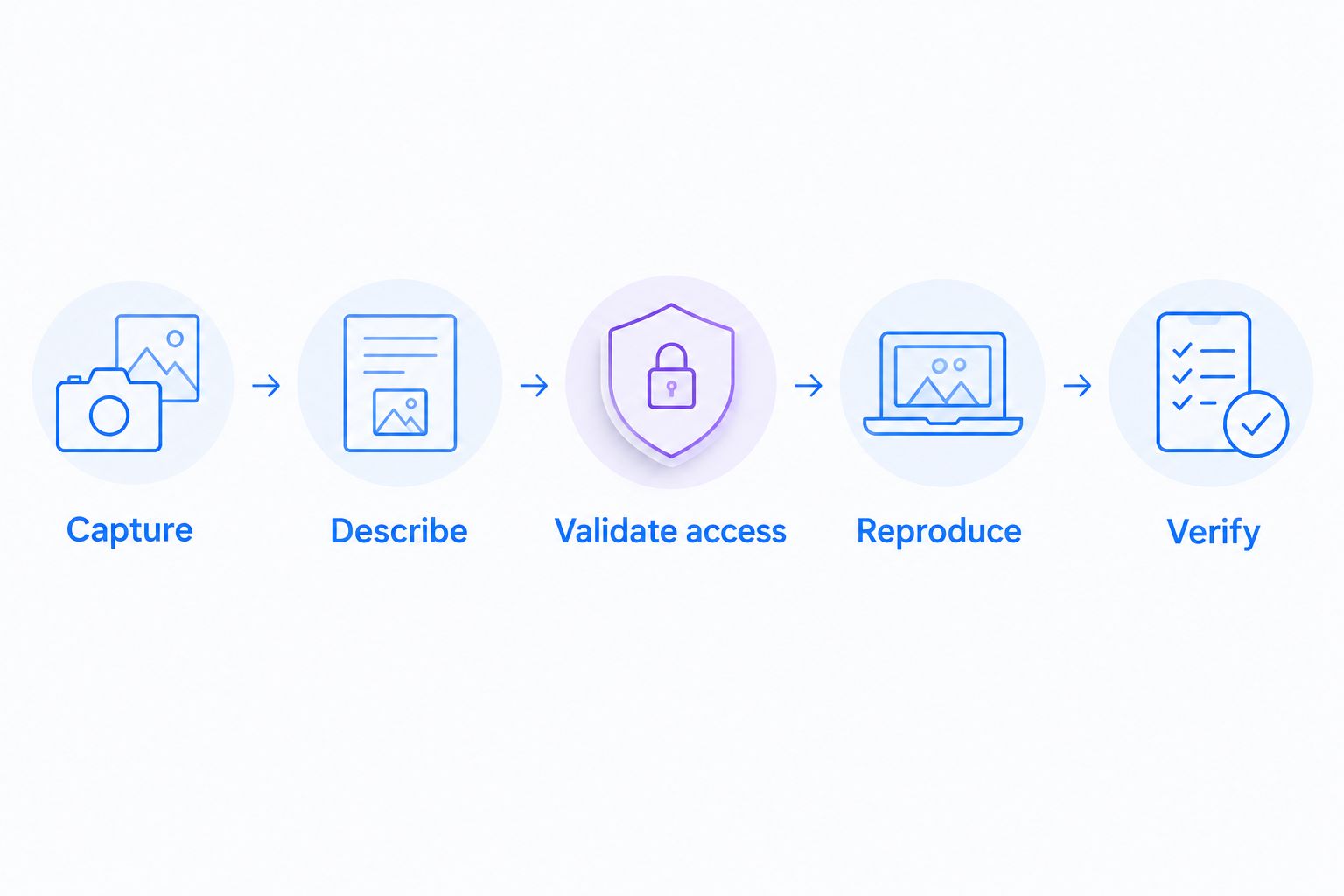
Use this sequence as the handoff checklist: Capture, Describe, Validate access, Reproduce, Verify. Each action answers a different question; none is replaced by simply pasting a URL.
Add evidence when the bug changes
Update an existing ticket when you discover more about the same failure. Create a separate ticket when the new report describes a distinct problem that requires its own resolution.
This second workflow keeps the original report readable while preserving later findings. It is a manual update process, not a claim that a changed capture automatically updates Jira.
- Reproduce the existing bug under the newly identified conditions. Record what changed, such as a different account role or navigation path.
- Capture the new behavior without overwriting the meaning of the original evidence. The original recording explains the initial report; the new recording explains the additional finding.
- Add a Jira comment stating the changed condition, the observed result, and the new evidence link. Identify whether the original reproduction steps still apply.
- Update the main description when the new finding corrects the report. Do not force an engineer to read the full comment history to discover the current reproduction steps.
- After a fix, add verification evidence and state which environment you checked. Preserve the distinction between a reporter’s visual confirmation and the team’s formal test result.
Expected result: The ticket has a current reproduction path and a readable history of what changed.
For teams evaluating their 2026 evidence process, keep manual reproduction evidence and automated test evidence distinguishable. When linking test evidence to Jira, identify the test run, environment, and observed result rather than treating an attached artifact as proof that the reported bug was fixed.
Troubleshooting
The engineer cannot open the capture
Check access using the recipient’s actual account context. Confirm that the link was copied correctly, the capture still exists, and its sharing settings fit the intended audience. Resolve permissions through your approved process; do not widen access beyond the team just to remove friction.
The recording shows the failure, but nobody can reproduce it
Add the missing starting state. Account permissions, existing application data, browser behavior, and the order of actions can affect reproduction. Replace vague steps such as “open the report normally” with the specific path used during capture.
The ticket contains several unrelated failures
Split the report into independently actionable tickets and cross-reference them through your normal Jira process. Keep evidence attached to the failure it actually demonstrates. A long recording of several problems is not a substitute for clear ownership.
The evidence contains sensitive information
Stop sharing the capture and follow your organization’s incident-handling process. Replace it with a synthetic reproduction where possible. For healthcare support, IT, clinical, and operations workflows, use test records throughout troubleshooting rather than exposing patient information to explain a software problem.
The ticket points to outdated behavior
Update the description to identify the current reproduction and label older evidence by its purpose. Do not silently replace a failure recording with a successful result; reviewers need to distinguish the reported defect from the verification outcome.
Customize your workflow
Expand the Zight Jira integration workflow only after the basic handoff works. Standardize the evidence requirements first; automation cannot repair an unclear report or an inaccessible recording.
For support and IT teams, use the ticket template to turn a reported symptom into a reproducible engineering case. Keep customer-specific context in the appropriate approved system and include only the diagnostic details engineering needs.
For healthcare teams in 2026, apply the same discipline across functions:
- Support and IT: Demonstrate application errors with test accounts and synthetic records.
- Clinical teams: Record or request a synthetic demonstration of the software interaction, not a patient encounter.
- Operations teams: Turn a verified resolution into training instructions or an SOP, then review it when the application changes.
If you evaluate automation later, document its trigger, destination project, field mappings, access model, and failure handling before enabling it. Require a visible failure notification so a failed handoff does not disappear between systems.
Review your 2026 template whenever project requirements change. Keep required fields focused on reproduction and routing; remove duplicated questions that do not affect either.
FAQ
How do I use a Zight Jira integration workflow for bug reports?
Capture the failure, create a Jira bug, and paste the shareable evidence link beside written reproduction steps. This guide describes a manual link-based workflow, not automatic ticket creation or synchronization.
Can I create Jira tickets automatically from a screen recording?
This workflow does not create tickets automatically. Before adopting automation, verify that the chosen connector supports ticket creation, required fields, permissions, and failure notifications.
Should I use a screenshot or a recording for a bug report?
Use a screenshot for a visible state and a recording for a failure that depends on a sequence of actions. In both cases, include written steps, expected behavior, and actual behavior in Jira.
What should I include in a Jira bug description?
Include the environment, preconditions, reproduction steps, expected result, actual result, and evidence link. Add the exact visible error text so teammates can search for it without playing the recording.
Why can I open the recording when my engineer cannot?
Your access does not establish the engineer’s access. Test the link using the intended recipient’s account context and correct sharing permissions through your approved process.
Can healthcare teams use recordings in Jira bug reports?
Healthcare teams should use synthetic data for the workflow described here. Before including patient information, verify current vendor requirements, BAA availability, feature limitations, and the organization’s approved handling process.
Should I replace the original bug recording after a fix?
Keep the original failure evidence distinguishable from verification evidence. Add the successful result with its environment and update the ticket to explain what was checked.
One last thing
Test the ticket without playing the recording. If a teammate cannot identify the starting state, triggering action, and expected result from the description, improve the report before handing it off. The capture should clarify the written report, not hold essential instructions hostage.