
Instead of repeatedly typing troubleshooting steps in Slack, capture the issue with Zight and post its shareable link with the action you need. This 2026 Zight Slack integration guide covers a link-sharing workflow: record, check access, share in the right conversation, and keep follow-up in one thread—not native-app installation or automatic posting.
- Use a Zight Slack integration workflow to share screen recordings with context, an owner, and a clear next action.
- Check recording access separately from Slack channel membership before sharing sensitive information.
- Post the original recording in the conversation; keep clarification and replacement links in its thread.
- Choose screenshots for static details and screen recordings for sequences, errors, or changing behavior.
Why this matters
A screen recording shows what happened. Your Slack message explains why someone should watch it and what they should do afterward. Without both, the recipient still has to ask which account, screen, or outcome matters.
Zight is best for teams that need screen recordings and screenshots shared by link. The useful unit is not just the recording; it is the recording plus a decision-ready message.
Treat the Zight Slack integration as a communication workflow for this guide. Copying a shareable link into Slack does not require a claim about a native connector, automatic channel delivery, or synchronized permissions.
For your 2026 rollout, define a repeatable handoff before asking the whole team to adopt it. A working recording that reaches the wrong audience is not a successful handoff.
Before you start
- Accounts and access: Have access to your capture account and the Slack conversation where the recording belongs. Confirm that your organization permits sharing work recordings there.
- Recording materials: Prepare a clean example, close unrelated windows, and enable the operating-system screen-recording and microphone permissions your capture setup requires. Use synthetic information for demonstrations involving sensitive workflows.
- The access gotcha: Slack conversation membership and recording access are separate checks. Test the recording with an intended recipient before treating a pasted link as a completed handoff.
Use a short practice capture before recording a real issue. A recommended 30-second recording is enough to check the selected screen, narration, and recipient access without repeating a full walkthrough.
Choose your capture and destination
Choose the smallest artifact that answers the question. Then choose the conversation where someone can act on it.
| Workflow option | Best for | Advantage | Trade-off |
|---|---|---|---|
| Screenshot | A static error, setting, or visual discrepancy | Keeps attention on one visible state | Does not show the sequence that produced it |
| Screen recording | Reproduction steps, changing behavior, or a narrated walkthrough | Shows actions and results together | Takes longer to review than a single image |
| Channel message | Work that needs shared ownership or team visibility | Gives the team a common discussion location | Requires deliberate audience selection |
| Direct message | A handoff to a specific person | Keeps the request focused on that recipient | Leaves less context in the team's shared conversation |
Use a screenshot when the answer is visible in one state. Use a recording when the sequence is the evidence. Neither format replaces a written request.
For a support escalation, show the steps that reproduce the issue. For an engineering handoff, include the expected result and the observed result. For a training question, demonstrate the task rather than recording an unrelated tour.
Capture configuration
- Define the outcome. Write the question the recipient must answer before recording. For example: determine whether a demonstrated error is reproducible using the supplied test conditions.
- Prepare the workspace. Open only the application and information needed for the demonstration. Hide notifications and remove unrelated customer or employee information from view.
- Choose the capture area. Select the screen or region that contains the task. Keep enough context to show where the action happens without exposing the rest of your desktop.
- Check narration. If speech is necessary, confirm that your recording setup has microphone access and that the intended input device works. Do not assume microphone capture also records application sound.
- Record the sequence. State the task, show the starting condition, perform the relevant actions, and pause on the result. Stop when the evidence is complete.
- Review before sharing. Watch the captured sequence and listen to the audio. Re-record if the important action is missing, unreadable, or covered by another window.
Expected result: You have a recording that shows the relevant behavior without requiring the recipient to reconstruct missing steps.
For audio-specific setup, use the screen recorder for Mac with audio guide. Capture controls differ by application and operating system; use the labels shown in your installed version rather than assuming identical menus.
Recording access configuration
- Open the completed recording. Confirm that the share page displays the intended capture, not an earlier attempt or a similarly named item.
- Inspect its sharing controls. Use the access settings available to your account and approved by your organization. Do not broaden access merely to avoid a login prompt.
- Copy the shareable link. Use the recording's sharing control rather than copying a local file path or an unrelated account-management address.
- Test the recipient experience. Ask an intended recipient to open the link using their normal work account. A successful test in your own signed-in browser does not establish that someone else has access.
- Check the content again. Confirm that the tested link opens the reviewed recording and that the recipient can see the important details and hear any required narration.
Expected result: The intended recipient can open the correct recording through an approved access route.
For your 2026 workflow checklist, make this a separate gate from posting in Slack. A readable message and a valid-looking link do not prove that the underlying recording is accessible.
Use 2 test accounts when validating the handoff: the sender's account and an intended recipient's account. This is a recommended test setup, not a product requirement.
Slack message configuration
- Choose the destination. Open the channel, direct message, or existing thread associated with the work. Check the audience before adding the link.
- Write the outcome first. Start with the issue or decision, not a generic request to watch a video. Name the task and explain what differs from the expected behavior.
- Paste the recording link. Keep it next to the explanation. The message should remain understandable even if Slack displays only the URL rather than a preview.
- Assign the next action. Name the person or team responsible and specify whether you need reproduction, approval, correction, or confirmation.
- Send the message. Use Slack's Send now control after checking the destination and the pasted link.
- Verify the posted message. Open the link from the conversation and confirm that it points to the intended recording. Keep recipient-access testing separate from this sender-side check.
Expected result: The Slack conversation contains the evidence, the request, and the responsible owner together.
Use this message pattern:
Issue: The demonstrated action produces an error instead of the expected result.
Evidence: Paste the reviewed recording link here.
Request: Reproduce using the stated test conditions and reply with the result.
Owner: Name the responsible person or team.
This is a suggested template, not a product-generated message. Replace every instruction before posting.
Follow-up configuration
- Keep replies together. Open Reply in thread on the original Slack message for clarification, reproduction results, and questions about the recording.
- Separate evidence from interpretation. Describe what the recording shows before offering an explanation. Ask for missing test conditions instead of treating an assumption as a confirmed cause.
- Post corrections explicitly. If you create a replacement recording, add its link in the same thread and explain what changed. State clearly which recording recipients should use.
- Close the loop. Record the decision or outcome in text. Do not make the next reader watch the entire recording to learn whether the issue was resolved.
- Move repeatable instructions into documentation. When a thread establishes a reusable procedure, turn the validated steps into an SOP rather than relying on Slack search alone.
Expected result: A reader can follow the original problem, revised evidence, and final decision without piecing together disconnected messages.
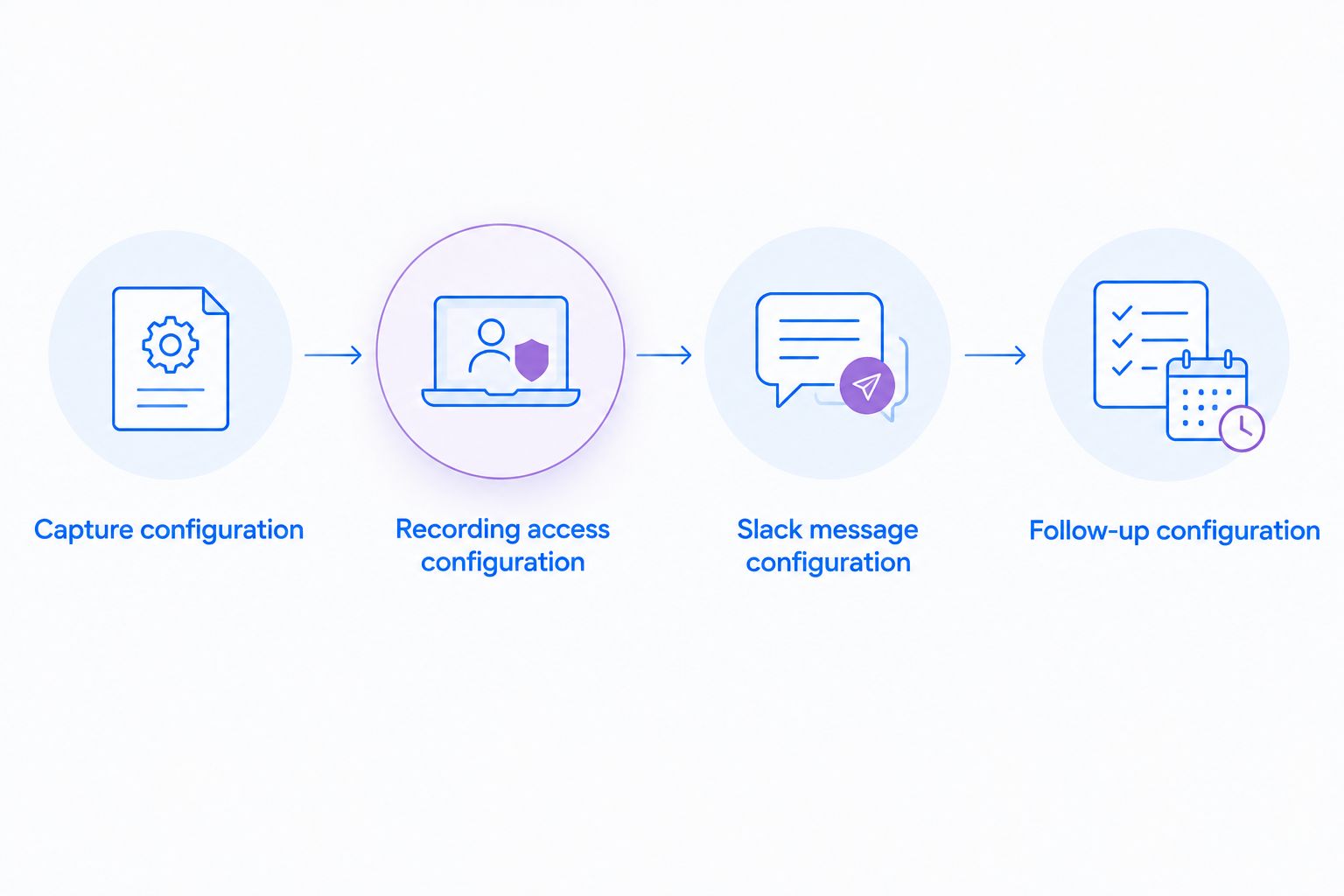
For a 2026 team rollout, assign ownership of this sequence. The sender owns capture quality and initial access checks; the recipient owns acknowledging the requested action under your team's agreed process.
Share an updated recording in an existing thread
Use this second workflow when a bug changes, a reviewer asks for clarification, or a training step needs correction. Update the existing discussion instead of starting a disconnected conversation.
Record the changed behavior and test its sharing link. Then open Reply in thread on the original message and post the new link with a short explanation of what changed.
Make the relationship explicit: the new recording replaces the earlier example, or it supplements it with a different test condition. Do not assume readers will infer this from posting order.
Finish with the outstanding action. If the updated recording resolves the question, write the resolution in the thread; if it introduces a different issue, identify that issue separately.
This variant remains a manual workflow. It does not configure an update trigger, automatic reposting, or synchronization between recording changes and Slack messages.
Troubleshooting
The recipient cannot open the recording
Check the recording's access settings and the identity the recipient is using. Have the intended recipient retry through the approved account; do not switch to broader access without authorization.
The link opens the wrong capture
Return to the reviewed recording and copy its shareable link again. Post a correction in the original thread so readers know which earlier link to disregard.
The recording has no narration
Check operating-system microphone permission and the selected input device. Make another short test recording and play it back before repeating the full demonstration.
Slack does not show a recording preview
Keep the direct link and a useful written summary in the message. Preview behavior is not your access test: ask the recipient to open the link and verify playback.
The team watches but nobody acts
Rewrite the request around an owner and an observable next step. Ask for a reproduction result or a decision rather than feedback in general, then keep the response in the original thread.
Customize your workflow
Start your 2026 rollout with 1 Slack conversation and a repeatable use case. Validate the handoff before expanding it across support, product, sales, or engineering.
For support and IT, pair the recording with reproduction conditions and the requested diagnostic action. For product and engineering, separate observed behavior from the proposed explanation. For operations, convert approved recurring instructions into documentation that remains useful outside the conversation.
Healthcare workflow gate
Healthcare teams need an approved capture and sharing process before using this workflow with sensitive information. Do not treat this guide as confirmation of HIPAA compliance for any plan or Slack configuration.
Before handling protected health information, verify current plan requirements, BAA availability, recording and video-request limitations, and permitted sharing destinations against official documentation and your organization's requirements.
Use synthetic examples throughout evaluation:
- Support and IT: Demonstrate an application issue using test records and approved troubleshooting channels.
- Clinical teams: Evaluate recording and video-request procedures with synthetic scenarios before adopting an approved process.
- Operations: Create training walkthroughs and SOPs without patient information, then review access and distribution rules.
Evaluate Zight screen capture against the actual workflow: recording quality, recipient access, review effort, and the path from a resolved question to reusable documentation.
FAQ
How do I use the Zight Slack integration to share a recording?
Capture and review the recording, copy its shareable link, and paste it into the relevant Slack conversation with a clear request. This guide describes manual link sharing, not native-app installation or automatic posting.
Do I need to upload the video file to Slack?
No, the link-sharing workflow uses the recording's shareable URL rather than a separate video-file upload. Test that the intended recipient can open that URL.
Does joining a Slack channel give someone access to the recording?
Do not assume channel membership grants recording access. Check the recording's sharing controls and test with an intended recipient's work account.
Should I share a screenshot or a screen recording?
Use a screenshot for a static detail and a screen recording for a sequence or changing behavior. Add a written summary and a specific next action to either format.
Can I automatically post updated recordings to Slack with these steps?
No, these steps describe a manual workflow. Share a replacement recording in the original thread and explain whether it replaces or supplements the earlier evidence.
Can healthcare teams use this Slack recording workflow?
Healthcare teams must approve the complete capture and sharing process before using it with protected health information. Verify current plan requirements, BAA availability, feature limitations, and permitted destinations; use synthetic examples during evaluation.
One last thing
Write the resolution where you shared the evidence. A useful recording can become a poor handoff if the final answer lives somewhere else.
Before closing the Slack thread, add the result and identify any replacement documentation. That final text gives the next reader a reason to watch—or tells them the question is already answered.