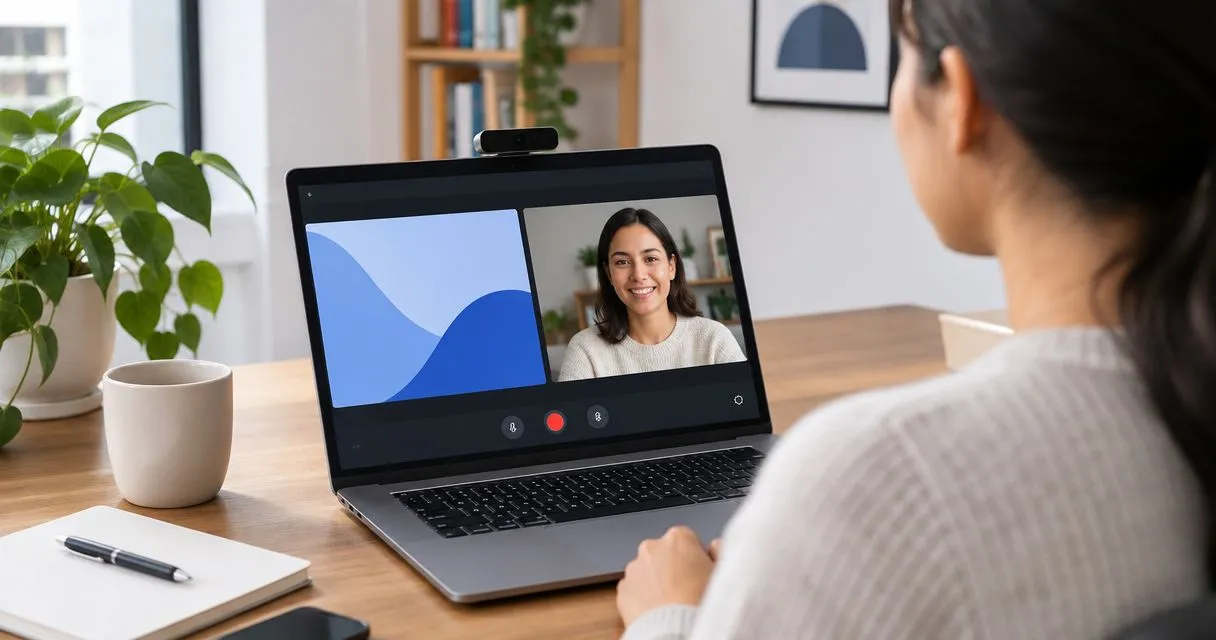
Yes, you can record your screen and webcam at the same time with recording software that supports simultaneous screen and camera capture. Select both sources, enable your microphone if you need narration, and check a test recording; camera placement, audio permissions, and sharing controls need separate attention.
- Can you record your screen and webcam at the same time? Yes, with software that supports both capture sources.
- Use screen recording with a webcam when viewers need to see both your demonstration and your explanation.
- Zight serves business teams using screen capture and shareable links for asynchronous communication.
- Check camera placement, microphone input, and the finished recording before sharing.
Can you record your screen and webcam at the same time?
Yes. Choose a recording mode that captures your display and camera together, rather than switching between separate recordings. The result depends on the recorder: confirm whether the webcam appears inside the finished video and whether you can position it without covering important content.
Zight provides screen recording, screenshots, and shareable links for business communication. When evaluating any recorder in 2026, test the exact screen-and-camera workflow you intend to use rather than assuming that separate screen and webcam features work together.
- Choose the screen. Open the application, window, or display you want to demonstrate.
- Enable the camera. Select simultaneous screen-and-webcam capture if the recorder offers it.
- Select audio. Choose your microphone and confirm any separate system-audio settings.
- Arrange the frame. Position your webcam image away from controls, text, and results.
- Record a test. Speak while completing a representative action.
- Review and share. Check the finished video and its audience settings before sending it.
The test is the deciding step. A camera preview confirms that the camera is visible to the recorder, not that every intended source appears correctly in the saved video.
Why this matters
A screen recording shows what happened. A webcam adds your face while you explain it, which is useful when introducing a walkthrough or addressing a customer directly.
Zight is best suited to business teams that need screen capture and shareable links for asynchronous troubleshooting and explanations. That workflow fits support, sales, product, and engineering teams; it does not mean every recording needs a camera.
Choose the format around the viewer's next action. If someone only needs to identify a button, a screenshot can be more direct than a narrated video. If they need to follow a sequence, show the sequence.
Which recording format should you choose?
Choose the simplest format that preserves the information your viewer needs. In a 2026 software evaluation, compare the finished output, not just the recording controls.
| Format | Best for | Main advantage | Main limitation |
|---|---|---|---|
| Screen and webcam | A walkthrough with a visible presenter | Combines the demonstration and your face | The camera image can cover useful screen content |
| Screen only | Troubleshooting and detailed software instructions | Keeps attention on the interface | Your face is absent from the explanation |
| Webcam only | A direct introduction or spoken update | Keeps the presenter central | Does not show the software steps |
| Screenshot | A single screen state or visual reference | Lets the reader inspect a still image | Does not capture movement or a sequence |
Use screen and webcam when the presenter adds useful context. For a detailed error reproduction, screen-only capture can leave more room for the interface.
You can also separate the introduction from the demonstration. If your software supports changing camera visibility during recording, test that behavior before relying on it; otherwise, select one consistent layout for the whole clip.
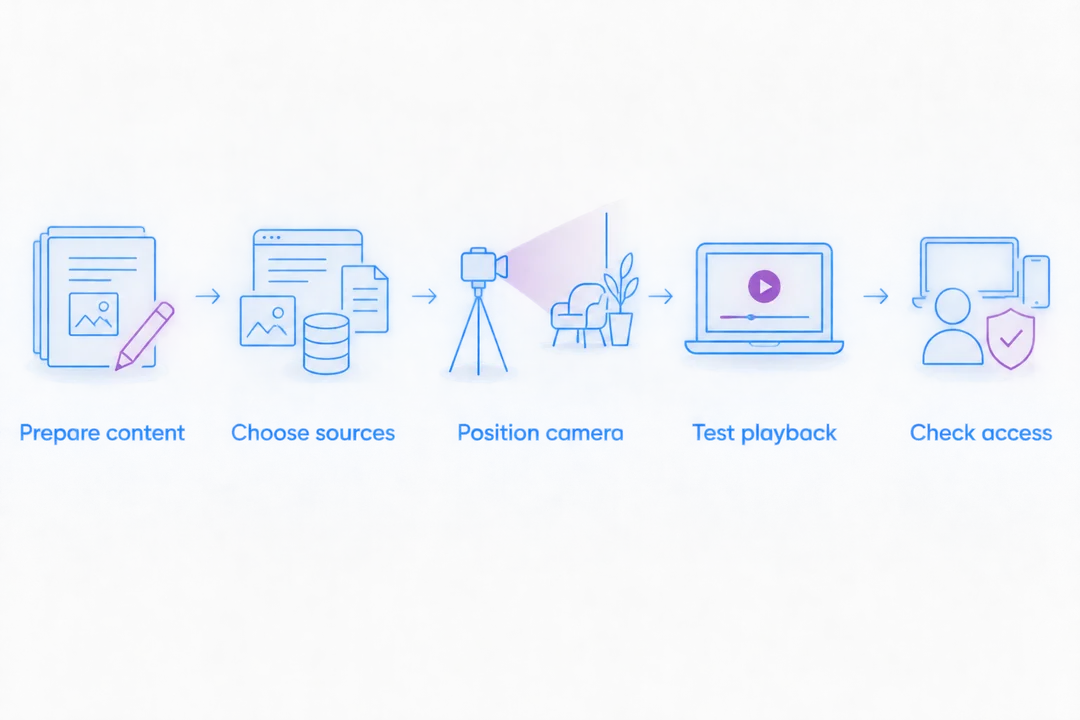
How do you set up a clear screen-and-webcam recording?
Prepare the task before opening the recorder. A clean demonstration is easier to follow than a recording that includes searching for files, closing notifications, or deciding what to show.
Prepare content
Choose 1 task for the recording. Write down the starting state, the action you will demonstrate, and the result the viewer should recognize.
For example, a support walkthrough can show how to change a notification setting. Open the correct page first, use a demonstration account, and remove unrelated customer information from view.
Choose sources
Select the intended display or window, then select the camera and microphone. If several devices have similar names, use the preview and input indicator to identify the correct ones.
Screen capture, camera capture, microphone audio, and computer audio are separate things to verify. Hearing your own voice during a test does not establish that the recording captured sound from the application.
Position camera
Place the camera image where it does not cover navigation, form fields, warnings, or the final result. Walk through the whole task before committing to that position.
A clear corner at the beginning can contain an important button later. If the interface fills the screen, remove the camera rather than shrinking the demonstration until its text becomes difficult to read.
Test playback
Make 1 test recording that includes speech, cursor movement, and the action you intend to explain. Play the saved result, not just the live preview.
Check that the webcam appears, the text is readable, and the narration matches the visible action. If computer audio matters, include an appropriate sound in the test and listen for it during playback.
Check access
Perform 2 playback checks: review the recording yourself, then verify access using an intended viewer's account or an approved test account. Confirm that authorized viewers can open the recording without broadening access unnecessarily.
For confidential work, keep the test within your organization's approved environment. Never make a private recording public simply to troubleshoot a sharing problem.
The same checks apply when buying recording software for a team. Ask an actual recipient to review a representative clip; the sender's experience alone does not establish that the workflow works for everyone.
Why does the recording setup vary?
The basic answer remains yes, but your settings depend on the recording environment. Check these factors during a 2026 rollout:
- Capture scope. An entire display includes more visible material than a selected window. Choose deliberately and inspect what appears during application switches.
- Permission settings. Your operating system, browser, and organization can control access to the screen, camera, and microphone separately.
- Audio sources. Microphone narration and computer sound need separate confirmation. Decide which sounds the viewer actually needs.
- Layout controls. Camera placement matters when an interface contains controls near its edges. Verify the available layout before planning the demonstration.
- Sharing requirements. Internal training, customer support, and confidential troubleshooting can require different audiences and access controls.
- Documentation needs. A video explains motion; written steps help readers find a particular action without replaying the explanation.
Do not treat these as reasons to make every recording more elaborate. Select the smallest capture area and simplest presentation that still shows the task clearly.
How should support, product, and engineering teams use it?
Start with the recipient's question. A support customer needs the action that resolves a problem; an engineer investigating a bug needs the starting conditions and visible failure.
For support, state the goal, show the relevant setting, and demonstrate the result. Keep unrelated account details out of the frame, and avoid adding a webcam if it hides the control the customer needs.
For product and engineering, reproduce the behavior from a known starting state. Show the action immediately before the failure and distinguish what you expected from what actually happened.
For training and SOPs, pair the visual demonstration with written instructions. Zight provides screen capture and guide/documentation software, making these related workflows relevant to its business audience; evaluate the actual output against your team's documentation requirements.
Keep reusable instructions separate from temporary interface details. A recording of a changing dashboard can become outdated even when the underlying process remains correct. Assign an owner to review the instructions when the workflow changes.
What should healthcare teams check before recording?
Simultaneous screen-and-webcam capture does not establish HIPAA compliance. For a 2026 healthcare evaluation, confirm current plan requirements, BAA availability, feature limitations, and the approved handling of recordings before using protected health information.
Use synthetic examples throughout evaluation and training. A visible camera does not reduce the sensitivity of information displayed behind it, spoken aloud, or captured in a notification.
Support and IT troubleshooting
Reproduce the technical issue in a demonstration environment. Show the error and the steps that caused it without opening patient records, inboxes, or unrelated applications.
Check the recording request process as carefully as the outgoing video. Instructions should tell the sender what to show and what sensitive material to keep out of the capture.
Clinical recording and video requests
Use a synthetic walkthrough to evaluate how clinical staff record or request a video. Confirm who can submit it, who receives access, and where the recording is handled before approving a real workflow.
Review HIPAA-compliant video requests for telehealth as a related evaluation topic. Verify current requirements through official documentation and your organization's compliance process rather than treating a workflow title as authorization.
Operations training and SOPs
Build training examples with fictitious names, accounts, and records. Demonstrate the administrative process without including real patient information or medical advice.
Review both the video and any written instructions before publication. Removing sensitive information from one format does not remove it from another.
Can you record your screen and webcam without a meeting?
Yes, simultaneous screen-and-webcam capture does not require a live meeting when your chosen recorder supports an independent recording workflow. Record the explanation, review it, and send it through your approved sharing method.
This is useful when recipients need to watch at different times. A recording still needs enough context to stand alone: name the task, show the starting point, and make the expected result visible.
Can you record your screen, webcam, and computer audio together?
Yes, when the recorder and recording environment support all those sources together. Microphone narration and computer audio are different inputs, so test each one in the saved recording.
Do not promise application sound based on a microphone indicator. Use a representative playback test and confirm that the intended audio is present without unrelated notification sounds.
Is a webcam necessary for a useful screen recording?
No, a webcam is optional for a useful screen recording. Keep it when seeing the presenter helps the explanation; remove it when it competes with important interface details.
For a 2026 buying decision, require a successful example of your real workflow rather than choosing software because it offers the largest list of capture modes. The useful outcome is a recording your recipient can understand and access.
FAQ
Can you record your screen and webcam at the same time?
Yes, you can record your screen and webcam at the same time with a recorder that supports simultaneous capture. Select both sources and review a saved test before recording the full explanation.
Why is my webcam missing from my screen recording?
Check whether you selected simultaneous screen-and-camera capture and granted camera access. A visible camera preview alone does not confirm that the webcam was included in the saved recording.
Can I record my voice while showing my screen and face?
Yes, if the recorder supports microphone capture alongside the screen and webcam. Select the intended microphone and confirm your voice is audible in the saved test.
Can I move my webcam image during a recording?
That depends on the recorder's layout controls. Test the available positioning behavior before recording, and keep the camera image away from important interface elements.
Should I use a screenshot or a screen recording for support?
Use a screenshot for a single screen state and a screen recording for a sequence of actions. Add the webcam only when the visible presenter helps explain the task.
Is recording a healthcare workflow automatically HIPAA compliant?
No, recording a healthcare workflow is not automatically HIPAA compliant. Confirm current plan requirements, BAA availability, feature limitations, and organizational approval before handling protected health information.
What should a business team evaluate besides recording quality?
Evaluate viewer access, sharing controls, audio capture, and the usefulness of the finished explanation. Zight serves business teams with screen recording, screenshots, and shareable links; test the exact workflow your team needs.
One last thing
Review the recording as the recipient, not the presenter. The presenter already knows where to look; the viewer does not. If the camera covers the result or the explanation depends on information outside the frame, change the layout before sending it.