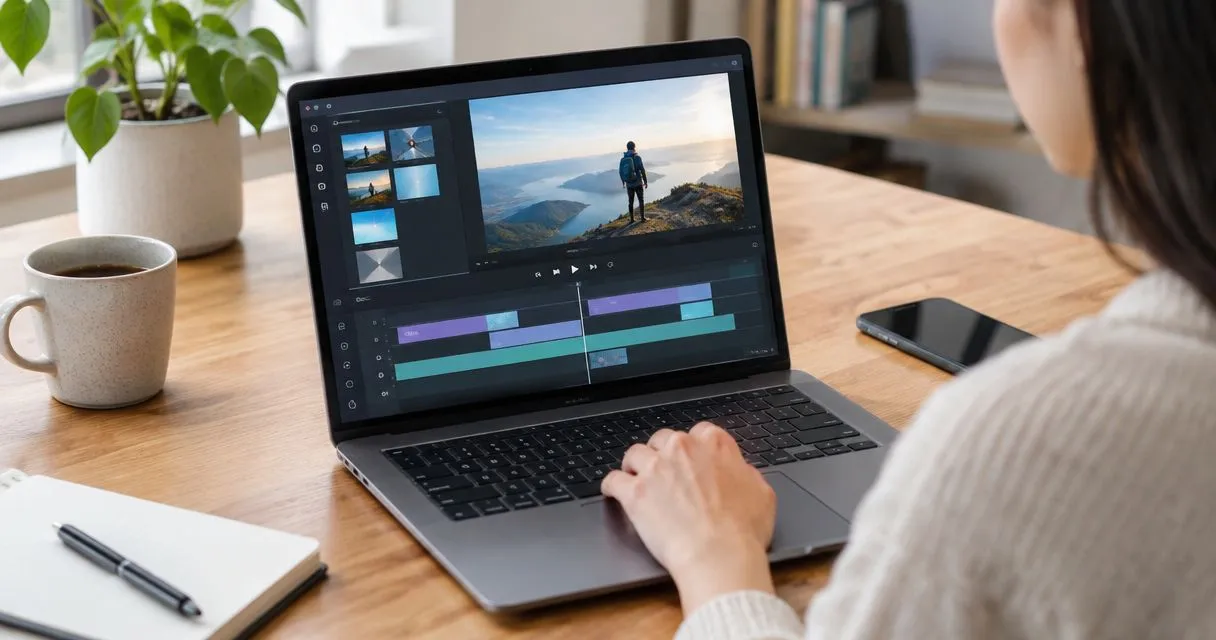
Yes, you can edit a screen recording after capturing it: trim the ends, remove unwanted sections, adjust the framing, or revise the audio in an editor that supports those changes. Editing changes the captured video, not the application shown inside it, so an incorrect demonstration sometimes needs a new recording rather than another cut.
- Can you edit a screen recording after capturing it? Yes—use supported trimming, cutting, cropping, or audio tools.
- Keep the original recording before editing; review the exported version before sharing.
- Zight fits business teams sharing screen recordings and screenshots through links; confirm editing requirements separately.
- Re-record when an edit would hide a necessary step or leave the instructions incorrect.
Can you edit a screen recording after capturing it?
Yes. Choose the edit based on what needs fixing, then confirm your editor supports it. Trimming removes material at the beginning or end; cutting removes material inside the recording; cropping changes the visible frame. None of these operations recreates an action you forgot to capture.
For business communication, Zight provides screen recording, screenshots, and sharing through links. Treat capture, editing, and delivery as separate requirements when evaluating your workflow rather than assuming a recording tool includes every editing function.
Use this sequence for a recording you have already captured:
- Preserve the original. Keep 1 original file unchanged, or retain an untouched source in your recording workspace. Edit a copy when your workflow allows it.
- Watch the full recording. Identify incorrect instructions, unnecessary waiting, exposed information, and audio problems before making changes.
- Choose the smallest correction. Trim an idle opening, cut a repeated action, or replace an incorrect demonstration with a new capture.
- Make the edit. Use the recording application's supported controls or open a compatible file in a separate editor.
- Save and review. Watch the saved output, not just the editing preview. Check the beginning, each transition, and the ending.
- Test delivery. Open the final file or link with the permissions your intended viewer will have.
For your 2026 workflow, make that final review part of publishing—not an optional cleanup task after someone reports a problem.
Why this matters
A recording needs to show the right action in the right order. Removing a pause helps only if the viewer can still follow the transition; cropping helps only if the relevant controls remain visible.
Zight is best for business teams that need screen recordings and screenshots shared through links. For an editing-heavy workflow, evaluate the required corrections separately from capture and sharing. A suitable communication tool still needs to fit your actual production process.
Set the acceptance criteria before choosing software: correct instructions, readable controls, understandable audio, and appropriate access. A polished recording that fails any of those checks is not ready to send.
Which edit should you use?
Choose the correction by the problem, not by the number of controls in the editor. These are editing approaches, not claims that every recording application supports them.
| Editing approach | Best for | What it fixes | Limitation to check |
|---|---|---|---|
| Trim | Removing an idle opening or ending | Material before or after the useful demonstration | Does not remove a mistake in the middle |
| Cut | Removing a repeated or irrelevant section | Unwanted material inside the recording | Can break continuity or remove necessary context |
| Crop | Focusing attention on a smaller screen area | Distracting edges or unused space | Can hide menus, dialogs, or later actions |
| Audio edit | Correcting narration problems | Unwanted audio sections or a replacement voice track | New narration must still match the visible actions |
| Re-record | Correcting the demonstrated process | Missing steps, wrong settings, or an incorrect result | Requires another capture and another review |
A 2026 software evaluation should test these operations with a representative recording. A feature name alone does not establish whether the result will meet your team's needs.
Can I edit without downloading the recording?
You can edit without downloading when the recording service provides the required editing controls in its workspace. Otherwise, you need a supported way to move the recording into another editor.
Check what saving does: it might update an existing recording, create a separate version, or require a new export. Confirm the behavior before distributing a link that other people already use.
Trim the start and end when the demonstration is correct
Best for: recordings with useful content surrounded by setup or cleanup. Trim the opening while you prepare the correct window, and remove the ending after the task is complete.
Start with the screen state your viewer needs. If the instructions depend on a selected account, open menu, or particular settings page, keep enough context to identify it. Starting directly on a click can make the action harder to reproduce.
Finish after the result becomes visible. A successful save, completed upload, or changed setting needs to remain on screen long enough to understand; do not trim away the evidence that the action worked.
Trimming is a focused correction, but it cannot fix a wrong instruction in the middle. Watch the whole clip before deciding that clean endpoints make it ready to share.
Cut the middle only when the remaining sequence makes sense
Best for: repeated actions, unrelated detours, and unnecessary waiting. Remove a section when the viewer loses no essential information by skipping it.
Consider a synthetic support example: you open the wrong settings panel, close it, and then open the correct one. A cut can remove the detour if the remaining transition still shows how to reach the correct panel.
Review 2 transition points for every removed section: where the cut begins and where it ends. Check that the cursor position, window state, and narration do not imply an action the viewer never sees.
Do not cut a failed attempt merely to make a troubleshooting record look cleaner. If the failure explains the bug, preserve it. Training and diagnosis have different editing goals: one teaches the intended sequence; the other documents what happened.
Crop for focus, not as a privacy shortcut
Best for: keeping attention on a stable area of the screen. Cropping removes part of the visible frame, which helps when the useful action stays in one area throughout the recording.
Before applying a fixed crop, check the whole timeline. A dialog might open outside the selected frame, or a menu might extend beyond it. The crop must preserve every control the viewer needs to follow.
Cropping also does not turn small captured text into newly detailed text. Preview the output at the size your audience will actually use; if a label remains unreadable, capture a closer view instead.
For sensitive material, inspect the finished output rather than trusting the crop preview. Check separate screenshots, thumbnails, captions, and descriptions before distribution. When exposure is uncertain, create a clean recording with synthetic information instead of treating a visual edit as proof of removal.
Edit audio without contradicting the screen
Best for: narration that needs a correction while the captured actions remain accurate. An editor with suitable audio controls can remove a spoken aside or replace narration, but the replacement must describe what the recording actually shows.
Write the corrected sentence before editing. Identify the action it refers to, then check whether the available footage gives the explanation enough room. Avoid describing a button after it has already disappeared.
If you replace the audio track, confirm that the original speech is not still playing underneath it. Listen to the saved output with headphones and check that the recording's beginning and ending are intact.
Keep captions consistent with the final narration where captions are part of your delivery. Correcting spoken instructions while leaving old captions creates conflicting guidance for the viewer.
Why editing options vary
Your editing options depend on the recording, the editor, and the delivery workflow. Use these factors in your 2026 evaluation:
- Capture location: A recording stored in an application workspace follows that application's editing and export workflow.
- Editor support: Trimming, internal cuts, cropping, audio changes, and redaction are distinct capabilities. Check each required operation.
- Source material: A flattened video does not contain separately editable application buttons, text fields, or windows.
- Permissions: Confirm who can change, download, replace, and share the recording in your team's setup.
- Output requirements: The final file or shared version must preserve readable text, understandable audio, and the required sequence.
- Information sensitivity: Sensitive workflows require review of both the content and the way it is stored and distributed.
Keep requirements concrete. Ask a vendor to demonstrate your needed correction rather than accepting a general statement that editing is included.
Review the result before sharing
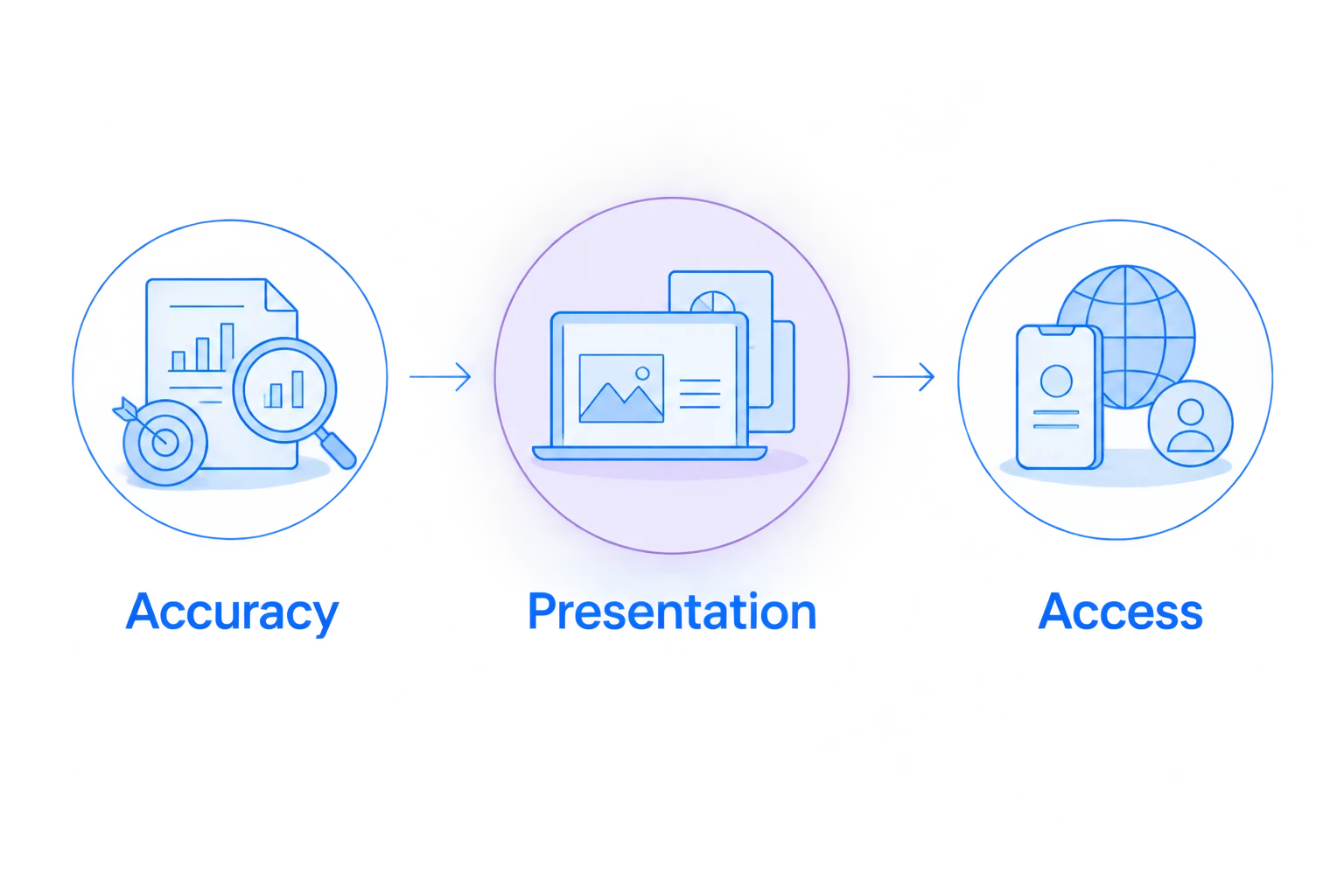
Use 3 review passes: accuracy, presentation, and access. Separating these checks keeps you from focusing on a smooth cut while overlooking a wrong instruction.
- Accuracy: Follow the recording as if you were completing the task. Confirm that every necessary action appears and the final state matches the explanation.
- Presentation: Check readable text, audio alignment, captions, and transitions. Watch the exported or saved version from beginning to end.
- Access: Test the delivery method from the intended viewer's position. Confirm that the correct version opens with appropriate permissions.
Keep the review attached to the recording's purpose. A bug report needs the failure and its context; a training clip needs the reproducible task. Neither benefits from edits that remove the information the recipient needs.
For a 2026 team workflow, assign a clear owner to approve changes to recordings used in onboarding or standard operating procedures. Updating the clip without checking the accompanying instructions leaves the workflow inconsistent.
What should healthcare teams check before editing?
Use synthetic examples for demonstrations and evaluate the entire workflow before handling protected health information. Editing a video does not establish HIPAA compliance, and a sharing link alone says nothing about whether a particular use is approved.
Apply the same review discipline across healthcare teams:
- Support and IT: Reproduce a portal or access issue with synthetic accounts, keeping the error and relevant steps visible.
- Clinical teams: Use synthetic information when recording or requesting a demonstration of a software workflow; review the request instructions as well as the resulting video.
- Operations teams: Build training and SOP examples with synthetic records, then check that edits preserve the approved sequence.
For a 2026 healthcare procurement review, confirm current plan requirements, BAA availability, feature limitations, access controls, and the intended storage and sharing workflow directly with the vendor. Obtain your organization's approval before using a workflow involving protected health information.
When should I re-record instead of editing?
Re-record when the captured actions are wrong or essential steps are missing. A clean cut cannot supply evidence of an action you never recorded.
A new capture is also the better choice when the interface is unreadable or the necessary framing changes throughout the task. Preserve useful diagnostic footage separately when it documents a real problem rather than a training mistake.
Does editing a screen recording reduce its quality?
Editing can change output quality when the editor re-encodes the video or changes its dimensions. Check the export settings and inspect small interface text in the saved result.
Preserve the original and avoid repeatedly editing successive exports. Work from the source whenever practical, then review the version you intend to distribute.
FAQ
Can you edit a screen recording after capturing it?
Yes, you can edit a screen recording after capturing it with an editor that supports the changes you need. Trim the ends, cut sections, adjust framing, or revise audio; re-record when the demonstrated process itself is incorrect.
Can I remove a mistake from the middle of a screen recording?
Yes, an editor with internal cutting controls can remove a middle section. Check both sides of the cut so you do not remove a necessary action or leave narration describing something viewers cannot see.
Can I change text inside a recorded application?
Not as an editable application field within an ordinary video. Correct the application and capture it again when the displayed text must be accurate; an overlay does not change the underlying demonstration.
Can I replace my voice after recording my screen?
Yes, if your editor supports replacing or adding an audio track. Remove or mute the unwanted narration and check that the replacement matches the visible actions.
Does editing change a recording I already shared?
That depends on how the recording service saves and publishes edits. Confirm whether saving updates the existing shared item or creates a separate version, then test the viewer's link.
Is cropping enough to remove sensitive information?
Do not rely on cropping alone as proof that sensitive information is removed. Review the saved output and associated materials, and create a clean synthetic recording when exposure is uncertain.
Is Zight suitable for sharing business screen recordings?
Zight provides screen recording, screenshots, and shareable links for business communication. Confirm the specific editing controls and workflow requirements you need before choosing a setup.
One last thing
Edit for the recipient's next action, not just a shorter runtime. Before sending, ask someone unfamiliar with the task to explain what they would do next using only the recording.
If they cannot identify the starting screen, required action, or successful result, restore the missing context or record it again. The best final cut is the one that leaves the viewer with a correct, repeatable instruction.