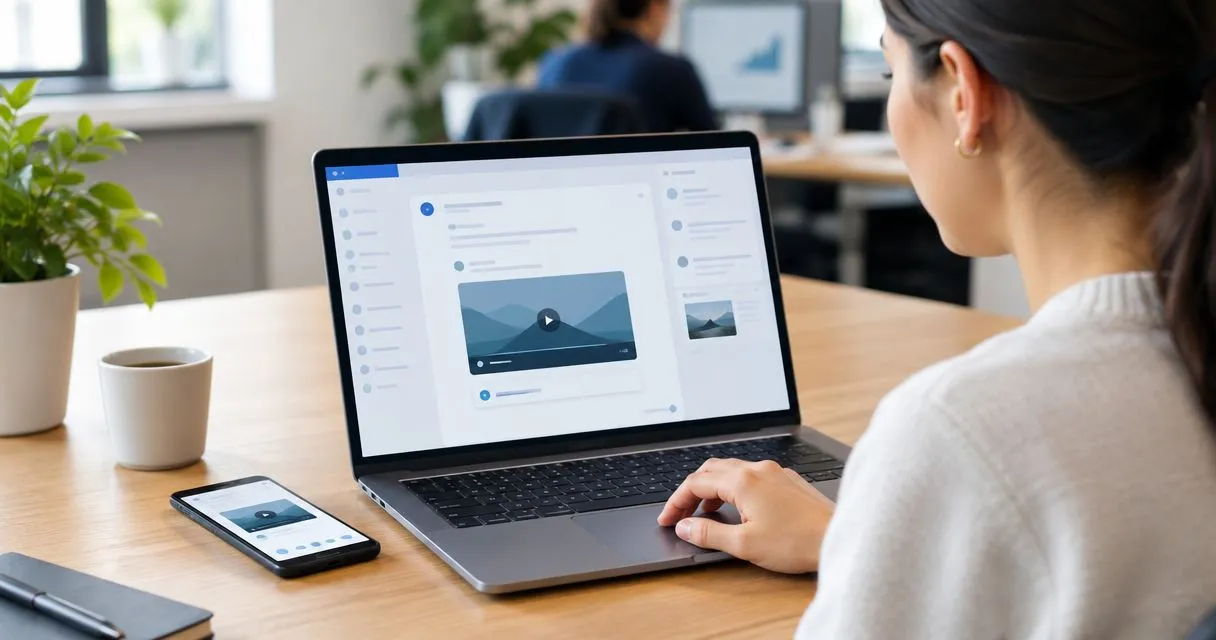
Instead of retyping troubleshooting instructions into every ticket, record the steps with Zight and paste the recording’s shareable link into a Zendesk reply or internal note. This 2026 workflow covers capture, recipient access, ticket placement, and follow-up without treating a video link as an uploaded attachment.
- Use the zight zendesk integration workflow to share screen recordings in Zendesk tickets through recording links.
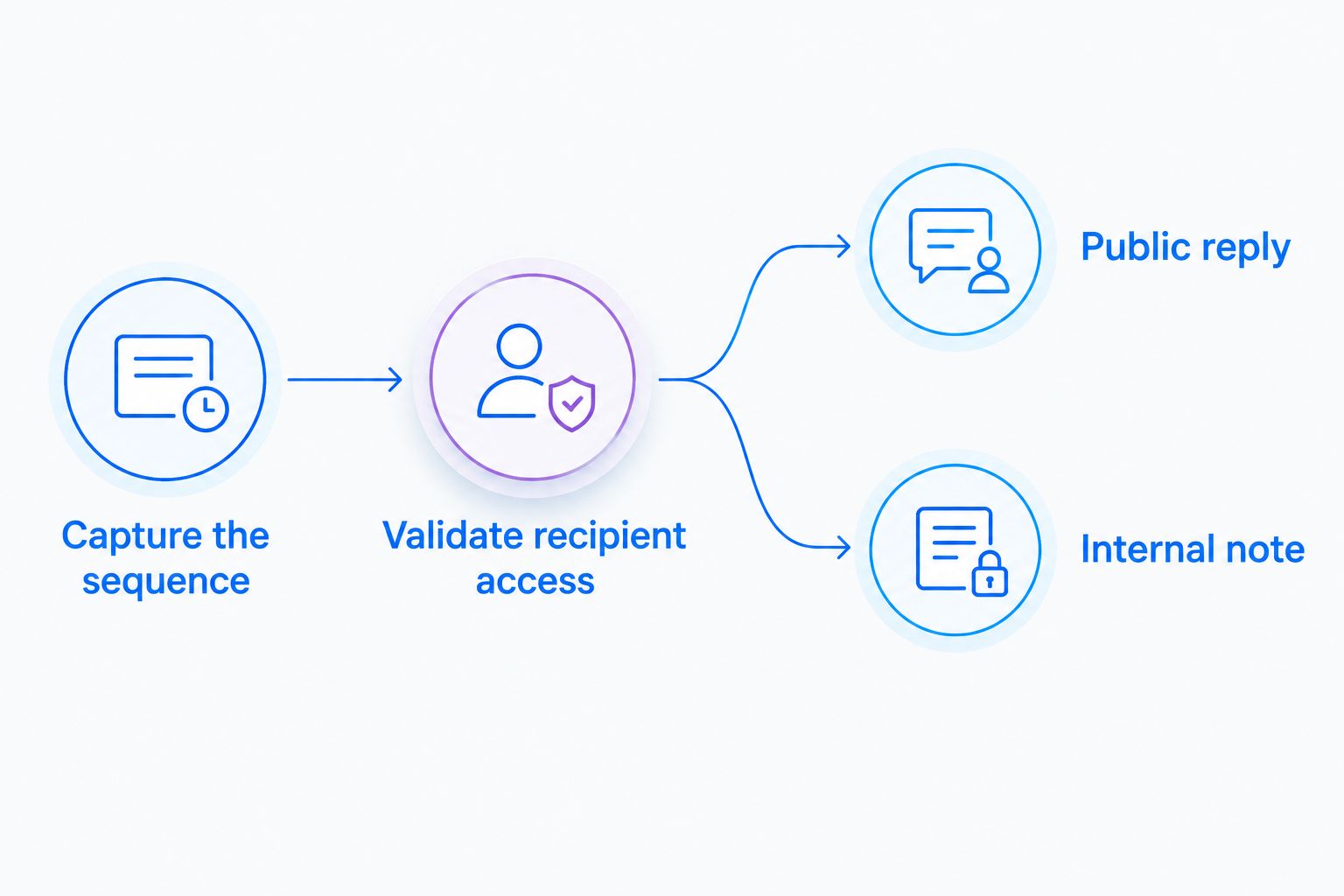
- Choose Public reply for customer instructions and Internal note for agent-only troubleshooting context.
- Test recording access as the intended recipient before sending a ticket reply.
- A recording link is not a file attachment, and pasting one does not create automatic synchronization.
Why this matters
A ticket can describe the right fix and still leave the customer guessing where to click. A screen recording shows the starting point, the action, and the expected result; a screenshot works better when the issue fits in one frame.
Zight screen recording is best for support teams that need to show troubleshooting steps through shareable links. The trade-off is access management: the ticket and the recording are separate resources, so permission to read one does not establish permission to view the other.
Treat this as a manual link-sharing workflow for 2026, not an installation guide for a native connector. It does not require automatic ticket updates, embedded playback, or a background synchronization rule.
Before you start
- Prepare your accounts and permissions. Have access to the recording software, permission to create shareable recordings, and permission to comment on the relevant Zendesk ticket. Use an approved test ticket before replying to a customer.
- Prepare a safe demonstration. Open the application you need to explain, use synthetic records, and remove unrelated windows and notifications. Confirm that your microphone works if the explanation needs narration.
- Check the access gotcha first. A recording that opens for its creator is not proof that it opens for the customer. Decide who should view it, then test with a separate session or an authorized test account that matches that audience.
For a 2026 team rollout, assign an owner for recording permissions and retention before agents start sharing links. Otherwise, a useful ticket response can outlive the recording it depends on.
Choose the right ticket evidence
Use the smallest format that explains the issue completely. Recording every answer creates extra viewing work; using only screenshots can hide the sequence that caused the problem.
| Format | Best for | Advantage | Limitation |
|---|---|---|---|
| Screenshot | A single setting, error message, or visual mismatch | Lets the reader inspect one state without playback | Does not show the actions leading to that state |
| Screen recording link | A reproducible sequence or guided fix | Shows movement and order while keeping the ticket message concise | Requires access to the separately hosted recording |
| Written steps | A short instruction or searchable summary | Keeps the essential action directly in the ticket | Can leave interface location and timing unclear |
These formats work together. Put a short written summary beside a recording, and use a screenshot when one frame communicates the answer more directly.
For an engineering escalation, show the reproduction sequence and include the exact error text in the note. For a customer reply, show only the steps the customer needs to take.
Recording preparation
Capture a focused explanation
- Define the outcome. Write one sentence describing what the recipient should accomplish. Keep the recording scoped to that result rather than the entire application.
- Set the starting state. Open the relevant screen with synthetic information already entered. Remove unrelated tabs, messages, account details, and desktop notifications.
- Capture the sequence. Start your screen recording, show the initial state, perform the action, and finish on the expected result. Name controls aloud when pointer movement alone would be ambiguous.
- Review before sharing. Play the recording through. Check the captured area, sound, sensitive information, and final state before copying its shareable link.
As an editorial target, start with a 30-second recording for a simple fix. This is a suggested scope, not a recording limit; use more time when the explanation requires it. Pause for 2 seconds on an important result so the viewer can inspect it.
Expected result: You have a reviewed recording that demonstrates one outcome without exposing unrelated information.
Do not rely on narration to carry information that the ticket needs to preserve. Type error messages, required values, and essential instructions into the ticket as well. That gives the recipient something searchable and usable without replaying the clip.
Validate recipient access
- Copy the recording’s shareable link using the sharing controls provided in your account.
- Open that exact link in a separate browser session that does not inherit your creator access.
- For restricted recordings, test with an authorized account that represents the intended audience. Confirm that an unauthorized session does not receive access.
- Play the recording and check that the recipient can see the relevant details and hear any necessary narration.
Expected result: The intended audience can view the recording under the access conditions your team has approved.
For a public customer response, do not assume every customer can authenticate to your organization’s recording workspace. Resolve the audience requirement before placing the link in the ticket, not after the customer reports a blocked page.
Zendesk ticket placement
Add the recording to a customer reply
- Open the correct Zendesk ticket and confirm the requester and conversation context.
- Select Public reply in the ticket composer when the recording is intended for the customer.
- Write the answer in plain text first. State the issue, the action to take, and what success looks like.
- Paste the tested recording link beside a descriptive sentence. Avoid an unexplained URL or a message that contains only a link.
- Check the reply audience and ticket status. If the ticket should remain open, submit with Submit as Open.
Expected result: The ticket contains a customer-facing explanation and a recording link that the intended recipient can open.
Use this response pattern:
The recording shows how to reproduce the issue and where to change the setting. Follow the demonstrated steps, then confirm whether the expected result appears. If it does not, reply with the step where your screen differs.
Add the recording link immediately after that explanation. This template is suggested ticket copy, not a customer testimonial.
In this 2026 workflow, “attach a recording” means include its shareable link in the ticket. It does not mean upload the video file to Zendesk or guarantee that playback appears inside the conversation.
Add evidence to an internal note
- Open the ticket and select Internal note in the composer.
- State the observed behavior and the expected behavior as separate points.
- Paste the recording link and identify the action that reproduces the issue.
- Add relevant environment details that you have actually confirmed, such as the affected browser or application version. Exclude credentials and unrelated customer information.
- Submit the note with the appropriate ticket status, then confirm that the note appears in the conversation as internal context.
Expected result: Agents have a reproducible explanation without placing that internal discussion in a customer-facing reply.
Internal note controls the ticket comment’s audience; it does not change the recording’s permissions. Review both before sharing sensitive troubleshooting material.
Follow-up workflow when the issue changes
An adjacent workflow uses a new recording when the customer’s next reply changes the diagnosis. Treat the new clip as another piece of ticket evidence, not an automatic replacement for earlier evidence.
- Read the latest reply and identify what changed: the starting state, the action, or the result.
- Record only the new or corrected sequence. Avoid resending the original explanation unchanged.
- Review the new recording and repeat the recipient-access test.
- Add a new Public reply or Internal note, depending on the audience.
- Explain whether the new instructions replace the earlier guidance or cover a separate condition.
Expected result: The ticket preserves a readable sequence of observations, corrections, and next steps.
Do not assume a pasted link updates when you create another recording. Open the link you are about to send and verify its contents. A clear follow-up sentence prevents the customer from following superseded instructions.
For repeat issues, create a maintained written procedure rather than making the ticket history the only source of truth. Review any generated guide against the demonstrated steps before publishing it.
Healthcare workflow safeguards
For healthcare teams evaluating this workflow in 2026, keep demonstrations synthetic until security and compliance owners approve the full process. A screen-recording tool and a support ticket system do not make the combined workflow HIPAA compliant by default.
Confirm current plan requirements, BAA availability, feature limitations, recording access, and retention requirements using official product documentation and your organization’s agreements. Review the recording service and Zendesk separately; approval for one does not establish approval for the other.
Give each healthcare team a defined use case:
- Support and IT: Demonstrate a login or application problem with a test account. Keep passwords, patient records, and unrelated notifications outside the capture.
- Clinical teams: Record a synthetic application walkthrough. Before requesting videos from others, approve the collection method, permitted content, access, and handling process.
- Operations teams: Build training and SOP material with synthetic examples. Review screenshots, narration, and written instructions before distribution.
Do not request patient information through an unapproved video workflow. These examples explain software use, not clinical decisions or medical advice.
Troubleshooting
The customer cannot open the recording
Test the exact link from the sent ticket using an audience-matched session. Check whether the recording requires authentication or permissions the customer does not have. Correct access only within your organization’s approved sharing policy, then retest.
The link appears as text instead of a player
Treat the link as the delivery method, not a promise of embedded playback. Keep a descriptive sentence beside it and verify that opening the link reaches the intended recording. A separate playback page still supports this workflow.
An internal clip was placed in a public reply
Stop further sharing and follow your organization’s incident process. Review the recording’s access controls immediately; changing a later ticket comment does not retract content someone has already received. Check recipients before sending any correction.
The recording has no usable audio
Check the selected microphone and operating-system permissions, then make a short test capture. If sound is not needed, replace narration with clear written instructions in the ticket. Do not send an explanation that depends on missing audio.
An older ticket points to outdated instructions
Review the recording itself, not just the ticket wording. Add corrected guidance and identify which earlier instructions it replaces. For reusable material, assign a content owner and a review trigger tied to changes in the demonstrated interface.
Customize your workflow
Make your 2026 support standard small enough for agents to follow consistently: one intended audience, one demonstrated outcome, a tested link, and a written next step. Validate the process with 1 test ticket before adding it to team instructions.
For a paid-team evaluation, assess recording access, ownership when an agent leaves, retention controls, and how customers receive instructions. Test those requirements against your actual support process instead of judging only the recording experience.
Use screenshots for isolated interface questions, recordings for sequences, and reviewed documentation for repeatable procedures. Keep the ticket as the place that explains which artifact matters and what the recipient should do next.
FAQ
How do I use the Zight Zendesk integration to add a recording?
Record the relevant steps, copy the recording’s shareable link, and paste it into a Zendesk Public reply or Internal note. This guide covers manual link sharing, not native connector installation or automatic synchronization.
Does adding a recording link upload the video to Zendesk?
No. Pasting a recording link references a separately hosted resource; it is not the same as uploading a video file as a ticket attachment.
Should I put a screen recording in a public reply or an internal note?
Use Public reply for customer-facing instructions and Internal note for agent-only discussion. Check the recording’s permissions separately because the ticket comment type does not set access to the video.
Why can I watch the recording when my customer cannot?
Your creator session can have access that the customer does not have. Test the exact link with an audience-matched account or separate browser session, then review the recording’s sharing requirements.
Will a ticket update automatically when I create a new recording?
Creating another recording does not automatically replace a link already pasted into a ticket. Add the new link in a follow-up comment and explain whether it replaces the earlier instructions.
Is Zight screen recording in Zendesk automatically HIPAA compliant?
No. Verify current plan requirements, BAA availability, feature limitations, and the approved handling process for both services before using protected health information. Keep demonstrations synthetic until the complete workflow is approved.
One last thing
The recording is evidence; the ticket is the instruction. Always leave enough written context for someone to understand the problem, the next action, and the expected result without watching the video. That also protects the usefulness of the conversation if recording access changes later.