
Instead of repeatedly explaining a deal in messages, record the walkthrough, copy its shareable link, and save it on a Salesforce opportunity task. This 2026 Zight Salesforce integration workflow uses a link-based handoff rather than assuming a native connector, automatic upload, or activity sync.
- The Zight Salesforce integration workflow connects a shareable recording link to a Salesforce opportunity task.
- Zight screen recording is best for teams that explain deal context through shareable videos.
- Salesforce record access and recording access require separate checks.
- Start with a manual handoff; automate only after defining record matching and ownership.
Why this matters
A recording in a private message sits outside the deal record. The next owner needs the explanation and the right opportunity, not another search through chat.
Zight provides screen recording, screenshots, and shareable links. Salesforce holds the opportunity context. This workflow joins them with a task containing the recording link, a short explanation, and an assigned next action.
A saved link is not a synchronized attachment. The recording remains behind its sharing controls, while Salesforce stores the reference. Your 2026 rollout should test both access layers before making this a team process.
Before you start
- Accounts and permissions: Use a recording account you can share from, plus Salesforce access to the target opportunity and permission to create tasks. Ask your administrator to confirm the task fields described below are exposed in your layout.
- Safe test materials: Prepare 1 test opportunity, 1 test recording, and 2 authorized users: the sender and a recipient. Use synthetic account details and close unrelated tabs before capturing anything.
- The gotcha: Permission to open a Salesforce opportunity does not grant permission to open its recording. Test the link as the recipient, not only while signed in as the recording owner.
Salesforce administrators can customize actions and page layouts. Confirm that New Task is available and that you have a task text field for the link before starting; this guide uses Comments. If your layout differs, have the administrator identify the equivalent fields rather than guessing.
Recording preparation
The capture should answer one deal question. Examples include explaining an implementation concern, showing a product behavior, or handing a technical question to an engineer.
Prepare and capture the explanation
- Open only the application or demonstration environment needed for the explanation. Replace customer information with synthetic content wherever possible.
- State the purpose at the beginning: what the recipient should understand or decide after watching.
- Record the relevant screen sequence using your approved recording setup. Use a screenshot instead when a single visible state explains the issue without motion.
- Review the capture before sharing. Check the visible content, narration, notifications, and any information exposed while switching windows.
- Copy the recording's shareable link and open it yourself to confirm that it points to the intended capture.
Expected result: You have a reviewed recording link that explains one specific opportunity issue without unrelated information.
Do not narrate the entire account history. Put background in the task text and reserve the recording for what benefits from being shown. This keeps later reviewers from searching through a long explanation for the actual question.
Use a predictable recording title, such as Account — workflow question — owner. This is a suggested naming convention, not a product-generated format. Avoid sensitive details in the title because titles can appear in places beyond the recording itself.
Salesforce task configuration
Create the task from the opportunity whenever your page layout supports it. That gives you a clear starting record, but you still need to verify the relationship before saving.
Add the link to the opportunity
- Open Opportunities, then select the opportunity that needs the recording.
- In the opportunity's Activity area, select New Task. If the action is absent, resolve the layout or permission issue with your administrator.
- In Subject, enter an action-led description, such as
Review recording: implementation question. Name the work, not just the file. - In Comments, paste the shareable link. Add the purpose, the requested action, and any context the viewer needs before watching.
- Check Related To and confirm it identifies the intended opportunity. Do not rely on an account name alone when several opportunities exist for that account.
- Set Assigned To to the person responsible for the next action. Set Due Date according to your team's actual commitment.
- Select Save, then reopen the task to verify the saved content.
Expected result: The opportunity has a task containing the recording link, a named owner, and an explicit next action.
Use this suggested task structure:
- Purpose: Explain the implementation question shown in the recording.
- Recording: Paste the shareable link.
- Requested action: State the decision, answer, or review needed.
- Context: Identify the relevant workflow and any constraints.
The task should remain understandable without watching the video. A recipient needs to know why the recording matters before opening it, especially when reviewing several deal activities together.
Verify the recipient handoff
- Ask the assigned recipient to open the opportunity under their own Salesforce login.
- Have the recipient open the saved task and follow the recording link using their normal work account.
- Confirm that the recipient can view the intended capture and understand the requested action.
- Correct either Salesforce permissions or recording-sharing permissions if access fails. Do not broaden access beyond your organization's policy to make the test pass.
- Ask the recipient to record the decision or next step in Salesforce after reviewing the capture.
Expected result: The recipient can find the task, view the recording, and respond in the deal's working context.
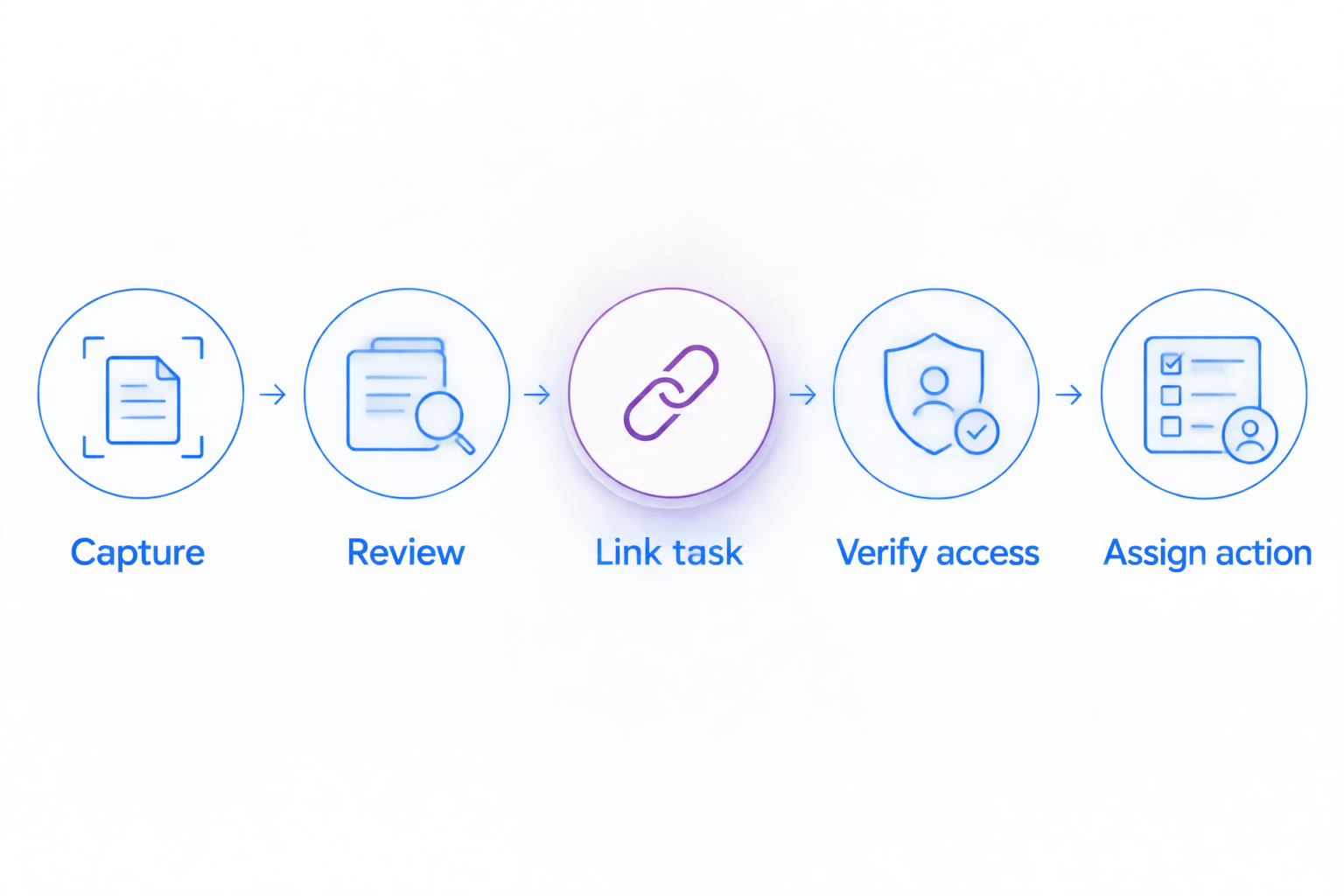
The handoff follows a simple sequence: Capture, Review, Link task, Verify access, Assign action. Treat each stage as a separate check; a successful save does not prove a successful handoff.
Second workflow: update a deal after a revised recording
A fresh recording needs a clear relationship to the earlier explanation. Decide whether it replaces the same open request or introduces a new piece of work.
| Workflow | Best for | Advantage | Trade-off |
|---|---|---|---|
| Update the existing open task | Revising the same unresolved question | Keeps the current request together | Needs a clear revision note to distinguish the new capture |
| Create a new follow-up task | A different question, owner, or decision | Separates responsibility and completion | Adds another activity for the team to maintain |
Handle a revision deliberately
- Review the replacement recording and copy its shareable link.
- Open the opportunity and locate the task associated with the original request.
- For the same unresolved question, edit the existing task and replace or supplement the link according to your retention policy. State what changed.
- For a different request, create a new task with its own owner and requested action. Mention the earlier task's subject when that context matters.
- Repeat the recipient-access check for the new recording.
Expected result: The opportunity distinguishes the current request from earlier work without forcing the recipient to guess which capture applies.
For your 2026 task convention, define what counts as a revision before rolling this out. A corrected demonstration and a new commercial question should not receive identical treatment simply because both arrive as videos.
Automation requirements before you connect systems
Automate a defined handoff, not an ambiguous link. A shareable URL alone does not identify the correct opportunity, task owner, or business action.
Before evaluating CRM automation tools for Salesforce, define the opportunity identifier, task owner, recording URL, and duplicate-handling rule that every handoff must carry. Those requirements determine whether the automation can create a usable task rather than an unassigned link.
Write down these rules before selecting a connector:
- Trigger: Specify the approved event that starts the handoff. Do not assume that recording creation or updates are exposed as integration events.
- Record match: Require an explicit opportunity identifier instead of matching on a recording title or account name.
- Task contents: Define the subject, recording link, context, requested action, and owner.
- Repeat handling: Decide whether repeated submissions update existing work or create separate tasks.
- Failure ownership: Assign someone to handle missing records, rejected writes, and inaccessible recordings.
Confirm supported triggers, actions, authentication, and permissions in the current documentation for whichever tools you select. This guide establishes the manual workflow; it does not establish connector support or prescribe an unverified automation recipe.
Troubleshooting
The task is saved against the wrong deal
Inspect Related To before changing the recording. Select the intended opportunity and save the correction if your permissions allow it.
When several opportunities share an account, use the exact opportunity record as the reference. A recognizable customer name is not enough to distinguish separate deals.
The recording opens for you but not the recipient
Test with the recipient's normal account and browser session. Check the recording's sharing requirements separately from Salesforce access.
Ask the recording owner to apply the approved access settings. Do not replace restricted sharing with broader access unless your organization's policy permits it.
New Task or Comments is missing
Have the Salesforce administrator inspect the opportunity actions, task layout, and your permissions. Custom layouts can expose different fields or actions.
Agree on an approved text field before continuing. Do not scatter recording links across unrelated fields simply because those fields are visible.
The recipient watches but does not respond
Rewrite the task around a specific action and confirm Assigned To identifies the responsible person. A subject such as Recording describes an object, not a job.
Ask for an answer, decision, or review outcome. Keep that request in Salesforce so the next person can understand what remains unresolved.
Customize your workflow
Expand the process by buyer workflow, not by adding more recordings. Sales can attach a demonstration to a decision; support can explain a reproduced issue; product and engineering can show the behavior behind a technical question.
Zight screen recording and screenshot workflows serve different needs: use video for a sequence and a screenshot for a single state. Both still need an owner, appropriate sharing, and a clear reason to appear on the deal.
Before standardizing longer walkthroughs, review how long a Zight screen recording can be. Keep the capture focused on the action, and confirm current recording constraints for your setup.
Healthcare workflow controls
Use synthetic examples for healthcare demonstrations. Support and IT teams can show a simulated access problem; clinical teams can rehearse recording and requesting videos without patient information; operations teams can document training and SOP steps in a demonstration environment.
Before introducing protected health information, verify current plan requirements, BAA availability, supported features, and relevant integration limitations in official documentation. Obtain organizational approval for the entire recording-to-Salesforce workflow. A task link alone does not establish HIPAA compliance.
For the 2026 rollout, keep healthcare validation separate from the general sales pilot. Recording, requesting a video, and documenting an SOP each require review of the actual data flow and access model.
FAQ
How does the Zight Salesforce integration workflow work?
This workflow saves a shareable recording link in a task related to a Salesforce opportunity. The recording remains subject to its own access controls; the task provides context, ownership, and the next action.
Does this workflow upload a video file into Salesforce?
No. This guide stores a recording link in Salesforce, not the video file itself. File uploads and synchronized attachments require a separately verified workflow.
Can I automatically attach every new recording to an opportunity?
Automatic task creation requires verified integration support and an explicit opportunity-matching rule. Confirm the selected tools' current triggers, actions, permissions, and duplicate handling before enabling automation.
Why can't a teammate open the recording from the opportunity?
Salesforce access and recording access are separate. Check the recipient's recording permissions and authentication requirements using their normal work account.
Should I update a task or create a new one for a revised recording?
Update the existing open task when the recording addresses the same unresolved request. Create a new task when the question, responsible owner, or required decision changes.
Can healthcare teams use this workflow with patient information?
Do not introduce patient information until your organization approves the complete workflow. Verify current plan requirements, BAA availability, feature limitations, and both systems' access controls; use synthetic content during testing.
What should I test before a 2026 team rollout?
Test record matching, saved task content, recipient access, ownership, and revision handling. Have someone other than the recording owner complete the viewing test.
One last thing
The recording is evidence; the task is the request. Keep the requested decision in Salesforce, even when the explanation lives in a video, so the deal record shows what needs to happen next.