How to Convert HEIC to JPEG Online with Zight
Follow this simple step-by-step guide to convert your HEIC files into JPEG format using
Zight’s free online tool.
Step 1: Navigate to Zight Website
- Visit the Zight website to start the conversion process. Go to ‘Resources’ and select ‘Tools’ from the ‘Learn’ column.
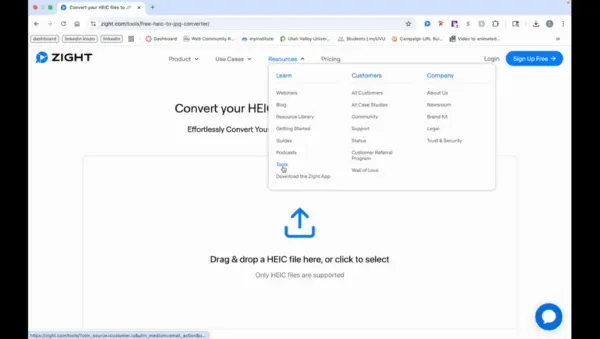
Step 2: Upload Your HEIC File
- Drag and drop your HEIC file, or click anywhere in the area to open your finder. Click on your file and then click ‘Open’ to upload.
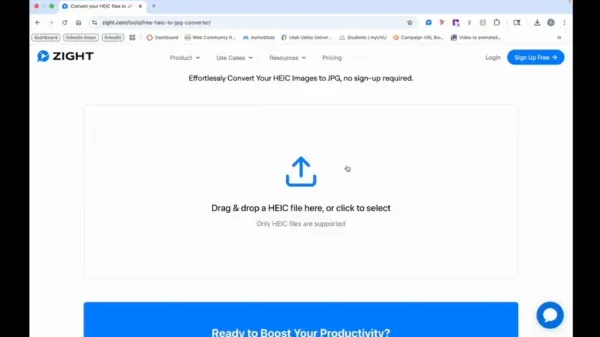
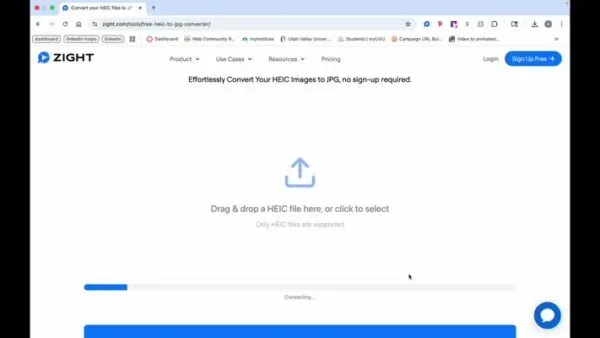
Step 3: Start Conversion
- The file will start converting, and a preview will be shown.
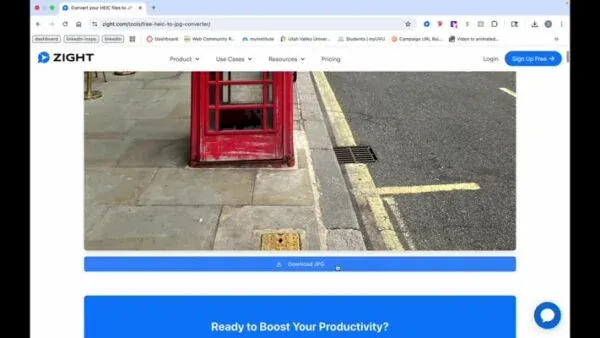
Step 4: Download JPEG
- Click on ‘Download JPEG’ to save your converted file.
The Ultimate Guide to Converting HEIC to JPEG Online with Zight
If you have ever taken photos on an iPhone or iPad, you might have noticed that they often save in the HEIC format instead of the more common JPEG. While HEIC offers excellent image quality and smaller file sizes, it is not always compatible with every device, app, or website. That is where Zight’s free online tool makes things simple.
Zight allows you to convert HEIC files to JPEG format instantly, right from your browser, without any software downloads or signups. Whether you need to upload a photo to a platform that does not accept HEIC files or want to share images more easily with your team, this guide will show you everything you need to know.
What is a HEIC file
HEIC, short for High Efficiency Image Container, is a modern photo format developed by Apple to reduce file size while maintaining image quality. It uses advanced compression technology that allows you to store twice as many photos in the same space compared to older formats like JPEG.
The downside is that not all systems support it. Many older applications, browsers, and even some photo editors still only accept JPEG. That is why converting HEIC files to JPEG remains one of the easiest ways to ensure your images are universally accessible.
Why convert HEIC to JPEG
Converting HEIC files to JPEG makes sharing, editing, and storing your photos much more convenient. JPEG is still the most widely supported image format across the web, making it ideal for collaboration, publishing, and documentation.
Here are a few practical reasons to convert:
-
Compatibility: JPEG files can be opened on nearly any device or platform.
-
Ease of sharing: Most websites and apps support JPEG uploads.
-
Quick previews: JPEGs display instantly in browsers and preview tools.
-
Editing flexibility: Many editing tools work best with JPEG images.
If you often collaborate across teams or use tools that do not support HEIC, converting ensures your visuals remain accessible everywhere.
How Zight simplifies HEIC to JPEG conversion
Zight’s free online converter is designed for simplicity. You can upload HEIC images directly from your device, convert them automatically, and download JPEG versions within seconds.
Unlike other converters that require registration or additional software, Zight’s tool works completely online. Just visit the Zight website, open the Tools section, and choose the HEIC to JPEG converter. Once your file is uploaded, Zight automatically converts it and presents a preview before download.
The process is seamless and secure, and your files remain private. After downloading your converted JPEG, Zight automatically clears your upload to ensure data safety.
Benefits of using Zight’s converter
Converting images might seem simple, but Zight’s tool stands out because of its ease of use and quality results.
Fast and free: Conversion starts instantly with no fees or signups required.
High quality results: Zight maintains the sharpness and detail of your original HEIC image while saving it as a smaller, more compatible JPEG file.
No installations needed: Everything happens online, so you can use it from any browser.
Secure and private: Uploaded files are processed securely and deleted after conversion.
Multi-device support: Works on both Mac and Windows computers, as well as tablets and smartphones.
When to use JPEG instead of HEIC
While HEIC is efficient, JPEG is still better suited for certain tasks. You should use JPEG when:
-
You are uploading photos to a website that does not recognize HEIC.
-
You need to send files to colleagues using Windows or Android devices.
-
You are creating documentation or reports that require universal compatibility.
-
You plan to edit images in software that does not yet support HEIC.
By converting to JPEG, you ensure your images will display correctly no matter where they are used.
Tips for best conversion results
To get the best results when converting from HEIC to JPEG, start with high-quality source images. Avoid converting files that have already been heavily compressed or edited. Zight’s tool preserves resolution and color, but starting from a clean original ensures optimal results.
If you are converting several images, convert them one at a time to preview and check quality. You can then organize and rename your converted JPEG files before uploading or sharing them.
Also, remember that JPEGs are slightly larger than HEIC files, so consider storing them in folders or cloud storage if you are converting in bulk.
Conclusion
Zight makes it quick and effortless to convert HEIC files to JPEG format online. Whether you are working with iPhone images, preparing visuals for a presentation, or uploading content to a website, the process is fast, secure, and completely free.
You do not need special software or technical skills. Just upload your image, wait a few seconds, and download your ready-to-use JPEG file.
Try Zight’s free HEIC to JPEG converter today and simplify the way you share, store, and use your images across any device or platform.
Frequently Asked Questions
HEIC is a newer format that compresses images more efficiently, resulting in smaller file sizes. JPEG is more widely supported across devices and platforms.
No. Zight’s HEIC to JPEG converter is completely free and does not require signups or downloads.
Zight preserves the original image quality as much as possible during conversion. You will get a high-resolution JPEG that looks virtually identical to your HEIC file.
Yes. All uploaded files are processed securely, and Zight deletes them automatically after the conversion process.
Currently, the online converter processes one file at a time for accuracy and performance. You can, however, repeat the process as many times as needed.
Yes. Zight’s HEIC to JPEG tool works on iPhones, iPads, and Android devices through any modern web browser.
Yes. Zight’s converter supports both HEIC and HEIF image formats and can convert them to JPEG seamlessly.
JPEG files often take up slightly more space because they use older compression technology. However, the difference is usually minimal and ensures full compatibility.


