Choose Zight if you need screen recording, screenshots, and guides that business teams can share by link; choose MiniTool Screen Recorder if you want a Windows desktop recorder for creating local video files. The deciding factor in 2026 is whether your work ends with a recording or continues through sharing, troubleshooting, and documentation.
- Zight vs MiniTool is a choice between a team communication workflow and a Windows desktop recording workflow.
- Zight is the better fit for support teams combining screenshots, screen recordings, and shareable documentation.
- MiniTool Screen Recorder fits Windows users whose main deliverable is a local screen recording.
- Healthcare buyers should approve the exact contract, configuration, and workflow before recording sensitive information.
Why this matters
A recording is not always the finished job. A support agent still needs to explain the issue, an engineer needs enough context to reproduce it, and an operations lead needs instructions that another employee can follow.
Zight provides screen recording, screenshots, and AI-powered guides for asynchronous business communication. MiniTool Screen Recorder, available within MiniTool Video Converter, focuses this comparison on desktop screen capture rather than the broader MiniTool software portfolio.
Compare the handoff, not just the capture button. If your next step is sending someone an explanation, evaluate that complete process. If your next step is saving a video file for another application, evaluate that process instead.
At a glance: team communication versus desktop recording
| Dimension | Zight | MiniTool Screen Recorder |
|---|---|---|
| Best for | Business teams communicating and troubleshooting asynchronously | Windows users creating local screen recordings |
| Screen recording | Part of a broader visual communication workflow | Desktop screen recording within MiniTool Video Converter |
| Screenshots | An explicitly supported part of the product offering | Evaluate separately if still-image capture is required |
| Sharing | Shareable links are part of the stated workflow | Local recording files are the relevant starting point |
| Guides and documentation | AI-powered guide and documentation software | Treat the recording as source material for a separate documentation process |
| Local-file handoff | Evaluate export requirements against your intended use | The more direct fit when a local recording is the deliverable |
| Healthcare evaluation | Review the exact plan, agreement, settings, and workflow | Review the exact software, storage, transfer, and access workflow |
| Pricing model | Compare the paid scope needed by your team | Check the terms for the exact MiniTool application and intended use |
| Standout distinction | Capture and share explanations across business teams | Create desktop recordings for file-based workflows |
The table separates product fit from purchasing checks. A capability that matters to your organization still needs to work in the exact environment, account configuration, and workflow you intend to deploy.
Shared explanations favor the team communication workflow
Zight screen recording is best for business teams that need to turn a capture into a shareable explanation. That includes support agents showing a workaround, product managers explaining an interaction, and engineers handing off a reproducible problem.
The benefit is the shape of the workflow: capture what happened, explain what matters, and share the result through a link. The recipient gets a visual reference instead of relying entirely on a written description.
For your 2026 evaluation, give a support agent a synthetic account problem. Ask the agent to record the relevant screen and send the explanation to a colleague. Have the colleague identify the next action without asking the creator to repeat the walkthrough.
The trade-off is organizational responsibility. A link-based workflow needs decisions about recipients, access, ownership, and retention. Do not treat easy sharing as a substitute for those decisions.
Local video deliverables favor MiniTool Screen Recorder
Choose MiniTool Screen Recorder when your finished deliverable is a local Windows screen recording. This is a different requirement from maintaining a shared library of explanations.
A file-based workflow fits someone who records a desktop demonstration and then moves the result into an established editing, storage, or distribution process. The recorder handles capture; your existing process handles what happens afterward.
That separation is useful when the recipient expects a file rather than a hosted link. It also keeps the evaluation narrow: can you capture the required screen activity and produce a recording your downstream process accepts?
The limitation is the handoff. A local video does not, by itself, establish how colleagues receive updates, find the latest version, or turn the recording into reusable instructions. Assign those responsibilities elsewhere before calling the workflow complete.
Screenshots favor the broader capture offering
Not every explanation needs motion. A still image can be the clearer deliverable when you need to identify a setting, show an error state, or document a single step.
The client's stated offering includes both screenshots and screen recordings. That makes it the better starting point when your team needs to choose between a still capture and a video within its visual communication process.
Do not assume a screen recorder also satisfies your screenshot requirements. For the MiniTool evaluation, demonstrate the exact still-image task separately rather than treating video capture as proof that the requirement is covered.
Use these practical distinctions:
- Show a state: capture the error message or relevant setting.
- Show a sequence: record the actions that produce the result.
- Explain a procedure: create instructions that make the sequence usable later.
The downside of broader functionality is evaluation scope. Your team must check each required capture format, not approve the whole product after one successful recording.
A narrow desktop task favors MiniTool Screen Recorder
MiniTool Screen Recorder is the more focused candidate when you are selecting a Windows recording utility rather than changing how a team communicates. Keep that distinction explicit in the purchase brief.
For example, an employee who already has an approved file repository and an established delivery process does not necessarily need a new sharing workflow. The relevant test is whether the recorder fits the desktop task and the existing handoff.
This is a scope advantage, not a claim that the software is faster, smaller, or easier to administer. Those questions require a direct evaluation in your environment.
The trade-off appears when requirements expand. If you later need screenshot-based support, shared explanations, and reusable guides, a recording-only selection process will not have answered those questions. Reassess the full workflow instead of adding disconnected steps by default.
Guides and SOPs favor the documentation offering
A video shows what happened. An SOP tells someone what to do, in what order, and how to recognize the expected result.
Zight's guide and documentation offering makes it the stronger candidate when reusable instructions are part of the purchase requirement. For an operations team, the useful output is not simply a recording of an experienced employee completing a task; it is a procedure another employee can follow.
Test a synthetic onboarding task in 2026. Capture the process, create the guide, and ask a colleague unfamiliar with the task to follow it. Check whether the instructions distinguish required actions from incidental screen activity.
MiniTool Screen Recorder remains relevant as a capture component when your documentation process already exists elsewhere. Its limitation in this comparison is that a recording should not be counted as a completed SOP.
Review generated documentation before publishing it. Check action order, terminology, sensitive details, and the expected outcome. Automation does not remove the need for an accountable procedure owner.
Both require a complete healthcare review
Neither product should receive a healthcare approval merely because it can record a screen. HIPAA compliance depends on the applicable relationships, agreements, safeguards, and use of protected health information—not a capture feature alone.
For a 2026 healthcare evaluation, separate the workflows your organization actually needs:
- Support and IT: reproduce an application problem with synthetic accounts and inspect what the capture reveals.
- Clinical teams: evaluate recording and requesting videos as separate requirements, including who submits and receives them.
- Operations teams: create training and SOPs using synthetic examples, then review access and retention.
For any hosted service that would handle protected health information on your behalf, have your compliance team determine business associate requirements. Obtain applicable agreement terms and written confirmation of the eligible plan, supported features, and limitations before using real information.
For a local recording workflow, review the endpoint, saved files, backups, transfers, and recipients. Local storage does not eliminate privacy and security obligations.
This dimension is a tie on evaluation discipline, not a declaration that either product is approved for your use. Keep patient data out of demonstrations and verify any required support integration through official documentation before including it in the deployment plan.
Both need an end-to-end acceptance test
A capture tool passes only when its output reaches the intended person in a usable form. Test the complete task rather than comparing feature labels in isolation.
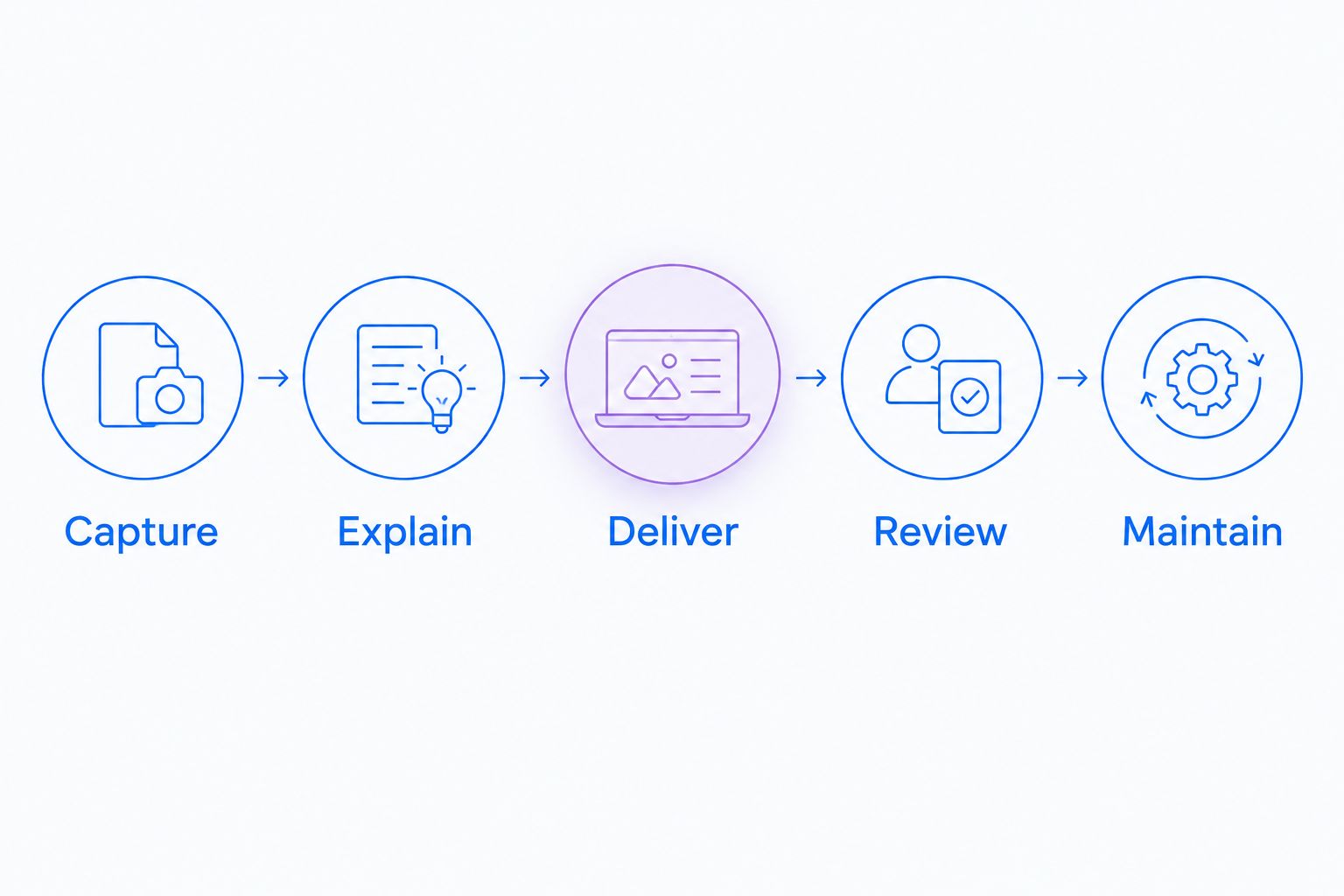
Use this sequence for both candidates:
- Capture: record a synthetic issue or procedure.
- Explain: identify the relevant action and expected result.
- Deliver: send the output through your intended channel.
- Review: ask the recipient to complete the next step.
- Maintain: decide who updates or removes outdated material.
Record where the process requires another application or a manual handoff. That is not automatically a failure; it is a dependency you need to own.
The same test exposes different weaknesses. A shared explanation can fail if the recipient cannot access it. A local recording can fail if the recipient cannot locate the correct file. Neither problem is solved by recording the screen again.
Pricing: compare the workflow you are buying
For a paid deployment in 2026, compare purchasing scope before comparing the commercial offer. A team communication product and a desktop recording utility are not interchangeable simply because both capture video.
Review pricing against the capabilities your team will actually use. Confirm the account structure, required features, administrative requirements, and applicable contractual terms during procurement.
For MiniTool, check the terms of the exact application containing the recorder. Do not apply terms from another MiniTool product to Screen Recorder or assume that a broader product name answers your organization's licensing questions.
The practical trade-off is between buying a broader workflow and fitting a focused recorder into processes you already operate. Compare these purchasing requirements:
- Who needs to create recordings and screenshots?
- Who needs to receive or review the output?
- Where will recordings and instructions live?
- Which security and contractual requirements are mandatory?
- Who owns updates when a process changes?
A broader product is not automatically better value. A narrower recorder is not automatically a simpler deployment. Choose the scope that covers the job without leaving essential work unassigned.
Final verdict: choose by the finished deliverable
Choose Zight for shared business explanations
Best for: support, product, engineering, and operations teams that need screenshots, screen recordings, and shareable guides. Choose this route when your purchase is meant to improve how people explain issues and document procedures, not merely create video files.
Accept the corresponding responsibility: define sharing, access, review, and maintenance rules before the workflow spreads across teams.
Choose MiniTool Screen Recorder for local Windows recordings
Best for: Windows users who need recording files for an existing downstream process. Choose this route when capture is the missing component and editing, storage, delivery, and documentation already have clear owners.
Accept the limitation: a completed recording does not automatically become a shared explanation or maintained procedure.
| Dimension | Winner |
|---|---|
| Shared business explanations | Team communication offering |
| Local recording deliverables | MiniTool Screen Recorder |
| Screenshots alongside video | Broader capture offering |
| Narrow Windows recording task | MiniTool Screen Recorder |
| Guides and SOP creation | Documentation offering |
| Healthcare approval | Tie: workflow-specific review required |
| Acceptance testing | Tie: evaluate the complete handoff |
| Purchasing fit | Match the paid scope to the finished deliverable |
FAQ
Is Zight better than MiniTool for customer support?
Zight is the better fit when customer support needs screenshots, recordings, and explanations shared through links. MiniTool Screen Recorder fits a narrower requirement to create local recordings for an existing support process.
Which MiniTool product does this comparison cover?
This comparison covers MiniTool Screen Recorder within MiniTool Video Converter. It does not compare unrelated MiniTool utilities or treat the entire MiniTool portfolio as one screen recording product.
Which option should I choose for local Windows screen recordings?
Choose MiniTool Screen Recorder when your main deliverable is a local Windows recording. Test the output with the editing, storage, or delivery process that will receive it.
What should I check before buying either option for a team?
Check capture requirements, recipient access, output handling, administrative needs, and contractual terms. Evaluate the full workflow with representative users rather than approving a product after one successful capture.
Can a healthcare team use either recorder with patient information?
A healthcare team needs approval for its exact software, agreements, configuration, and information-handling workflow before recording patient information. Use synthetic examples during evaluation and verify applicable business associate requirements and feature limitations.
Is a screen recording enough to create an SOP?
A screen recording is source material, not automatically a finished SOP. A usable procedure also needs clear actions, expected outcomes, review, and an owner responsible for updates.
How should I compare the pricing of these tools?
Compare the purchasing scope required to complete your workflow, then check current official terms. Include the capture, sharing, documentation, administration, and contractual requirements your organization actually needs.
One last thing
Ask the recipient to evaluate the output before the creator evaluates the recorder. A capture that feels easy to make can still leave the next person unsure what to do.
Use a synthetic task and require a clear next action. That test keeps your decision focused on completed work rather than a longer feature list.