The recording looks complete. An experienced teammate opened the workspace, changed the setting and showed the successful result in under three minutes. But the video never says which role is allowed to make the change, what must already exist before step one, or what to do when the expected control is missing.
Turning video into an SOP starts with the visible sequence, then adds the operational context the recording cannot prove. Prepare one clean demonstration, draft the observed actions, add prerequisites and exception branches, test every step with a second operator, and have the process owner approve the finished procedure.
A generated document is a starting point, not automatic approval. The worked example below shows how to separate what the recording demonstrates from what an owner still needs to supply.
Quick answer: how do you turn a video into an SOP?
Use one recording of one repeatable task. Ask the operator to begin from a known state, narrate decisions and show the result. Turn the visible actions into numbered steps, then add the scope, roles, prerequisites, expected results, branches and ownership that may never appear on screen.
Review the draft against the recording, run it with someone who did not make the video and obtain approval from the person accountable for the process. Keep the recording as supporting evidence when appropriate, but make the written SOP complete enough to follow without replaying the video.
- Choose one task with a clear trigger and finished state.
- Prepare a clean recording with synthetic or approved information.
- Have the person who performs the task narrate important decisions.
- Draft the observed actions and pair each one with an expected result.
- Add off-screen prerequisites, permissions, branches and stop conditions.
- Test the procedure with a second operator.
- Approve, publish and assign an owner and review trigger.
Choose one task before you record
A useful source video has one audience, one trigger and one outcome. “Set up a new support agent’s workspace access” can become an SOP. “Everything an administrator does during onboarding” is several processes and will produce a draft full of skipped transitions.
Write the intended outcome before recording. This gives the operator a place to stop and gives the reviewer something to test. If nobody can state what success looks like, the task is not ready to document.
- Audience: the role expected to follow the finished SOP.
- Trigger: the event or request that starts the task.
- Starting state: the screen, item, approval or account state that must already exist.
- Finish condition: the result that proves the procedure is complete.
- Out-of-scope cases: related problems that belong in another procedure.
- Process owner: the role that will approve and maintain the SOP.
Prepare a clean demonstration
Record in a test workspace when possible. Use invented people, workspace names, filenames and values. Close unrelated tabs and notifications, and do not show passwords, authentication codes, secret keys or customer content merely because they happen to be on screen.
Start before the first meaningful action. If the recording begins after the operator has already signed in, selected the correct workspace and obtained approval, the draft may treat those conditions as if they do not exist. The operator should name them before moving on.
Finish by showing the result. A recording that ends immediately after selecting Save gives the writer no evidence that the task worked.
Ask the person who performs the work to record it
The person writing the SOP is not always the person who knows the process. Instead of reconstructing the workflow from messages, ask a teammate to record the workflow and narrate the decisions they make.
Give the recorder a narrow prompt: what task to demonstrate, which starting state to use, which details to avoid and what successful result to show. Ask them to pause when they reach a decision and explain why they choose one path over another.
- State the task and intended audience in the request.
- Ask for synthetic or otherwise approved example data.
- List information that must not appear in the recording.
- Ask the operator to name prerequisites and role requirements aloud.
- Ask them to explain important branches even if the branch does not occur in the demonstration.
- Ask them to show the expected final state before stopping.
Separate what the recording proves from what it does not
The table below uses a fictional Northstar Docs workspace-onboarding recording. The controls and company are invented; the point is to separate observable evidence from owner-supplied context.
| Recording evidence | Safe draft conclusion | Context still required |
|---|---|---|
| The operator opens an existing sample workspace | The procedure starts inside the intended workspace | Who creates the workspace and how the operator confirms it is the correct one |
| The operator opens the workspace access area | The next action concerns workspace access | Which roles are authorized to make changes |
| The operator adds Taylor Example as a member | The procedure includes adding the intended teammate | Which identity checks or approvals must happen first |
| The operator selects a standard role | The task assigns an access level | Why that role is approved and which cases need a different one |
| Taylor Example appears in the member list | The visible expected result is that the teammate appears | Whether the teammate must accept an invitation or complete another off-screen step |
| The operator says, “If this fails, ask IT” | An escalation may exist | Which IT queue owns it and what evidence that owner needs |
Create a draft from the recording without treating it as final
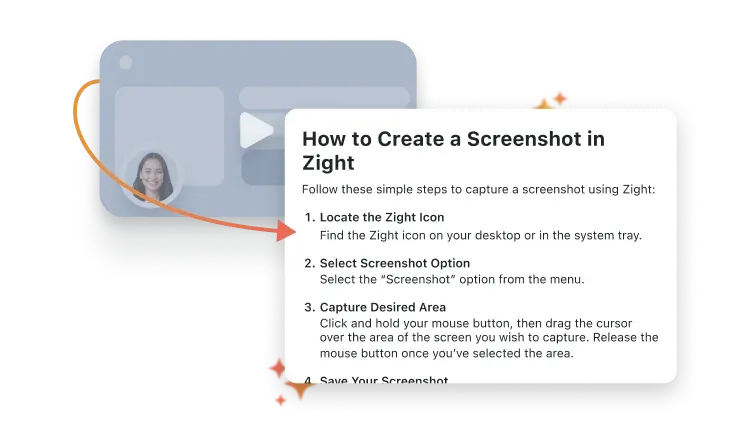
Where the feature is available to the workspace, the Zight AI SOP generator can use a recording as the source for a draft with written steps and screenshots. Review the output available to your plan and workspace rather than relying on an old tutorial or an assumed control name.
A draft can organize the visible sequence. It cannot independently approve a permission choice, confirm an unrecorded prerequisite, know why the operator ignored another path or assign the correct escalation owner. Treat each generated sentence and image as something to verify.
- Keep only steps supported by the source recording or an approved owner.
- Replace transcript filler with one clear action per step.
- Use the current names for verified screens and controls.
- Add an expected result after important actions.
- Mark unknown details for owner review instead of completing them from a guess.
- Remove screenshots that reveal irrelevant or sensitive information.
Turn visible actions into testable instructions
A video is continuous. An SOP is divided into actions someone can complete and check. Pause when the operator changes goals, moves to another system, makes a decision or waits for a result. Those moments usually define the step boundaries.
Start each step with a verb. Put one main action in each step. Then state the expected result so the reader knows whether it is safe to continue.
| Recording narration | Draft action | Expected result |
|---|---|---|
| “I’m going into the workspace we made for the support team.” | Open the approved support workspace. | The workspace name and owner match the onboarding request. |
| “Now I’ll add Taylor and give them the usual role.” | Add the teammate identified in the approved request and assign the approved standard role. | The teammate appears with the intended role. |
| “That should be it.” | Review the member entry and send the normal access-confirmation message. | The entry is accurate and the confirmation is recorded. |
| “If it does not work, ask IT.” | If the teammate cannot access the workspace after the documented checks, stop and send the required evidence to the named IT queue. | The escalation owner accepts the case without requesting the same context again. |
Add the missing SOP fields
A recording usually captures the procedure section, not the full document. Use a structure such as the SOP template to add the missing SOP fields.
- Title and purpose: the task and why the procedure exists.
- Scope: the cases included, excluded and sent elsewhere.
- Owner, approver, version, effective date and next review date.
- Roles: who performs, approves, receives or escalates each part.
- Prerequisites: access, approvals, tools and inputs required before step one.
- Procedure: one numbered action and expected result per step.
- Decision points: conditions that change the next action.
- Stop conditions: points where the operator must not improvise.
- Records: what the operator logs and where the maintained record belongs.
- Revision history: what changed, when and who approved the change.
Document off-screen permissions and approvals
The recording may show an administrator changing access, but it does not prove that every viewer is allowed to do the same. Put the required role and approval before the action, not in a warning after it.
Do not tell a reader to broaden a role merely to make the recorded path work. When the correct authorization is unknown, stop the draft and ask the access-policy owner. A clear gap is safer than a polished instruction built on an invented permission rule.
Add exception branches and stop conditions
Ask the operator what happens when the visible path differs: the workspace is missing, the teammate already exists, the expected option is unavailable, the result does not appear or the request conflicts with policy.
A useful branch names the condition, the safe action and the owner. “Try again” is not enough. “Confirm the workspace and intended role; if both are correct and the option is still unavailable, stop and send the environment, role and safe screenshot to the access-support queue” gives the reader a bounded next step.
- If a prerequisite is missing, stop before changing the system.
- If an action would exceed the operator’s role, send it to the authorized owner.
- If the interface differs, verify the current procedure instead of guessing a replacement control.
- If the expected result does not occur, record the observable result and the steps already tested.
- If the source contains private information, recreate the evidence with synthetic data before publishing.
Worked before-and-after example
The example remains fictional. It demonstrates how an apparently complete recording becomes a procedure with boundaries and ownership.
Before: a transcript-shaped draft
“Open the workspace, go to access, add Taylor, choose the usual role and save it. If it does not work, ask IT.”
This version hides the trigger, intended audience, required approval, meaning of “usual,” successful result, escalation owner and evidence required when the task fails.
After: a reviewed procedure
Purpose: add an approved teammate to an existing Northstar Docs support workspace. Audience: workspace administrators processing an approved onboarding request. Prerequisites: the request names the workspace, teammate and approved role; the operator has administrator access; the teammate identity has been verified through the company’s normal process.
1. Open the workspace named in the approved request. Expected result: the workspace name and owner match the request. 2. Open the workspace access area. 3. Add the teammate named in the request and assign the approved role. Expected result: the teammate appears with that role. 4. Review the entry against the request and record completion in the onboarding ticket.
If the workspace does not exist, return the request to the onboarding owner. If the teammate already exists, compare the current role with the approved request before changing it. If the intended role is unavailable, stop and send the workspace, intended role and safe evidence to the access-support queue. Do not assign a broader role as a workaround.
Owner: IT Operations. Review triggers: changes to the role model, onboarding approval path, access navigation or escalation queue.
Test the SOP against the recording and the real task
First, compare every instruction with the source video. Confirm that the order is accurate, screenshots show the intended state and the written result matches what the recording demonstrates.
Then give the SOP to a second operator who has not watched the video. Ask them to complete the task using only the written procedure and its included visuals. If they need to replay the source to discover a prerequisite or branch, the written SOP is incomplete.
- The operator can identify the correct starting state.
- Every action uses a verified, current description.
- Expected results tell the operator when to continue.
- Role requirements appear before restricted actions.
- Likely exceptions have a safe next step and owner.
- The operator can finish or escalate without help from the author.
Approve, publish and maintain the procedure
Have the process owner review and approve the written procedure. Publication should use the team’s supported destination and normal access controls. Available sharing or export options can depend on the workspace and plan, so confirm the intended destination rather than promising one universal output.
Assign an owner, version and review date. Keep the source recording linked when it is appropriate and useful, but do not make the recording the only maintained explanation. Review immediately when a prerequisite, role, interface, result or exception path changes.
Video-to-SOP review checklist
- The recording demonstrates one task with one clear outcome.
- The example uses synthetic or otherwise approved information.
- The operator states the starting state, prerequisites and important decisions.
- The recording shows the expected final result.
- Every written step is supported by the recording or an approved owner.
- Each step contains one main action and a testable expected result.
- Off-screen roles, approvals and inputs appear before they are needed.
- Decision branches identify the condition, action and owner.
- Stop conditions prevent improvised access or irreversible changes.
- Screenshots contain only the context needed for the instruction.
- A second operator completed the procedure without relying on the source video.
- The process owner approved the SOP and owns future revisions.
Frequently asked questions
Can I generate an SOP from an existing video?
An existing video can be useful when it shows one complete, current task and a verifiable result. Review it for private information and outdated screens first. Draft the observed actions, then add the prerequisites, permissions, branches and ownership the video does not show.
Does the recording need narration?
Narration is not required, but it helps capture why the operator chooses a path. Ask the recorder to explain decisions, prerequisites and exceptions rather than describing every mouse movement. The written SOP still needs a reviewer to verify those statements.
Can AI approve the SOP after generating it?
No. AI can help draft the visible sequence, but the process owner must verify accuracy, add off-screen rules and exceptions, test the procedure and approve it before people rely on it.
What can a video-to-SOP draft miss?
It can miss permissions granted before recording, approvals completed elsewhere, branches that did not occur, policy limits, stop conditions, escalation ownership and maintenance details. A recording shows what happened once; an SOP must explain what should happen across the documented cases.
How long should the source video be?
Long enough to show one task from its known starting state to its finished result. If the recording changes audience, goal or owner, split it into separate tasks before drafting the SOP. A focused recording is easier to review than a broad training session.
Should the finished SOP include the source recording?
Include or link it when the recording adds useful context and its access is appropriate. The written SOP should still contain the prerequisites, actions, results and branches needed to complete the task without watching the video.