The native Zight app for Intercom lets an agent choose an existing Zight item or send a customer video request from the Intercom app tray. The app must be installed in the Intercom workspace and the integration must be enabled in Zight. An add-on or access approval may be required, depending on the Zight plan.
This workflow follows a fictional login-loop report from request through reply. It separates the native app from an ordinary pasted share link and keeps the Intercom conversation as the customer-facing record.
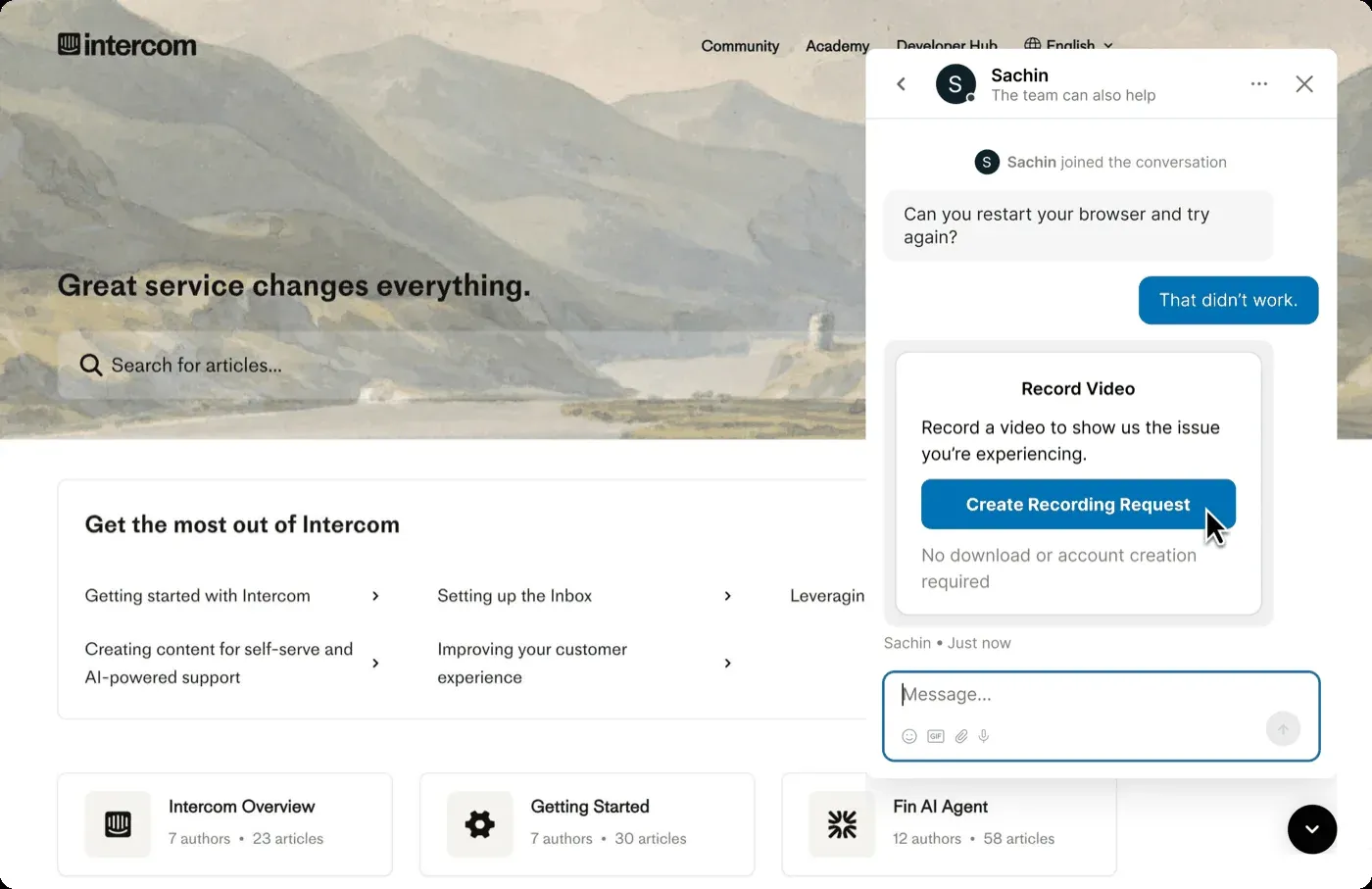
Quick answer: how screen recording works in Intercom
An administrator installs the Zight app in Intercom and enables the Intercom integration in Zight. An agent then opens Zight from the app tray. They can add an existing video, screenshot, or GIF to the conversation, or create a request that the customer opens in a browser. The customer does not need a Zight account or app installation for the request workflow.
Use the request when sequence, timing, or a temporary state matters. Use pasted error text or a cropped screenshot when one stable frame answers the question. If the native app is unavailable, an approved Zight share link can still be pasted into Intercom, but that is not the same as using the installed app or creating a request from the tray.
Set up the native Zight app before the first ticket
Follow the current setup path on the Zight for Intercom integration page and its linked Help Center article. The workspace administrator should verify both sides of the connection rather than assuming marketplace installation finishes the setup.
An ordinary Zight link does not require this native-app setup. Keep the two paths distinct in internal documentation so agents know whether they are sharing an item or starting an inbound recording request.
- Install the Zight app in the intended Intercom workspace.
- Open the Zight Integrations settings and enable Intercom.
- Complete any access-request or add-on approval required for the workspace plan.
- Open a test conversation and confirm agents can find Zight in the app tray.
- Check which agents can request, view, forward, retain, and remove customer evidence.
- Test the customer request from an outside browser before adding it to macros.
Choose existing media or request a new recording
| Support question | Intercom action | Reason |
|---|---|---|
| The customer needs a visual explanation you already recorded | Choose an existing Zight video or screenshot from the app tray | The answer is ready and can stay with the conversation |
| The error is stable and readable | Ask for pasted text or a cropped screenshot | A video would expose more screen area without adding useful sequence |
| The failure depends on navigation, timing, or a disappearing message | Create a customer video request | The sequence is part of the evidence |
| The customer cannot record or the device blocks capture | Use written steps, screenshots, or an approved live session | Recording should not become a condition for receiving help |
Write a request that tells the customer what to show
A useful request names one task, a start point, one action, the expected result, and a stop point. The Request Video workflow provides the capture link; the agent still owns the prompt and privacy boundary.
Fictional example: “Please open the Acme Demo sign-in page in your test account, enter the sample credentials you normally use for this sandbox, select Sign in once, and stop after the first repeated sign-in screen or error appears. Record only the browser tab. Close email, chat, password managers, and unrelated tabs before you begin. Do not show a real password, authentication code, payment information, or customer record. If recording is blocked, reply with the exact error, browser version, attempt time with time zone, and a cropped screenshot.”
If optional browser data logs are needed and enabled, disclose that before the customer records. Do not imply every request collects logs. Ask for them only when the visible sequence is not enough and the team has an approved handling process.
What the customer experiences
The customer opens the request in a browser, selects the relevant tab, window, or display when the browser offers that choice, records one focused attempt, reviews the result, and submits it. They can use the path without creating a Zight account or installing the desktop app.
Browser and operating-system permissions can still interrupt capture. Company-managed devices may block recording. Offer a written or screenshot fallback and use the customer’s visible permission message when troubleshooting. Do not ask them to bypass device management or weaken security controls.
Review the returned evidence before diagnosing
In the fictional login example, the customer selects Sign in, the page loads for two seconds, and the same sign-in form returns without a visible error. That establishes the on-screen sequence. It does not prove whether cookies, permissions, the account, the browser, or the service caused it.
- Confirm the recording belongs to the intended Intercom conversation and answers the requested question.
- Watch the full capture, including the beginning, tab bar, notifications, audio, and final frame.
- Check who can open the link before sending it to product or engineering.
- Write the visible facts into Intercom so the case is understandable without playing the recording.
- Separate observed behavior from possible causes.
- Keep a customer-facing owner and a promised next update.
Reply with a recording only when motion helps
The agent reproduces the issue in a synthetic environment, confirms the approved fix, and records only the changed sequence. The reply should also contain a written summary: what changed, what the customer should do, and what result to expect. A screenshot may be better than video for one setting or error.
Ask the customer to confirm the result. Internal reproduction is useful evidence, but it is not the same as resolution in the customer’s environment. Keep the Intercom conversation open or in the appropriate waiting state until the customer can retry.
Turn a verified answer into maintained guidance
If the same login loop reaches several agents, rebuild the example with synthetic data and document a verified support answer. Include prerequisites, expected results, a failure branch, ownership, and a review date.
The broader visual customer support workflow connects the request, diagnosis, reply, and reuse stages. Intercom continues to own the conversation and customer updates.
Troubleshooting the Intercom workflow
| Symptom | Check | Fallback |
|---|---|---|
| Zight is missing from the app tray | Confirm the app is installed in the correct workspace and available to the agent | Paste an approved Zight link and route setup to the workspace administrator |
| The app opens but request controls are unavailable | Check Zight integration enablement and current plan/add-on access | Use the normal Request Video flow or another evidence path if authorized |
| The customer cannot start capture | Use the browser message to check screen-capture permission and managed-device restrictions | Ask for text, a cropped screenshot, or an approved live session |
| The response does not answer the question | Tighten the start point, action, expected result, and stop point | Send a narrower follow-up only if the missing evidence is necessary |
| A reviewer cannot open the evidence | Check item audience and workspace access before broadening permissions | Provide a written summary and use the approved restricted-sharing path |