Do you want to capture the audio playing on your computer but don’t know where to start? If so, you are in the right place today since I will show you exactly how to record computer audio in simple steps.
Method 1: Computer Audio Recording With Zight (Best Recommendation)
- Sounds from applications (e.g., YouTube videos , Spotify music, saved videos, game sounds)
- System notification sounds
- Audio from web browsers
- Any other audio that would usually come through your speakers/headphones
Method 2: Using QuickTime Player + SoundFlower to Record Mac Internal Audio
- You won’t hear audio during recording unless you set up a Multi-Output Device
- Soundflower requires additional setup for each macOS update
- This method only captures audio, not screen activity
Method 3: Using the Windows Voice Recorder
- Need a simple audio recording without video
- Don’t require both system and mic audio
- Want to save storage space with audio-only files
- Already have Windows and don’t want to download additional software
- Share it with saved contacts or via a wireless connection like Bluetooth. You can also share the file via computer apps like Phone Link, WhatsApp, Quick Share, Mail, and more.
- Delete the audio file
- Open its storage location. This is usually This PC > Documents > Sound Recordings
Method 4: Use Audacity to Record Computer Audio
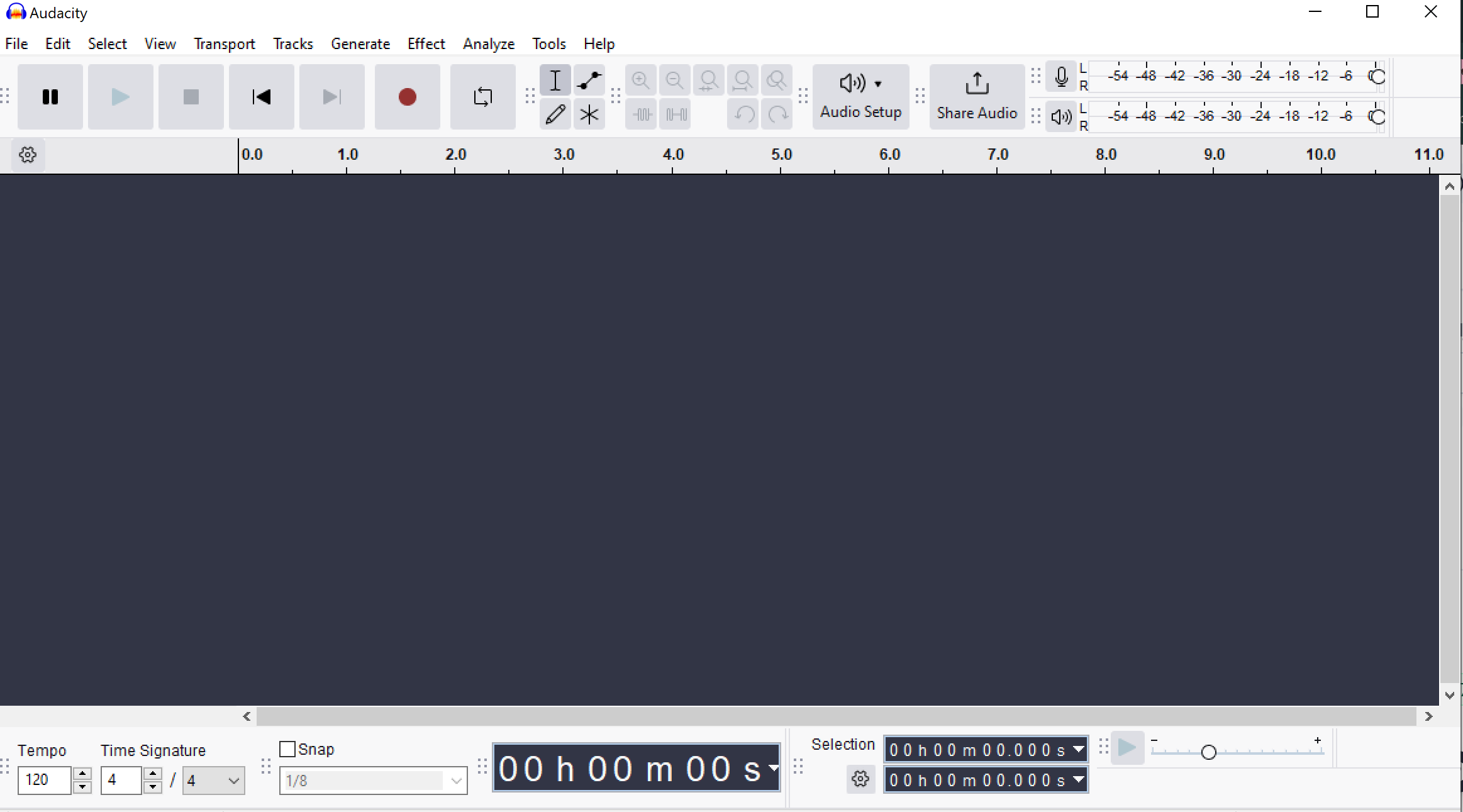
I. Using Audacity on Windows
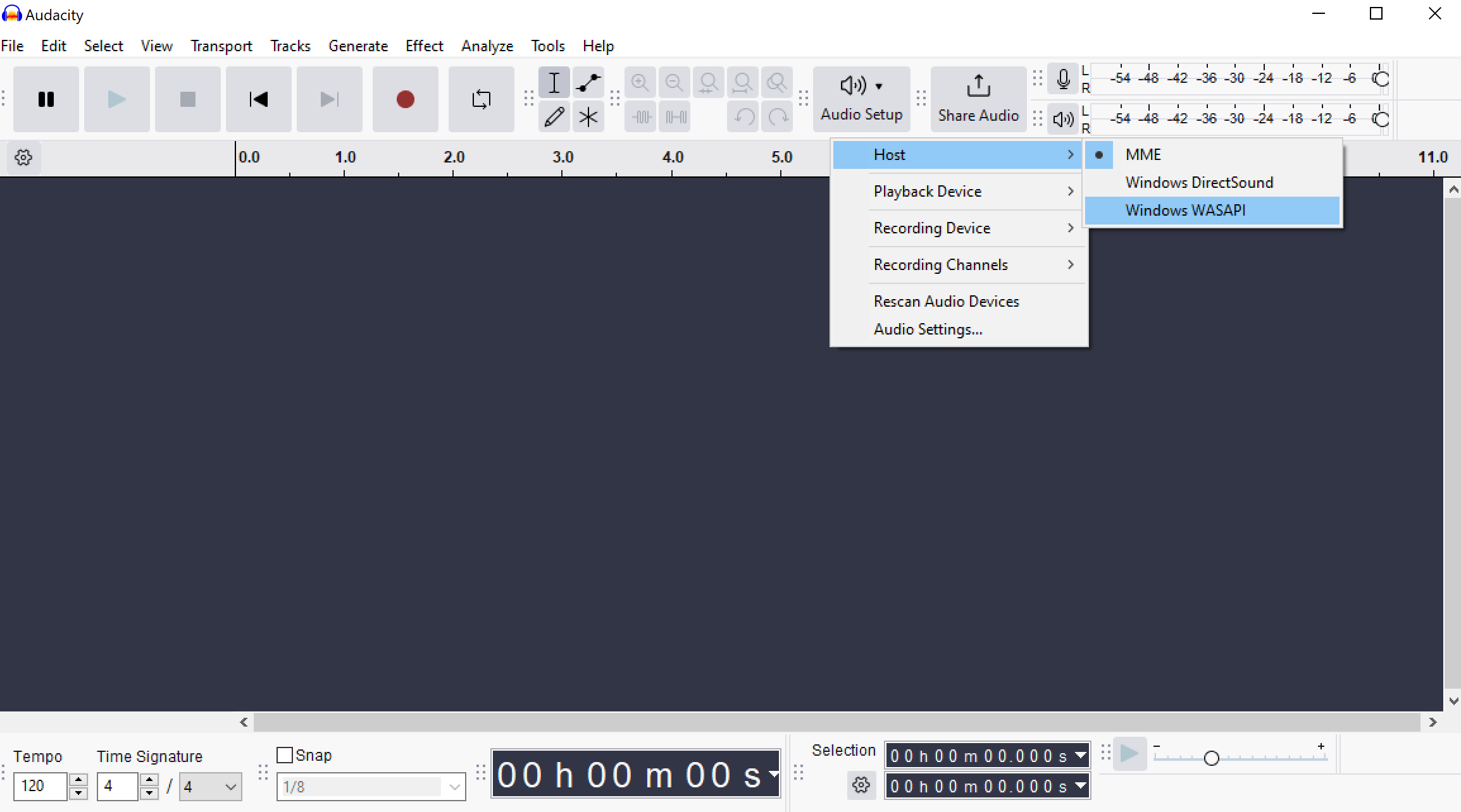
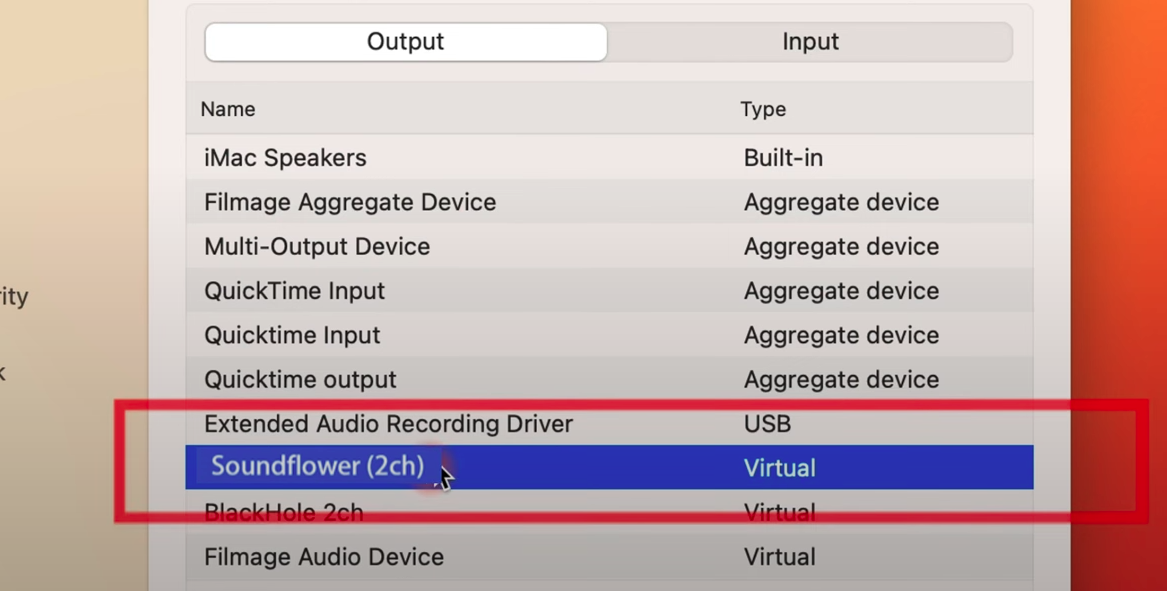
II. Using Audacity on Mac
- Microphone input
- Audio from external devices
- Audio played through your computer using additional audio routing software (like BlackHole or Soundflower)
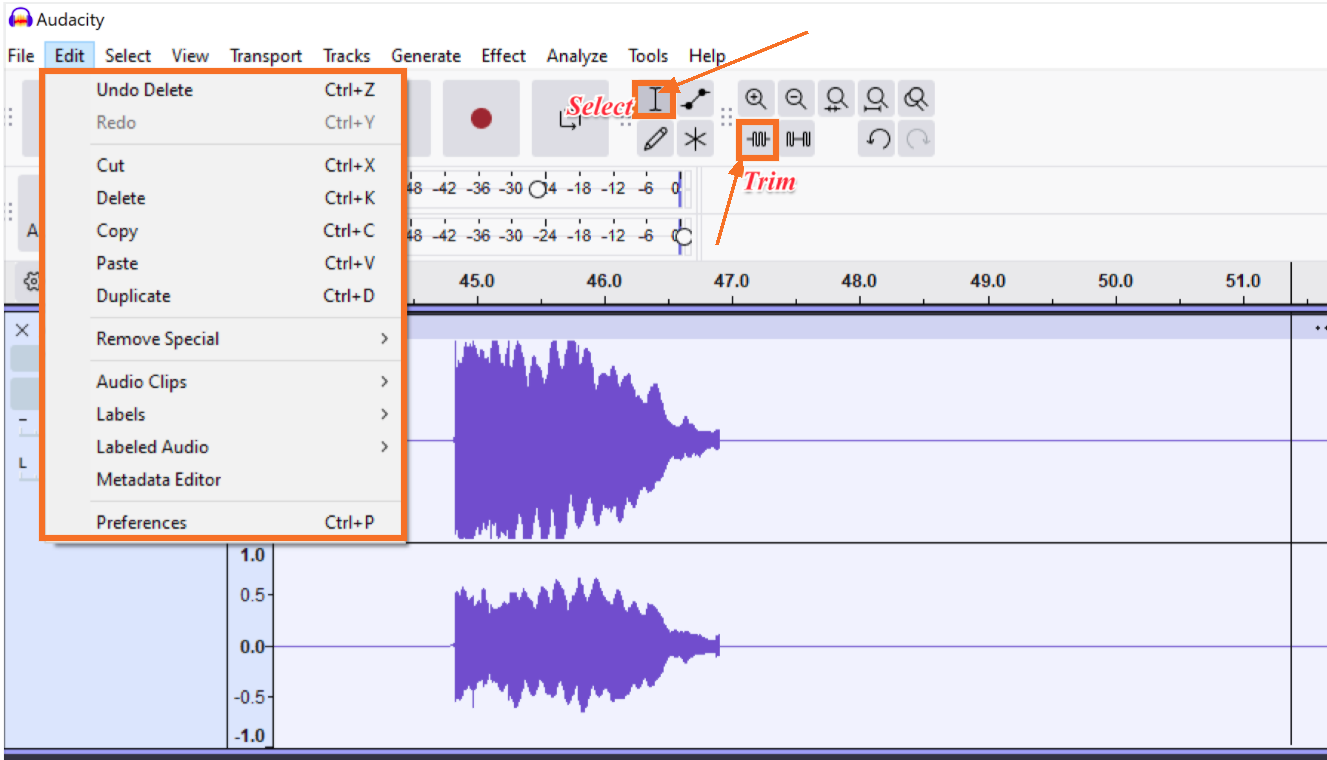
III. Editing Your Computer Audio Recording in Audacity (Windows and Mac)
- Selection Tool (I-beam cursor): Click and drag to select parts of your audio
- Cut, Copy, Paste, Duplicate, Delete: Use these from the Edit menu or keyboard shortcuts
- Trim: Keep only your selected audio and remove everything else
How to Record System Audio Like a Pro
- Test your audio levels before starting the actual recording
- Close unnecessary apps to prevent unwanted notification sounds
- Use headphones to monitor audio quality during recording
- Record a short test clip first to verify sound clarity
- Keep your computer’s volume at 75-80% for optimal quality
- Disable system sounds and notifications temporarily
- Set your recording quality to at least 44.1kHz, 16-bit
- Create a quiet recording environment with minimal background noise
- If recording your mic with system audio, balance both volumes carefully