You’ve just found that perfect TikTok video. Maybe it’s a masterfully crafted and personalized marketing campaign that would inspire your team, a motivational sales video that resonates with your strategy, or even a lighthearted moment that would brighten your next meeting.
How to Screen Record TikTok Videos Using Zight – The Most Professional Way
The best way to screen record on TikTok is by using software that makes the entire process – from recording to sharing- as swift as possible.
i) How to Screen Record A TikTok Video Using the Desktop App
Surfing on your Mac or Windows, all you need to do is locate that crucial video on TikTok and download it as follows on the desktop app:
- After watching a TikTok video you like, restart it and click on it to pause the playback.
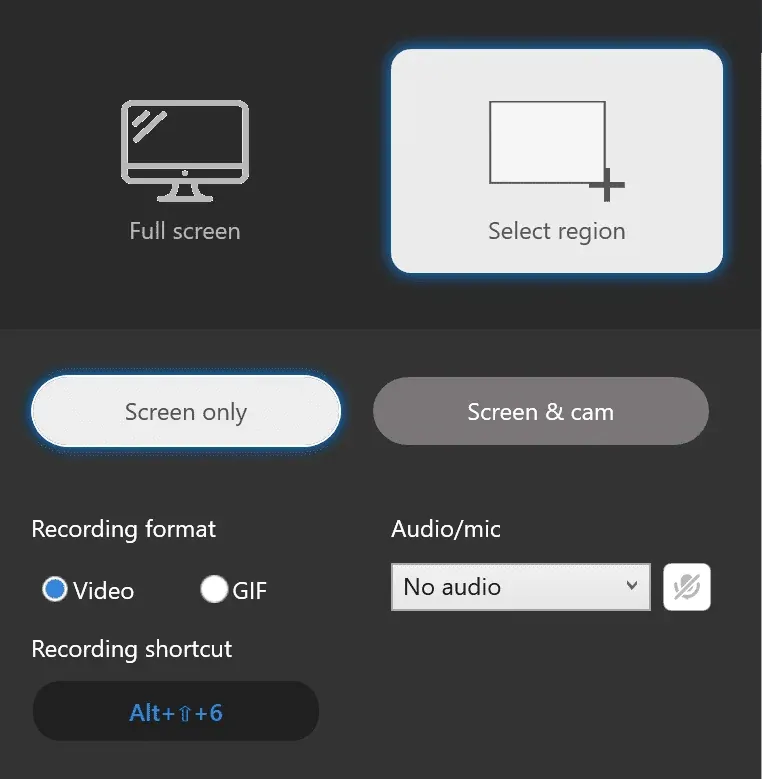
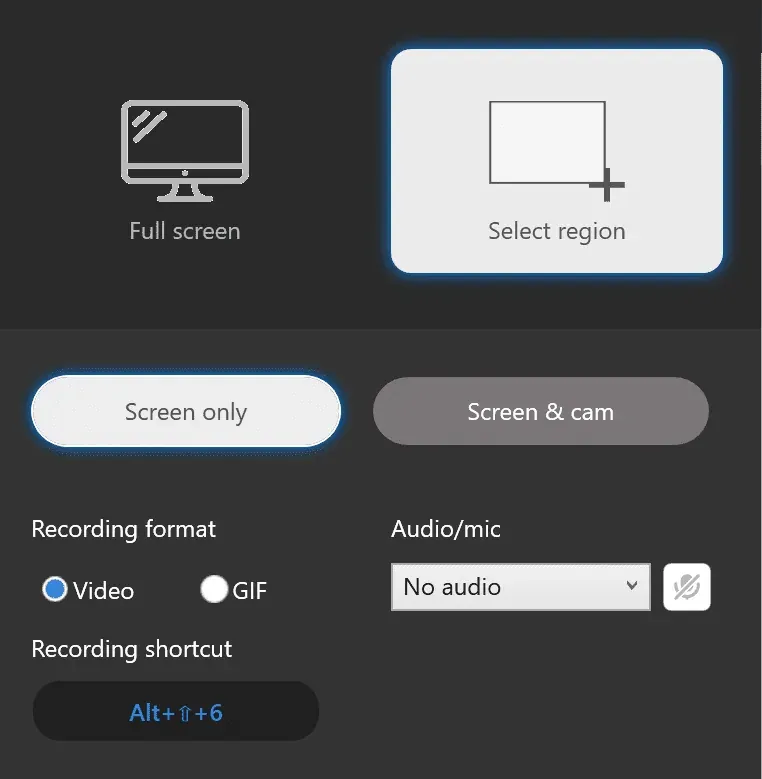
- Launch your Zight app on Windows or Mac, and click Record. This will give you a few recording settings, the main two being to record full screen or to select a region. On top of that, you can record the video only ( Screen Only ) or use the Screen & Cam feature to record your webcam overlay over the screen. The latter is good if you are referencing a TikTok video when creating your own or when you want to add some thought to the video before sharing it with the team.
- If you will record your webcam, you want to toggle on the mic and camera icon on the Zight menu. You can also choose between video and GIF, although for the latter, you won’t be able to turn on your mic.
- Click the Start Recording button for a 3-second timer before the screen recorder starts running. When it begins recording, ensure to start your video playback on TikTok and capture everything.
- As a pro-grade screen recording tool, Zight allows you to pause and annotate your video as you record. Take advantage of this feature and add elements like the ellipse, arrow, rectangle, pen, etc, to highlight certain sections of the video. Note : you will need to pause the video to annotate. You can also add timers to each annotation you add, and you can mark different elements with different colors to highlight each better.
- Click Finish Recording when done, and Zight will automatically upload the video to your cloud and open its link on your default browser so you can view it before sharing. If you want to polish it a bit further, click Edit just below your video, then finetune, trim, crop, split and merge, and so much more. Save your changes; then, you’ll be ready to share the video.
- Sharing your screen recording is easy – just copy the link and paste it to your recipients!
ii) How to Screen Record a TikTok Video Using the Zight Chrome Extension
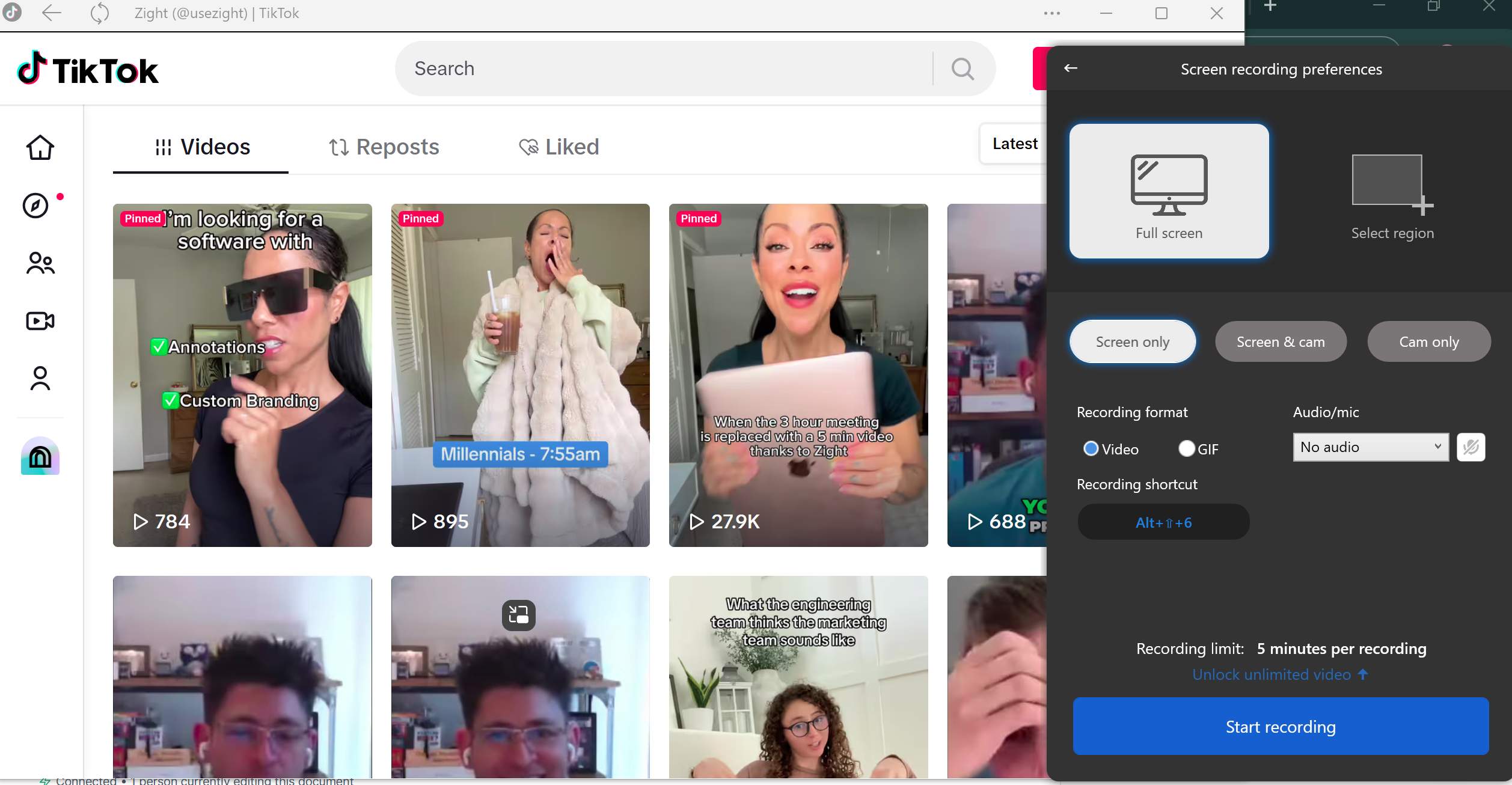
If you are accessing TikTok on your Chrome browser, then you can easily screen record TikTok videos using the Zight Chrome Extension. Doing so saves you loads of time, so you won’t need to disrupt your workflows. Here’s how:
- Once you download the Zight Chrome extension, pin it to the top of your browser.
- Restart and pause the TikTok video you want to save, then click the Zight icon in your extension tray.
- Click Record. You can then choose between recording Screen Ony or Screen & Cam. Turn on your camera and mic if necessary, then click Start Recording.
- You will then get three recording options – to record a Chrome Tab, Window, or the Entire Screen. If you only want to record TikTok videos, you can choose Chrome Tab and then click the TikTok tab from the list of options. Next, click Share, and you will get the three-second countdown before you can start recording. Don’t forget to play your TikTok video right after the countdown.
- Once done, the recorded TikTok video will be uploaded to the Zight cloud, where you can edit it before sharing it.

iii) How to Screen Record TikTok Videos using Zight’s iOS app
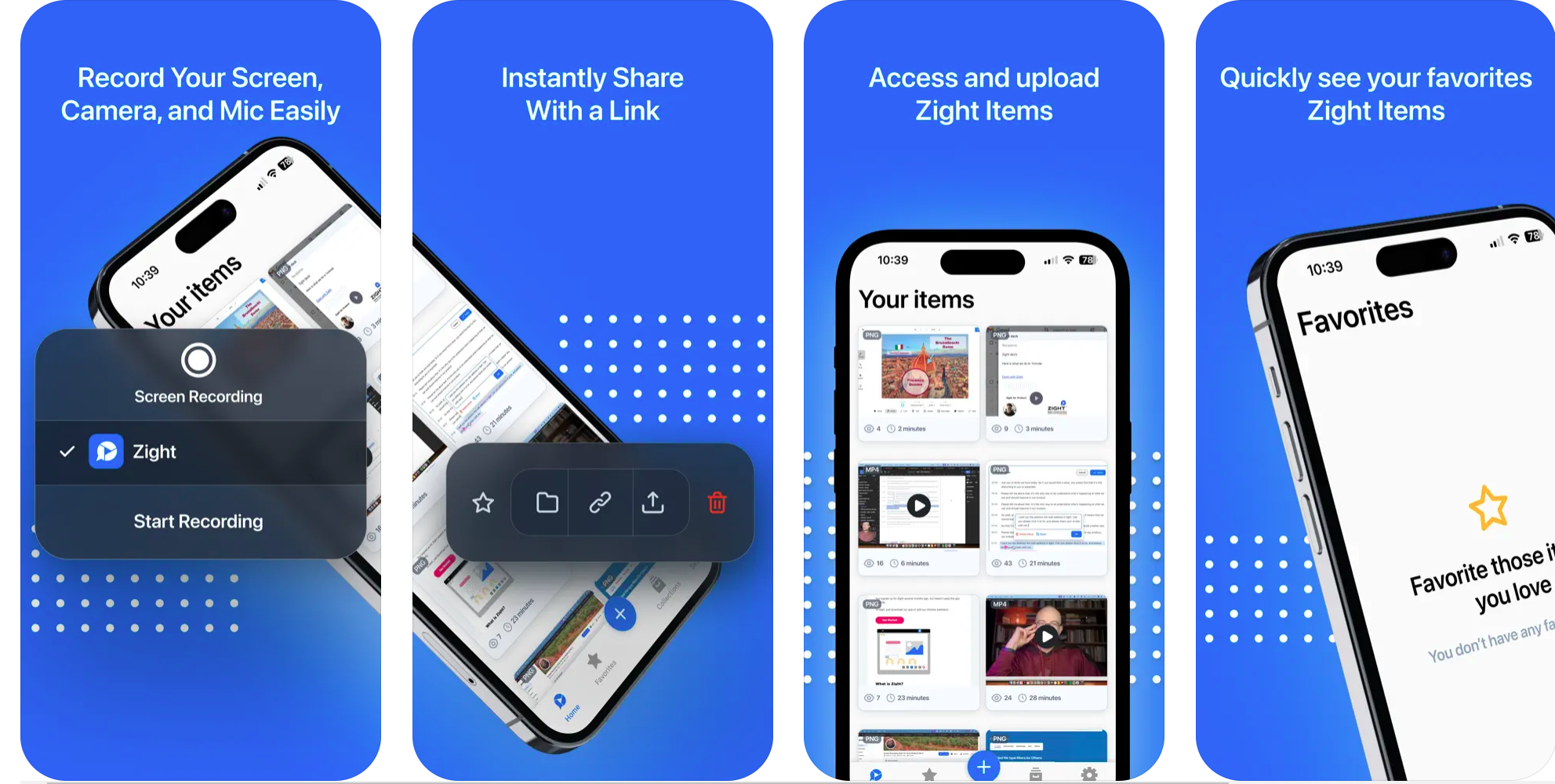
When you need to save TikTok content quickly and professionally, Zight’s iOS app makes the process seamless. After installing the app, you’ll get a quick walkthrough of the features – allow notifications so you can track when others view your shared recordings.
- Find the TikTok video you want to record, restart it, and pause it to prepare the Zight screen recorder.
- Open the Zight app, tap the + button, and select Screen Recording. Once you start recording, navigate to your TikTok video and play it.
- Zight automatically creates a shareable link when you’re finished and uploads your recording to the cloud. You can then access your video on your Zight dashboard and edit it before sharing.
How to Screen Record TikTok Video on Your iPhone
Apple’s built-in screen recording app is quite a good one for TikTok users. You won’t need any third-party screen recorder– the capability is right there on your iOS device, whether you’re using an iPhone or iPad.
i) On Your iPhone
Start by finding that TikTok video you want to capture on your For You page. Before recording, make sure you’ve enabled the screen recording feature. If you don’t see the record icon in Control Center, head to Settings > Control Center and tap the green plus symbol next to Screen Recording. This adds the recording control to your quick-access menu.
- Swipe down from the top-right corner to open Control Center ( or up from the bottom on older iPhones ). Tap the recording icon, and you’ll see a three-second countdown – perfect timing to navigate back to your TikTok video.
- Once you record it, tap the red time indicator at the top of your screen. Your recording saves automatically to your Photos app.
ii) On Your iPad
The iPad offers a slightly different experience with more control over your recording.
- After launching the TikTok app and finding your video, access the Control Center through Settings. The iPad gives you an extra advantage – you can toggle sound on or off during the recording, giving you more flexibility with your captures.
- Watch for the three-second countdown, record your content, and tap the red button when you’re done.
Screen Record TikTok Videos on Your Android Smartphone
Modern Android devices ( running Android 10 or later ) have a built-in screen recorder you can use to record TikTok videos. But if you’re using an older Android version, you might need an alternative solution like Zight for the best recording experience.
How to Screen Record TikTok Videos on a Desktop
Recording TikTok from your computer offers advantages, especially when you’re creating training materials or want to capture multiple videos in succession.
i) On Windows
The Xbox Game Bar is a pre-installed screen recorder that you can use as follows:
- Press Windows + G to open it, then look for the capture widget. If you don’t see it, click the Widget menu and ensure “Capture” is enabled.
- A small recording widget appears in your top-right corner, showing you’re capturing successfully.
