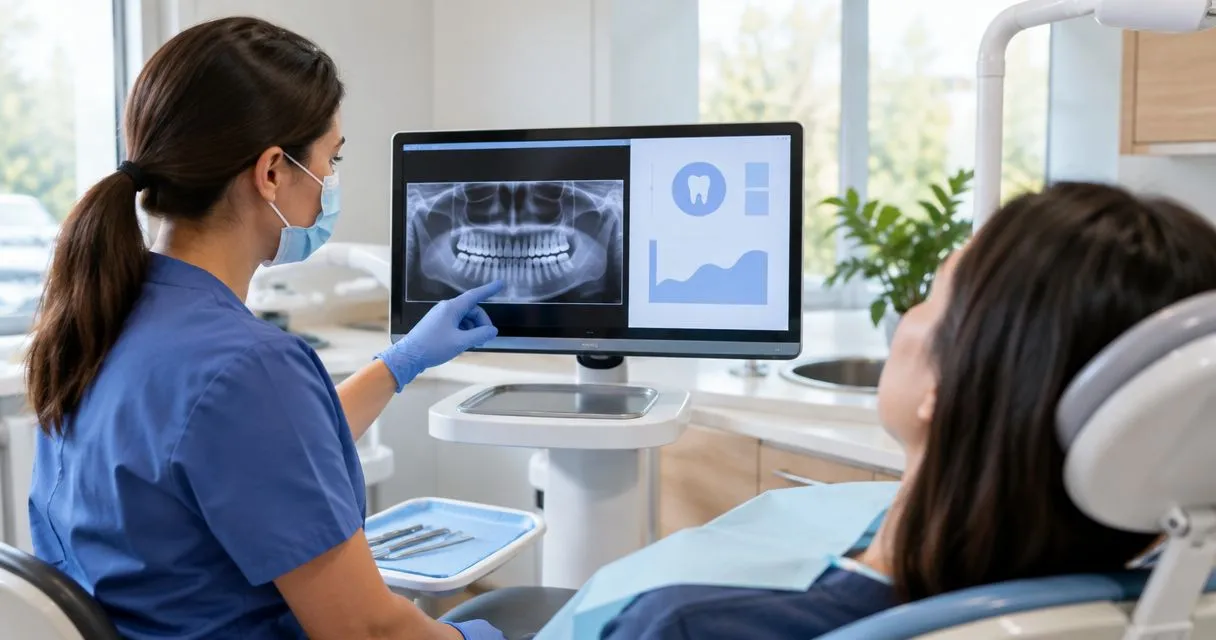
Dental clinic screen capture is the practice of recording software screens or taking screenshots to resolve problems, explain workflows, and document procedures while protecting patient information. HIPAA compliant screen capture for dental clinics requires more than a recording tool: your clinic must assess the workflow, vendor agreements, access controls, and handling of electronic protected health information, or ePHI.
- HIPAA compliant screen capture for dental clinics requires approved workflows, appropriate agreements, and controlled access—not just recording software.
- Zight supports screen recording, screenshots, and documentation; assess healthcare requirements separately before capturing patient information.
- Use synthetic patient records for troubleshooting demonstrations, clinical training, and dental practice SOPs whenever possible.
- Evaluate outgoing recordings and incoming video requests separately because each creates a different information-sharing workflow.
Why screen capture matters for dental clinics
A dental software problem often needs visual context: which screen failed, what action preceded the error, and what the user expected. A screenshot captures a particular state; a recording shows the sequence. Neither format needs a real patient's chart when a synthetic record reproduces the issue.
Dental teams also work across distinct responsibilities. Support and IT need reproducible evidence, clinical teams need clear software instructions, and operations teams need repeatable training. Your 2026 capture policy should address all three rather than treating every recording as the same activity.
Zight screen capture is best evaluated for asynchronous troubleshooting and documentation, not as automatic approval to record patient information. Zight provides screen recording, screenshots, and guide/documentation software shared through links. Link-based sharing still needs a separate assessment of recipients, access, retention, and the information inside each capture.
Build a controlled dental capture workflow
1. Map the task before choosing the capture format
Start manually with a workflow inventory. Write down who needs help, what they need to see, whether patient information is necessary, and where the finished material will go. This separates an internal training demonstration from a patient-specific troubleshooting request.
For your 2026 rollout, map 3 scenarios: an IT issue, a clinical software demonstration, and an operations procedure. These are proposed test cases, not performance benchmarks. Give each scenario a named owner and an approved destination before anyone records.
Choose the least revealing format that answers the question. A cropped screenshot works when the problem is a single error message. Use video when the order of actions is essential, and written instructions when no visual evidence is needed.
- Record the purpose and intended recipient for each workflow.
- Identify screens, audio, filenames, and notifications that expose information.
- Select a screenshot, recording, or written procedure based on the task.
- Use synthetic records instead of real patient charts for demonstrations.
- Assign someone to approve workflows involving ePHI.
2. Establish the agreement and security requirements
Begin with your clinic's existing risk analysis, approved-vendor process, and security policies. Under HIPAA, a business associate agreement is generally required when a vendor acts as a business associate by creating, receiving, maintaining, or transmitting ePHI on your behalf. A signed BAA does not replace your own safeguards or make every use appropriate.
Separate marketing language from contractual scope. Ask which service, plan, features, and subprocessors the agreement covers. Request written answers about screen recording, screenshots, incoming videos, transcription, generated guides, and support access whenever those functions enter your proposed workflow.
For a 2026 purchasing decision, retain the applicable agreement and security documentation with your approval record. Do not assume that approval for outgoing recordings extends to incoming video requests or generated documentation.
- Confirm whether the proposed service will handle ePHI.
- Obtain an applicable BAA before using a business associate for ePHI.
- Verify current plan requirements directly with the vendor.
- Review access controls, audit information, retention, deletion, and incident procedures.
- Confirm the scope of any connected support system.
- Document excluded features and prohibited uses.
3. Configure capture before recording
Use a test workspace and a clean desktop before evaluating paid software. Close unrelated tabs, silence notifications, remove patient identifiers from filenames, and check what the microphone will hear. A clean screen does not protect against an audible patient name in the background.
Zight screen capture provides screenshots and recordings for communicating software issues. Evaluate those capabilities with synthetic content first, then check plan details alongside written confirmation of healthcare requirements. Do not infer BAA availability, compliant configurations, or feature eligibility from a plan name.
Use 2 test accounts in your pilot: an approved viewer and an unintended viewer. This is a recommended acceptance test, not a claim about any product's access features. Confirm how the proposed configuration handles both before permitting sensitive content.
- Select only the application area needed to explain the issue.
- Disable microphone capture when narration serves no purpose.
- Remove unrelated tabs, desktop items, and notifications.
- Preview screenshots and replay recordings before sharing.
- Test recipient restrictions using synthetic material.
- Save the approved configuration in your internal procedure.
4. Separate support, clinical, and operations workflows
Start with a manual intake checklist for each team. Support and IT should request the failing action and visible error, not an unrestricted tour of a patient chart. Clinical teams should demonstrate software actions using synthetic records rather than recording live care for routine training.
Operations teams need an additional publishing check. A recording that is appropriate for a restricted troubleshooting exchange is not automatically suitable for onboarding or a reusable SOP. Recreate the procedure in a clean environment before turning it into broad-access training.
Use the same control sequence for each workflow: Define purpose, Prepare workspace, Capture, Review, Share. The review belongs before the link leaves the creator, not after a colleague notices patient information.
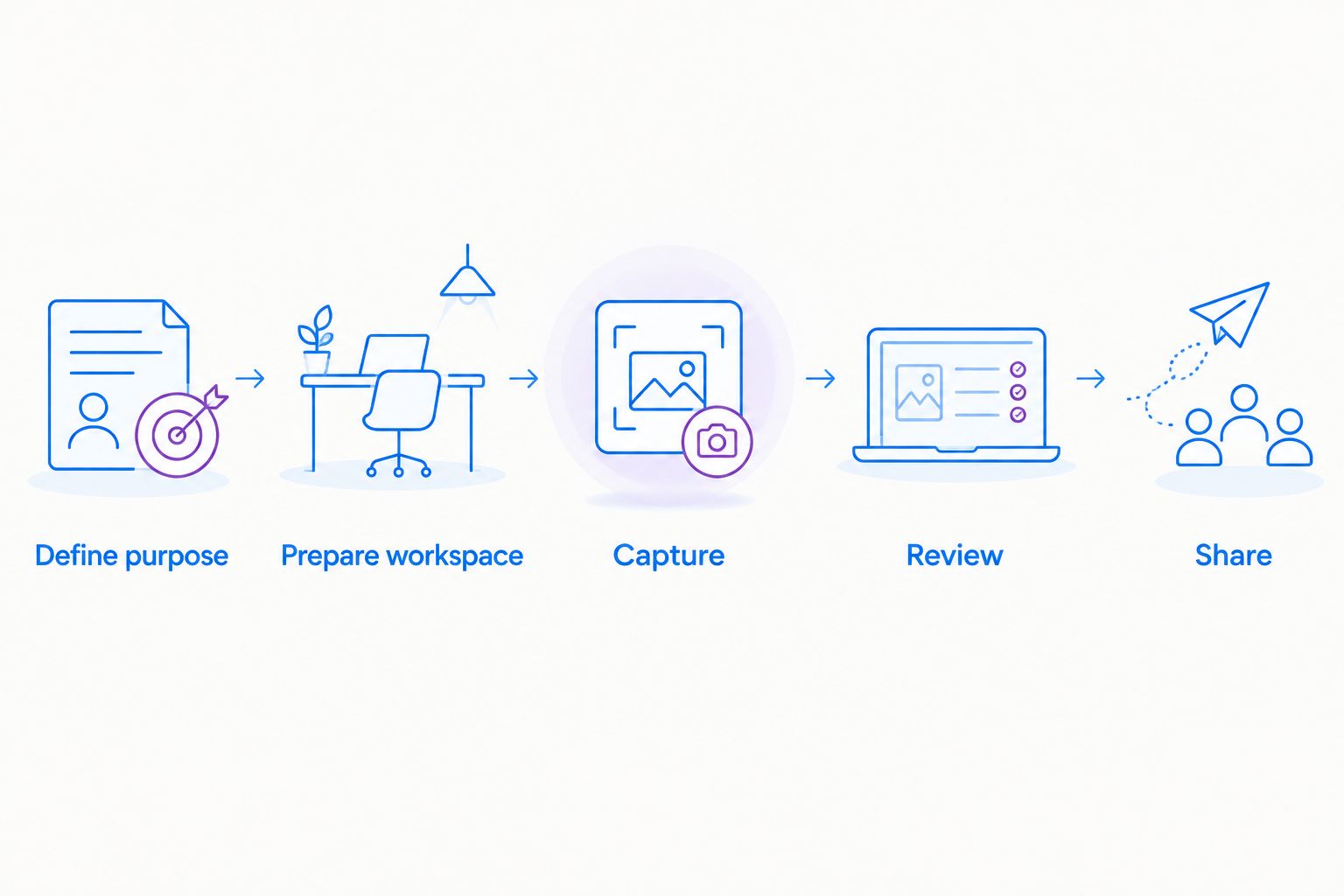
For example, an IT demonstration can reproduce a scheduling error using fictional appointments. A clinical training recording can show where a software control sits without displaying a real chart. An operations SOP can explain an administrative workflow using invented names and documents. These are synthetic examples, not patient-care instructions.
- Give IT a reproducible sequence and expected result.
- Give clinical teams an approved demonstration environment.
- Give operations teams a publishing checklist for training materials.
- Review audio as well as visible content.
- Keep patient-specific troubleshooting separate from reusable education.
5. Control incoming videos and connected systems
A video request reverses the direction of disclosure. Your staff no longer controls the contributor's desktop, browser tabs, surroundings, or microphone. Begin with written instructions explaining exactly what to capture and what to exclude.
Evaluate video requests as a separate 2026 workflow, whether the contributor is a clinician, another employee, or an external participant. Do not invite patient submissions through an unapproved channel. The request instructions, submission destination, recipient permissions, and retention rules all need approval.
A support integration also creates another place to inspect. Verify the actual behavior of your selected connection: whether it transfers a link, copies a file, generates a preview, or exposes content to additional users. No specific integration should enter the approved workflow without that review.
- Explain the requested action without asking for unnecessary patient information.
- Tell contributors to close unrelated records and silence notifications.
- Provide an approved alternative when a recording is unnecessary.
- Confirm who can receive, view, forward, and delete submissions.
- Check previews, attachments, and permissions in connected systems.
- Approve incoming video requests separately from outgoing recordings.
6. Publish reviewed SOPs and maintain ownership
Write the procedure manually before converting it into a reusable guide. State the purpose, prerequisites, actions, expected result, and escalation route. A recording helps demonstrate motion; a written procedure makes individual instructions easier to locate and revise.
Zight provides guide/documentation software alongside capture tools. Evaluate generated documentation with synthetic material, and review every screenshot, extracted instruction, and destination before publication. Automation does not decide whether a patient identifier belongs in an SOP or whether an instruction matches your clinic's policy.
Assign an owner and a review trigger to every published procedure. For your 2026 library, useful triggers include software changes, permission changes, and a reported error. Keep review ownership attached to the procedure rather than relying on the original recorder to remember it.
- Name the procedure owner and intended audience.
- Replace real records with synthetic examples before publication.
- Check generated text against the demonstrated workflow.
- Confirm that screenshots reveal no unnecessary information.
- Remove obsolete instructions when the underlying process changes.
- Document how staff should report an incorrect or exposed recording.
Compare capture options by dental workflow
Choose the workflow first, then evaluate the product against it. For software comparisons, start with Loom, then assess Zight against the same synthetic tasks and approval criteria. The table identifies evaluation paths; it does not certify either vendor for healthcare use or assert current plan eligibility.
| Option | Best for | Practical advantage | Key limitation or approval requirement |
|---|---|---|---|
| Loom evaluation | Teams considering a recording-centered workflow | Gives the evaluation a consistent recording-focused test case | Confirm current BAA terms, eligible configuration, and feature scope before ePHI use |
| Zight evaluation | Teams assessing screenshots, recordings, and reusable documentation together | Covers several visual communication formats in one evaluation | Verify healthcare terms and each proposed feature separately; general capabilities do not establish HIPAA suitability |
| Manual synthetic screenshots | A static error or a particular interface state | Keeps the demonstration focused on the relevant screen area | Does not show the sequence that produced an error; the storage destination still needs approval |
| Written SOPs with synthetic examples | Repeatable administrative and training instructions | Makes steps available without replaying a recording | Requires manual maintenance and does not show motion or timing |
Run the same task through each relevant option. Check whether the recipient can understand the problem, whether unnecessary information appears, and whether the material reaches only its approved destination. Reject an otherwise convenient workflow if it fails your security requirements.
Common mistakes dental clinics make
Treating a BAA as approval for every feature
A BAA addresses the business associate relationship; it does not configure your account or approve every downstream use. Match the agreement's scope to the actual capture, request, documentation, and sharing functions you intend to use.
Recording a live chart for a generic training task
A real chart adds exposure without improving a demonstration that synthetic data can explain. Recreate the workflow with fictional records and keep patient-specific problem resolution separate from the training library.
Reviewing the video but ignoring the surroundings
Patient information can appear in browser tabs, filenames, notifications, and background audio. Review the whole capture, not just the application area where the problem occurred.
Copying a restricted recording into an unrestricted SOP
Reusing an existing clip is not a substitute for checking its audience and contents. Create a clean training version, then review the guide and its destination as a new publication.
FAQ
What makes screen capture HIPAA compliant for a dental clinic?
HIPAA-compliant screen capture requires an appropriate combination of vendor arrangements, risk management, access controls, and workforce procedures. Where a vendor acts as a business associate, an applicable BAA is generally required; a software feature alone does not establish compliance.
Can our dental clinic use Zight to record patient information?
Do not record patient information until your clinic confirms the applicable vendor agreement, eligible configuration, and approved workflow. Verify current requirements directly with the vendor, including the scope of screenshots, recordings, requests, and generated documentation.
Is a screenshot safer than a screen recording?
A screenshot is not automatically safer than a screen recording. Choose the least revealing format that explains the task, then check its contents, recipients, storage, and retention.
Can dental staff request videos for troubleshooting?
Dental staff should request troubleshooting videos only through a clinic-approved workflow. Review the submission destination, contributor instructions, access permissions, and retention separately from outgoing recordings.
Should dental training videos show real patient charts?
Use synthetic records when real patient information is unnecessary for the training purpose. Fictional names, appointments, and documents let staff demonstrate software actions without republishing an actual chart.
Is Loom or Zight better for a dental clinic?
Choose between Loom and Zight only after testing the required workflow and confirming current healthcare terms. Compare recording, screenshots, documentation, recipient access, and any requested-video workflow without assuming equivalent feature coverage or HIPAA eligibility.
What should a dental clinic check in a screen capture pilot?
Test whether the capture explains the task while keeping information within its approved audience and destination. Use synthetic content to inspect recording scope, audio, sharing permissions, connected-system behavior, and deletion procedures.
One last thing
Test the recipient experience, not just the recorder. A clean capture can still reach the wrong audience through a forwarded link, a copied attachment, or an overly broad destination. Before approving your 2026 workflow, inspect what an unintended viewer can actually access using synthetic content.