A customer sends a recording of an issue. You can see what went wrong, but you still need their email address and a few details before you can help. Later, someone has to turn that recording into next steps for the team.
Our October newsletter brings those parts of the workflow closer together. You can collect more context with Request Links, see issues on an iPhone, and turn video transcripts into a TODO list. There are also new ways to use Zight through connected AI tools, plus automatic video redaction to try in beta.
Collect the details you need with Request Links
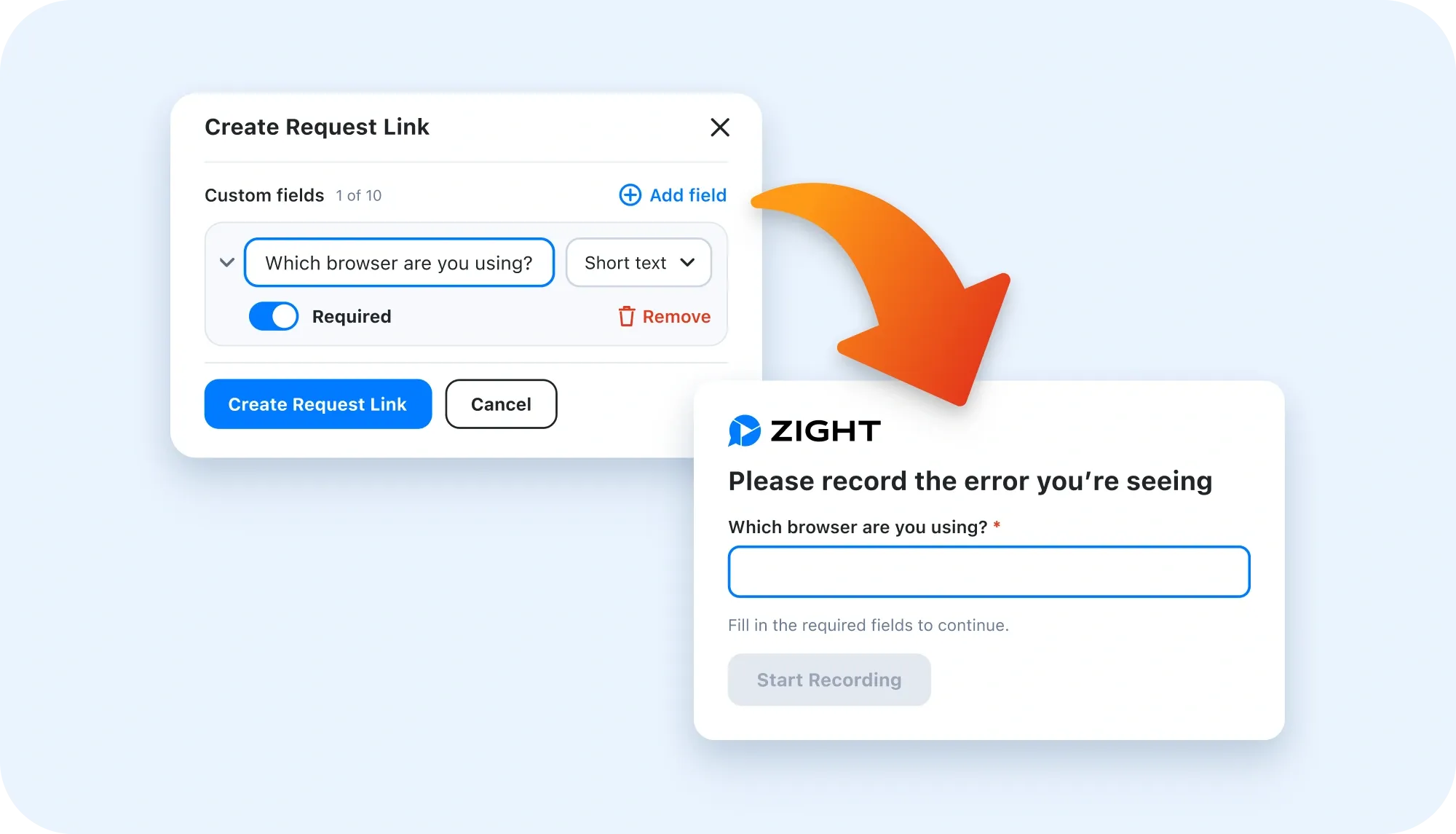
Custom fields let you ask questions directly in a Zight Request Link. Collect an email address, ask which product someone is using, or request the information your support team needs alongside the recording.
Start with the questions you usually ask in your first follow-up. If your team always needs a product name before investigating, include that question in the request. Customers can provide the context while they are already explaining the issue.
Keep the questions focused on what your team will actually use. A short request with the right fields gives you a better starting point for the conversation.
See the issue on their iPhone
Request Video now supports iOS screen recording. Customers can show what is happening on their iPhone, giving your team a view of the issue alongside their explanation.
For a mobile support request, ask the customer to show the steps that lead to the problem. Seeing the screen can help your team understand which part of the experience needs attention, especially when a written description leaves room for interpretation.
Use Zight from your connected AI tools
Zight MCP connects compatible AI tools to Zight. It now supports creating Request Links and submitting responses, so you can bring more of the request workflow into your AI conversation.
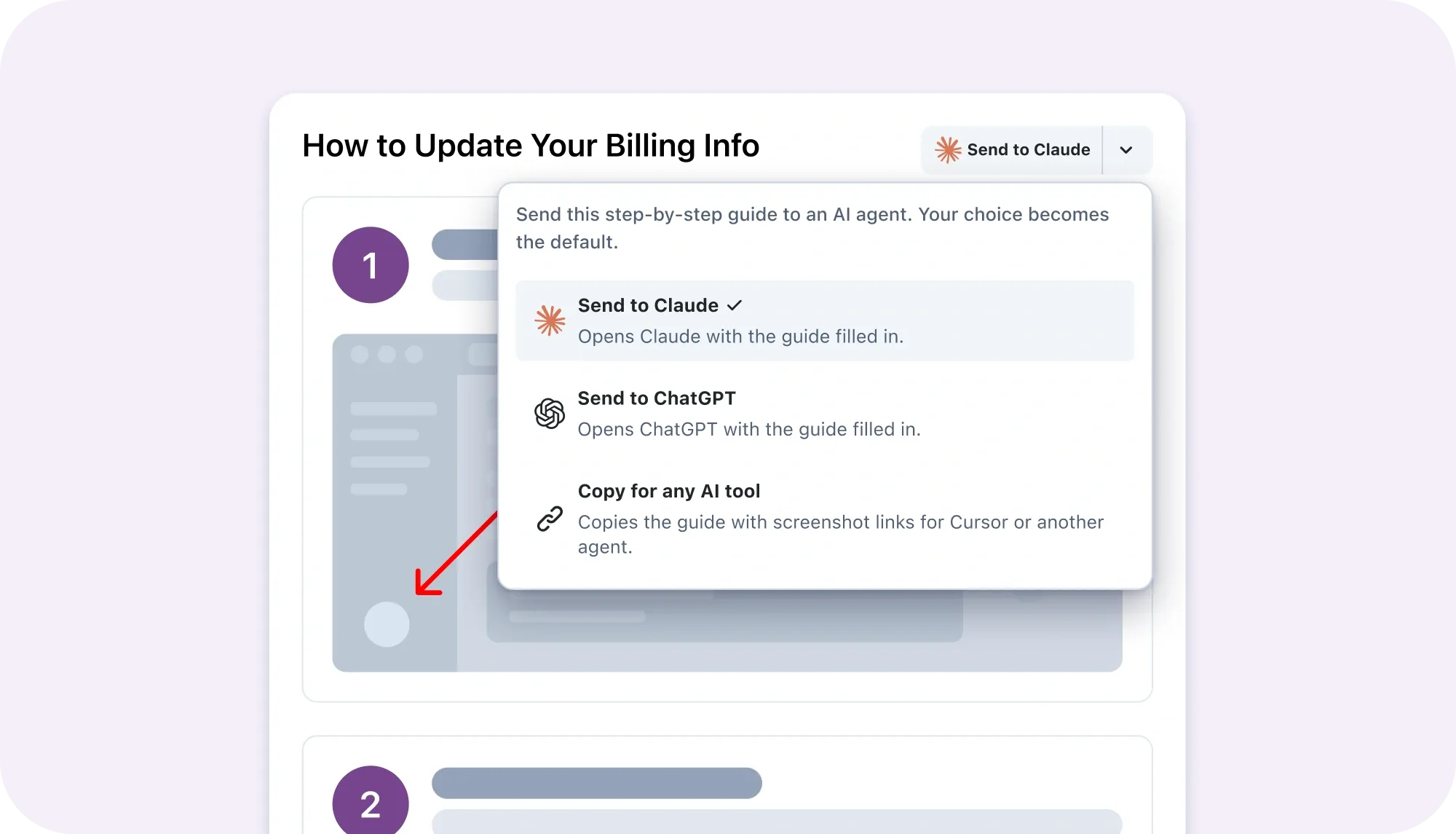
You can also bring Zight's step-by-step guides into those tools. When you are working through a task with an assistant, the guide supplies the instructions without requiring you to copy them over by hand.
For example, ask your connected assistant to create a Request Link for a customer walkthrough. Once you have the context you need, use a relevant guide to help work through the next steps. The available workflow depends on your AI tool's MCP support and your Zight access.
Try automatic video redaction in beta
Automatic video redaction helps protect sensitive information in recordings. It is currently in beta, with access available by request.
If your team wants to try it, email feedback@cl.ly to request access. Review recordings before sharing them, and continue to follow your team's policies for handling sensitive information.
Turn video transcripts into a TODO list
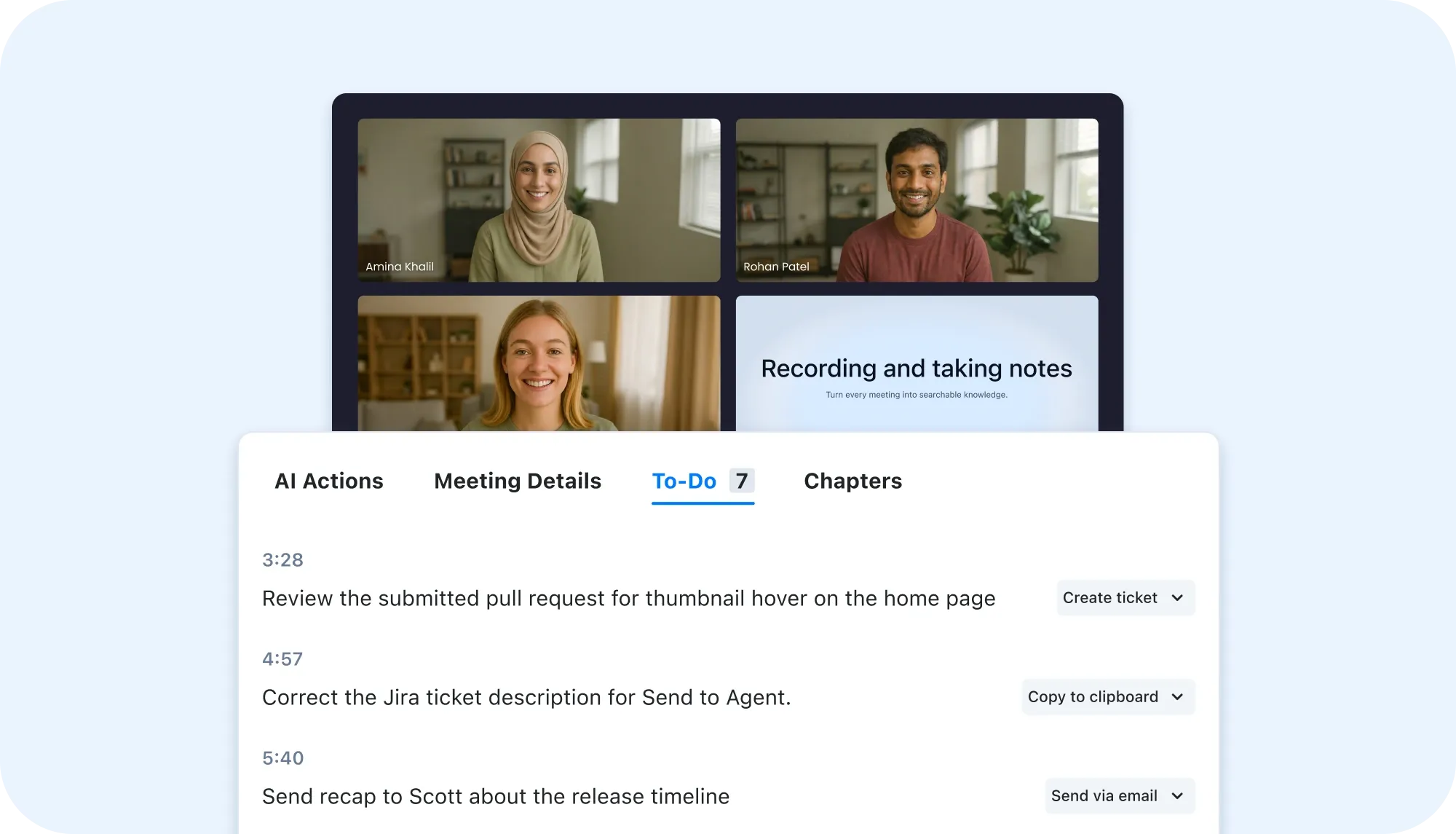
A feedback recording can contain several changes to make, with the explanation for each one spread across the conversation. Turning the transcript into TODOs gives you a starting list without replaying the video to write down every task.
Try it with your next feedback recording or walkthrough. Review the generated list before sharing it with your team, and check the recording when a task needs more context. The transcript helps you capture the work; your review makes sure the list reflects what you intended.
Join our end-of-year webinar
Join us for Zight 2026: "Wait, I can do that?" on December 9, 2026, at 2:00 PM EST to explore more ways to put Zight to work.