Loom centers on shareable video messages, while MiniTool Screen Recorder handles screen capture for local recordings. A recording alone stops being enough when you need screenshots, reusable instructions, and an asynchronous troubleshooting workflow. The best MiniTool alternative in 2026 is Zight for team screen capture and documentation; OBS Studio is the better fit for recording and live-production control.
- For MiniTool alternatives, choose Zight for screen recording, screenshots, and shareable team documentation.
- Choose Loom for video messages, OBS Studio for production control, or ShareX for Windows screenshot workflows.
- Compare against MiniTool Screen Recorder, not MiniTool’s disk-management or data-recovery products.
- For healthcare, confirm contractual requirements and permitted workflows before recording or requesting sensitive information.
Why this matters
MiniTool alternatives is an ambiguous search. MiniTool offers software for different jobs, including disk management, data recovery, and screen recording. This comparison covers alternatives to MiniTool Screen Recorder, not replacements for partitioning a drive or recovering deleted files.
For a paid software decision in 2026, start with the work that happens after capture. Does someone need to watch a demonstration, inspect a screenshot, reproduce a bug, or follow a procedure? Those are different deliverables.
Do not buy a recording tool solely because it captures your screen. Choose the workflow that gets the next person to the correct action with the least explanation.
MiniTool alternatives at a glance
Start with Loom when comparing asynchronous video tools. Then separate team communication from recording production and screenshot automation; those categories solve different problems.
| Tool | Best for | Standout capability | Difference from MiniTool Screen Recorder |
|---|---|---|---|
| Loom | Video-first workplace messages | Recording and sharing video messages | Centers the workflow on sending someone a video |
| Zight | Team screen capture and documentation | Screen recording, screenshots, guides, and shareable links | Covers multiple visual formats for communicating and troubleshooting |
| OBS Studio | Recording and live-production control | Scenes, sources, and audio mixing | Gives you a production workspace rather than just a capture workflow |
| ShareX | Windows screenshot workflows | Capture methods, annotations, and configurable tasks | Emphasizes repeatable screenshot and capture actions |
| MiniTool Screen Recorder | Local screen recordings | Recording screen activity to a file | Provides the baseline when your main requirement is a recording |
These are workflow distinctions, not a feature-count contest. A support lead needs a useful explanation; a presenter managing several sources needs production controls. Neither should inherit the other person’s buying criteria.
1. Zight: best for team capture and documentation
Zight screen capture combines screenshots and screen recordings with guide and documentation software. Support, sales, product, and engineering teams use shareable links to explain work and troubleshoot asynchronously. Choose it when the deliverable is an explanation another person can use, not merely a recording file.
A practical evaluation starts with one support issue. Capture the visible problem, explain the resolution, and create instructions for the next person who encounters it. That tests the connection between communication and documentation without turning the trial into a feature tour.
Where it shines
- Multiple explanation formats: Use a screenshot for a specific detail, video for a sequence, and a guide for repeatable work.
- Asynchronous troubleshooting: Send a visual explanation that someone can review without arranging a meeting.
- Reusable instructions: Evaluate whether the documentation workflow turns a resolved issue into something your team can use again.
Where it falls short
- Link access needs ownership: Decide who can view shared material and how your team handles sensitive captures.
- Guides still need review: Check procedural instructions before treating them as approved operating documentation.
- It solves a different problem from disk utilities: Screen capture software does not replace MiniTool’s partitioning or recovery tools.
| Dimension | Team capture and documentation | MiniTool Screen Recorder |
|---|---|---|
| Main output | Visual explanations and instructions | Screen-recording files |
| Buyer priority | Helping another person understand or act | Capturing screen activity |
| Evaluation task | Explain an issue and document its resolution | Record and review the same issue |
Best for: Teams that need screen recording, screenshots, and documentation in the same evaluation.
Verdict: Buy for the combined workflow, not for recording alone.
2. Loom: best for video-first workplace messages
Loom is a direct comparison when your main task is recording an explanation and sending it to someone else. Its screen-and-camera recording workflow suits narrated updates, walkthroughs, and feedback. Evaluate it against the messages your team actually sends, rather than against a production checklist.
For example, record a short product walkthrough for a colleague who cannot attend a meeting. Ask whether the recipient understands the decision and knows what to do next without sending a follow-up question.
Where Loom shines
- Video messages: Keep the explanation and the screen activity together.
- Narrated walkthroughs: Show the sequence rather than describing each action in text.
- Asynchronous updates: Give recipients a recording to review on their own schedule.
Where Loom falls short
- Video is not always the clearest format: A screenshot can communicate a single field or error more directly.
- A recording is not automatically an SOP: Repeatable procedures need explicit steps and review.
- Camera video adds a decision: Use it when the speaker’s presence helps, not as a default requirement.
| Dimension | Loom | MiniTool Screen Recorder |
|---|---|---|
| Main workflow | Record and share a video message | Record screen activity to a file |
| Strongest evaluation | Narrated communication | Local capture |
| Decision question | Can the recipient act on the message? | Does the recording capture the required activity? |
Best for: Teams whose primary deliverable is a narrated video message.
Verdict: Buy when video messaging is the job; skip the switch if local recordings already meet your needs.
3. OBS Studio: best for recording and production control
OBS Studio provides scenes, multiple sources, audio mixing, recording, and live streaming. Choose it when controlling the composition matters as much as capturing the screen. A demonstration that switches between application windows, a camera, and other sources is a different assignment from sending a quick explanation.
Where OBS Studio shines
- Scene composition: Arrange sources for different parts of a demonstration.
- Audio control: Manage audio sources within the production workspace.
- Recording and streaming: Evaluate one production setup for both output types.
Where OBS Studio falls short
- Setup comes first: Sources, scenes, and audio settings need attention before recording.
- Sharing is a separate workflow: Plan how you will deliver recordings to colleagues.
- Extra controls can distract: A simple support explanation does not necessarily need a production workspace.
| Dimension | OBS Studio | MiniTool Screen Recorder |
|---|---|---|
| Recording approach | Configurable scenes and sources | Screen capture to a file |
| Main buying reason | Production control | Straightforward recording |
| Team handoff | Requires a distribution decision | Requires a distribution decision |
Best for: Presenters and technical teams that need control over recording composition.
Verdict: Buy into the production workflow; skip it for a simpler capture-and-send task.
4. ShareX: best for Windows screenshot workflows
ShareX is a Windows capture tool with screenshot annotations and configurable capture tasks. Consider it when repeated screenshot work matters more than narrated team updates. Its value is in shaping the capture process around a repeatable task.
Where ShareX shines
- Screenshot work: Capture and annotate the detail another person needs.
- Repeatable actions: Configure tasks around recurring capture requirements.
- Windows workflows: Evaluate it for a team working in that environment.
Where ShareX falls short
- Platform fit is restrictive: ShareX is Windows software, so it is not a uniform choice for a mixed-platform team.
- Configuration needs ownership: Someone must decide which capture actions and destinations are appropriate.
- Capture is not documentation governance: Your team still needs a process for approving and maintaining instructions.
| Dimension | ShareX | MiniTool Screen Recorder |
|---|---|---|
| Main emphasis | Screenshots and configurable capture tasks | Screen-recording files |
| Evaluation task | Capture and annotate a recurring issue | Record a screen sequence |
| Buyer priority | Repeatable capture actions | Local recording |
Best for: Windows users with frequent screenshot and annotation work.
Verdict: Buy for repeatable Windows capture tasks; skip it as a mixed-platform standard.
Why people switch from MiniTool Screen Recorder
A switch makes sense when your required output changes. These are workflow reasons to evaluate an alternative, not claims about MiniTool customer behavior.
- The recording needs a recipient: Compare the complete handoff, including access and the recipient’s next action.
- The issue needs a still image: Test whether an annotated screenshot explains it better than playback.
- The resolution needs reuse: Turn a solved problem into reviewed instructions instead of recording the same explanation again.
- The presentation needs composition: Evaluate scenes and sources when a single capture view is insufficient.
- The team needs consistency: Check whether colleagues can follow the same capture and sharing process.
For your 2026 shortlist, identify the gap before opening another application. Otherwise, you risk replacing a familiar recorder without improving the work around it.
Test the handoff before choosing
Use the same synthetic example across your shortlist. A fictional account-settings problem works well because it supports a screenshot, a narrated sequence, and a written procedure without exposing customer information.
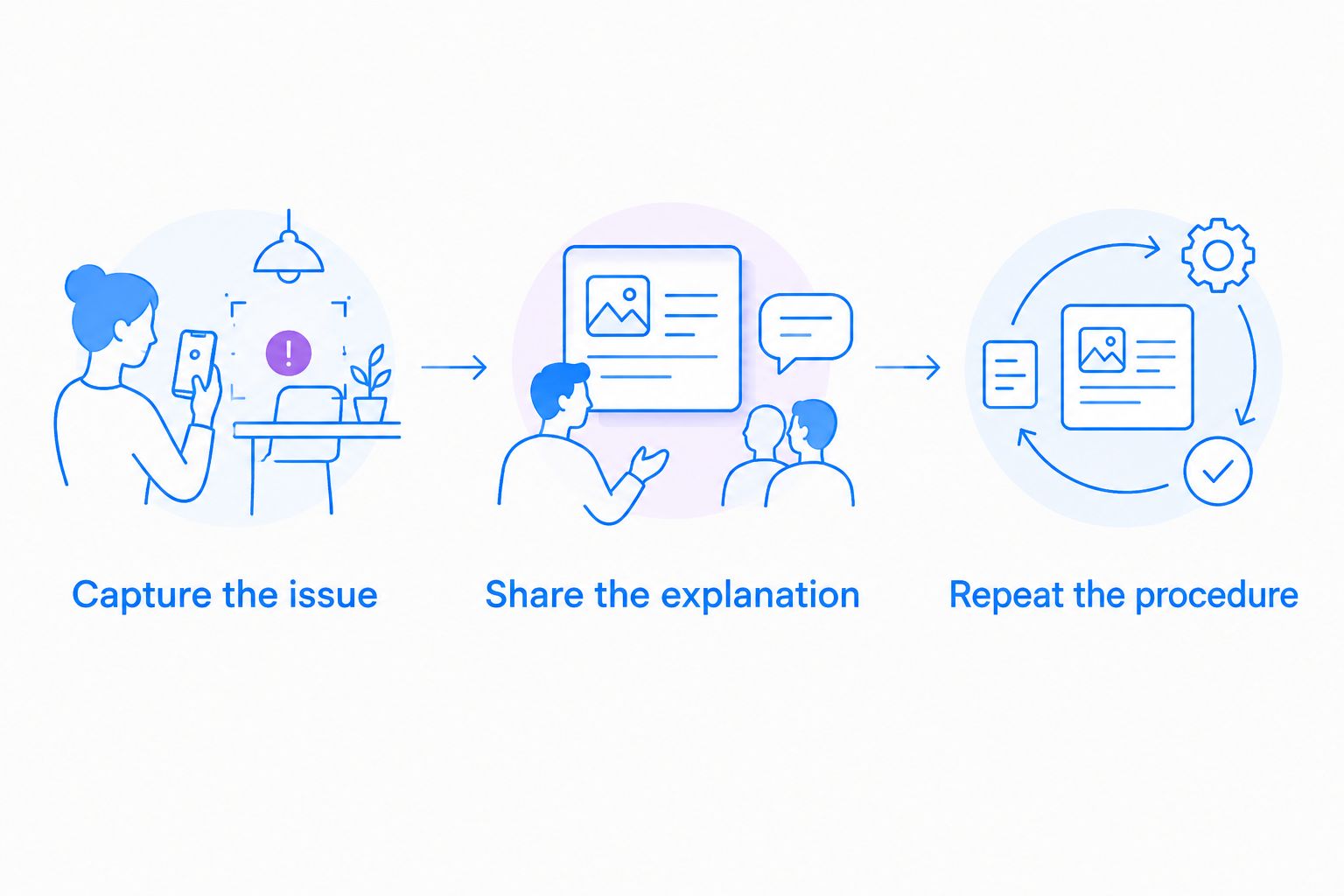
- Capture the issue: Record a 60-second explanation of the problem. Treat this as a test brief, not a product limit.
- Share the explanation: Send the result to a colleague using the delivery method you intend to use at work.
- Repeat the procedure: Ask the colleague to follow a 5-step SOP for the same fictional task without live help.
These 3 tasks expose different weaknesses. A readable recording does not prove that sharing is practical, and successful sharing does not prove that instructions are complete.
Have the recipient identify the next action before offering help. Record any confusion in ordinary language: unclear cursor movement, missing context, inaccessible material, or an incomplete instruction. Use those observations to choose the format and tool.
Healthcare: evaluate the workflow before capturing sensitive data
For healthcare evaluations in 2026, keep demonstrations synthetic. A tool’s screen-recording capability does not establish that your intended workflow meets HIPAA requirements. Confirm the applicable plan, BAA availability, permitted features, access controls, and limitations through official vendor documentation and your organization’s review process.
Give each healthcare team a distinct test:
- Support and IT: Demonstrate a fictional login or application issue. Test both sending an explanation and requesting a reproduction video through an approved process.
- Clinical teams: Use a fictional application workflow to evaluate recording instructions and requesting clarification. Do not use patient information or turn the demonstration into medical advice.
- Operations teams: Create a training procedure from a synthetic example. Check review ownership and how staff find the approved instructions.
For Zight screen capture, make those checks part of procurement rather than assumptions about the product. Confirm any required support integration individually; a shareable link is not evidence of a native integration or authorization to transmit sensitive information.
When staying with MiniTool is the right call
Stay with MiniTool Screen Recorder when local recording is the complete requirement and your current workflow meets it. A new application needs to solve a specific problem, not merely offer a different interface.
Use your 2026 evaluation to compare capture quality, recipient access, and procedural clarity on the same task. If the alternative does not improve the part you need to change, keep the existing recorder and improve the instructions around it.
FAQ
What's the best MiniTool alternative for business teams?
Zight is the best fit in this comparison for teams evaluating screen recording, screenshots, and shareable documentation together. Choose based on the explanation and handoff your colleagues need, not recording alone.
Is Loom better than MiniTool Screen Recorder?
Loom is the more direct choice when your task is sending narrated video messages. MiniTool Screen Recorder remains relevant when recording screen activity to a local file is the complete requirement.
Which MiniTool alternative is best for production control?
OBS Studio is the production-focused choice in this comparison. Its scenes, sources, and audio mixing suit recordings that need deliberate composition rather than a simple screen capture.
Which alternative should I consider for Windows screenshots?
ShareX is a relevant choice for Windows screenshot and annotation workflows. Its Windows focus makes it a different decision from choosing one standard for a mixed-platform team.
Do these tools replace MiniTool Partition Wizard?
No. This comparison covers alternatives to MiniTool Screen Recorder, not disk partitioning or data recovery software. Match the replacement to the specific MiniTool product you use.
Can healthcare teams use screen recording software?
Healthcare teams should use screen recording only within an approved workflow. Confirm the applicable plan, BAA, permitted features, and handling requirements before capturing sensitive information; use synthetic examples during evaluation.
How should I compare paid screen recording software in 2026?
Compare the complete task: capture an issue, share the explanation, and ask another person to repeat the procedure. Review current plan details separately and confirm that the required features apply to the plan under consideration.
One last thing
A screen recording can show every action and still omit the decision that matters. Before you capture, write the sentence your recipient should understand or the action they should take. If a screenshot communicates it clearly, do not record a video just because you can.