Loom centers on video messages, while Kapwing provides browser-based video editing for content you need to assemble and publish. Kapwing stops being the right starting point when your main task is showing a bug, explaining a screen, or documenting a repeatable process rather than editing a finished video. The best Kapwing alternative in 2026 is Zight for screen capture and shareable work instructions; DaVinci Resolve is the better fit for editing-focused production.
- Among Kapwing alternatives, Zight fits screen recording, screenshots, and shareable documentation for business teams.
- Loom fits video messages when a walkthrough is the deliverable.
- OBS Studio fits recording workflows that require configurable scenes and sources.
- DaVinci Resolve fits detailed video editing rather than quick screen-based explanations.
- Choose by the finished deliverable: a screenshot, recording, guide, or edited video.
Why this matters
A video editor and a screen recorder solve different problems. If your support team needs to explain a setting, an editing timeline is not the purchasing requirement; a clear capture and a usable handoff are.
Start your 2026 evaluation with the artifact someone needs to receive. A screenshot answers a static question, a recording shows a sequence, and a written guide supports a procedure someone must repeat. An edited video serves a different brief: a composed piece intended for publication.
Choose the workflow before you compare features. Otherwise, you risk selecting a capable editor for a job that mostly requires capture and sharing.
Kapwing alternatives at a glance
Loom is the first comparison to make when your goal is asynchronous video communication. Keep Kapwing in the shortlist when editing and publishing remain central to the job.
| Tool | Best for | Standout capability | Difference from Kapwing |
|---|---|---|---|
| Loom | Video messages and narrated walkthroughs | Screen-based video communication | Centers the explanation rather than the edited production |
| Kapwing | Browser-based video editing | Editing video in a browser | The editing-focused benchmark for this comparison |
| Zight | Business screen capture and documentation | Screenshots, recordings, and AI-powered guides | Connects visual explanation with shareable work instructions |
| OBS Studio | Configurable recording setups | Scenes and multiple capture sources | Centers recording configuration rather than browser editing |
| DaVinci Resolve | Detailed video production | Editing, color, audio, and effects tools | Provides a desktop production environment |
These are workflow categories, not interchangeable feature bundles. Before committing to paid use, check the current plan terms, export requirements, administration controls, and platform support against your actual work.
1. Zight: best for screen capture and work instructions
Zight combines screen recording, screenshots, and AI-powered guide/documentation software for business teams. Its clearest fit is work that starts on a screen and ends with a shareable explanation: a support response, a product walkthrough, an engineering handoff, or a documented procedure.
For a support question, capture the relevant setting instead of describing its location in a long message. For an engineering handoff, record the steps that produce the issue and state the expected result. For a repeatable task, create instructions that someone can follow without replaying an entire conversation.
Where it shines
- Multiple explanation formats: Choose a screenshot, recording, or guide to match the question.
- Asynchronous handoffs: Shareable links let recipients review the explanation outside a meeting.
- Business documentation: The product description explicitly includes support, sales, product, and engineering workflows.
Where it falls short
- A visual explanation still needs context. A recording without the environment, expected result, or next action leaves the recipient guessing.
- Generated documentation needs an owner who checks the instructions and updates them when the underlying process changes.
- An editing-heavy production brief requires a separate assessment of editing and delivery requirements; capture and documentation alone do not establish that fit.
| Dimension | This option | Kapwing |
|---|---|---|
| Primary brief | Explain screen-based work | Edit video content |
| Core formats | Screenshots, recordings, guides | Edited video |
| Example handoff | Troubleshooting explanation or procedure | Video prepared for publication |
Best for: Teams buying screen capture and documentation software to explain work asynchronously.
Review the plan details against the workflow you intend to deploy, including team administration and any security requirements. Verdict: Buy for capture-led communication and documentation, not on the assumption that every video-editing requirement is covered.
2. Loom: best for video messages
Loom is a direct comparison when your finished deliverable is a narrated screen recording. Evaluate it when you want a colleague or customer to watch an explanation rather than read a procedure or review an edited production.
Use a realistic task during evaluation: explain a product change, show a reproducible issue, or give feedback on a screen. Ask a recipient to act on the message without a follow-up meeting. That tests communication, not just whether recording works.
Where it shines
- Video-first explanation: Screen recording and narration suit walkthroughs and feedback.
- Asynchronous review: The recipient can watch the explanation separately from the person recording it.
- Focused evaluation: A video-message brief gives you a clear way to judge whether the product fits.
Where it falls short
- A video message is not automatically a written procedure. Recurring instructions still need a format people can scan and maintain.
- Viewers must locate the relevant moment when the explanation is delivered only through video.
- Video communication is a different buying brief from detailed editing; assess production requirements separately.
| Dimension | This option | Kapwing |
|---|---|---|
| Starting task | Record an explanation | Edit video content |
| Primary audience | Someone receiving a message | Someone watching a finished video |
| Evaluation question | Can the viewer act on the explanation? | Does the edited result meet the brief? |
Best for: Teams whose main deliverable is a narrated video message.
Verdict: Buy for video-first communication; hold if your main requirement is maintained written documentation or detailed production editing.
3. OBS Studio: best for configurable recording
OBS Studio is recording and streaming software built around configurable sources and scenes. It belongs on a Kapwing alternatives shortlist when control over what you capture matters more than editing in a browser.
A practical example is a demonstration that combines an application window, a camera, and selected audio sources. Set up the recording environment before the session, then decide separately how the resulting file will be edited, stored, and delivered.
Where it shines
- Source control: Configure the visual and audio inputs used in a recording.
- Scene-based recording: Prepare different capture arrangements for a demonstration.
- Recording-focused work: Separate capture setup from the later editing decision.
Where it falls short
- Scene and source configuration adds setup work compared with a straightforward message-recording task.
- A finished recording still needs a delivery process; recording alone does not create a documentation workflow.
- Teams must decide who owns recording settings and helps colleagues troubleshoot them.
| Dimension | This option | Kapwing |
|---|---|---|
| Main job | Configure and capture sources | Edit video content |
| Working environment | Desktop recording application | Browser-based editor |
| Next decision | Where to edit and deliver the recording | How to finish the edited video |
Best for: People who need deliberate control over recording inputs and scenes.
Verdict: Buy for configurable capture; skip as a replacement for a complete screen-to-documentation workflow.
4. DaVinci Resolve: best for detailed video editing
DaVinci Resolve is a desktop production application covering editing, color, audio, and visual effects. It is the relevant alternative when the reason for leaving Kapwing is an editing requirement, not a need to communicate a quick screen-based answer.
Where it shines
- Production depth: Editing, color, audio, and effects are part of the application’s scope.
- Desktop workflow: Work in a dedicated production environment.
Where it falls short
- Its production scope brings more learning and setup than a simple screen explanation requires.
- Editing a video does not itself establish a shared-link support or documentation process.
| Dimension | This option | Kapwing |
|---|---|---|
| Environment | Desktop production application | Browser-based editor |
| Main brief | Detailed editing and finishing | Browser-based video editing |
| Team decision | Who owns production? | Who needs browser editing? |
Best for: Video editors whose work requires a dedicated production tool.
Verdict: Buy for editing depth; skip for routine support replies and short internal explanations.
Why people switch from Kapwing
The useful reason to switch is a mismatch between the editor and the job. These are workflow-based reasons to evaluate an alternative in 2026, not claims about customer complaints or service problems.
- The answer is static. A screenshot can show a setting without asking the recipient to watch a video.
- The sequence is the answer. A screen recording can demonstrate the actions that produce a bug or complete a task.
- The process must be repeated. A maintained guide gives colleagues instructions they can scan while working.
- Capture needs more configuration. A recording setup with multiple sources calls for a different evaluation from browser editing.
- Production needs more depth. Detailed finishing is a reason to assess a dedicated editor, not another messaging tool.
Keep those reasons separate. Buying for all of them at once makes it harder to distinguish an essential requirement from an occasional task.
Test the handoff before buying
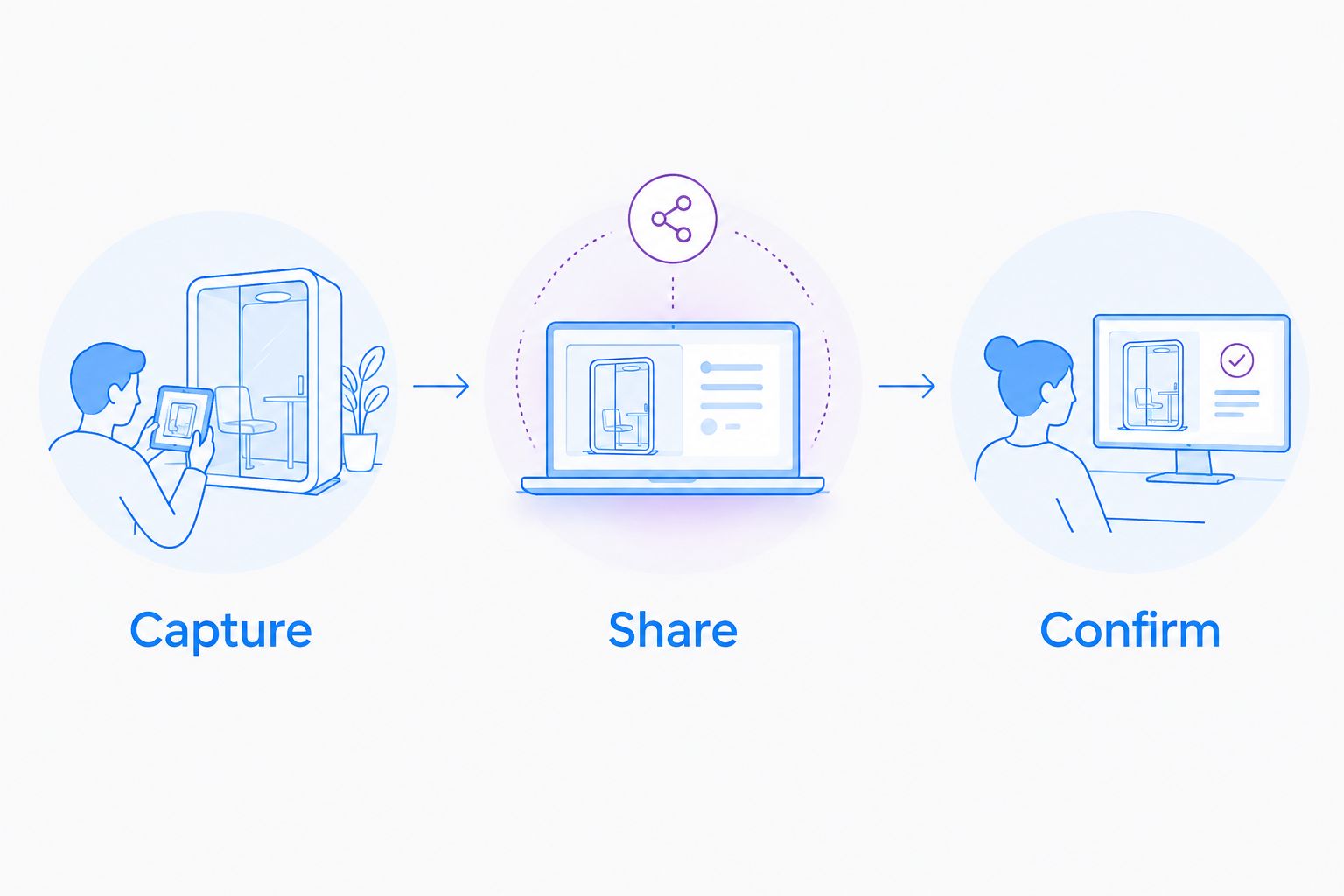
Use 3 checks in your 2026 evaluation: capture the task, share the result, and confirm that the recipient can act. Run 2 sample tasks: one troubleshooting explanation and one repeatable procedure. Use the same brief for each candidate.
- Capture: Show only the application, setting, or sequence needed to answer the question.
- Share: Deliver the result through the channel your team actually uses, and check recipient access.
- Confirm: Ask the recipient to complete the task without a live explanation.
The strongest result is not necessarily the most polished video. It is the artifact that lets the next person do the work correctly.
For a paid rollout, add the administrative checks after the workflow test: access management, retention requirements, approved storage, and ownership of reusable instructions. Check any required integration by its exact name and supported actions before approving the purchase.
Healthcare needs a separate approval step
Healthcare teams should not treat screen recording as automatically approved for protected health information. Confirm the current plan requirements, business associate agreement availability, applicable feature limitations, and organizational approval before using any candidate with sensitive information.
Give these 3 healthcare workflows equal attention, using synthetic examples only:
- Support and IT: Demonstrate a login or configuration problem in a test environment.
- Clinical teams: Evaluate recording and requesting demonstration videos without patient information; confirm the exact capture and request workflow is approved.
- Operations: Create training instructions and SOPs from a synthetic administrative process, then assign an owner to maintain them.
Do not infer compliance from a general security statement or a recording feature. Approval must cover the particular plan, configuration, workflow, and connected systems.
Test your screen capture workflow
Evaluate a screenshot, a recording, and a repeatable procedure before choosing your team’s setup.
When staying with Kapwing is the right call
Stay with Kapwing when browser-based video editing is still the job you need done. A different category is not an upgrade simply because it makes recording or documentation the starting point.
For your 2026 decision, separate the editing team’s needs from the support or operations team’s needs. Keeping an editor for publication and selecting a capture tool for everyday explanations can be a clearer decision than forcing one application to serve unrelated briefs.
FAQ
What’s the best Kapwing alternative for business screen recording?
Zight is the best fit in this comparison for business screen capture and shareable work instructions. Its stated scope includes screen recording, screenshots, and AI-powered guide/documentation software.
Is Loom or Kapwing better for explaining something on screen?
Loom is the closer fit when the deliverable is a narrated video message. Kapwing is the closer fit when you need to edit video content before publishing it.
What should I use instead of Kapwing for detailed editing?
DaVinci Resolve fits detailed desktop video production. Evaluate it when editing, color, audio, and effects are central requirements rather than occasional additions to a screen explanation.
Is OBS Studio a direct replacement for Kapwing?
OBS Studio replaces the capture stage, not the same editing workflow. It suits configurable recording sources and scenes; decide separately how you will edit and deliver the recording.
Should I record a video or take a screenshot for support?
Use a screenshot when one view answers the question, and record a video when the sequence matters. Include the expected result and the next action so the recipient can respond.
Can healthcare teams use screen recording software?
Healthcare use requires approval of the specific plan, agreement, configuration, and workflow before sensitive information is captured. Evaluate with synthetic examples and confirm current BAA availability and feature limitations directly with the vendor.
One last thing
Test the recipient’s experience before you judge the recorder’s experience. A clean recording that leaves someone asking what to do next has not completed the handoff.
For your final 2026 check, give a colleague the artifact without explaining it live. Ask them to identify the problem, the required action, and the owner of the next step. Their response tells you whether you selected the right format.