Have you ever been in the middle of a powerful Google Slides presentation, confidently guiding your audience through your slides, and then, when it’s time to play a video, the only way to show it is through a clunky URL? Suddenly, you’re opening a new tab, disrupting the flow, and losing the attention of everyone in the room. It’s frustrating, right?
Different types of videos you can embed into your slides
There are different types of presentations you can make with Google Slides. Similarly, there are different types of videos you can embed into your slides, including:
- YouTube video : YouTube is the go-to platform for embedding videos in Google Slides. You can search for the video directly within Google Slides or paste the URL. It’s quick and easy and perfect for sharing public content like product reviews, educational clips, or promotional videos
- Google Drive video : If you have private or company-specific content, Google Drive is the best option for embedding. You can upload videos in various formats, such as MP4 or MOV, and control the sharing permissions. This is ideal for internal presentations, training videos , sales videos , or proprietary content where you must manage who can view the video
- Insert a hyperlink : You can also embed a video in your Google Slides presentation through a hyperlink. This method is useful for linking directly to video content hosted online without increasing the file size of your presentation
- A Zight video: Want to make a very unique Google Slides presentation? Why not screen record and explain concepts from your POV? The good thing is you can record on Mac or Windows , then upload the video to your Drive or YouTube, or even embed it as a link! This is a great way to add personalized, custom content, like tutorials or demonstrations
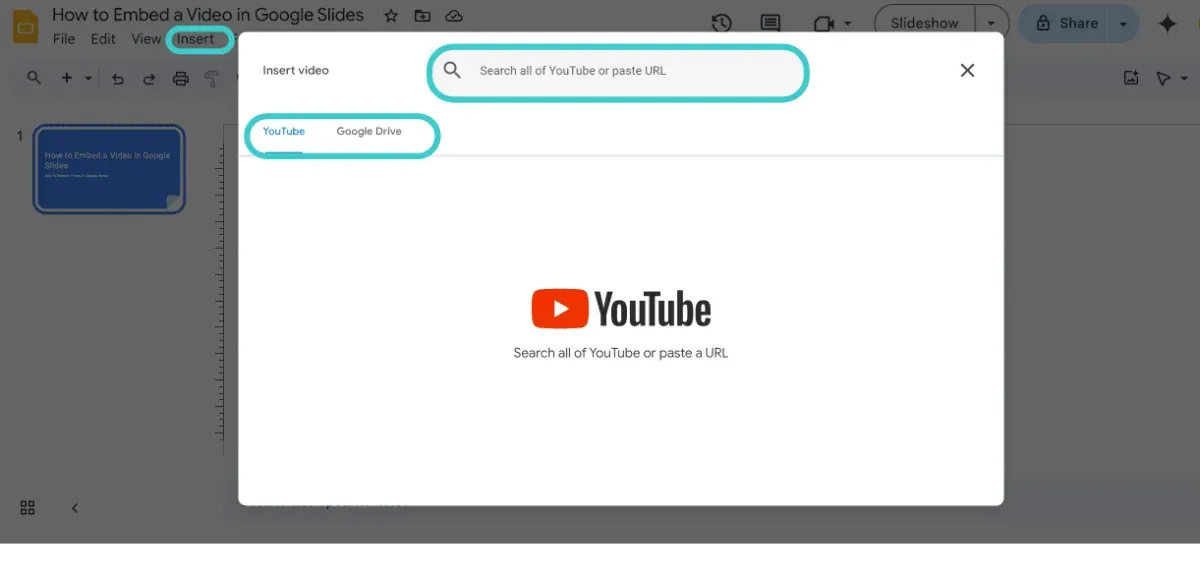
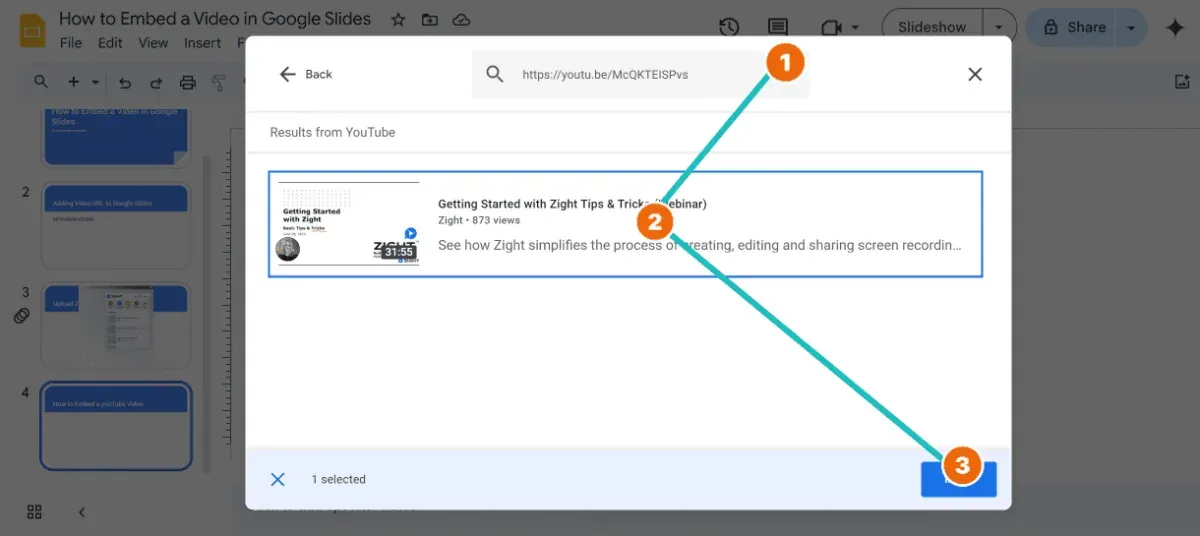
1. How to Insert YouTube Videos into Your Presentation
Is your desired video on YouTube? If so, it is very easy to embed it in your Google Slides presentation. Here’s how:
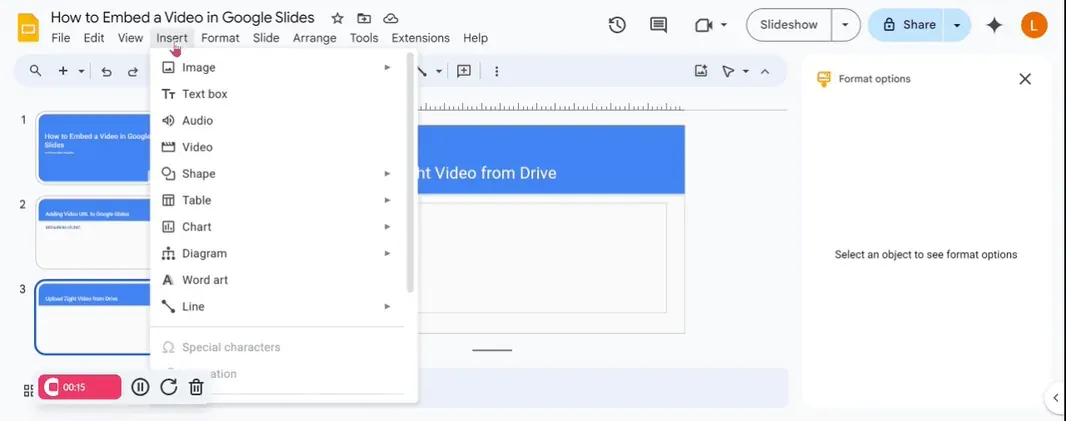
2. How to Embed a Video from Google Drive
Embedding a video from your Google Drive account into your Google Slides presentation is straightforward. Here’s how:
3. How to Insert Video URL to Google Slides – And Customize It for Engagement
You can copy and paste a video link to any of your Google Slides. But, since you don’t get video playback, you risk distracting your viewers with an unexpected change of tabs.
- Select an image that represents your video well. This can be a screenshot from the video itself or any other image that you prefer
- Open your Google Slides presentation and go to the slide where you want to link the video
- Click on “Insert” in the top menu, select “Image”, then choose “Upload from computer” to place your chosen image on the slide
- Once the image is inserted, click and drag its corners to resize it appropriately so it covers the area where you want the video to appear. You can also move the image to the desired position on the slide
- Click on the image to select it, then click on the “Insert” menu again and select “Link”
- In the dialog box that appears, paste the URL of your video into the field provided. This makes the image act as a hyperlink, so when someone clicks on the image during the presentation, the video URL will open in a web browser
- Test the image link in presentation mode to ensure it opens the video correctly. This step is crucial to ensure your audience can access the video as intended during your presentation.
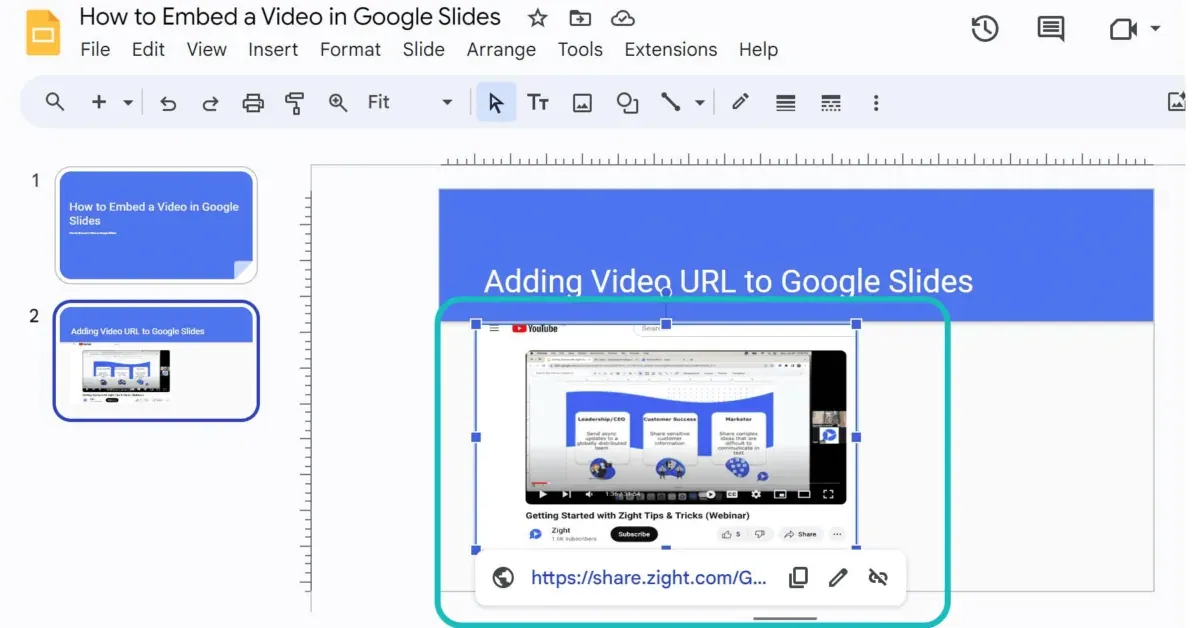
4. How to Embed a Zight Video to Google Slides
Here’s something you can relate to: You’re making a presentation about your upcoming product – you want to hype your viewers while teaching them everything there is to know about the product. But, of course, there’s no video out there to really explain everything and form an impression.
I. Paste the Video URL
This is the easiest way to add a video to your Google Slides presentation. Here’s how you can add your Zight screen recording as a link:
- When you finish recording, copy the video link ( Zight does this by default when you finish recording, but you can copy the link afresh if you might have copied other content before returning to the presentation).
- Paste the link on your desired slide. It will be a naked link at this point.
- To be less distracting, right-click the link and hit “Link.” Then, rename the link to match the content you’re discussing in your presentation.
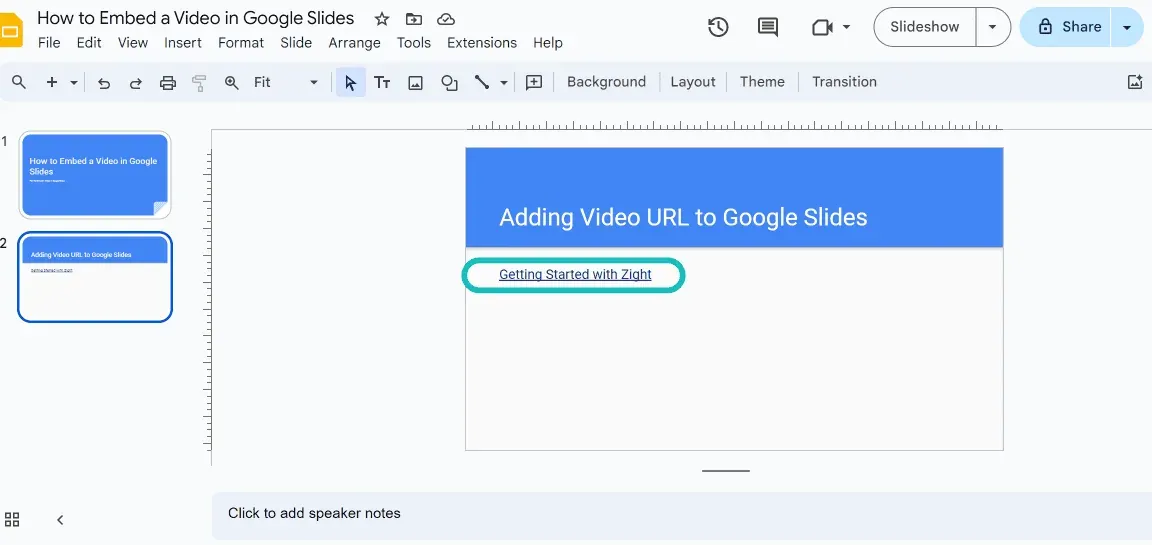
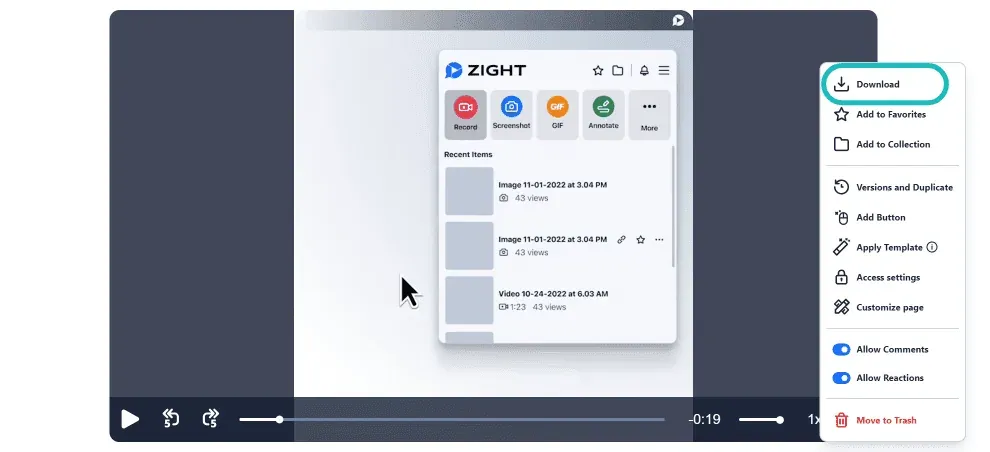
II. Upload your Zight Video to Google Drive
The method above leaves you with the awkward link in your slides, and you can only preview or watch it in another tab. You want to avoid leaving the presentation to maintain attention.
How To Ensure Your Embed Videos Hit the Mark!
Embedding a video into Google Slides enhances your presentation. However, to ensure the best odds of success during your presentation, it’s important to consider a few additional factors:
- Minimize disruptions : One common issue with embedding external video links is the risk of being taken out of the presentation mode when the video is clicked, which could disrupt the flow of your presentation. To avoid this, consider using videos that play directly within the slides
- Simplify video creation and integration : Managing the creation, editing, and embedding of videos can be overwhelming, especially if you’re juggling multiple tools. To streamline this process, you can use a tool that simplifies these tasks and integrates seamlessly with Google Slides
- Enhance accessibility and engagement : Choose a tool that allows your audience to access and interact with your presentation at their convenience. Features such as commenting, emoji reactions, and the ability to record video responses can significantly increase engagement and provide valuable feedback on your presentation’s impact
Why You Should Use Zight to Create Presentation Videos
Zight offers a powerful platform that can transform how you integrate videos into your presentations. With Zight, you can easily record high-quality videos – whether direct camera recordings or screen captures.