As a marketing or sales pro, which is your best approach to communicate better, whether with teams or clients? If you ask us at Zight , you should incorporate video into your business .
I. How to screen record on Acer laptop with the Zight app:
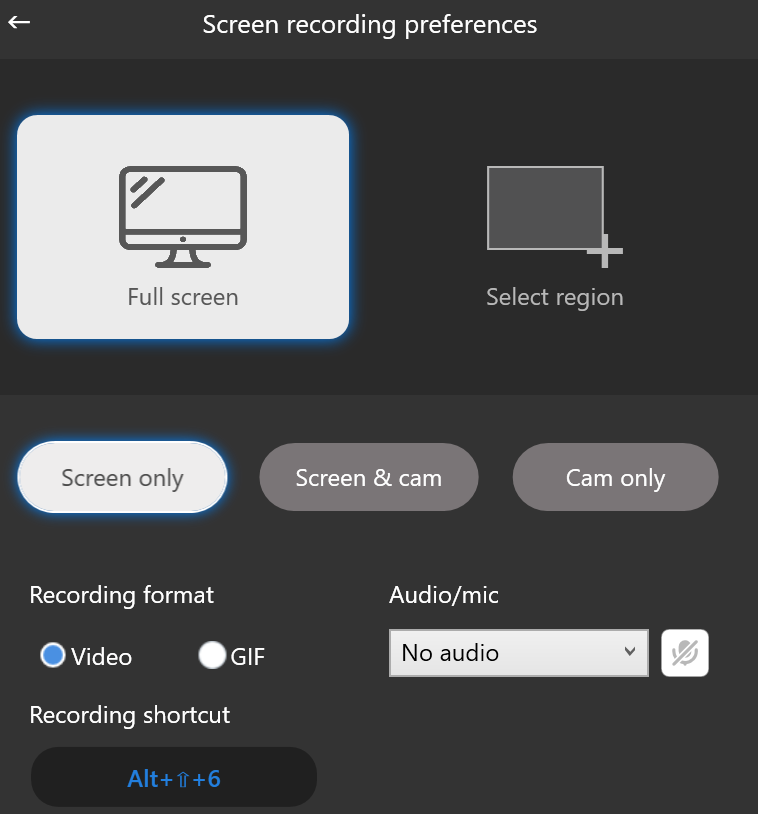
- Open the Zight app and click Record or the Windows shortcut Alt + Shift + 6 to open a few screen recording preferences, the main being whether to record “Full Screen” or “Select Region.”
- Choose how to screen record between “Screen Only” and “Screen & Cam” – the former for only recording what’s on your Acer screen, and the latter will feature a webcam overlay on the screen you’re recording so you can speak to your viewer as you go. There’s a third option for “Cam Only,” but this records your webcam only, so it doesn’t apply to screen recording – though you might want to know how to record with your webcam for pre-meetings and virtual meetings .
- Select either “Video” or “GIF.” Video allows you to record longer videos with audio, while you can only record 15-second GIFs without audio.
- If you are going with a video and will be speaking, click the mic icon under “Audio/Mic” and choose your mic from the dropdown menu. You can use the native mic or an external one you might be connected to to record audio.
- If you’re also recording “Screen & Cam,” select your camera under the “Camera” menu if you have an external high-quality camera . If you don’t, you can use your native Windows webcam.
- Click the blue “Start Recording” button. You’ll get a 3-second timer to get your setup in order before you can start recording.
II. How to Annotate Your Acer Laptop Screen Recording
As you use the Zight screen recorder, you can pause anytime to annotate the video .
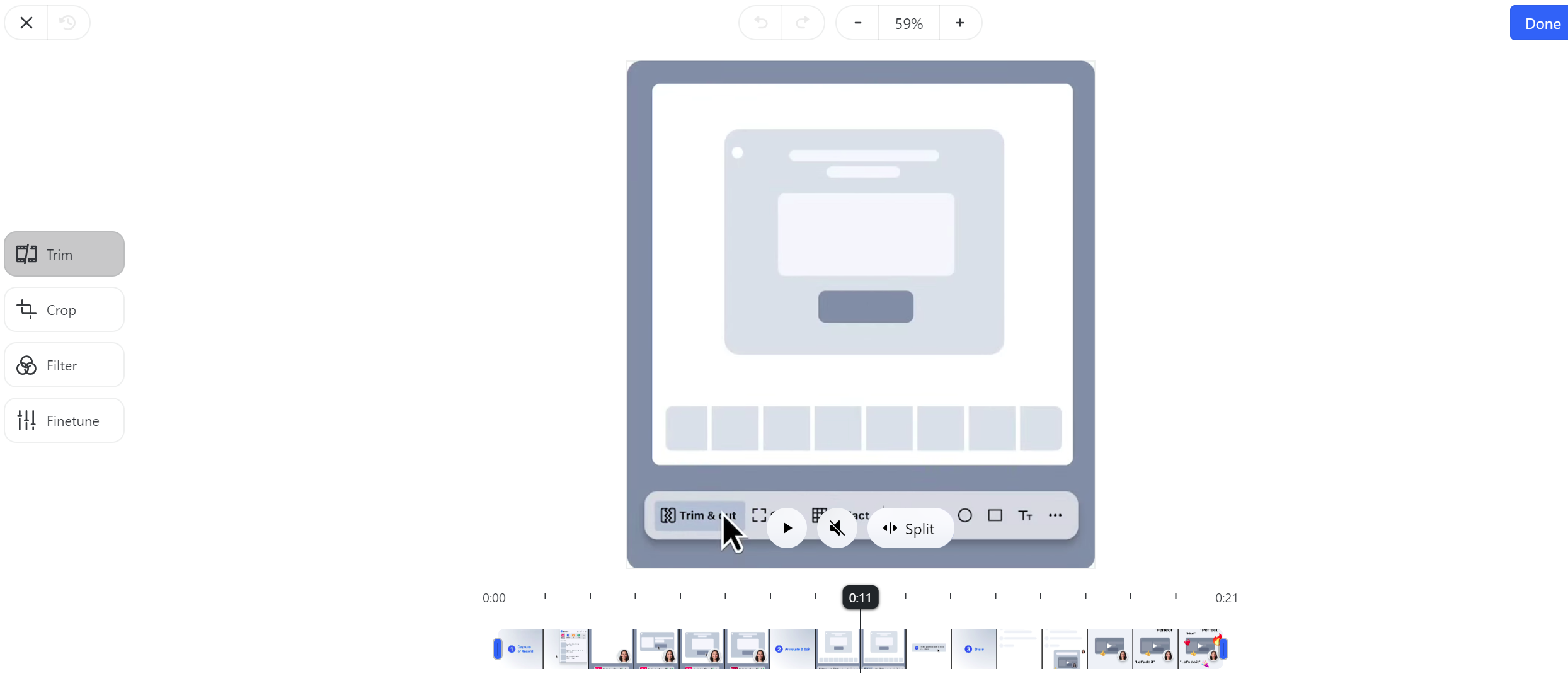
III. How to Edit Your Recorded Video
When done, click the green “Finish” button, and Zight will automatically save your recording for your cloud storage. The video link will also be copied to your clipboard, and Zight will open it automatically on your default browser.
IV: How to Share Your Acer Screen Recording
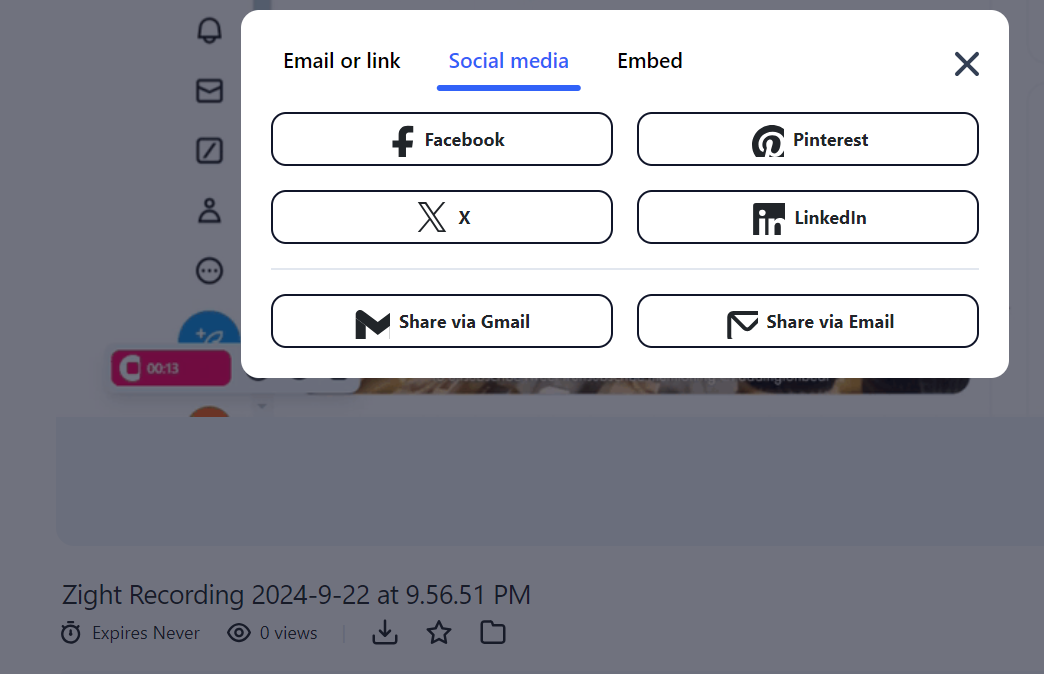
Zight lets you share large videos with so much ease. If you’ve just finished recording, the software will copy the video link to your clipboard – paste that link anywhere – Slack , Trello , Asana , WhatsApp, you name it.
How to Record Screen on an Acer Laptop Using Built-in Windows Tools
While Zight is our top pick, your Acer laptop has built-in quick capture options. Let’s check them out:
2. The Windows Snipping Tool
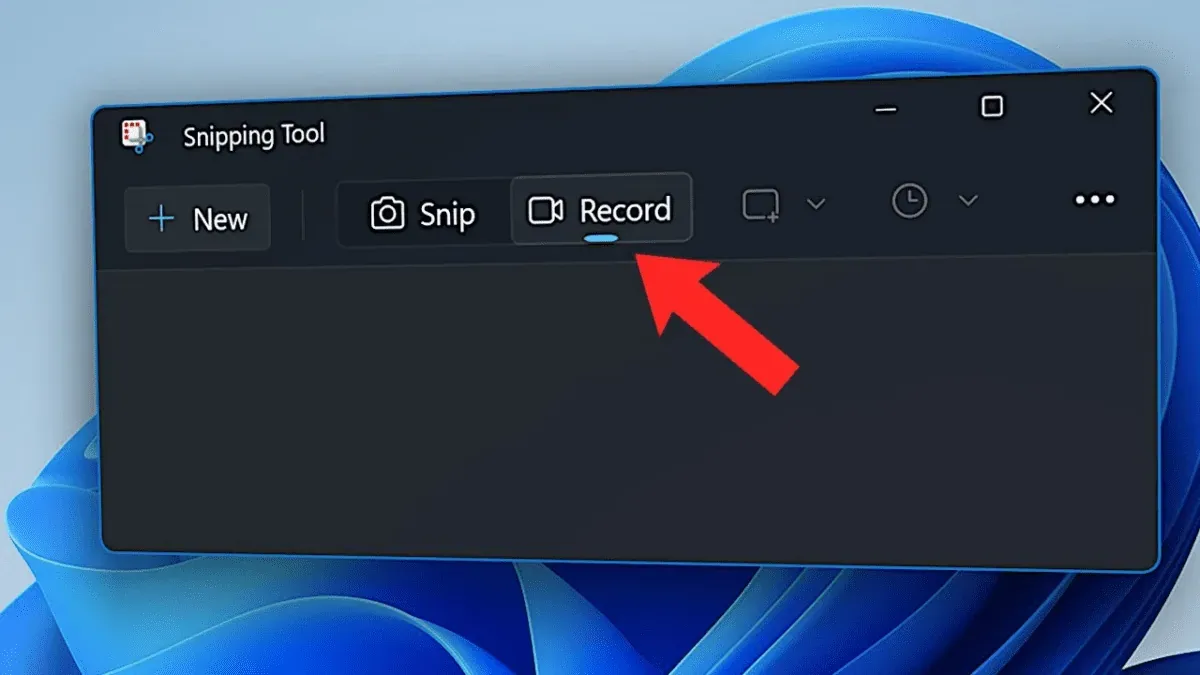
Every Windows laptop comes pre-equipped with the Snipping Tool . It’s the native screenshots tool , but if you’re running on Windows 11, you can use it to screen record on Acer!
- Press the Start button, type “Snipping Tool” into the search bar, and select the application from the results.
- In the Snipping Tool interface, look for the ‘Record’ button. This may be located in the ‘Mode’ dropdown menu or displayed as a separate button.
- Click on ‘New’ to initiate a new recording. You’ll then be able to select the specific area of your screen you wish to capture. Click and drag the cursor to define the recording frame.
- Click the ‘Start’ button to begin recording. There will be a brief countdown before the recording starts. During the recording, you can pause or stop the session using the controls on the screen.
- When finished, the tool may prompt you to save the file. Choose an appropriate location on your system to save the file for easy retrieval.
3. Windows Xbox Game Bar
The Xbox Game Bar is a built-in feature for Windows that allows users to record gameplay, capture screen activity, and broadcast live without needing any additional software. It’s particularly geared towards gamers but can be useful for any activity where screen recording is required. Here’s how to use it on your Acer laptop, Windows 10 or 11:
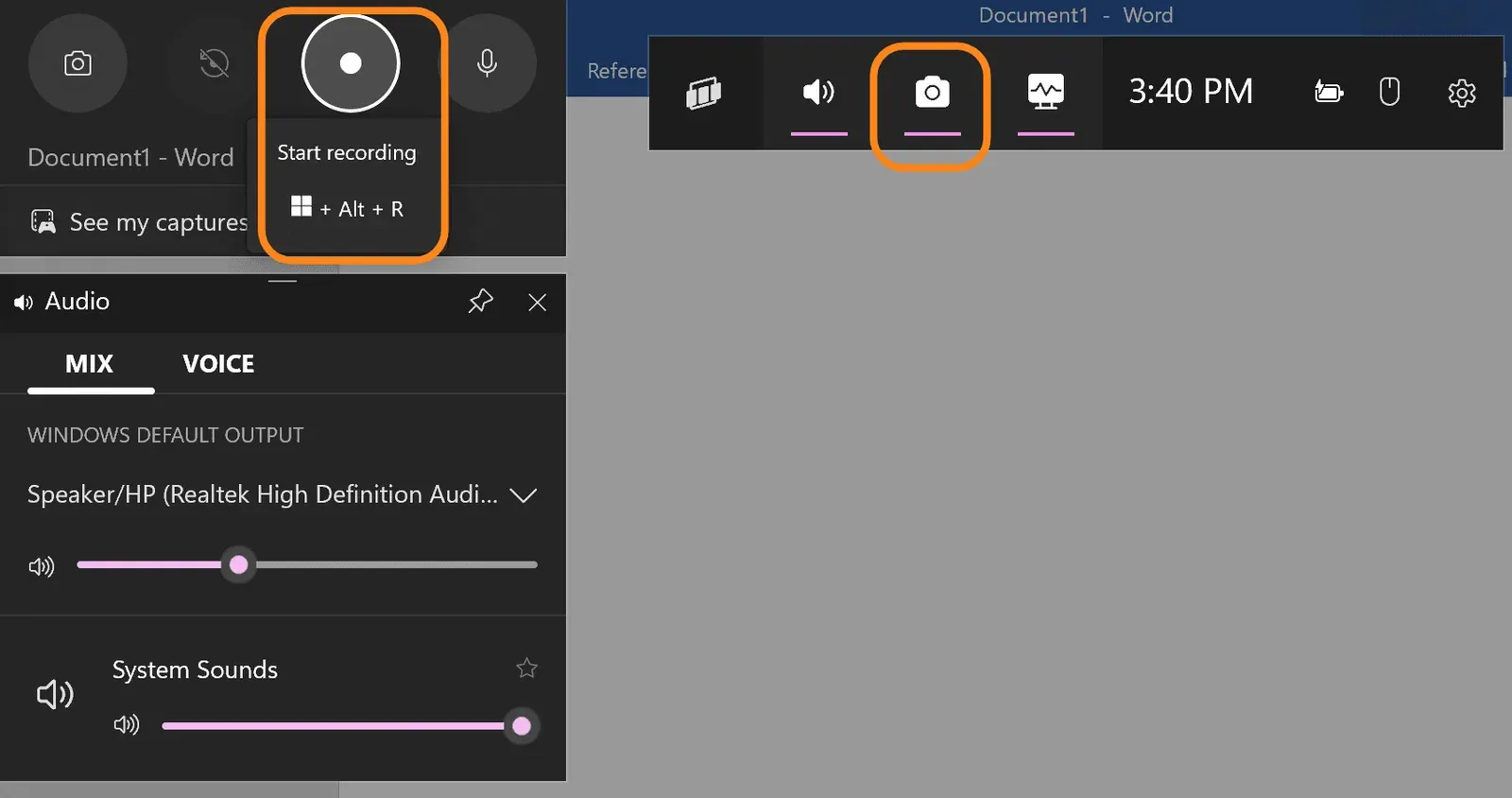
- Press the Windows key + G on your keyboard to open the Xbox Game Bar. If it’s your first time using it, you might need to confirm that you want to open the game bar.
- Look for the capture widget. It usually pops up automatically, but if not, click the camera icon in the top menu.
- Click the record button ( a circle icon ) or use the shortcut Windows key + Alt + R to start recording. A small recording bar will appear, usually in a corner of your screen, showing you the duration of your capture.
- Do your thing – whether it’s a software demo, a tutorial , or capturing a tricky bug. When you’re done, click the stop button on the floating bar or use the Windows key + Alt + R again.
- Once you’ve stopped recording, a notification will pop up in Windows. You can click this notification to view the recording. By default, videos are saved in the ‘Videos’ folder under ‘Captures’.
4. PowerPoint
No, we don’t mean you should create or record a PowerPoint presentation today. But you can use the powerful software to record your Acer laptop screen. Here’s how:
- Start by opening Microsoft PowerPoint. You can create a new presentation or open an existing one where you want to insert your screen recording.
- Select the’ Record’ tab in the PowerPoint ribbon at the top of your screen. You will see the ‘Screen Recording’ option on the left side of the Record toolbar. Click this to initiate the screen recording feature.
- Once you click ‘Screen Recording,’ a small control panel will appear at the top of your screen. Click on ‘Select Area.’ Your cursor will change into a crosshair, which you can use to select the specific part of your screen that you want to record. If you’re going to record the entire screen, just click and drag to cover the entire visible area on the display.
- After selecting the area, go back to the control panel and click ‘Record.’ If you want to record audio (such as narration or system sounds), enable the microphone before you start.
- To end your recording session, you can use the control panel at the top of the screen and click ‘Stop.’ The video will be automatically inserted into the selected slide in your PowerPoint presentation. You can save the video separately, trim it, or embed it within the presentation.
Best Tips for Screen Recording on Acer Laptops
Do you want the best recordings on your Acer laptop? Here are some tips to help you create the most professional video:
- Close unnecessary programs to ensure smooth performance during recording. This minimizes lag and ensures higher-quality video output.
- Check your microphone settings and environment to minimize background noise if your recording requires audio.
- Focus only on the part of the screen that is necessary for your viewers to keep their attention on what matters most.
- Do a short test recording to check for sound clarity and video quality. Adjust settings if needed before starting the actual recording.
- Plan your session with a video script to make the content engaging and easy to follow. You can divide longer recordings into smaller, manageable segments.
Prepare the recording for a customer
Review the frame before sending your Acer recording. If an unrelated window hides the useful detail, follow the video cropping instructions and inspect the whole edited clip. For a repeated setup task, turn the finished explanation into a guide with screenshots your next customer can follow.
Conclusion
It’s easy to screen record on your Acer computer – whether using native tools or the best screen recorders like Zight. But if you want to include webcam recording, we’d recommend using Zight as it’s the only one that makes it easy to record webcam and screen simultaneously. Also, the video will be easier to annotate, edit, and share with any recipient. For more general tips, check out our screen recording guide .