- Price Range: Free to $180/year – great for teams on a budget compared to enterprise tools costing $970/year or more.
- Key Features: Basic recording (screen, audio, webcam), simple editing, and easy sharing options.
- Ease of Use: Tools like Snagit and ScreenPal offer intuitive setups and cross-platform compatibility for quick deployment.
- Advanced Options: Some tools include AI-driven transcription, video summaries, and accessibility features like captions and translations.
- Security & Sharing: Cloud-based sharing, analytics, and access controls ensure smooth collaboration and data protection.
Simple Interface and Quick Setup
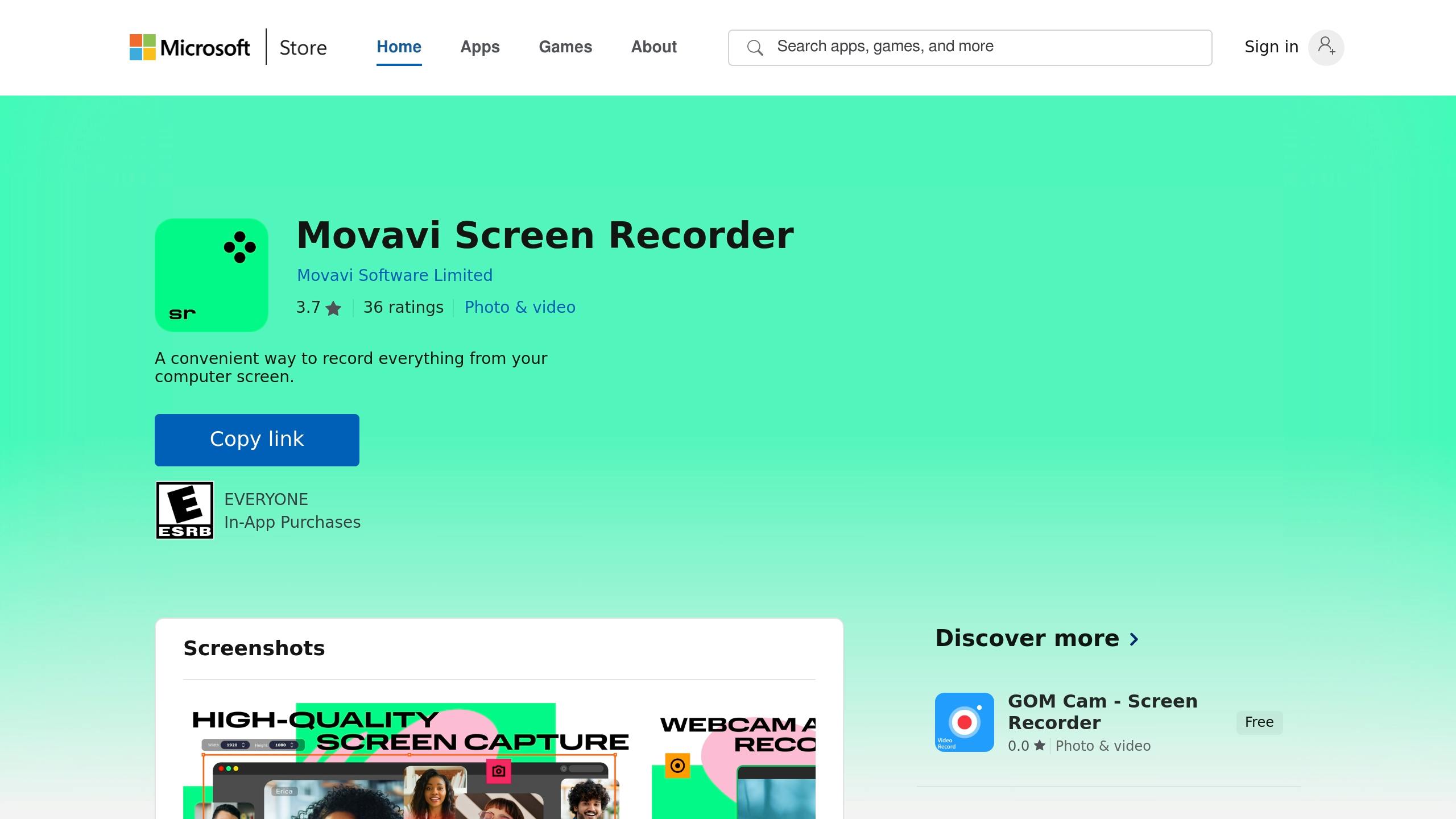
When teams need to create training content quickly, overly complicated software can grind progress to a halt. The best budget-friendly screen recording tools remove these hurdles, offering interfaces so straightforward that anyone can get started in minutes. A user-friendly interface often includes features like one-click recording and clear indicators to show when content is being captured. For instance, Snagit is a prime example of this simplicity, providing a one-click recording experience that helps teams focus on creating content rather than navigating complex menus. This straightforward design directly boosts productivity by cutting down on wasted time. Equally important is a quick setup process that ensures teams can hit the ground running. Browser-based solutions stand out here, as they don’t require installation. This kind of seamless deployment allows even large teams, up to 100 people, to start producing training materials within minutes of subscribing to a service. Cross-platform compatibility is another must-have feature, ensuring that team members can contribute regardless of their device. ScreenPal provides a great example, working across “Windows, Mac, iOS, Android, Chrome”. This level of compatibility makes it accessible to virtually any device a team might use. For teams mindful of their budgets, a tool’s learning curve can make or break its value. Movavi Screen Recorder is specifically designed for users who need to “capture high-quality video from their computer screens quickly and easily”. It’s also optimized for low-end PCs, using efficient capture algorithms to deliver high-definition recordings without taxing system resources. This means organizations don’t have to invest in expensive hardware upgrades to ensure smooth performance. Free trials with no credit card requirements further simplify the decision-making process. These trials allow teams to test a tool’s performance in real-world scenarios before committing financially, ensuring the software aligns with their specific workflows rather than just marketing claims. This kind of efficiency frees teams to focus on what matters most, creating high-quality content. Over time, these productivity gains pave the way for better collaboration and advanced features, which we’ll explore next.Core Recording Features
Creating effective training videos hinges on three essential components: screen capture, webcam recording, and audio narration. Together, these elements help produce engaging and informative learning experiences. Screen capture is the cornerstone of most training content. It allows instructors to visually guide learners through software workflows, slides, or step-by-step processes. Even budget-friendly tools often provide flexible options, such as full-screen recording, capturing a specific area, or focusing on a single application. Adding webcam recording introduces a personal element to the training. When instructors appear on screen, it fosters a stronger connection with the audience. Many tools now support simultaneous screen and webcam recording, often in picture-in-picture mode. This setup ensures learners can follow both the visual demonstration and the instructor’s commentary, making the content more engaging. Audio narration is what brings the visuals to life. By recording both system audio and microphone input at the same time, trainers can create a seamless experience where every sound, whether it’s a voiceover or software notification, is captured in one session. As technology advances, high-resolution recording has become a necessity. With HD and 4K displays becoming the norm, tools that support these resolutions ensure text stays sharp, interface elements remain clear, and the overall video maintains a polished, professional look. This is especially important for materials viewed on large screens or in group settings. Another key feature is unlimited recording time, which is vital for creating in-depth training modules that cover complex, multi-step processes. While many free tools limit recordings to 15 minutes, paid plans, starting at approximately $3 per month, can remove these restrictions. The recording process should be as smooth as possible. For example, Zight offers an intuitive interface that allows simultaneous screen and webcam recording while instantly saving files to the cloud. This kind of integration simplifies the workflow, enabling trainers to focus on content creation rather than technical hurdles.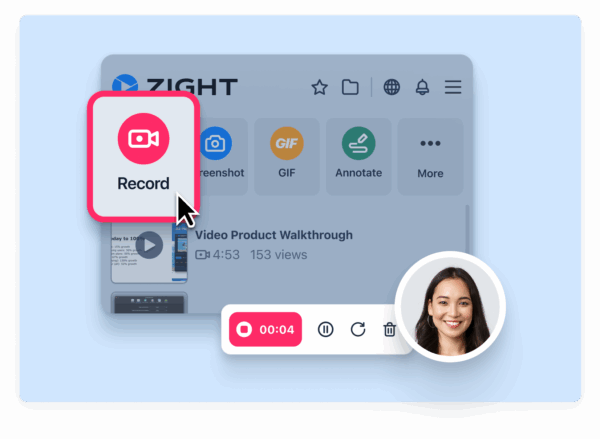 For those working with tight budgets, having all these features in one tool eliminates the need for multiple software solutions. When screen capture, webcam input, and audio narration come together seamlessly, trainers can concentrate on delivering content that truly engages their audience.
 Editing and Annotation Tools
Post-production is where your raw recordings transform into polished training materials. This process involves trimming unnecessary pauses, merging clips, and fine-tuning your content to align with your training goals. The ability to edit video recordings efficiently is key to creating a seamless and engaging learning experience. Annotation tools take your recordings to the next level by making them more interactive and visually clear. You can use arrows, text overlays, and highlights to draw attention to important interface elements. Additionally, tools for blurring or pixelating sensitive information ensure data privacy while maintaining the instructional value of your content. As Luisa Zapata García, a Strategic Customer Success Manager at Globalization Partners, puts it:
 “It’s so easy to edit the picture, and add arrows and squares to really make your point stand. A huge plus I haven’t found in other apps is that you can ‘pixel’ all the sensitive information perhaps you don’t want to share.” – Luisa Zapata García, Strategic Customer Success Manager, Globalization PartnersFor an added professional touch, many platforms allow you to incorporate branding elements like logos and custom color schemes. Some tools even go further, offering features such as converting videos into step-by-step guides, automated chapter creation, and AI-driven transcription. These capabilities not only streamline the editing process but also expand your content into various learning formats without the need for costly software.
Sharing and Team Collaboration
Once your edited video is ready to go, the next step is making sure it gets to the right people quickly and efficiently. Screen recording tools have completely changed the game, turning what used to be a clunky file-sharing process into a smooth and instant way to distribute content. This streamlined sharing process plays a big role in keeping teams connected and productive. With cloud-based sharing, you can generate instant links to your recordings, bypassing the hassle of large file transfers or version confusion. Everyone on the team can access the most up-to-date version of the content, no matter where they are.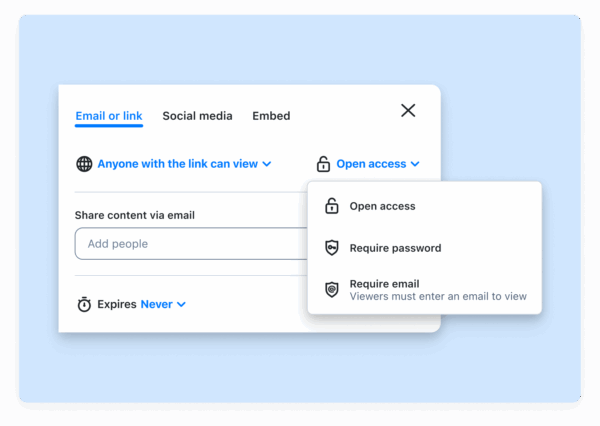 Take Zight, for example. It integrates directly with team communication tools, allowing users to share recordings seamlessly within team channels, attach videos to project tasks, or even automate notifications. These features eliminate the need for manual uploads and centralize content, saving time and effort. Analytics features also offer valuable insights into how your content is received. For instance, Loom provides detailed data on who has watched your recordings and for how long. This data can help managers fine-tune training materials by identifying which content engages their teams and where more support might be needed. Other handy features include cloud uploads and embedding options, giving you flexibility to share your content across different platforms and meet your audience’s preferences. Of course, security is a top priority when sharing sensitive materials. Tools with features like password protection, access controls, and encrypted cloud storage ensure that only authorized team members can access confidential content. The key to effective team collaboration with screen recording tools lies in choosing platforms with strong sharing and integration capabilities, setting clear access rules, and making sure everyone knows how to use these tools to support your organization’s knowledge-sharing efforts.
 AI Tools and Accessibility Options
Today’s screen recording tools are stepping up their game with AI-driven features that simplify creating and accessing training materials. These intelligent capabilities not only save time but also ensure your videos can be accessed by everyone, regardless of language, hearing challenges, or learning preferences. Automatic transcription is a standout feature, converting spoken words into text in real time or shortly after recording. This enables closed captions, which enhance accessibility for viewers. Tools like Zight take it a step further, transforming video transcripts into actionable formats like meeting notes, step-by-step guides, or bug reports. This dual functionality streamlines workflows and saves time, complementing the integrated features discussed earlier.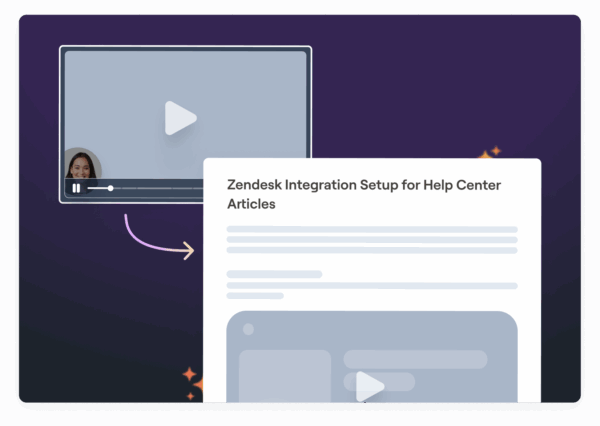
“This is the most useful implementation of AI I have ever seen.” – Dillon Chi, UX Researcher, BeenVoyageWhile AI transcription has become impressively accurate, it’s still smart to double-check for errors, especially when dealing with technical terms or strong accents. According to Wyzowl‘s 2023 research, 69% of viewers prefer videos with captions, and 80% are more likely to finish a video if subtitles are included. Another game-changing feature is video summaries, which use AI to analyze recordings and highlight key points. This is particularly helpful for lengthy training sessions, allowing viewers to quickly access the most important takeaways. Zight’s AI-powered summaries can condense hour-long videos into concise, easy-to-digest overviews, making it easier for teams to find relevant content without watching the entire recording. Translation capabilities are a big win for teams with global reach. Zight supports transcription and translation in over 50 languages, ensuring training materials are accessible to diverse workforces. This eliminates the need for separate translation services and makes compliance training more accessible, offering a cost-effective solution for organizations working with tight budgets. AI also boosts content discoverability by generating metadata tied to your video content, making it easier for users to find what they need. Accessibility options extend beyond captions. Look for tools that offer screen reader compatibility and downloadable transcripts that meet ADA and Section 508 standards. These features ensure inclusivity and compliance with accessibility regulations. The benefits of these tools go beyond meeting legal requirements. For example, a local educational institute using ScreenPal’s captioning tools reported a 35% increase in online class participation and improved student performance. Similarly, remote teams using Zight’s transcription and summary features have seen faster onboarding and more effective knowledge sharing. Automated chaptering is another emerging AI feature that divides longer videos into logical sections. This makes it easier for viewers to navigate and jump directly to specific topics, an invaluable tool for training materials or product demonstrations. These capabilities not only enhance the viewing experience but also set the stage for a deeper look at budget and feature considerations in the next section. When evaluating these AI features, it’s important to weigh them against your budget. Some advanced capabilities may only be available in higher-tier plans, so factor this into your decision-making. Privacy-conscious organizations should also confirm how these tools handle sensitive data during AI processing.
Pricing and Budget Considerations
When choosing a screen recording tool, pricing plays a big role. It’s not just about finding the cheapest option, it’s about balancing cost with the features you actually need, both now and in the long run. Free plans are a great way to start. For instance, Zight offers basic recording tools at no cost. OBS Studio stands out as a completely open-source option, delivering professional-grade recording capabilities without any charges. However, free plans often come with limitations, like shorter recording times, watermarks, or missing advanced features such as system audio capture. If you need more, subscription plans might be the next step. Subscription plans typically range from $4 to $20 per user per month. ScreenPal’s $4/month plan includes system audio recording and automated captions, while Zight’s Pro plan costs $9/month, offering unlimited recording time and 4K resolution. Loom’s paid plan starts at $15/month, removing video length restrictions and adding team collaboration tools. For those who prefer annual billing, ScreenPal charges $96/year per user, and Movavi offers a $99.95/year plan with an optional lifetime license for $159.95. For larger organizations, enterprise plans might be more suitable. These often come with advanced features like admin controls, priority support, and integrations with platforms like Slack or Microsoft Teams. Zight’s enterprise offering includes unlimited captures, 4K resolution, and admin tools. Watch out for hidden fees that can stretch your budget. Features like extra cloud storage or watermark removal often require additional upgrades. Scalability is key for growing teams. For example, Zight’s Team plan at $11/month per user includes features like user management and shared workspaces, while their Enterprise plan adds SSO support and advanced analytics. Starting with an individual plan and upgrading later can sometimes cost more than selecting the right tier upfront, especially for teams onboarding multiple users. For those looking to avoid recurring costs, lifetime licenses can be appealing. Movavi offers a $99.95 lifetime plan, while EaseUS Screen Recorder provides a similar option at $69.95. These plans eliminate ongoing subscription fees but often exclude major updates or cloud-based features that require continuous support. For U.S. buyers, regional factors like sales tax and preferred payment methods come into play. Most providers accept major credit cards and PayPal, while enterprise plans may offer ACH transfers. Discounts for educational institutions and nonprofits are often available but require proof of eligibility during registration. Ultimately, matching your plan to your actual usage is critical. Overspending on unnecessary features or underestimating your needs can lead to expensive mid-cycle upgrades. Carefully assessing your requirements upfront ensures you get the most cost-effective solution for your training or organizational goals.Security and Performance Tracking
When it comes to modern recording tools, security isn’t just a nice-to-have, it’s a must. Especially when dealing with training content, ensuring data protection is critical. Surprisingly, even budget-friendly screen recording tools now offer impressive security features that meet a wide range of needs.Data Protection and Compliance
The backbone of data security starts with encryption. Tools like Zight use encryption to secure both storage and sharing, ensuring that sensitive training materials remain protected from creation to viewing. Add password protection to the mix, and you’ve got another layer of defense against unauthorized access. These features are essential for meeting regulatory standards, especially for organizations in the U.S. Compliance is non-negotiable. Whether it’s adhering to CCPA or FERPA, the right tools should clearly outline their practices for data storage, retention, and handling requests. A 2024 survey revealed that 48% of U.S. businesses using screen recording tools for training identified data privacy and security as their top concern when choosing a platform. Transparency about where and how data is stored is crucial. Access controls also play a key role. Features like setting expiration dates for shared links, revoking access, and tracking who views your content help prevent unauthorized distribution. For organizations needing to demonstrate compliance or investigate issues, audit logs are invaluable.Analytics and Engagement Tracking
Security isn’t just about protection, it also opens the door to better performance tracking. Over 60% of course creators consider analytics and engagement tracking essential features for their screen recording software. Basic metrics, such as view counts and completion rates, can reveal which training materials are effective and which need a revamp. Advanced analytics go even further. For example, Zight’s viewer email tracking shows exactly who has accessed specific training content, perfect for compliance training where documenting completion is critical. Metrics like drop-off rates highlight where viewers lose interest, helping you identify sections that may need more clarity or a different approach.Measuring ROI and Driving Improvements
Analytics also make it possible to measure training ROI. By tracking how engagement metrics align with assessment scores or job performance, you can identify what’s working and what isn’t. If certain video formats consistently deliver better results, you’ll know where to focus your efforts. Here’s a quick comparison of security features across budget and enterprise tools:Integration and Data Residency
Integration capabilities add another layer of security and usability. Tools that sync with platforms like Slack, Microsoft Teams, or learning management systems can streamline workflows while leveraging existing authentication and access controls. This reduces security risks and makes analytics more actionable within your organization. For organizations handling sensitive data, choosing tools with U.S.-based data residency options can help meet compliance requirements or internal policies. Some platforms even let you select where your data is stored, giving you greater control.Balancing Cost and Capability
The landscape has shifted. Budget-friendly tools now offer security features that were once exclusive to high-end enterprise solutions. On top of that, they provide analytics that don’t just generate reports but actively improve training outcomes. To maintain security, regularly audit tool access, expire unused shared links, and ensure your organization’s data policies are followed. These steps will help you get the most out of your screen recording tools while keeping your training content safe.1. Zight
Recording Capabilities (Screen, Audio, Webcam)
Zight provides flexible options for capturing content, allowing users to record screen activity, webcam footage, system audio, and microphone input either together or separately. For quick demonstrations or step-by-step guides, you can even create GIFs up to 15 seconds long using the free plan. With paid plans, Zight supports recording quality up to 4K resolution, ensuring that even the most detailed visuals, like software interfaces or complex processes, are crystal clear. Once your recording is complete, Zight’s built-in editing tools make it simple to prepare professional-grade training materials.Editing and Annotation Tools
Zight takes raw recordings and transforms them into polished training content. Tools like trimming, cropping, merging, and instant annotation allow for quick refinements. Screenshots can be enhanced with arrows, text overlays, and shapes to emphasize key points, while sensitive information can be blurred or redacted.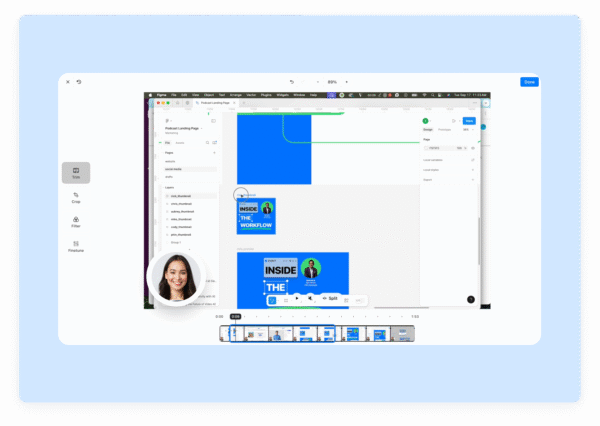 AI-powered features such as automatic transcription in over 50 languages, video summarization, and intelligent chapter creation make content more accessible and easier to navigate. Smart Actions further simplify tasks, cutting documentation time from several minutes to just seconds. When your content is ready, Zight makes sharing and collaboration effortless.
 Sharing and Collaboration Features
Zight integrates seamlessly with platforms like Slack, Microsoft Teams, and Jira, making it easy to share recordings directly within your existing workflows. Users can share content via direct links, embedding options, or cloud storage, ensuring flexibility in distribution.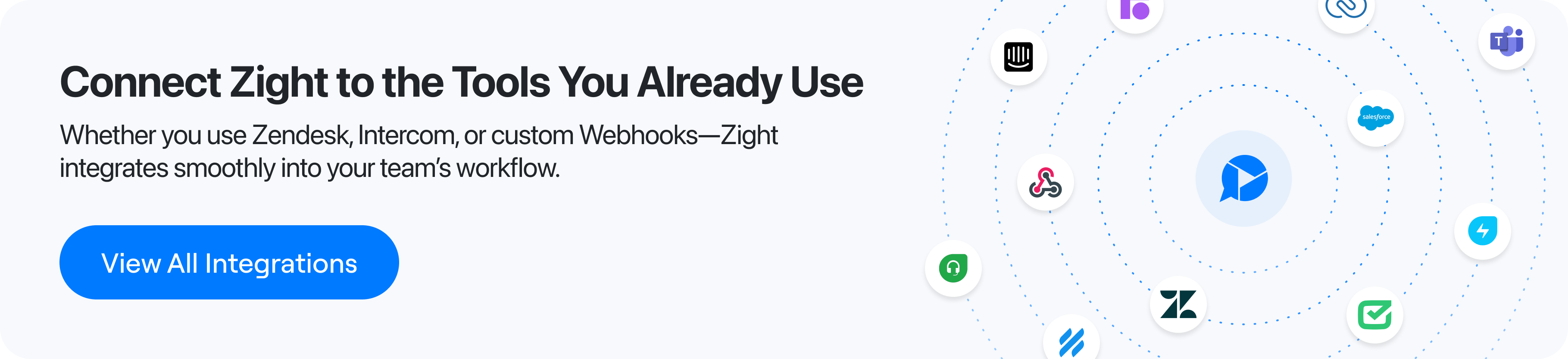 For added security, Zight includes access controls like link expiration dates, viewer tracking, and the ability to revoke access. Real-time feedback features let team members comment directly on shared content, streamlining reviews and ensuring accuracy before the material reaches a broader audience.
 Pricing and Value for US-Based Users
Zight’s free plan is ideal for light usage, offering 5-minute recording limits and access to your last 50 uploads. For more robust needs, the Pro plan is available at $9 per month, featuring unlimited recording time and 4K resolution. Teams can opt for the $11 per user per month plan, which includes analytics, user management, and team workspaces. With its combination of user-friendly tools, robust security, and seamless collaboration options, Zight delivers excellent value for training teams in the U.S. Its cloud-based platform ensures reliable access and sharing, while addressing key concerns like security and compliance for corporate environments.2. OBS Studio
Recording Capabilities (Screen, Audio, Webcam)
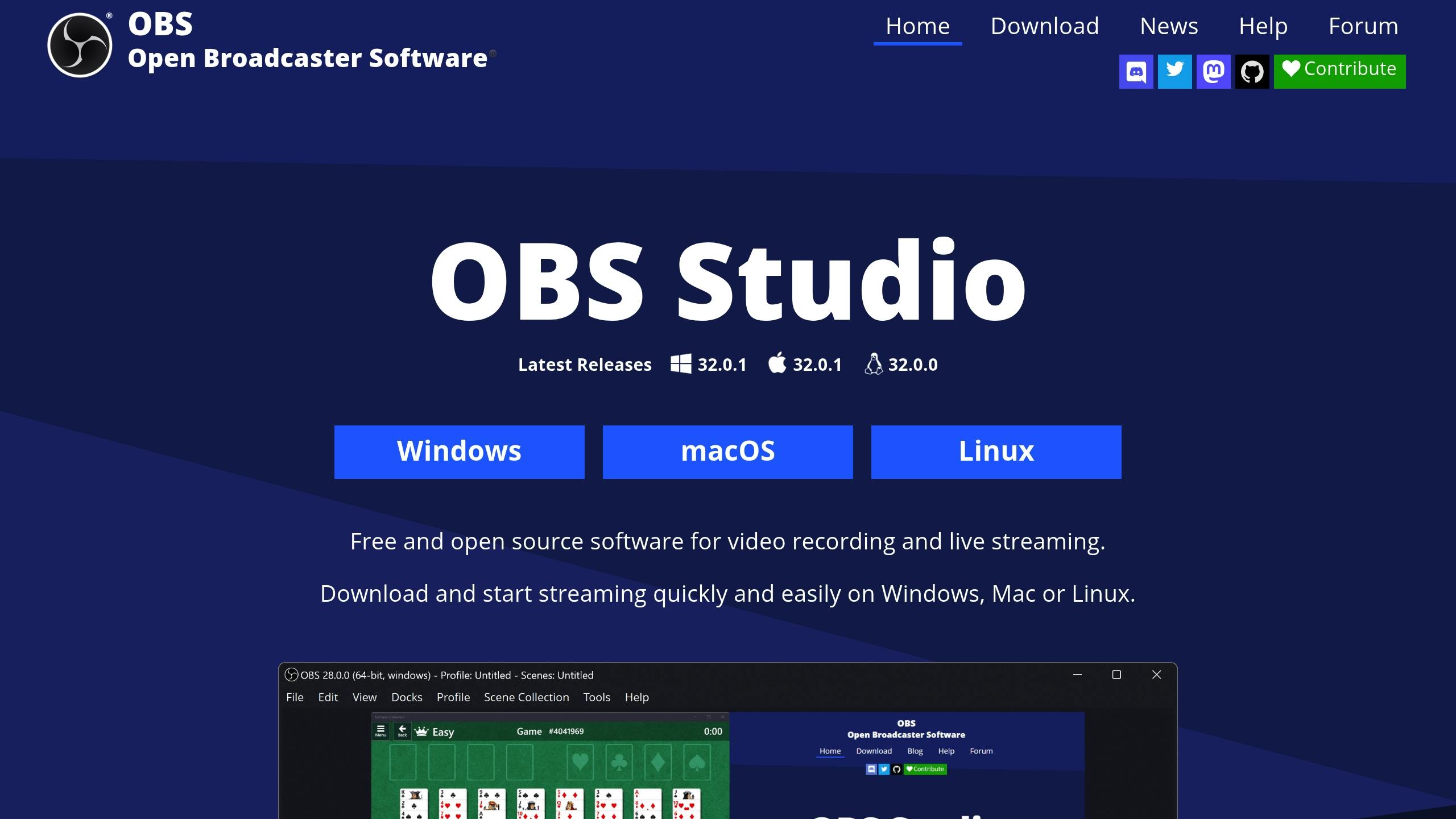
OBS Studio offers robust recording options, allowing users to capture their entire screen, specific windows, or custom regions at any resolution and for any length of time. It also supports multiple audio sources in a single recording, such as system audio, microphone input, and additional devices. This is particularly useful for training content that combines narration with system sound demonstrations. The tool also integrates seamlessly with webcams, making it easy for trainers to include a personal touch in their recordings. Whether you’re narrating over slides or demonstrating software functionality, OBS Studio keeps everything in one place. One standout feature is its scene management system. This lets users create and switch between different recording setups tailored to specific needs. For example, you can quickly move from a setup designed for presenting slides to one optimized for live software demonstrations. This flexibility simplifies the process of creating diverse training materials.Pricing and Value for US-Based Users
OBS Studio’s completely free model is a major advantage, offering full functionality without subscription fees, watermarks, or locked features. Unlike tools that require costly licenses, OBS Studio is entirely free to download and use. For US-based training teams, especially those managing multiple users, the savings are substantial. A team of 10 trainers could save around $1,800 annually compared to using a paid tool like Camtasia, though it’s worth noting that OBS Studio has a steeper learning curve. Another cost-saving benefit is its ability to run efficiently on older or lower-end computers. By allowing users to tweak settings like resolution and frame rate, OBS Studio helps extend the lifespan of existing hardware, reducing the need for costly upgrades. This makes it a practical choice for teams that need to balance performance with budget constraints.Sharing and Collaboration Features
OBS Studio focuses on individual content creation rather than integrated team collaboration. Recordings are stored locally, so users need to manually export and share files across platforms. Unlike tools that allow direct sharing to platforms like Slack or Microsoft Teams, OBS Studio requires additional steps to incorporate content into collaborative workflows. However, for organizations that prioritize data security and control, this manual approach can actually be an advantage. By keeping recordings stored locally and avoiding automatic cloud syncing, training teams can ensure that sensitive or proprietary information stays within their control. This makes OBS Studio a good fit for departments that handle confidential processes or need tighter control over how training materials are distributed.3. ScreenRec
Recording Capabilities (Screen, Audio, Webcam)
ScreenRec offers all the essential tools needed for effective screen recording. You can record your entire screen or focus on specific areas, capture system audio alongside microphone input, and even integrate webcam footage to add a personal touch to instructional videos. Plus, it offers unlimited, watermark-free recording, so you won’t have to worry about splitting sessions or dealing with branding on your videos.Sharing and Collaboration Features
One of the standout features of ScreenRec is its instant sharing capability. Once you finish recording, the tool generates a private link that allows for immediate sharing. To ensure privacy, ScreenRec uses encryption to protect your recordings, so only authorized viewers can access them. This streamlined sharing process has reportedly saved users over a million hours in communication time by cutting down on lengthy emails and meetings.Pricing and Value for US-Based Users
ScreenRec’s pricing model is one of its biggest strengths. For US-based teams, the free version offers an unbeatable combination of unlimited recording time, watermark-free videos, instant sharing, and 2GB of free cloud storage, all at zero cost. Its lightweight design ensures smooth performance, even on older or budget-friendly computers, making it accessible to teams with varying levels of technical resources. With a 4.6/5 rating on Capterra based on over 200 reviews, ScreenRec is frequently praised for its simplicity and efficiency. However, its editing tools are quite basic, offering only trimming and simple annotations. Teams that need more advanced editing options may want to pair it with dedicated video editing software.4. ShareX
Recording Capabilities (Screen, Audio, Webcam)
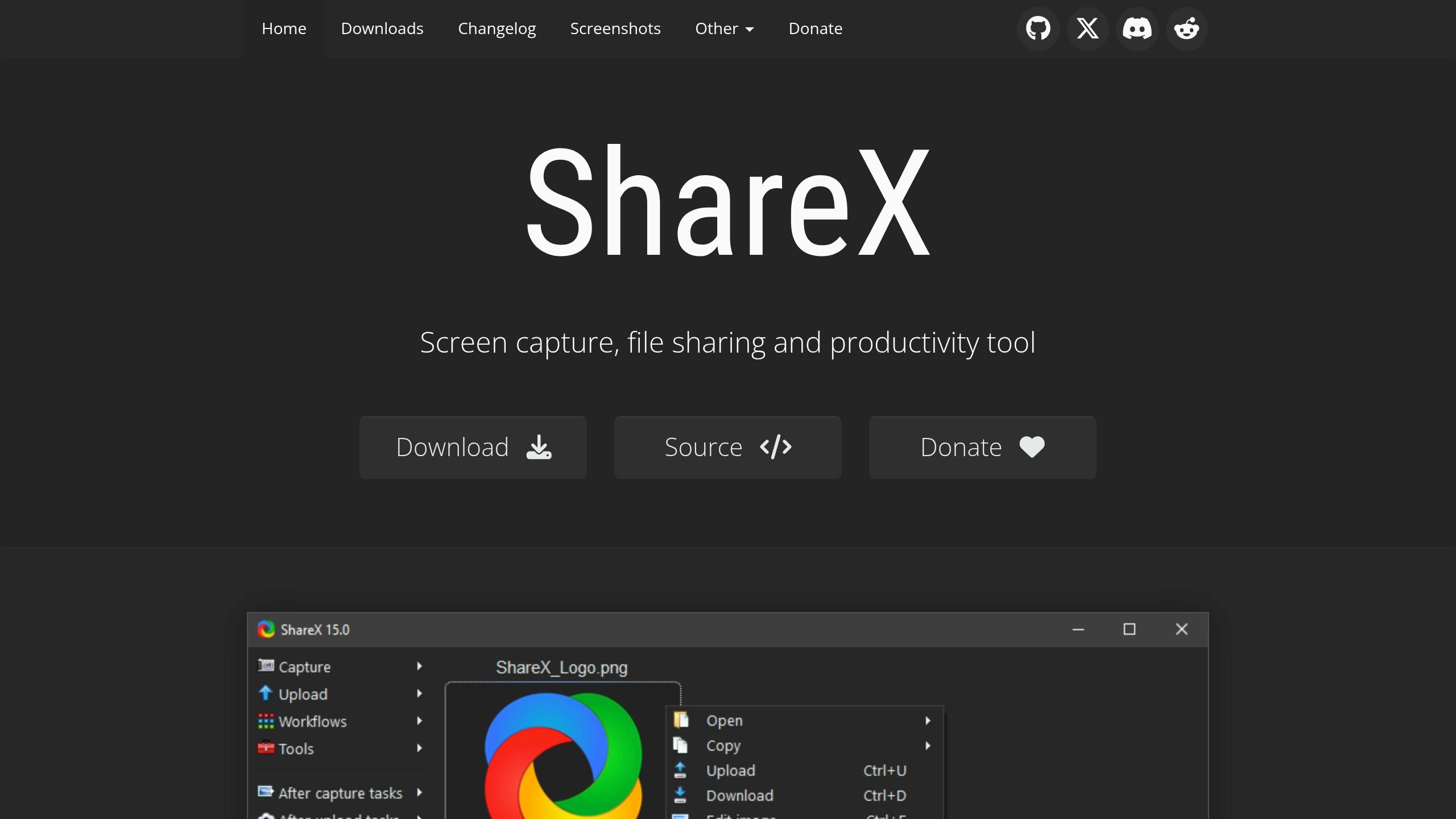
ShareX offers a variety of recording options to suit different needs. You can capture your entire screen, focus on a specific window, or select a custom region. It even supports scrolling captures, making it perfect for recording long web pages or documents. While it does allow system audio recording, setting up advanced audio mixing may require additional Windows configuration. However, there’s a catch: ShareX doesn’t natively support webcam overlays. If you want to include your face in training videos, you’ll need to record webcam footage separately or pair ShareX with another tool. That said, for straightforward screen recording with audio narration, it performs reliably, even on lower-end PCs. This makes it a practical choice for organizations working with diverse hardware setups.Editing and Annotation Tools
ShareX’s editing and annotation tools make it particularly useful for creating training materials. Its built-in image editor lets you enhance screenshots and video frames with arrows, text, highlights, shapes, and blur effects right after recording. These tools are highly customizable, offering freehand drawing, rectangles, ellipses, and lines with adjustable colors and styles. For video, ShareX supports basic trimming and allows you to add watermarks, borders, and effects to images. These features simplify the process of emphasizing key points in training content, saving creators time and effort.Sharing and Collaboration Features
ShareX goes beyond recording and editing with its seamless sharing capabilities. It integrates with over 80 file hosting services and URL shorteners, allowing you to upload recordings directly to platforms like Google Drive, Dropbox, OneDrive, Imgur, YouTube, or even FTP servers. Once uploaded, it generates shareable links for quick distribution. Additionally, ShareX includes workflow automation tools, enabling you to set custom hotkeys for different recording modes and configure post-capture actions. For instance, you can automatically save files to specific folders, copy URLs to your clipboard, or upload files to your preferred service. These features are particularly useful for creators who produce training materials regularly, as they eliminate repetitive tasks and ensure consistency.Pricing and Value for US-Based Users
For US users, ShareX delivers unbeatable value. It’s completely free, no subscription fees, no premium tiers, no hidden costs. Unlike many competitors, there are no watermarks, time limits, or locked features. For comparison, tools like Snagit cost $39 per year, and Movavi charges $99.95 annually. ShareX’s zero-cost model allows unlimited users to access its full suite of features without worrying about licensing fees. The trade-off? It requires a bit more technical know-how to set up and lacks official customer support. The interface, while rich in options, might feel overwhelming to beginners. But for teams with tech-savvy members or users willing to explore its settings, ShareX is a cost-effective solution that delivers professional-grade screen recording without breaking the bank.5. Camtasia
Recording Capabilities (Screen, Audio, Webcam)
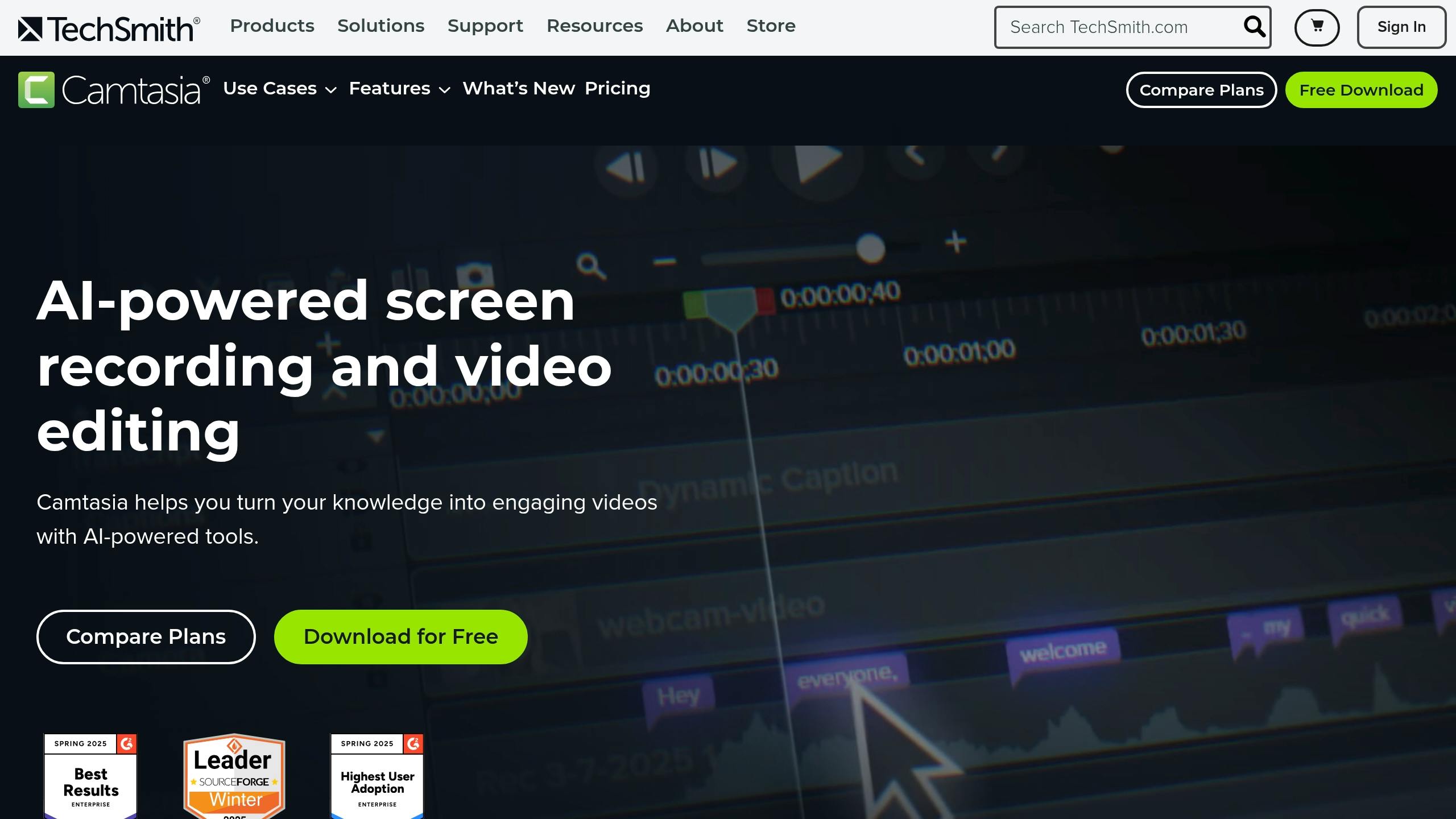
Camtasia allows you to capture your entire screen, specific windows, or custom areas with precision. It records system audio, microphone input, and webcam footage all at once, ensuring consistent quality. This makes it a great choice for creating content that blends on-screen demonstrations with live commentary.Editing and Annotation Tools
Once your recording is complete, Camtasia’s editing suite offers tools to trim, split, and merge clips effortlessly. You can add annotations like callouts, arrows, shapes, and text overlays to emphasize important points. For added engagement, it supports interactive elements such as quizzes and clickable hotspots. Advanced features like transitions, cursor effects, green screen capabilities, and multi-track editing give you professional-level control over your videos, making it easier to create polished training materials.Sharing and Collaboration Features
Camtasia integrates seamlessly with cloud platforms, enabling direct uploads to YouTube, Vimeo, and Google Drive. It supports multiple file formats, including MP4, WMV, and AVI, for easy distribution. For organizations using learning management systems, the tool offers embedded video options and shareable links, simplifying the process of sharing content with teams or learners.Pricing and Value for US-Based Users
Camtasia is positioned as a premium tool, but its all-in-one feature set can save users the cost of outsourcing video production. A single-user license is priced at around $180 per year, making it a solid option for professionals and organizations that require high-quality training videos. The three-day free trial allows US users to explore its advanced editing tools and interactive features before committing. Many educational institutions and corporate training teams have found that Camtasia’s capabilities provide a cost-effective alternative to hiring external video production services or juggling multiple specialized tools.6. Loom
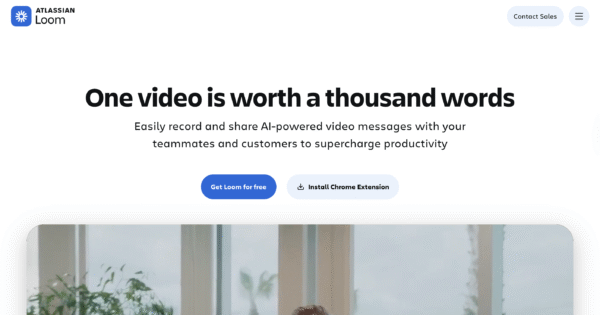 Loom stands out among budget-friendly tools for its combination of ease of use and functionality. Known for its speed and simplicity, it’s a go-to platform for quick training recordings. Its cloud-based design emphasizes fast recording and instant sharing, making it especially popular with remote teams and educators.
 Recording Capabilities (Screen, Audio, Webcam)
Loom provides flexible options for recording training materials. You can capture your entire screen, a specific application window, or even a single browser tab, all while recording system audio and microphone input. Plus, the webcam overlay feature lets you add a personal touch by appearing on-screen during the recording. With minimal setup, you can start recording in seconds. Depending on your hardware, the platform supports resolutions up to 4K, ensuring high-quality visuals. This smooth recording process pairs well with Loom’s efficient editing and sharing features.Editing and Annotation Tools
Once your recording is complete, Loom offers simple editing tools to fine-tune your content. You can trim unwanted sections, rearrange clips, and even create custom thumbnails. The addition of call-to-action buttons is a handy feature for directing viewers to further resources. The editing interface is designed for speed rather than complexity, which works perfectly for creating clear, straightforward training materials. Most users can edit their videos and have them ready to share within minutes, keeping the focus on effective communication rather than over-polishing.Sharing and Collaboration Features
Loom excels in sharing and collaboration. The platform instantly generates shareable links after recording, so there’s no waiting around for uploads. Teams can organize their training materials in centralized workspaces, making it easy for new employees to access relevant content. Time-stamped comments allow for precise feedback, improving clarity and engagement. Additionally, integrations with tools like Slack, Microsoft Teams, and Google Workspace enable seamless sharing within your team’s existing workflows. These features align with Loom’s overall emphasis on efficiency.Pricing and Value for US-Based Users
Loom offers a free plan that supports up to 25 videos with a 5-minute recording limit, which is suitable for basic training needs. However, for more comprehensive use, the paid Business plan costs $15 per user per month (billed annually). This plan includes unlimited videos, longer recordings, and advanced privacy controls. For teams in the US, the pricing can be a time-saver. By reducing the need for repetitive live training sessions, Loom’s collaborative features and quick turnaround justify the cost. Paid plans also include engagement analytics, helping training managers identify which content resonates most with their audience.7. Movavi Screen Recorder