Everything You Need from a Modern Meeting Recorder
Capture every meeting with crisp audio and video, let AI turn the recording into clean notes, and pull it all back up later from one central dashboard.
Record Any Meeting in One Click
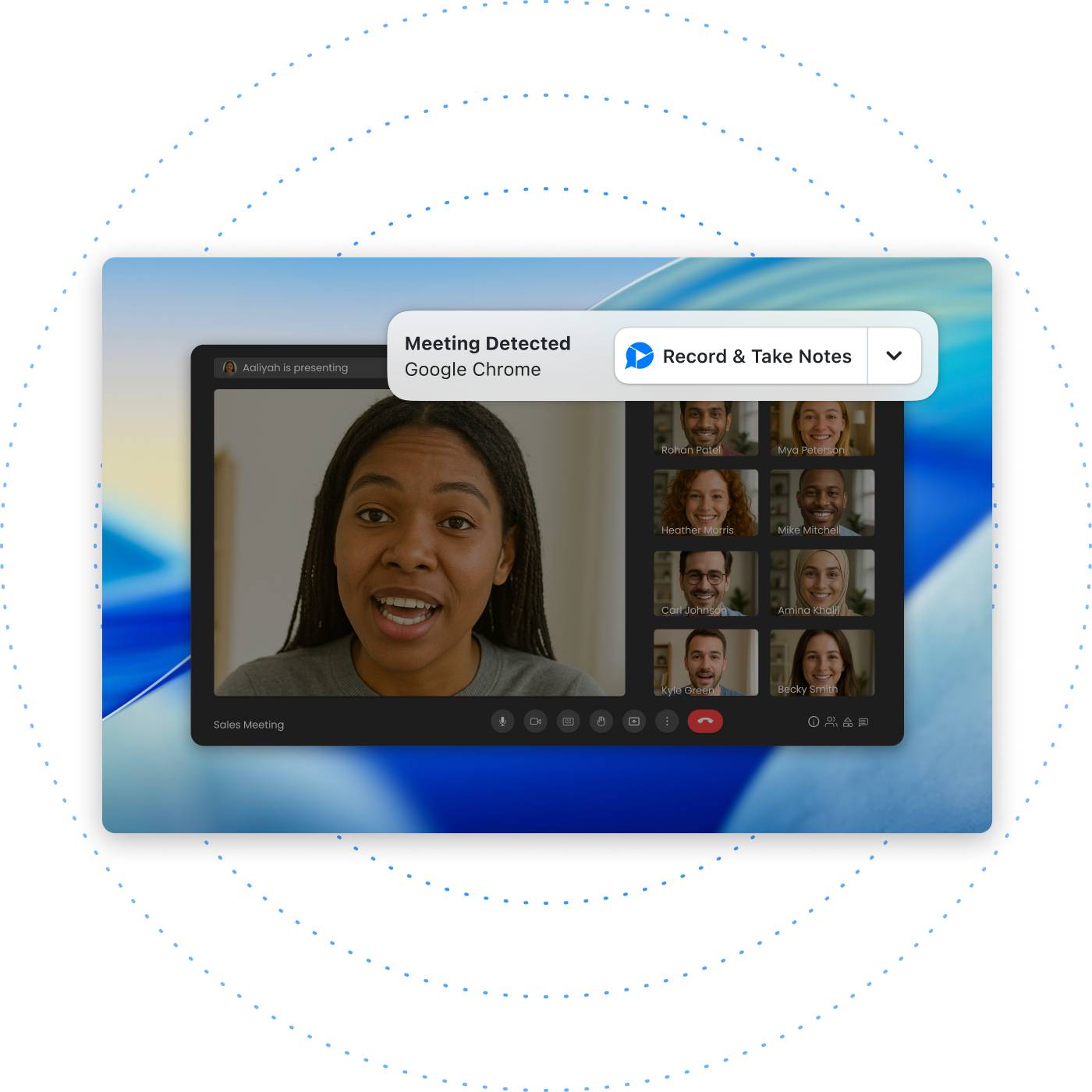
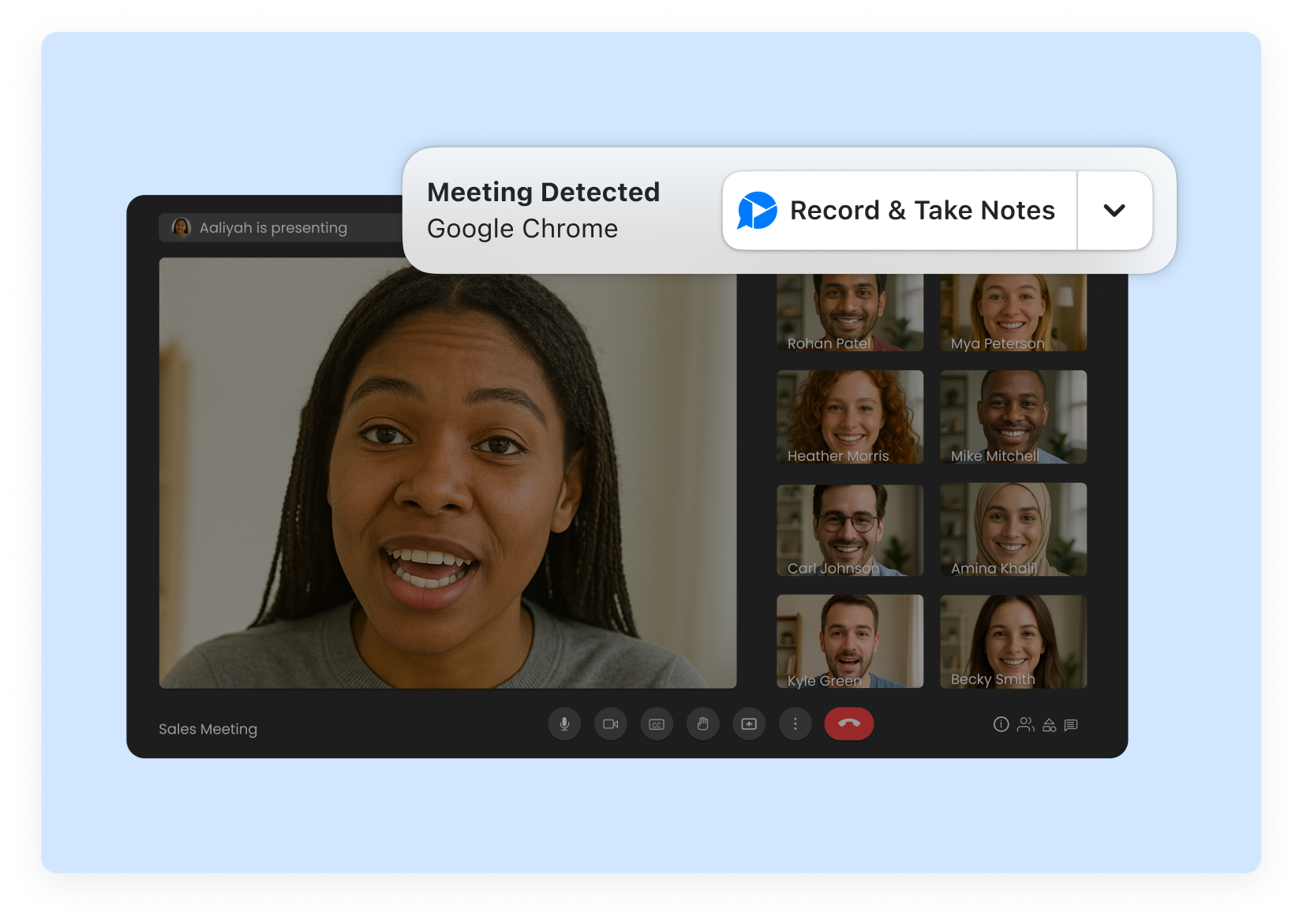
Capture your full screen, the meeting window only, or screen + webcam — works on Zoom, Google Meet, Microsoft Teams and any browser-based call.
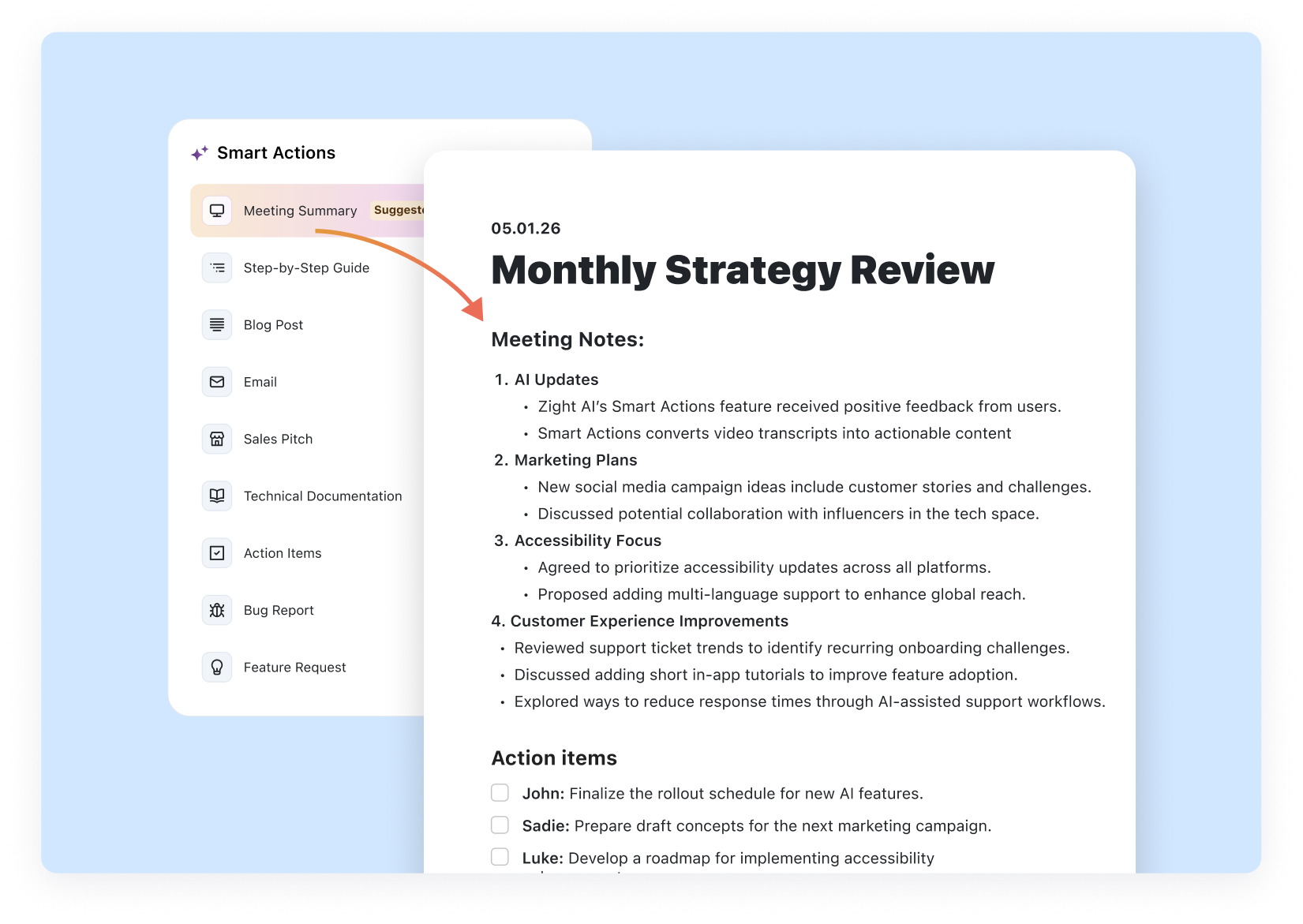
AI Notes, Summaries & Action Items
Skip the manual note-taking. Zight auto-generates a meeting summary, decisions made, and action items the moment your recording ends.
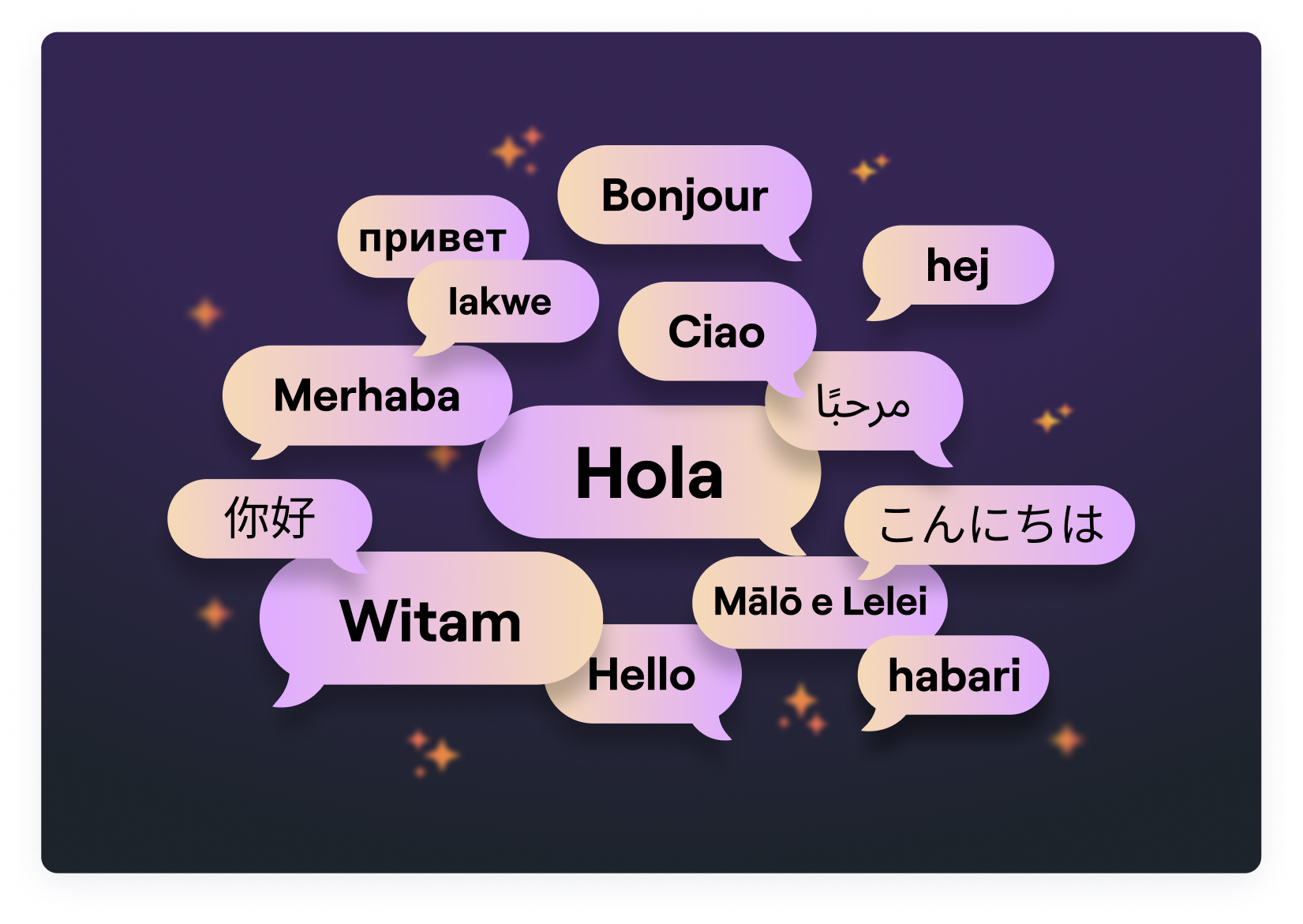
Searchable Transcripts in 50+ Languages
Every recording is transcribed and timestamped, so you can search a word and jump to the exact moment it was said. Inclusive by default.
If your team uses AI agents for follow-ups, Zight MCP Server can help compatible tools use Zight recordings, transcripts, and visual context directly.
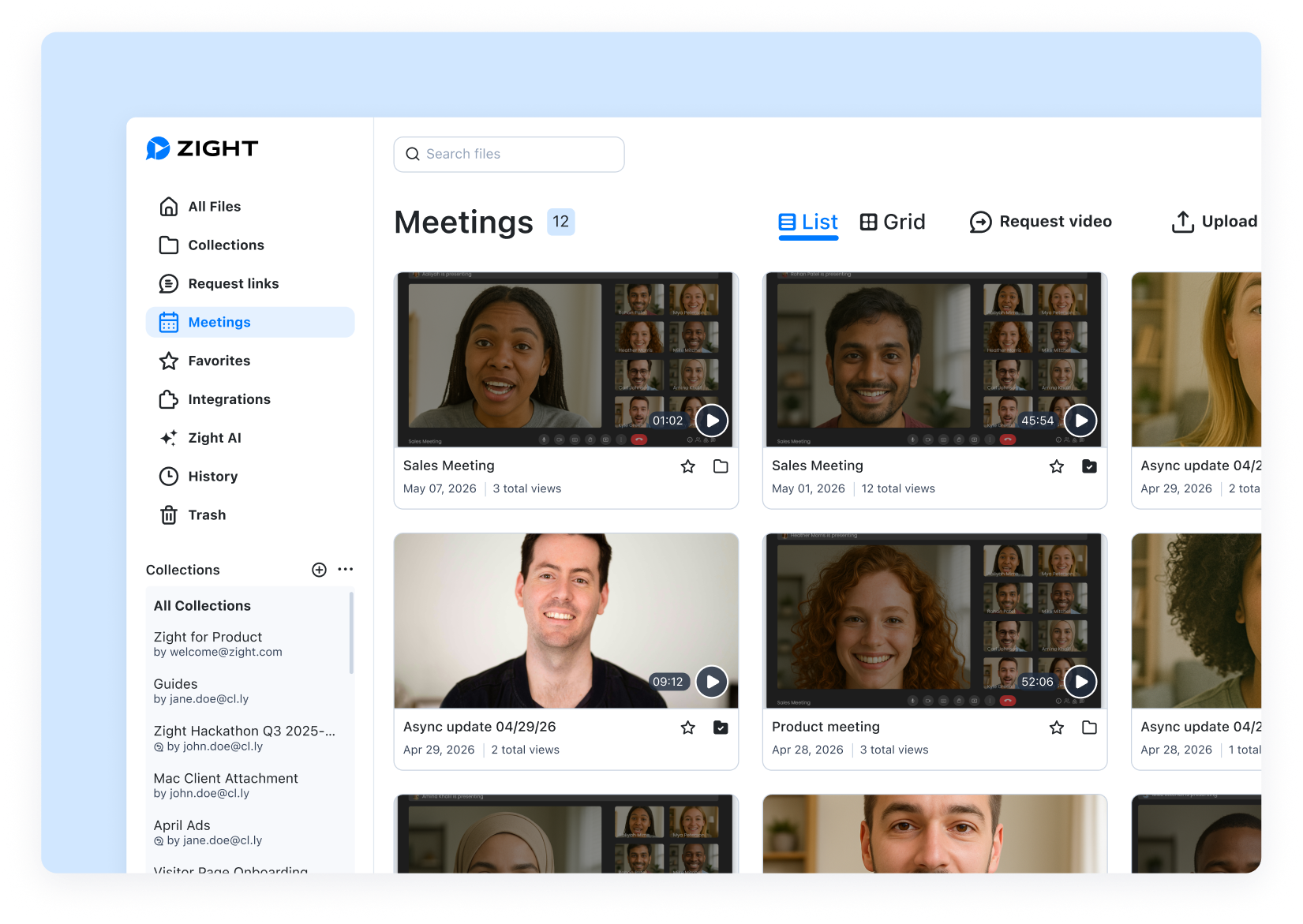
All Your Meetings in One Dashboard
Recordings, transcripts and summaries land in your Zight dashboard. Filter, tag, share with a link, or drop into Slack, Teams and email.
How Zight's Meeting Recorder Works
See how to record a meeting, get an AI summary, and find it all on your Zight dashboard in just a few clicks.
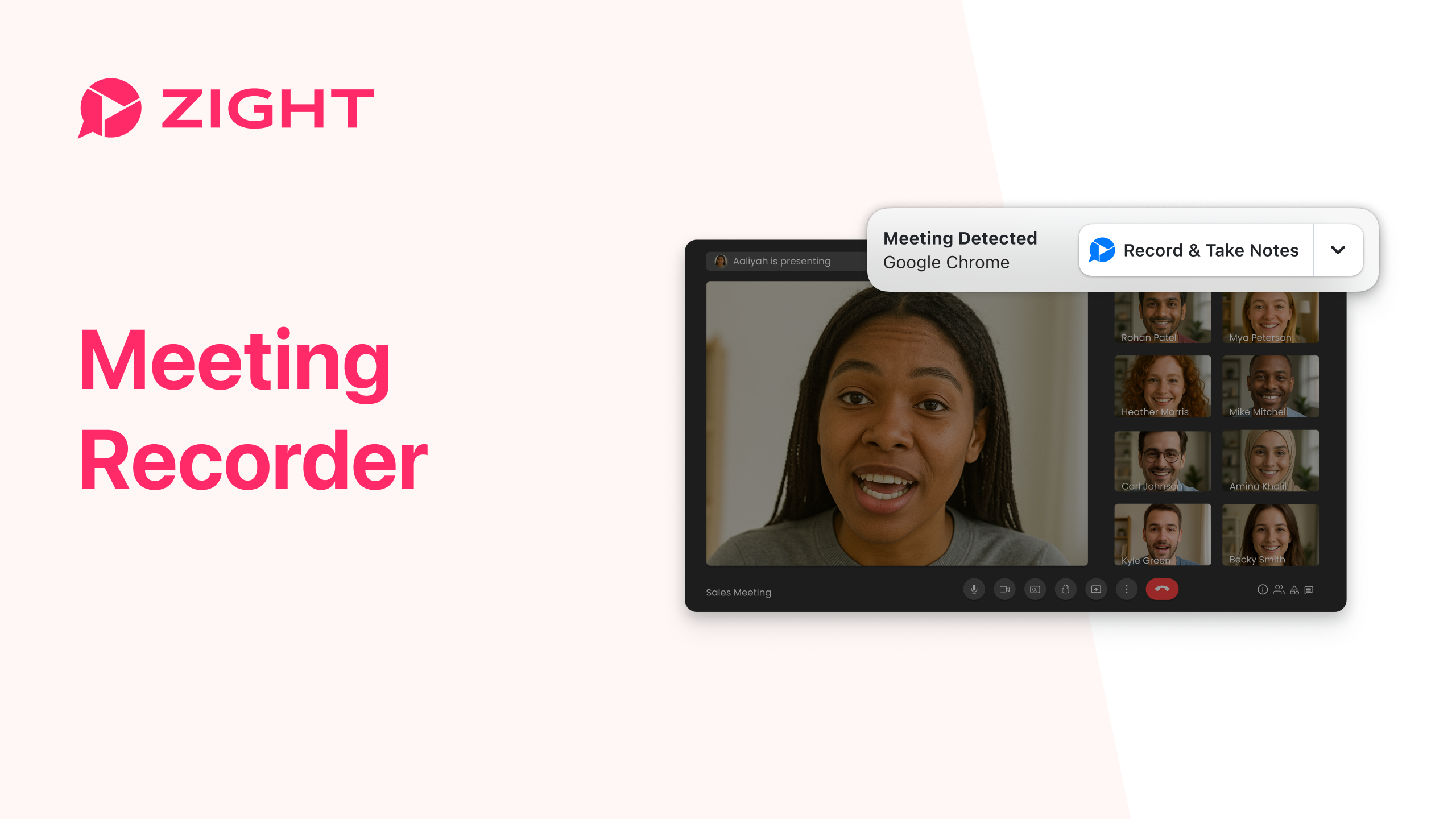

Record a Meeting in 6 Simple Steps
From sign-up to a shareable recording with AI notes, ready in minutes.
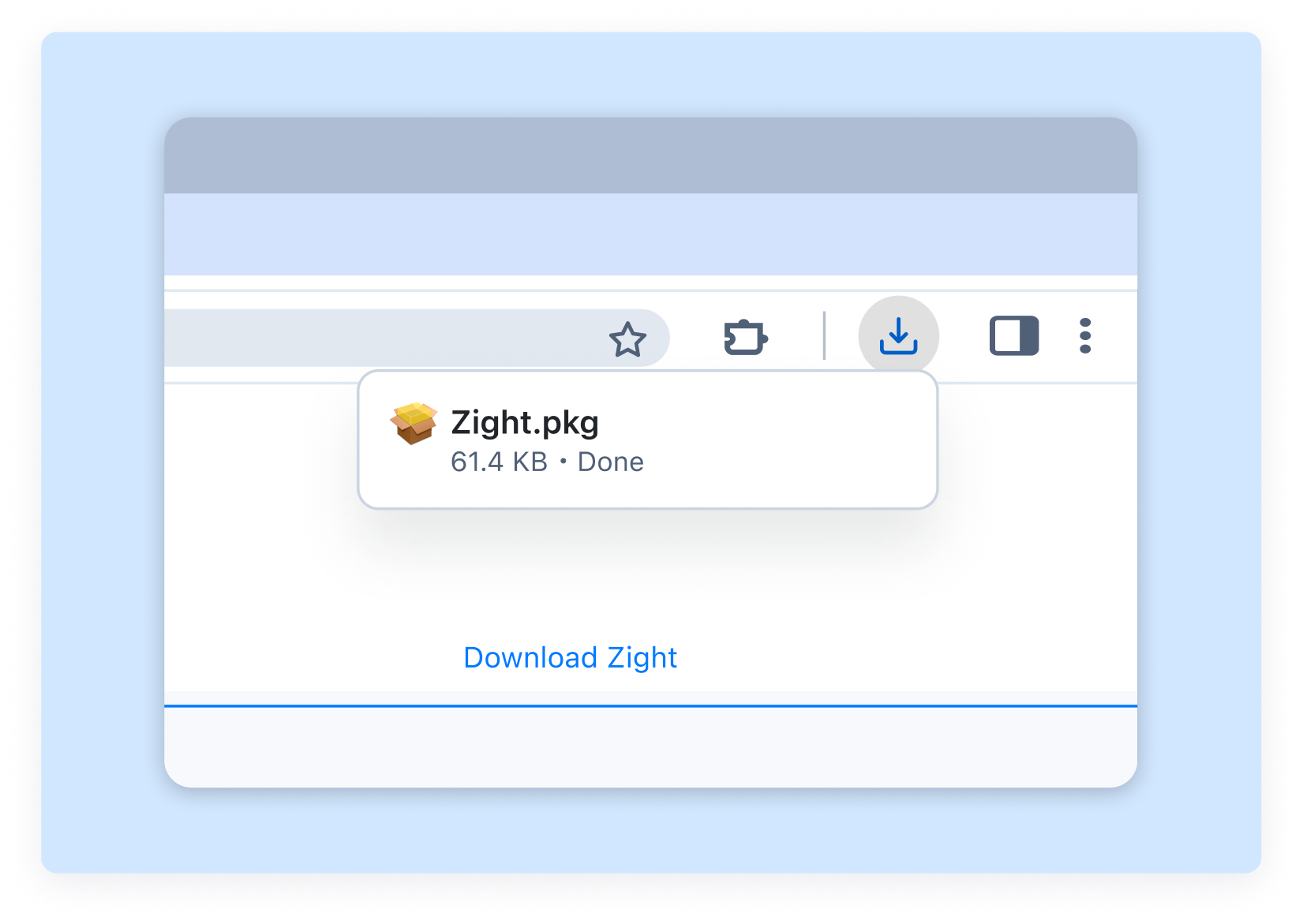
1. Download & Install Zight
Sign up for Zight (the free plan supports recordings up to 5 minutes), then download the desktop app for Mac or Windows, or add the Chrome extension — whichever fits your meeting workflow.
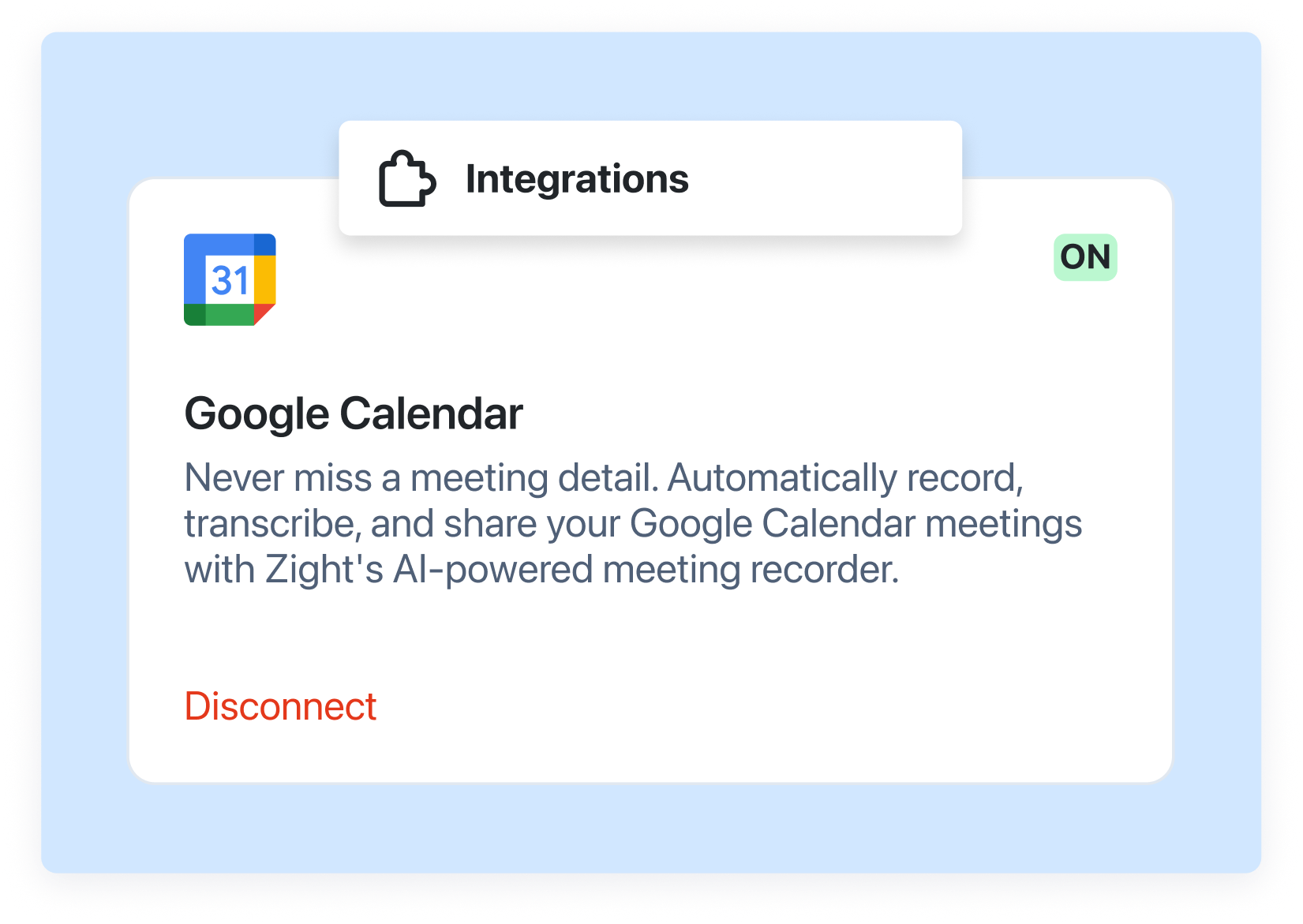
2. Connect Your Google Calendar
Go to the Integrations page in Zight and connect your Google Calendar. This allows Zight to see your upcoming meetings and know when to join.
3. Admit the Meeting Bot
Zight’s meeting bot will appear, make sure to allow it to record so it can take your meeting notes.
4. Recording Uploads After the Meeting
Head to your Zight dashboard to view your recording. From there you can watch it, share it with a link, or use Zight’s AI to generate a transcript, meeting summary, and action items.
Why Audio Capture Matters for Meeting Recording
Every voice on the call has to land cleanly in the recording — otherwise the transcript, the AI summary, and the action items all suffer. Zight captures system audio and your microphone together, so participants who use headphones, dial in by phone, or join from another room are all in the recording.
Captures Every Participant
Records system audio and your microphone simultaneously, so every voice on the call is in the recording — even when people use headphones.
Works With Zoom, Meet & Teams
Audio capture works the same way across every meeting platform, with no extra setup per call.
Echo Cancellation Built In
Recordings stay clean even when you're using speakers instead of headphones — the AI transcript stays accurate.
AI-Ready Audio Quality
Clearer audio means more accurate transcripts and tighter AI summaries — the cleaner the input, the more useful the output.
How Audio Capture Works for Your Meetings
Set it once, record every meeting the same way.
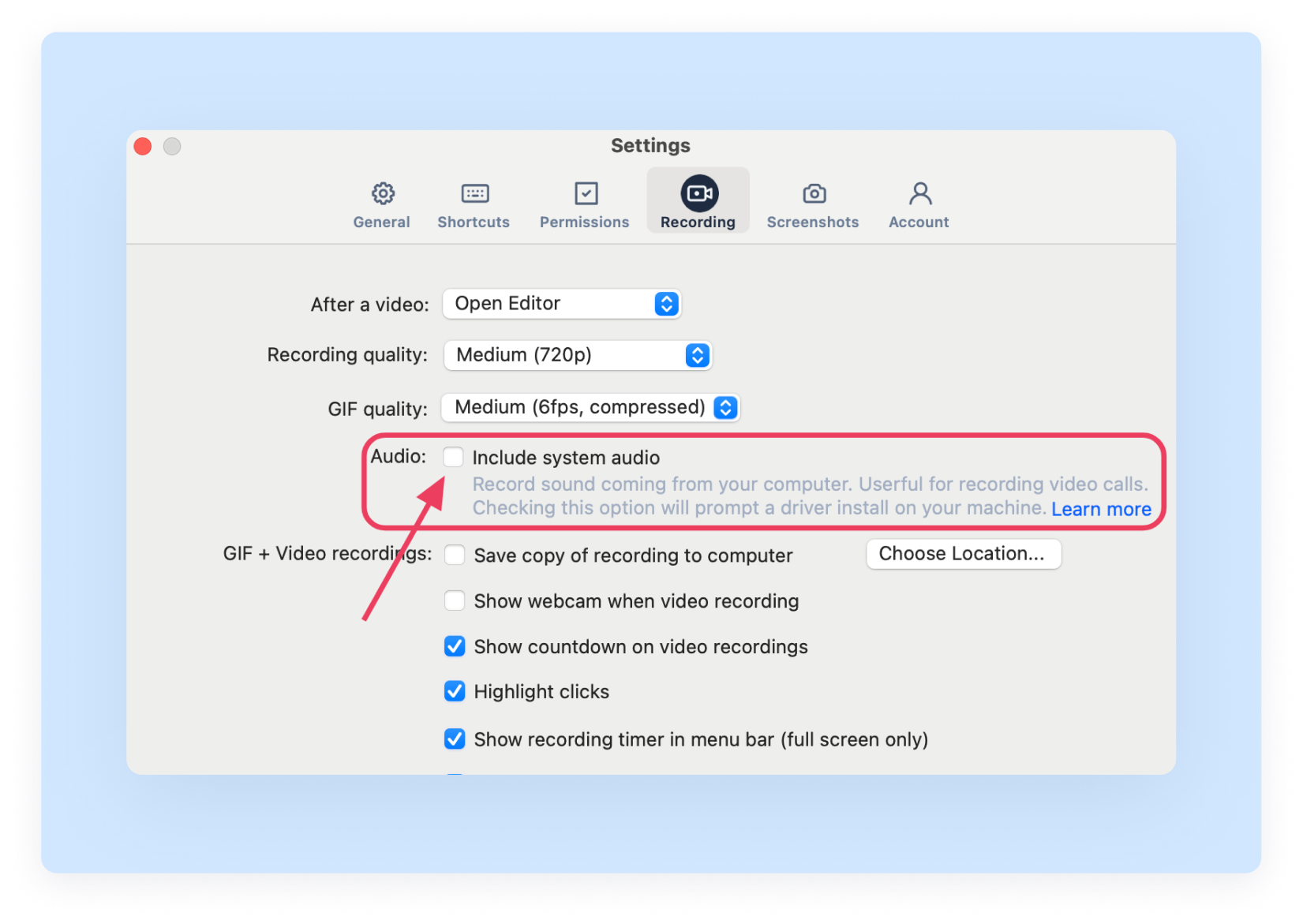
Set Your Audio Preferences Once
Tell Zight how you want to capture meeting audio — system + mic, mic only, or system only — and the setting persists across every meeting you record. No more digging through menus before every call.
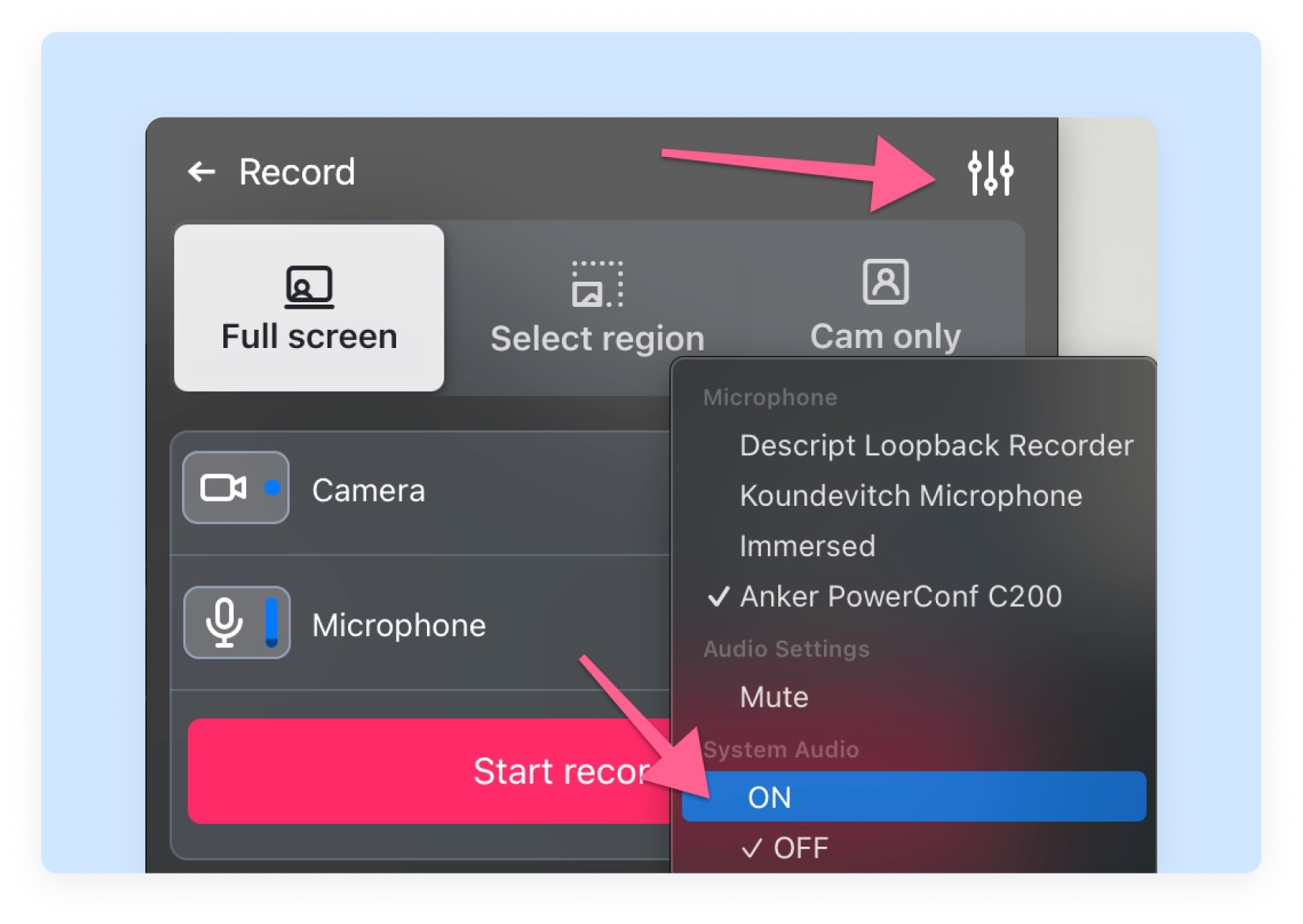
Toggle Audio Mid-Meeting
Need to step away or mute the room mid-call? Switch system audio on or off directly from the microphone menu while recording, without stopping or interrupting the meeting.
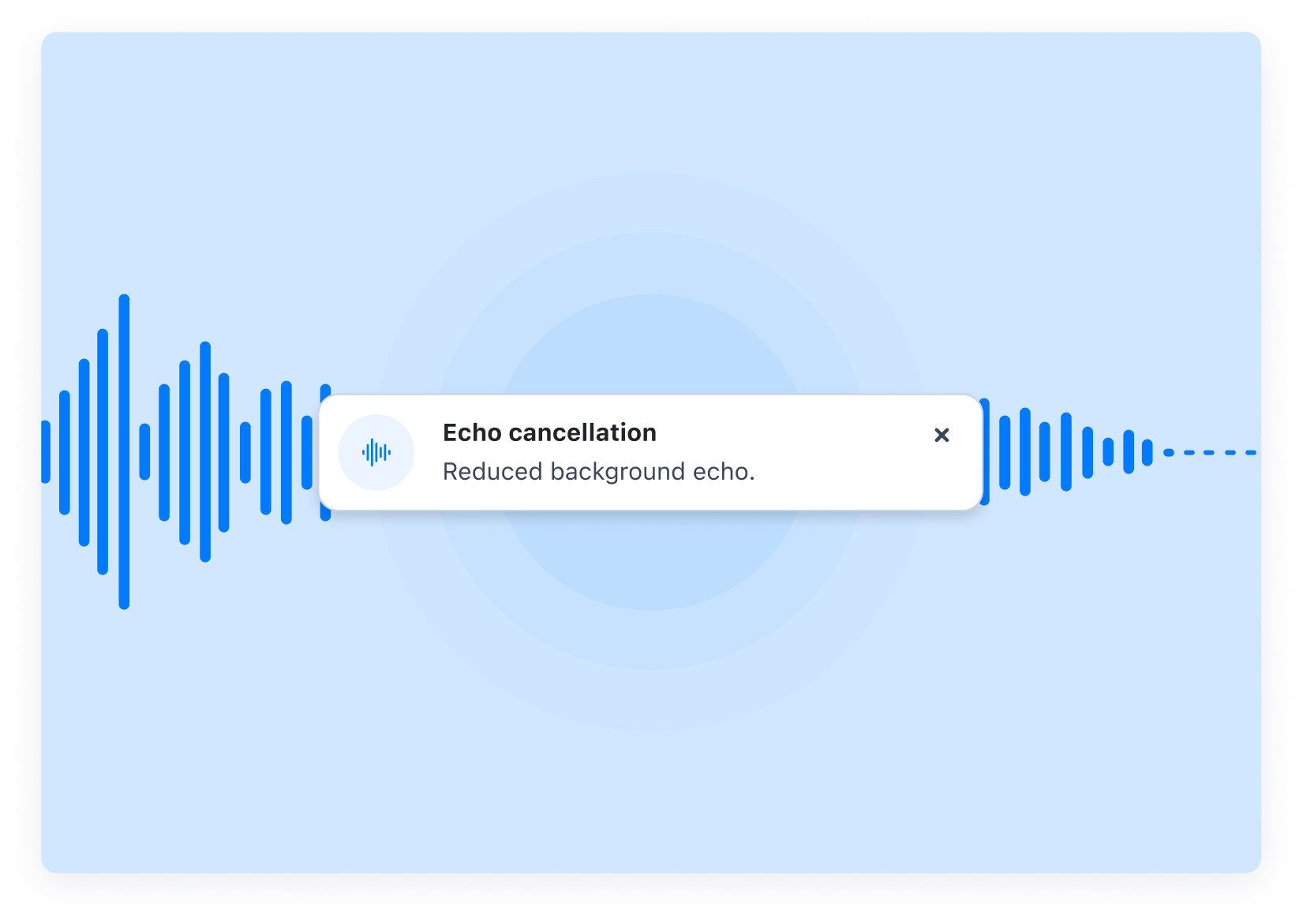
No Echo, No Feedback, No Mess
Recording a meeting through speakers instead of headphones? Zight’s echo cancellation strips out the feedback loop, so the recording stays sharp — and the AI transcript stays accurate.

Built for Back-to-Back Calls
Driver-level performance improvements mean Zight stays stable through a full day of meetings — recording back-to-back calls without dropouts or quality drops.
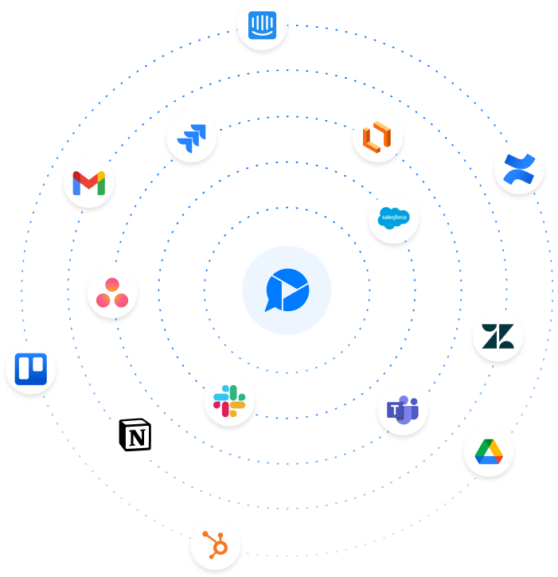
Plugs Into the Tools You Already Use for Meetings
Drop a meeting recording into Slack, Teams, Notion, email — or share the link anywhere. Zight integrates with the apps your team already lives in:
See All IntegrationsExplore Other Zight Features
Meeting recording is one piece of the Zight platform. Explore the rest:
The Complete Guide to AI Meeting Recorders
If your week is a blur of back-to-back calls and frantic note-taking, you already know the problem: the meeting ends, everyone moves on, and three days later nobody can remember what was actually decided.
An AI meeting recorder fixes that. Instead of trying to listen, participate and scribble notes at the same time, you let the tool do the capturing — recording the call, transcribing every word, and summarizing the outcome the moment you wrap up. You walk away with a shareable link, a searchable transcript, and a tidy list of action items in your dashboard.
Day to day, teams use meeting recorders for sales calls and discovery, customer success check-ins, internal standups and retros, webinars, user research interviews, hiring loops, and any conversation worth remembering. Whether you’re a sales rep handing follow-ups to AI, a PM keeping engineering in the loop, or a founder skimming a recap instead of attending a third standup of the day, the right meeting recorder gives you the time back.
This guide walks through how meeting recorders work, what features matter, how to set Zight up on your devices, and how teams across sales, customer success, product, and HR get the most out of it. Let’s dive in.
Types of Meeting Recorders: Find What Works for Your Workflow
Not every meeting tool records the same way. Some run as desktop apps, some live in your browser, and some hop into the call as a bot. Zight covers the first two so you stay in control of the meeting without third-party bots showing up uninvited. Here's how each type compares:
1. Desktop Meeting Recorders
Installed apps that capture the meeting window, your webcam and the system audio of every participant — usually the most reliable option and the only way to record without a bot in the room.
- Examples: Zight, Loom, OBS Studio
2. Browser-Based Meeting Recorders
Browser extensions that capture the tab or window your meeting is in. Great when you’re on a managed device or running meetings entirely in Google Meet or a web client.
- Examples: the Zight Chrome extension, Screencastify
3. Meeting Bots
Tools that send a virtual attendee into the call to record and transcribe. Convenient when you can’t be present, but the bot is visible to participants and can feel intrusive on customer or candidate calls.
- Examples: Otter.ai, Fireflies, Fathom
4. Built-in Platform Recorders
Native recording inside Zoom, Google Meet or Microsoft Teams. Free, but the host has to start it, transcripts are basic, and the file ends up in cloud storage instead of a searchable, shareable workspace.
- Examples: Zoom Cloud Recording, Google Meet Recording, Microsoft Teams Recording
Key Features to Look For in a Meeting Recorder
Before you commit to a tool, make sure it covers the basics that actually matter for meetings:
High-Quality Audio & Video Capture
Clear 1080p video and both-sided audio so participants are easy to follow on playback. Choppy recordings are worse than no recording.
System & Mic Audio Together
The recorder must capture system audio — the voices of everyone else on the call — alongside your microphone. Without it you only hear yourself.
AI Summaries & Action Items
The whole point of an AI meeting recorder: an automatic summary, decisions, and action items the moment the call ends, so nobody has to write a recap.
Searchable Transcripts
Timestamped, multi-language transcripts mean you can search for a phrase and jump straight to the moment it was said — no scrubbing.
Frictionless Sharing
One-click share links you can drop into Slack, Teams, email, a CRM note, or a Notion page. Anyone with the link should be able to watch and read along.
Reliable Performance During Live Calls
A meeting recorder that crashes mid-call is worse than useless. Look for tools that run smoothly on lower-spec laptops without spiking CPU.
Central Dashboard for Every Meeting
Recordings, transcripts and AI notes should land in one place you can filter, tag and revisit weeks later — not scattered across local files.
Privacy & Permission Controls
Password protection, link expiration and access controls so sensitive calls stay with the people they're meant for.
How to Set Up Zight as Your Meeting Recorder
Zight runs on the device you already take meetings on — Mac, Windows or Chrome — and captures the call window, your webcam, and the system audio of every participant in one go. Here’s how to get set up on each platform.
1. Zight Meeting Recorder for Mac
Most meetings happen on a Mac, and Zight is built to record them without forcing a bot into the call:
- Sign up at zight.com and download the Mac desktop app.
- Open Zight from the menu bar and click Record Screen.
- In the recording control bar, enable System Audio so the voices of everyone on the call are captured.
- Choose the meeting window (Zoom, Meet or Teams), or your full screen if you’re sharing slides too.
- Click the red record button. A countdown gives you a moment, then recording begins.
- When the meeting ends, click stop. Zight uploads the recording to your dashboard, transcribes it, and generates an AI summary automatically.
2. Zight Meeting Recorder for Windows
Recording meetings on Windows works the same way:
- Download the Zight Windows app and install it. The Windows app needs the .NET 4.5 framework.
- Launch Zight and adjust recording settings — video quality, max length, and audio source. Enable system audio so the meeting is captured.
- Pick the meeting window or your full screen.
- Click record before the call kicks off.
- Click stop when you wrap. Zight saves the file, transcribes it, and surfaces the AI meeting summary in your dashboard.
3. Zight Meeting Recorder for Chrome
If your meetings happen entirely in a browser tab — Google Meet, Around, web Zoom — the Chrome extension is the fastest path:
- Install the Zight Chrome extension from the Chrome Web Store.
- Pin the extension to your toolbar and sign in.
- Open the meeting tab, click the Zight icon, and choose Record.
- Pick the tab or window, enable mic and system audio, and start.
- Click stop in the extension menu when the meeting ends — the recording lands in your Zight dashboard with transcript and summary.
4. Recording a Meeting From Your Phone
For meetings on the go, the Zight iOS app captures your phone screen — useful for recording mobile demos or calls inside Zoom Mobile. Captured recordings sync to the same Zight dashboard as your desktop recordings.
Tips for Recording Meetings That People Actually Re-Watch
A few small habits make the difference between a meeting recording people skim once and one your team actually pulls back up. Here are seven that work:
Tell Participants You're Recording
Set the expectation at the start of every call. It's the right thing to do, builds trust, and in some regions it's legally required.
Close Distracting Tabs & Apps
Notifications, draft emails, personal Slack — all visible if you're recording the full screen. Quit anything you don't want people to see.
Test Your Mic Before the Call
Zight has a free Web-Mic tool to verify your mic and system audio are both working. Two minutes of testing beats a 60-minute silent recording.
Use Keyboard Shortcuts
Learn the start, pause, and stop hotkeys so you can hit record without fumbling for the toolbar mid-conversation.
Trim & Highlight After
Cut the pre-call chit-chat, the silent reconnects, the goodbyes. A tightly edited 22-minute recap will get watched. A raw 47-minute recording will not.
Share the Summary, Not Just the Video
Most people will skim the AI summary and only click into the video for the parts that matter. Lead with the summary in your follow-up.
Tag & Organize Recordings
Use tags or collections in your Zight dashboard — by client, by project, by meeting type — so the recording you need next week isn't buried under 40 others.
Why Use an AI Meeting Recorder?
From sales calls to standups, AI meeting recorders pay back the time they cost in setup within a week. Here's where the leverage shows up:
1. Be Present, Not Stenographer
- Listen, Don’t Type: When you trust the recorder to capture everything, you can actually engage in the conversation instead of half-attending while you take notes.
- Better Discovery: Sales reps ask better follow-up questions when their hands aren’t busy.
- Less Multitasking: Customer success calls go deeper when you’re not splitting attention three ways.
2. Faster Follow-Ups
- AI Recap in Seconds: Stop writing recaps from scratch. The AI summary, action items and decisions are ready by the time you’ve closed your laptop.
- Share With One Link: Send the meeting recording to anyone who couldn’t attend — they get the video, transcript, and summary in one place.
- CRM-Ready Notes: Paste the AI summary straight into HubSpot, Salesforce, or your project tracker.
3. A Searchable Memory of Every Conversation
- Search by Phrase: Type a customer name, a feature, or an objection and jump to the exact moment it came up.
- Onboarding Goldmine: New hires can replay real customer calls instead of role-playing imaginary ones.
- No More “What Did They Say About…?”: The answer is in the transcript, 30 seconds away.
4. Fewer Meetings, Better Async
- Async Recaps: Skip the third standup of the day — send the recording to anyone who actually needs it.
- Stakeholder Updates: Loop in execs by sharing the AI summary instead of scheduling yet another sync.
- Cross-Timezone Teams: Recorded meetings keep remote teammates in the loop without 6 AM calls.
5. Stronger Coaching & Quality
- Sales Coaching: Managers can review real calls and give specific feedback — not abstract advice.
- Customer Success Reviews: Spot patterns across calls — what customers love, what confuses them, what they ask for next.
- Hiring & Onboarding: Replay interviews to compare candidates fairly, instead of leaning on fresh memory.
6. A Single Source of Truth
- No More “I Thought We Agreed To…”: Decisions and action items are captured the moment they happen.
- Cross-Team Alignment: Product, sales, and support can all watch the same customer interview and see the same thing.
- Compliance & Audit Trails: Recorded meetings give regulated teams the documentation they need.
Which Teams Get the Most Out of a Meeting Recorder?
An AI meeting recorder is useful for anyone who runs more than two calls a day, but a few teams see outsized returns. Here's how each one uses Zight:
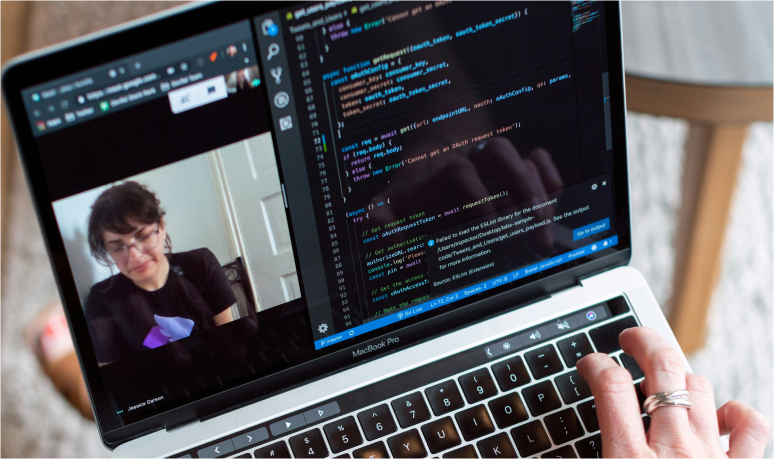
Engineering & Product Teams
Engineers & Tech Leads
Record architecture discussions, design reviews, and incident retros so engineers who weren’t on the call can catch up with full context.
QA & Bug Triage
Record bug reproduction calls so the recording lives next to the ticket — no “can you screen share again?” loops.
DevOps & SRE
Capture post-mortems and on-call handoffs so the next person on rotation has the full story, not a half-written runbook.

Customer Support Teams
Technical Support
Record troubleshooting calls and link them to support tickets — engineers see the issue in the customer’s own words.
Customer Service
Use AI summaries to log support interactions without manually transcribing them, and share recordings with the rest of the support team for coaching.
Product Management Teams
Product Managers
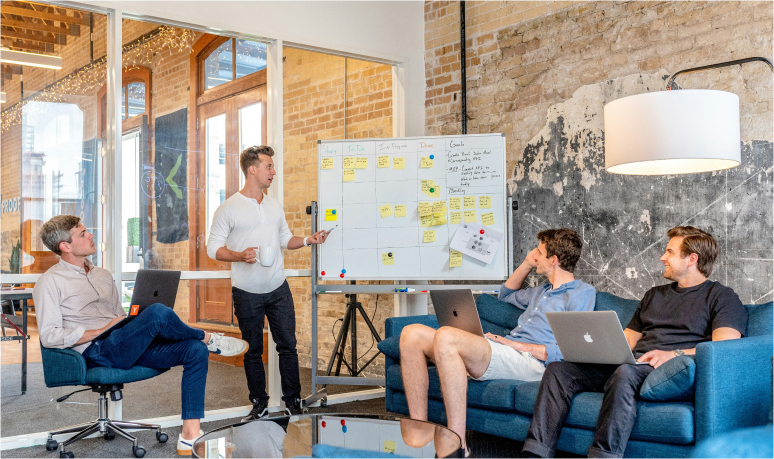
Record user research and discovery calls — searchable transcripts mean you can find every mention of a feature or objection across dozens of interviews.
UX Designers
Capture usability tests and design critiques so the team can rewatch tricky moments instead of relying on whoever took notes.
Marketing Teams
Content Marketers
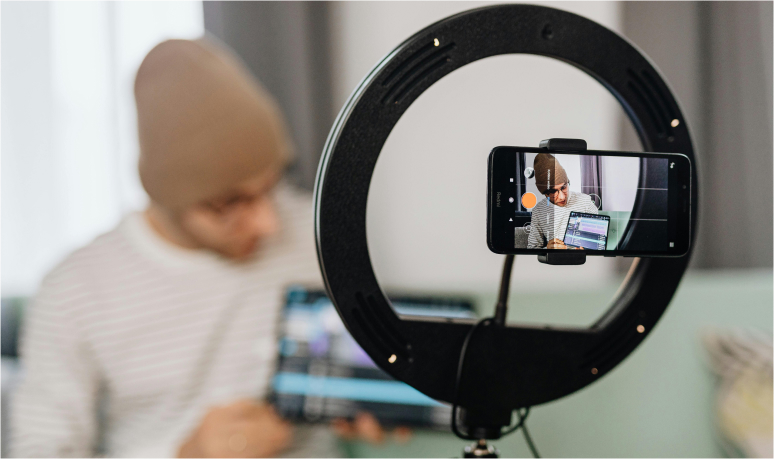
Record interviews with customers, partners and experts. Transcripts turn into blog posts, social clips and case study material without starting from a blank page.
Digital Marketers
Record webinars, brand brainstorms and campaign planning sessions so absent stakeholders can catch up async.
Brand Strategists
Capture stakeholder interviews verbatim — the actual words people use are gold for positioning work.

Sales Teams
Account Executives
Record discovery and demo calls so you can stay present with the prospect instead of typing notes. Drop the AI summary straight into your CRM after the call.
Sales Development Reps
Replay your own cold calls to see what worked, what didn’t, and how your top reps phrase the same questions.
Sales Managers & Enablement
Build a library of real calls for coaching and onboarding — far more useful than scripted role-plays.

Human Resources & Recruiting
HR & People Ops
Record onboarding sessions and all-hands so new hires can catch up in their own time, and ask better questions when they do meet live.
Recruiters & Hiring Managers
Capture screening interviews and panel debriefs — go back to the exact moment a candidate answered a key question instead of relying on rushed notes.

Educators & Trainers
Teachers & Instructors
Record live classes and tutoring sessions so students can revisit the material — searchable transcripts help them find a specific concept fast.
Corporate Trainers
Turn live training sessions into an on-demand library — record once, share with every new hire after.

Design Teams
Product & Graphic Designers
Record design critiques and feedback sessions so the rationale behind every change is preserved, not lost to memory.
Researchers
Capture user interviews and usability tests with auto-transcripts — search across a quarter’s worth of research in seconds.

Operations Teams
Operations Leaders
Record process reviews and vendor calls so the institutional knowledge doesn’t live in one person’s head.
Project & Program Managers
Use AI summaries to keep cross-functional stakeholders aligned without writing a recap after every status call.

Finance & Accounting Teams
Finance Leaders
Record budget reviews and investor updates so the team can refer back to specific commitments and forecasts later.
Financial Analysts
Capture analyst briefings and stakeholder Q&A — the searchable transcript makes pulling a specific quote effortless.
Legal & Compliance Teams
Legal Counsel
Record contract reviews and stakeholder negotiations (with consent) so the agreed-upon language is captured exactly.
Compliance & Audit
Maintain a defensible audit trail of training sessions and policy discussions, with searchable transcripts to back it up.
Why Choose Zight as Your AI Meeting Recorder
What sets Zight apart from other meeting recorders:
Zight isn’t a meeting bot. It’s a full-platform tool that records meetings, transcribes them, summarizes them, and folds the result into the same dashboard you already use for screen recordings, screenshots and GIFs. Here’s why teams switch to Zight:
1. No Bots in the Meeting
- Native Desktop Recording: Zight records the call from your device, not by sending a bot into the meeting — so customers and candidates never see a stranger in the participant list.
- Cleaner Experience: Stays out of the conversation and out of the way.
2. AI Summaries, Action Items & Transcripts
- Auto-Generated Notes: Every recording becomes a summary with key decisions and action items.
- Searchable Transcripts: 50+ languages supported, timestamped, jump-to-moment search.
- AI-Generated Titles: No more untitled-recording-(47).mp4 in your dashboard.
3. One Dashboard for Every Recording
- Meetings, Demos & Screen Captures: All your recordings live in one searchable workspace — meetings sit next to demos, screenshots and Looms in your Zight dashboard.
- Tags, Collections, Search: Organize by customer, project, or team without third-party tooling.
4. Works Where Your Meetings Already Are
- Cross-Platform: Mac, Windows, Chrome — record meetings from any device you take calls on.
- Records Any Meeting Tool: Zoom, Google Meet, Microsoft Teams, Around, web conferencing — if it runs on your screen, Zight captures it.
5. Share With One Link, Anywhere
- Instant Sharing: Drop a meeting link into Slack, Teams, email or a Notion doc the moment the call ends.
- Native Integrations: Connect Zight with Slack, Trello, Asana, Jira and more.
6. Built-In Editing
- Trim & Cut: Strip the small talk and the silent reconnects before sharing.
- Blur Sensitive Info: Hide confidential data on screen-share segments before circulating internally.
7. Security & Privacy
- Secure Sharing: Password protection and link expiration on every meeting recording.
- Enterprise-Grade Privacy: Zight is built around trust and security standards your IT team will recognize.
8. Analytics for Shared Meetings
- Viewer Insights: See who watched the recording and how far they got — useful for sales follow-ups and stakeholder comms.
9. A Full Visual Communication Platform
- Beyond Meetings: The same account also handles screen recordings, screenshots, GIFs and file sharing — one subscription instead of five.
10. Real Customer Support
- Responsive Help: A real support team, extensive docs, and an active community.
Zight's Meeting Recorder on Windows: What You Get
Here's what's included when you record meetings on Windows with Zight:
- Full-HD Capture: Record meetings in 1080p so the recording is sharp on replay.
- System & Mic Audio Together: Capture every participant’s voice alongside your own — essential for usable meeting recordings.
- Flexible Capture Modes: Record the meeting window only, the full screen, or screen + webcam picture-in-picture.
- Live Annotations: Mark up shared screens in real time — handy for design reviews and walkthroughs.
- Direct Upload & Sharing: Recordings land in your Zight dashboard the moment you stop — share via link without leaving the app.
- Custom Settings: Tune frame rate, resolution, and audio sources to fit your machine.
Zight’s Windows meeting recorder is built for people who run a lot of calls and need the recording to be reliable, sharable, and searchable without extra setup.
10 Things to Look for in an AI Meeting Recorder
Picking a meeting recorder is a long-term decision — once it's in your workflow, it's hard to swap. Here are ten things worth checking before you commit:
1. Recording Quality
- 1080p Video & Crisp Audio: A grainy recording is a recording nobody re-watches.
- System Audio Capture: Without it you only hear yourself — useless for a meeting.
2. AI Summaries & Action Items
- Automatic Recap: Summary, decisions, and action items the moment the call ends.
- Editable Notes: You should be able to clean up the AI output before sharing.
3. Searchable Transcripts
- Multi-Language: Look for 50+ languages if your team is global.
- Timestamped Search: Search a word, jump to the moment — no scrubbing.
4. No Bot in the Meeting
- Native Recording: Tools that record from your device feel less intrusive on customer and candidate calls.
- Bot-Optional: If you do need a bot, you should be able to opt in — not have one forced on every call.
5. Centralized Dashboard
- Everything In One Place: Meetings, transcripts, and notes shouldn’t be scattered across local files and inboxes.
- Tags & Collections: Organize by client, project, or meeting type so old recordings are findable.
6. Sharing & Permissions
- One-Click Share Links: Drop a recording into Slack, Teams or email in seconds.
- Password & Expiry Controls: Sensitive meetings need privacy controls — table stakes.
7. Editing Built In
- Trim, Cut, Blur: Strip out the awkward openings and hide sensitive on-screen info before circulating.
- Annotations: Highlight important moments in the recording.
8. Security & Compliance
- SOC 2 / GDPR: If you record meetings, you’re handling PII — pick a vendor that treats that seriously.
- Data Encryption: At rest and in transit.
9. Cross-Platform Support
- Mac, Windows, Chrome: Your team uses all three. Your meeting recorder should too.
- Mobile Capture: Useful for recording mobile demos and on-the-go calls.
10. Integrations With Your Stack
- Slack, Teams, Notion: Recordings should drop into the tools your team already lives in.
- CRM Friendly: AI summaries should paste cleanly into HubSpot, Salesforce or your tracker of choice.
Pick a meeting recorder against this checklist and you’ll save yourself a switch in twelve months.
Why a Zight Team License Is Worth It for Meeting-Heavy Teams
Once two or three people on your team are recording meetings every day, a Zight team license unlocks the workflow features that make those recordings actually useful across the org:
Unlimited Meeting Recording
No caps on recording length or number of meetings — record every call your team takes.
Advanced Editing & AI
Trim, blur and highlight recordings; let AI summarize them and surface action items automatically.
Custom Branding
Add your company's logo and colors to the share player — useful for external customer recordings.
Team Workspaces
Shared collections of recordings, organized by team, project or client — searchable across the org.
Security & Compliance
Enterprise-grade security for sensitive customer and internal meeting data.
Engagement Analytics
See who watched the meeting recording, how far they got, and what they re-watched.
Priority Support
Faster response times from the Zight team when your meetings depend on uptime.
Integrations
Pipe meeting recordings into Slack, Trello, Jira and more — no copy-pasting links.
Cloud Storage
Plenty of room for years of meeting recordings, transcripts and summaries.
Custom Domains & URLs
Share meeting recordings from your own domain for a branded recipient experience.
Granular Access Controls
Decide exactly who in the org can view each meeting recording or collection.
A Zight team license gives meeting-heavy teams the workflow, security and visibility they need — recordings, transcripts, and AI summaries in one place, available to the people who need them and locked down from the people who don’t.
Meetings, Screen Recordings & Screenshots in One Place
How Zight folds meeting recording into a single visual workspace:
Zight isn’t just a meeting recorder — it’s the workspace where your meeting recordings sit next to your screen recordings, screenshots, and GIFs. That matters because most teams need more than one of those things in a given week, and switching between tools costs time.
1. Async Communication
- Meeting Recap: Send a meeting recording with AI summary instead of writing a 400-word recap email.
- Loom-Style Updates: Switch to a quick screen recording when you need to walk someone through a screen — same app, same dashboard.
2. Faster Feedback Loops
- Design Reviews: Capture the live meeting and follow up with an annotated screenshot — both stored in the same place.
- Bug Reports: Pair a meeting recording of the reproduction with the supporting screen capture from your test rig.
3. Knowledge That Compounds
- Searchable Library: Months of meetings, customer interviews, demos and tutorials — all findable by keyword.
- Onboarding Goldmine: New hires get a back-catalog of real meetings, demos and walkthroughs instead of a one-page Notion doc.
4. Sales & Customer Success
- Personal Video Outreach: Send a quick async video alongside the meeting recap — same dashboard, same workflow.
- Account Reviews: Pull every meeting with a given account in one click.
5. Training & Enablement
- Reusable Sessions: Record live training once, trim it, share forever.
- Coaching Libraries: Build collections of great calls for new reps to learn from.
Best Practices
- Set the Recording Norm: Decide as a team which meetings get recorded by default. Reduces awkwardness on the call.
- Lead With the Summary: When sharing, paste the AI summary above the link. Most people skim before clicking.
- Tag Religiously: A recording without a tag is a recording you’ll never find again.
- Trim Before Sharing: The first 90 seconds of every call are pleasantries. Cut them.
The Bottom Line
An AI meeting recorder gives you the one thing every busy team is short on: time. Time you used to spend taking notes, writing recaps, and chasing what was said in last Thursday’s call. Native recording, automatic AI summaries, searchable transcripts, and a single dashboard for every recording — that’s how Zight turns meetings from a tax on your week into a searchable, shareable asset.
Whether you’re a sales rep trying to stay present on discovery calls, a PM running back-to-back user interviews, or a founder skipping a third standup of the day, Zight’s meeting recorder gives you the recording, the transcript, and the summary — without forcing a bot into your meetings or fragmenting your workflow across five tools.
Recommended Reading
Dive deeper into recording, async communication, and team productivity.
7 Best Screen Recorders With Facecam in 2025
If you record your screen a lot for work, you understand how it can sometimes feel robotic. After a few videos, you and your team… Read More Zight | May 05, 20248 Best Screen Recording Tips in 2025
Have you ever spent hours perfecting your screen recordings only to be disappointed by the final video? If yes, you are probably looking for some… Read More Zight | June 06, 202310 Steps to Screen Recording Success Checklist
This checklist is designed to ensure successful video recording with Zight. Follow these steps to optimize your recording setup, minimize distractions, and capture high-quality audio… Read MoreStop Taking Notes. Start Recording.
Record your first meeting in under two minutes. Free to start, no credit card required.
Frequently Asked Questions
An AI meeting recorder captures the video and audio of a meeting, transcribes the conversation, and uses AI to generate a summary with key decisions and action items. Zight does this natively from your desktop — no bot is sent into the meeting — and stores every recording, transcript and summary in one central dashboard you can search, share and revisit anytime.
Yes. Zight records meetings on any platform that runs on your screen — Zoom, Google Meet, Microsoft Teams, web conferencing tools, even browser-based calls. Because Zight records from your device instead of joining as a bot, you don’t have to invite anything to the call or change how you run meetings.
No. Zight records from your own device, so customers, candidates and teammates never see a third-party bot in the participant list. This is one of the biggest reasons teams pick Zight over bot-based recorders for external calls.
Yes. Every meeting you record with Zight is transcribed automatically. Transcripts are timestamped and searchable, with support for 50+ languages — so you can search for a phrase and jump to the exact moment it was said.
Yes. The moment you finish a recording, Zight’s AI produces a clean meeting summary along with the key decisions and action items from the conversation. You can edit the summary before sharing, paste it into a CRM, or send the share link directly.
Every meeting you record with Zight lands in your Zight dashboard the moment you stop recording. The video, the transcript and the AI summary all live in one place, where you can tag, search, share with a link, or organize into collections.
Yes. Zight is available for Mac, Windows, Chrome and iOS, and the free plan supports meeting recordings up to 5 minutes. Paid plans unlock unlimited length, AI summaries, team workspaces, and advanced sharing controls. Pro starts at $9.95/month; Team plans start at $8/user/month (3 user minimum); Enterprise pricing is custom — contact sales to learn more.
Yes. Zight captures system audio alongside your microphone, so every participant’s voice is in the recording — not just yours. Enable System Audio in the recording options the first time you set up Zight, and it stays on for every meeting after.
The moment a meeting recording finishes processing, Zight creates a share link. Copy it into Slack, Teams, email, a Notion doc, your CRM — anywhere. Anyone with the link can watch the recording, read the transcript, and skim the AI summary. You can also password-protect links or set them to expire.
Recording laws vary by jurisdiction. In the U.S., most states are one-party consent, but several (including California) require all parties to consent. The safest practice is to always notify participants at the start of the call that the meeting is being recorded — Zight makes this easy with a recording indicator. Check the rules that apply to your team and customers before recording.
Fathom, Otter and Fireflies all use bots that join your meeting to record and transcribe. Zight records natively from your desktop, so no bot is visible to participants — better for sales calls, customer interviews and candidate interviews. Zight also doubles as a screen recorder and screenshot tool, so meeting recordings live in the same workspace as your demos, walkthroughs and async videos.
Yes. Zight includes built-in editing — trim the small talk at the start, cut silent reconnects in the middle, blur sensitive on-screen information, and add annotations. All edits happen in your Zight dashboard, no separate editor needed.
Zight runs on Mac (macOS Big Sur 11.0 and up), Windows (Windows 10 and up), Chrome (via the Zight Chrome extension), and iOS for mobile recording. The same account syncs recordings across every device, so a meeting recorded on your laptop is instantly available on your phone.