
Ready to Boost Your Productivity?
Save time and money while boosting your productivity with Zight — free tools for screen recording, screenshots, GIFs, and webcam capture.
Try Zight for FreeHow to View an SVG
Follow these simple steps to get started.
Paste SVG Code
Paste your markup into the code input. Zight validates and renders it instantly.
Upload SVG File
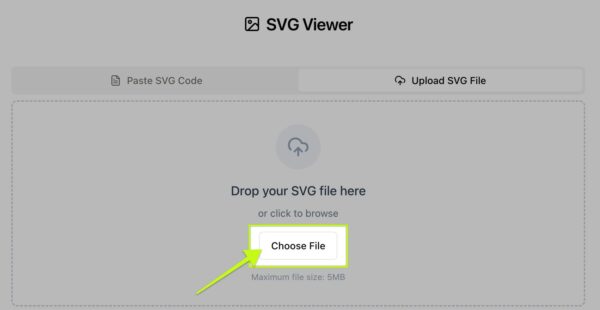
Drag and drop an .svg file or click to browse. Click Load SVG File to preview with file size and dimensions.
Copy
Copy the HTML embed or Data URL. Use Reset or Clear to start over.
Choosing Between Embed Options
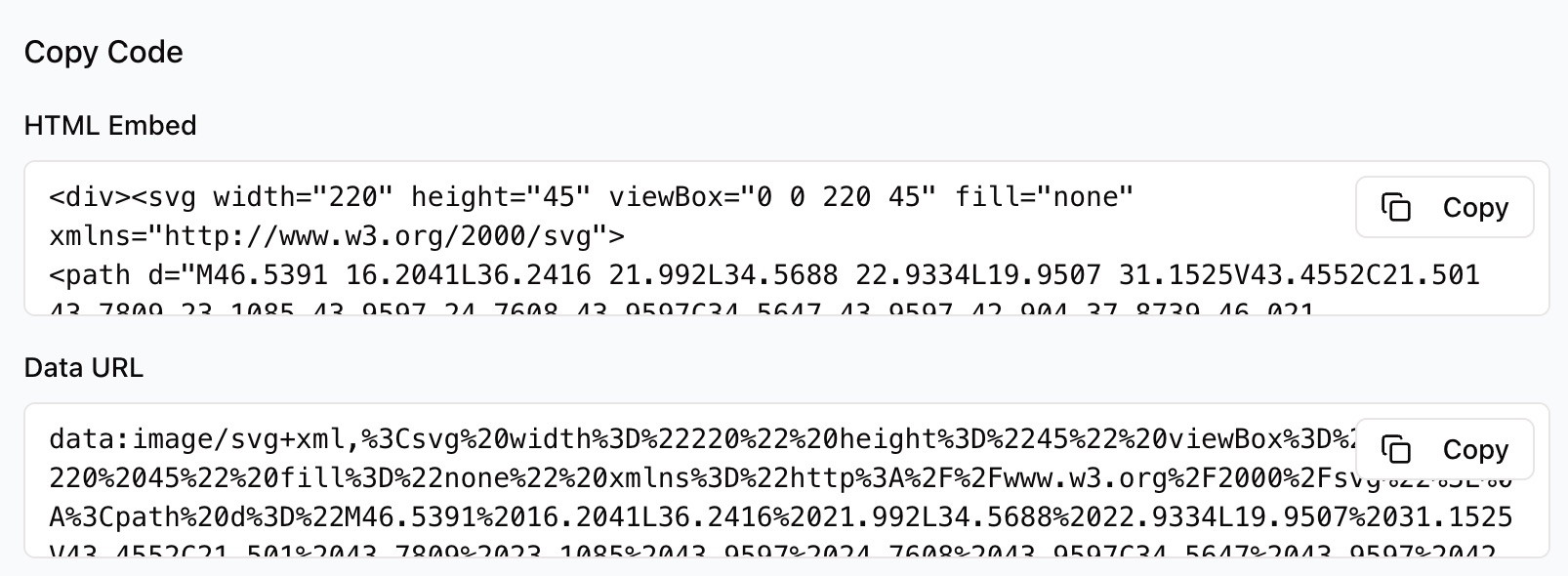
HTML Embed
Use a clean <div><svg …>…</svg></div> snippet when you want the SVG inline in your HTML and easy to style with CSS.
Data URL
Use a single data:image/svg+xml string when you need an all-in-one snippet for images, markdown, or CSS backgrounds.
What You Can Inspect
-
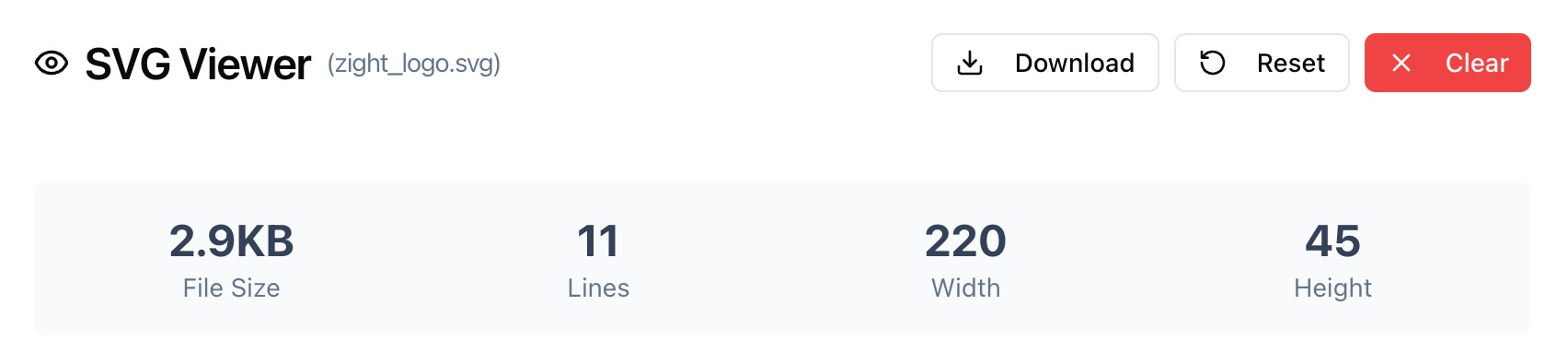
File stats including size in KB and total lines
-
Dimensions such as width, height, and viewBox
-
Preview with Fit and Actual Size controls
-
Code tab to review and copy the SVG source
-
Copy buttons for HTML embed and Data URL

Supported Use Cases
For Designers
Check dimensions, scale previews for presentations, and copy embeds for design handoff.
For Developers
Inspect viewBox, verify inline styling, and grab a quick embed for docs or components.
For Marketers
Preview logos and icons, copy Data URLs for CMS or email safe usage.
For QA
Validate that exported SVGs render correctly and meet size targets.
Unlock More Tools
Expand your toolkit with these additional free tools
Ultimate Guide: How to View and Share SVGs
Learn how to preview, inspect, and export SVGs with Zight’s free SVG Viewer. See real dimensions, view the code, and copy the right embed for any workflow.
Load Your SVG
Paste SVG markup directly or upload a file and click Load SVG File. The viewer shows file size, total lines, and the viewBox so you know exactly what you are working with.
Inspect the Code
Open the Code tab to review paths, groups, fills, and inline styles. Confirm that ids and classes match your conventions and that unnecessary metadata is not included.
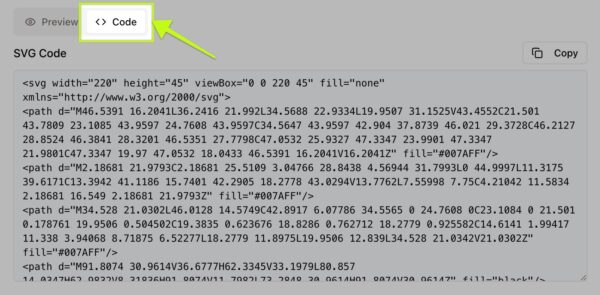
Copy the Best Embed
Choose HTML Embed for an editable inline <svg> in your markup. Choose Data URL when you need a single string for markdown, CSS, or quick sharing.
Conclusion
Zight’s SVG Viewer makes it simple to preview, inspect, and share vector graphics. Paste code or upload a file, confirm size and viewBox, and copy the right embed for your project. It is fast, accurate, and private.
Try Zight’s SVG Viewer today and streamline your SVG workflow.
Frequently Asked Questions
Upload .svg or paste SVG markup directly.
Check for a valid <svg> root, a viewBox, and well formed XML. Remove external references that depend on cross origin resources.
You can edit the code in the input and reload to preview changes.
Keep a viewBox and remove fixed width and height, then control size with CSS.
It defines the internal coordinate system. A correct viewBox ensures proper scaling.
HTML embed keeps markup editable. Data URL is a single string for quick embedding where files are not practical.
Yes for standard fills and strokes. If you use filters or external fonts, test across browsers.
No. Everything runs locally on your device.












