
Ready to Boost Your Productivity?
Save time and money while boosting your productivity with Zight — free tools for screen recording, screenshots, GIFs, and webcam capture.
Try Zight for FreeHow to Convert an Image to Base64
Follow these simple steps to get started.
Upload an Image
Choose a PNG, JPG, GIF, SVG, or WebP from your device. Files up to 10 MB are supported.
Automatic Conversion
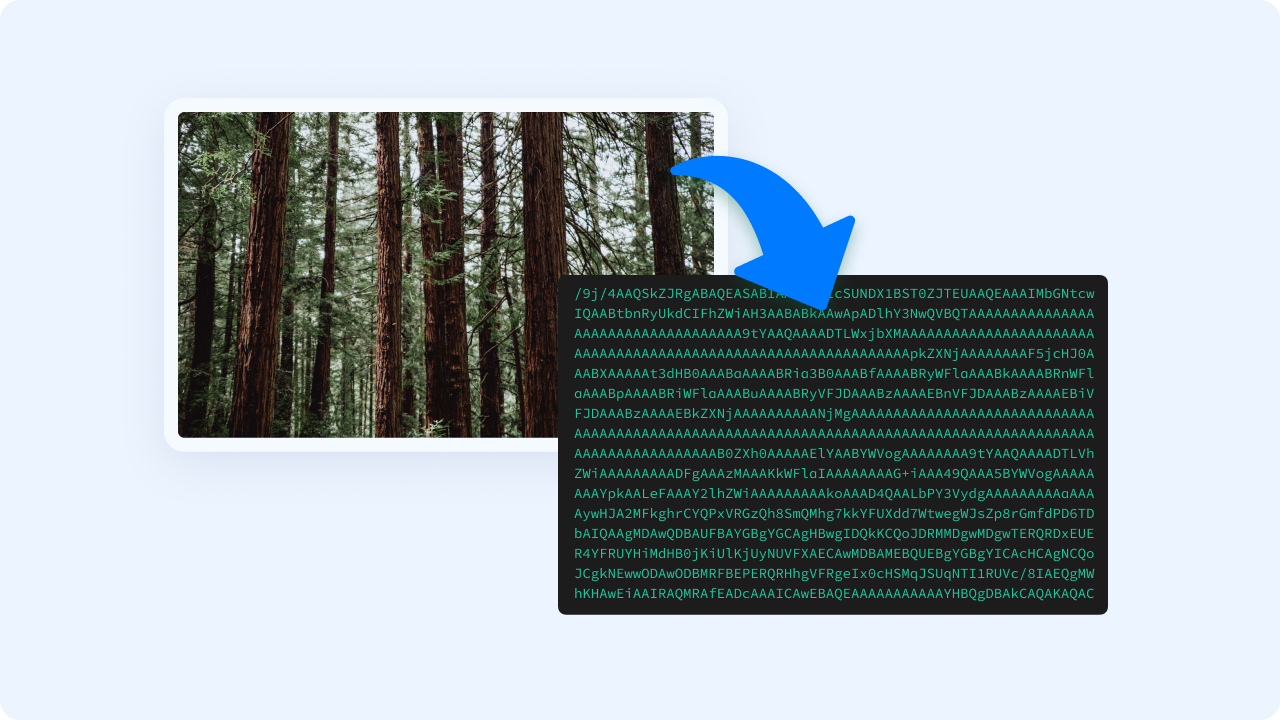
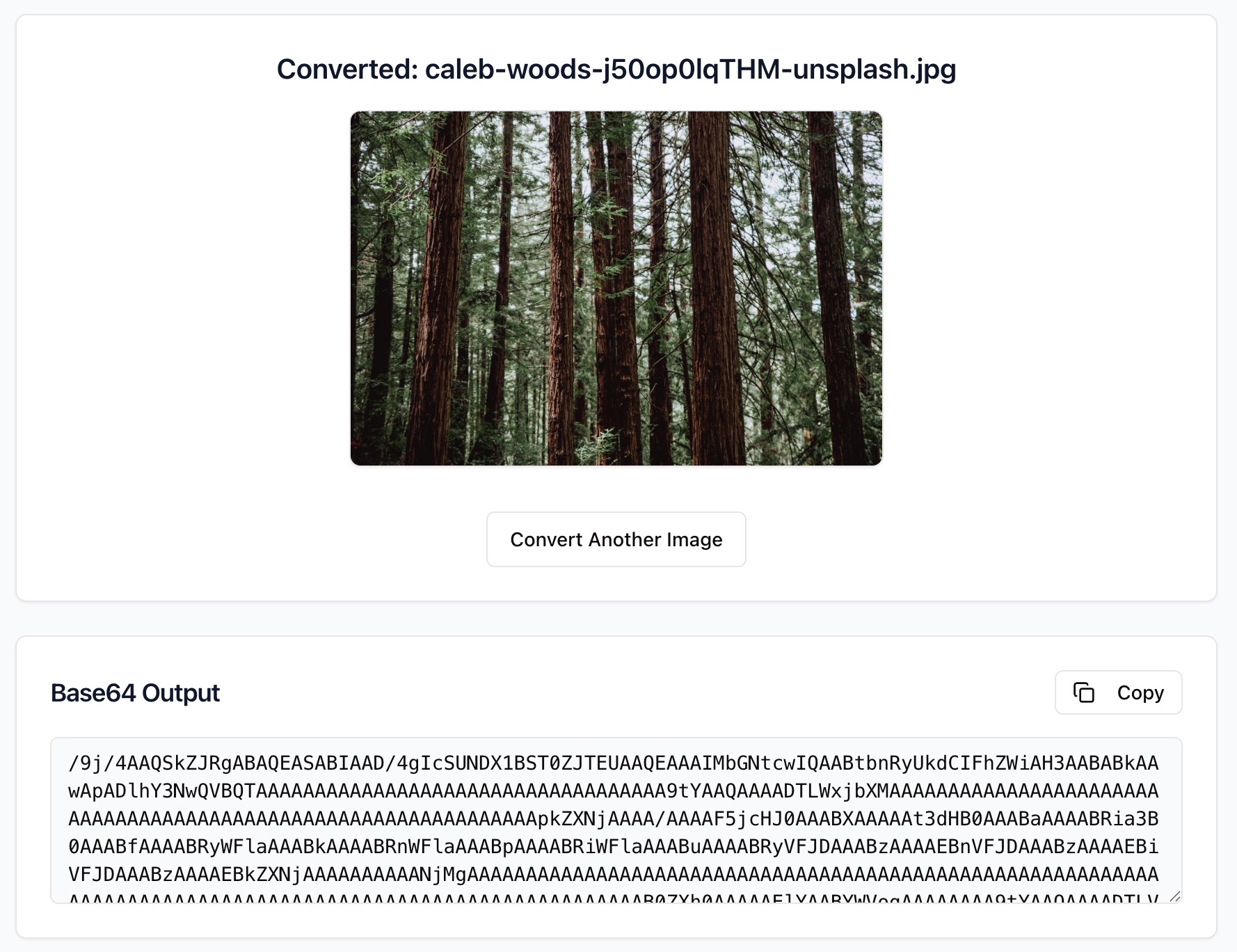
Zight instantly converts your file into a Base64 string. You will see a preview of the image and the encoded output.
Copy or Download
Copy the Base64 string or the full data URI. You can also download the text output for later use.
Choosing Between Image Files and Base64
Image Files
Images like PNG or JPG are ideal for general storage, editing, and distribution. They are smaller and load efficiently through standard asset pipelines and CDNs. They are easier to cache, compress, and manage at scale.
Base64
Base64 represents binary image data as text. It is useful when you must inline assets into HTML, CSS, JSON, or a single file bundle. Base64 simplifies shipping small icons or placeholders with no extra network request. The tradeoff is larger size because Base64 adds overhead.
Conversion and Optimization
Zight preserves your image content and MIME type. The converter detects the correct media type and can produce a raw Base64 string or a full data URI that starts with data:image/<type>;base64,. Transparency in PNG and WebP is preserved. Animated GIFs remain animated after decoding.
To keep pages performant, use Base64 for small assets such as logos, icons, and placeholders. For larger images, consider regular file delivery through a CDN.

Supported Use Cases
For Developers
Inline small icons in CSS or HTML. Embed Base64 in JSON fixtures, design tokens, or test data.
For Designers
Share previews as a single file with embedded assets. Move quickly between tools.
For Marketers
Embed tiny logos in email templates that need self contained assets.
For QA and Support
Attach Base64 samples to tickets and docs to reproduce issues without sending files.
Unlock More Tools
Expand your toolkit with these additional free tools
Ultimate Guide: How to Convert Images to Base64
Learn how to turn common image formats into Base64 using Zight’s free online converter. Whether you are embedding icons in CSS, creating a self contained HTML demo, or passing image data in an API request, this guide shows how to convert quickly and use the output with confidence.
Upload Your Image
Open Zight’s Image to Base64 Converter and upload a PNG, JPG, GIF, SVG, or WebP. The tool reads the file locally and prepares it for encoding. You do not need to install anything or run command line tools.
Review the Output
After upload, the Base64 string appears instantly. You can choose between the raw Base64 output and a data URI that includes the media type. The data URI is convenient for HTML and CSS, while the raw string is helpful for JSON payloads and code.
Copy and Use in Your Project
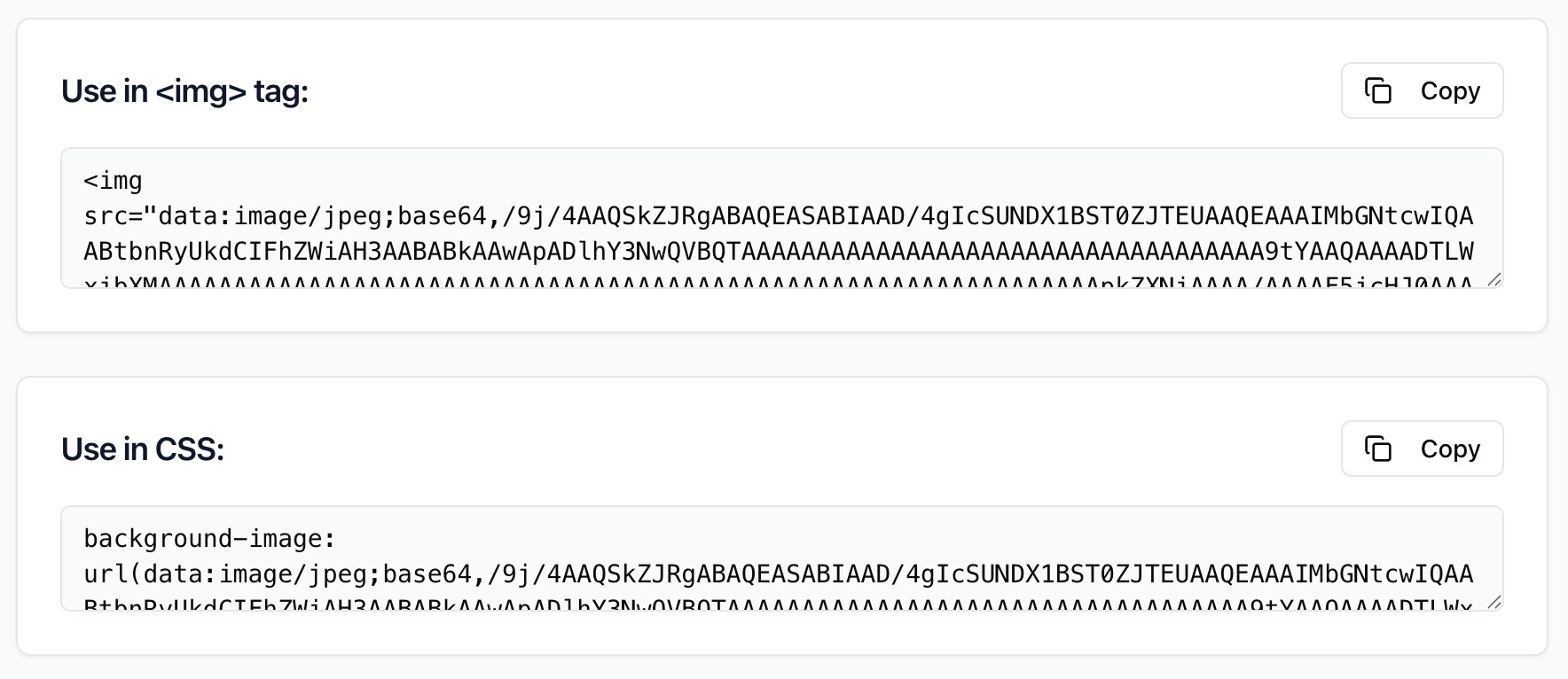
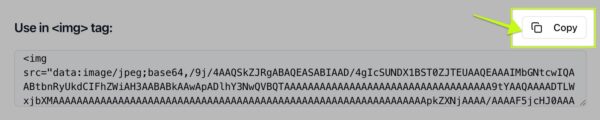
Copy the output in one click. Paste a data URI into an <img> tag, a CSS background-image, or a JSON field. If you prefer to keep a text file, download the encoded output and commit it with your sample data.
When Base64 Makes Sense
Base64 shines for small assets and single file demos where you want to avoid another network request. It is also helpful in restricted environments such as email templates or sandboxed previews. For larger assets, normal image files served over a CDN will usually perform better.
Conclusion
Converting images to Base64 is simple with Zight. Upload your file, get a clean Base64 string or a ready to paste data URI, and use it in HTML, CSS, JSON, or API workflows. Keep small assets inline, move faster with single file demos, and keep everything private in your browser.
Try Zight’s Image to Base64 Converter today and streamline how you embed and share images.
Frequently Asked Questions
PNG, JPG, GIF, SVG, and WebP are supported. The correct MIME type is included in the data URI.
The Base64 string is just the encoded data. A data URI adds a prefix such as data:image/png;base64, so browsers know how to render it.
No. Base64 increases size compared to the original file because binary data is represented as text.
Files up to 10 MB are recommended for quick conversion. Larger files may work but can be slower in the browser.
Yes. Formats that support transparency, like PNG and WebP, retain it after encoding and decoding.
Yes, many clients support data URIs, but support varies. Always test across email clients.
Yes. The conversion happens locally in your browser. Zight does not store or transmit your files.
Use normal files for large images and production assets that benefit from caching and CDN delivery. Use Base64 for small icons, placeholders, and single file demos.












