
Ready to Boost Your Productivity?
Save time and money while boosting your productivity with Zight — free tools for screen recording, screenshots, GIFs, and webcam capture.
Try Zight for FreeHow to Convert a Timestamp to a Date
Follow these simple steps to get started.
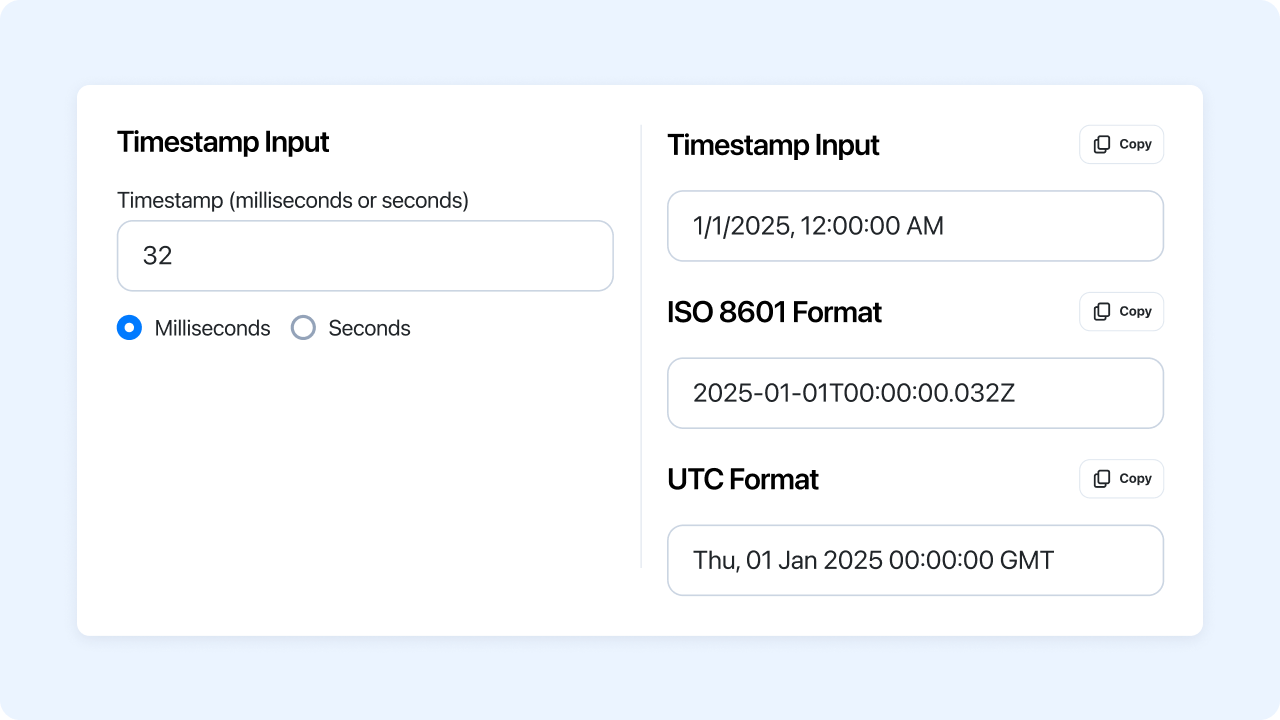
Enter Your Timestamp
Paste or type your UNIX timestamp into the input field. You can enter values in either seconds or milliseconds since January 1, 1970 (the Unix epoch).
Automatic Conversion
Zight instantly converts your input into a human-readable Local Date & Time and an ISO 8601 (UTC) format.
Copy or Share Your Results
Click Copy next to either format to save your results for use in reports, code, or documentation.
Choosing Between Local and UTC Formats
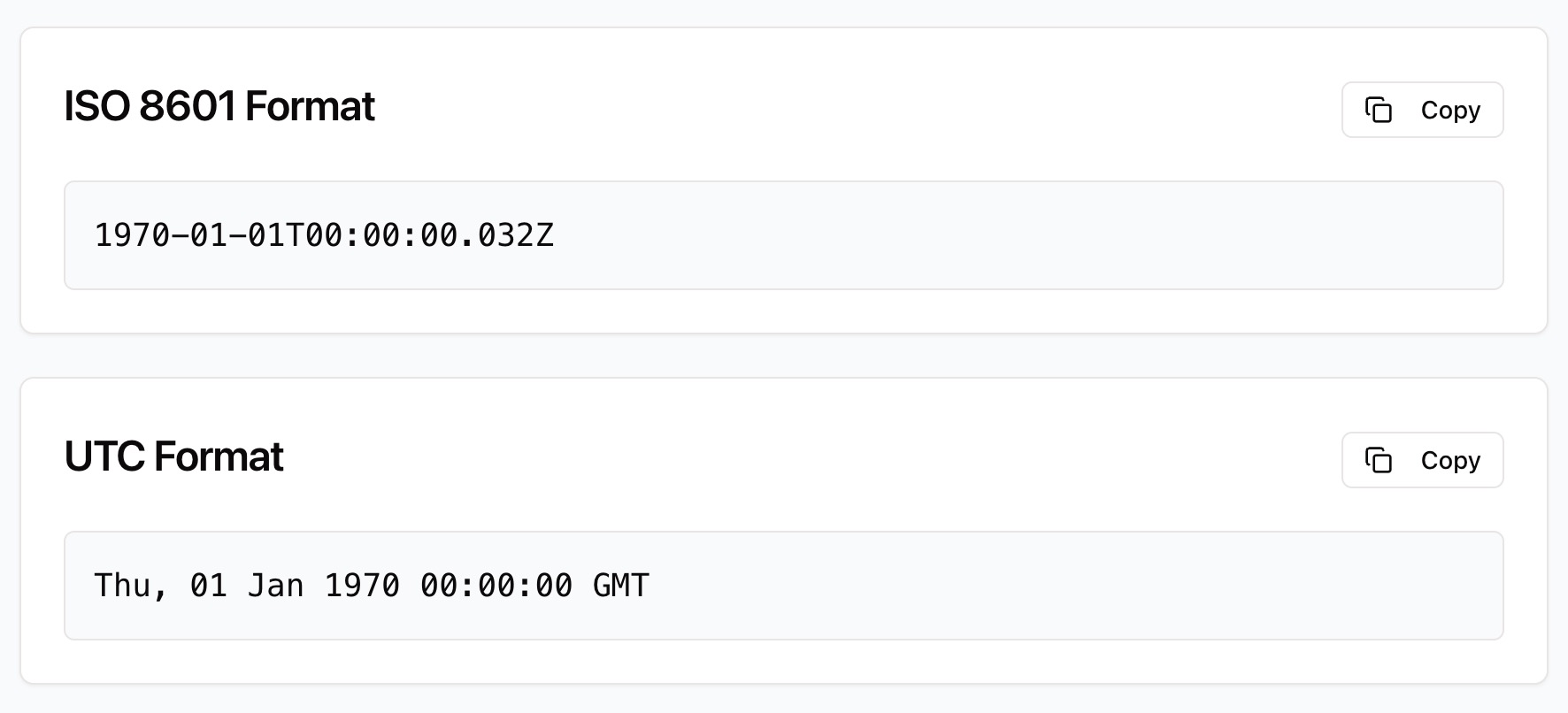
Local Date & Time
The Local Date & Time output converts your timestamp into your current time zone. It’s ideal for reviewing logs or events as they occurred in your local context.
UTC (ISO 8601) Format
The UTC output follows the ISO 8601 standard — a universal time format often used by APIs and databases. It shows the exact moment in Coordinated Universal Time, ensuring consistency across systems and regions.

Why Convert with Zight
Accurate Conversion
Converts UNIX and epoch timestamps with precision.
Local & UTC Views
Instantly see both local and universal time formats.
Instant Results
Conversions happen in real time as you type.
Private & Secure
All data stays in your browser — nothing uploaded or stored.

Supported Use Cases
For Developers
Quickly decode timestamps from APIs, databases, or log files to verify event timing.
For Data Analysts
Convert timestamp data in exports or analytics reports to easily readable dates.
For Businesses
Review customer logs, transactions, or audit trails in local or universal time.
For QA and Support Teams
Understand when reported events occurred by converting raw timestamps.
Unlock More Tools
Expand your toolkit with these additional free tools
Ultimate Guide: How to Convert UNIX Timestamps to Dates
Learn how to instantly convert timestamps into readable date and time formats using Zight’s free Timestamp to Date Converter. Whether you’re debugging, analyzing, or documenting data, this guide explains how to quickly switch between seconds and milliseconds and interpret both local and UTC results.
Enter Your Timestamp
Begin by opening Zight’s Timestamp to Date Converter. Enter a numeric value — for example, 1730918400 — into the input field.
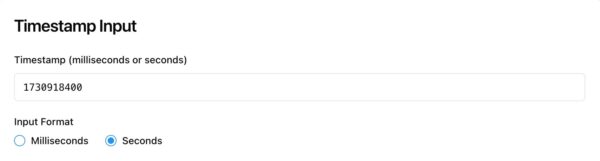
Select Milliseconds or Seconds
If your timestamp is long (e.g., 13 digits), it’s likely in milliseconds. If it’s shorter (10 digits), select Seconds. The tool converts accordingly for accurate results.
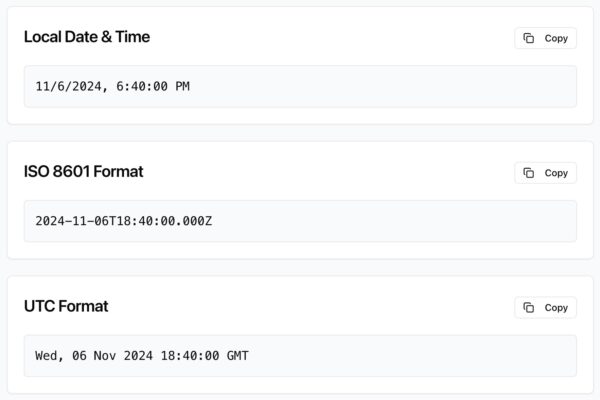
Instant Local and UTC Results
As soon as you input your timestamp, Zight automatically displays both Local Date & Time and ISO 8601 (UTC) formats. This lets you quickly confirm when an event occurred, both in your time zone and in universal time.
Why Timestamp Conversion Matters
Timestamps are critical in modern systems; they record exact moments of actions, requests, and transactions. However, raw timestamps aren’t easy to interpret. Zight’s converter bridges that gap, helping developers, analysts, and support teams instantly understand event timing.
Conclusion
Converting UNIX timestamps to readable dates has never been easier. With Zight’s free Timestamp to Date Converter, you can instantly see both local and UTC times, formatted for clarity and accuracy. Perfect for developers, analysts, and teams who need reliable time data.
Try Zight’s Timestamp to Date Converter today and take the guesswork out of time tracking.
Frequently Asked Questions
A UNIX timestamp represents the number of seconds (or milliseconds) since January 1, 1970 (UTC).
Seconds are 10-digit timestamps, while milliseconds are 13-digit timestamps. Choosing the correct format ensures accurate results.
UTC (Coordinated Universal Time) is the global standard for timekeeping. It’s not affected by local time zones or daylight saving.
Yes, Zight supports any valid timestamp — past, present, or future.
Yes, both are displayed instantly, so you can compare local and universal results.
No, all conversions happen in your browser. Zight doesn’t store or transmit your timestamps.
The converter will prompt you to check your input. Only numeric values are supported.
No installation or sign-up required, Zight’s converter runs entirely online.












