

Ready to Boost Your Productivity?
Save time and money while boosting your productivity with Zight — free tools for screen recording, screenshots, GIFs, and webcam capture.
Try Zight for FreeHow to Resize an Image
Follow these simple steps to get started.
Upload Your Image
Choose a PNG, JPG, GIF, or WebP from your device. Zight loads a preview and reads the original size.
Automatic Resizing
Select a target width or height or pick a percentage. Keep aspect ratio on for proportional resizing or turn it off for exact fit.
Download Resized Image
Preview the result, then download the resized image in your preferred format for use in apps, slides, or websites.

Choosing Dimensions and Formats
Set Dimensions
Enter a specific width or height to reach an exact pixel size. This is best for UI assets, email images, or marketplaces that require fixed dimensions.
When to Change Format
Keep JPG for photos. Use PNG for transparency or sharp UI graphics. Choose WebP for smaller files with good quality. Use GIF if you need a simple animation.
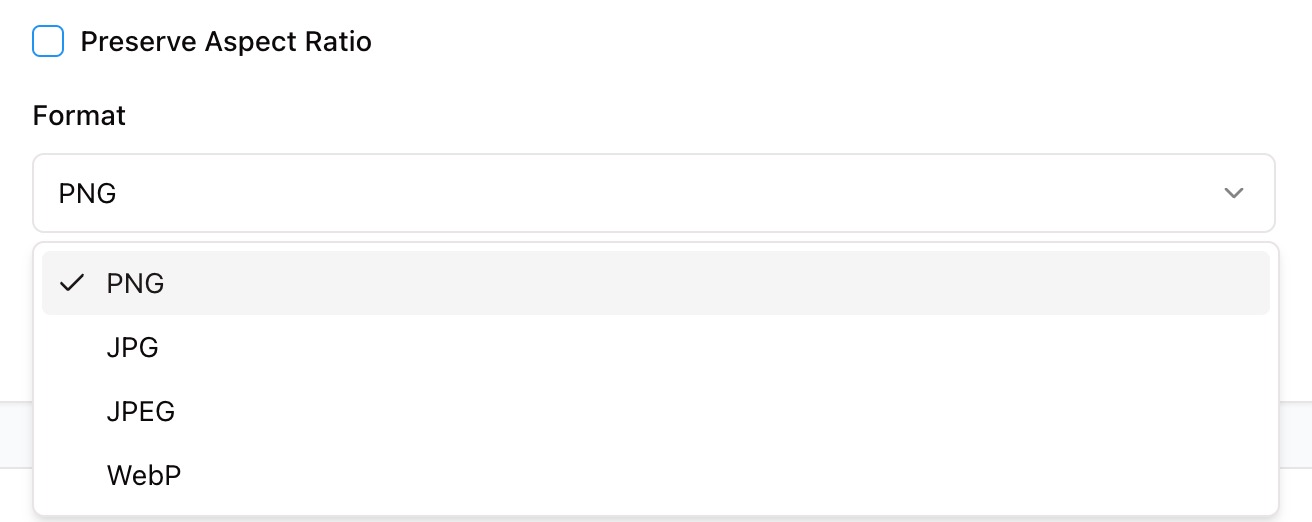
Image Optimization and Quality
Zight resamples images to preserve clarity while avoiding artifacts. You can keep aspect ratio, change format, and apply quality settings when available. For the sharpest results, downsize in one step and avoid repeatedly saving the same file at lower quality.

Supported Use Cases
For Designers
Prepare assets for web, mobile, or presentations without opening a heavy editor.
For Marketers
Resize social images, email headers, and blog graphics to platform friendly sizes.
For Developers
Optimize screenshots and UI elements for docs and product pages.
For Support and Sales
Create smaller images that upload quickly to tickets, chats, and slides.
Unlock More Tools
Expand your toolkit with these additional free tools
Ultimate Guide: How to Resize Images the Right Way
Learn how to resize images quickly and keep quality high using Zight’s free Image Resizer. Whether you need exact pixels or a simple scale down, this guide explains what to choose and why it matters.
Upload Your Image
Open the Image Resizer and add a PNG, JPG, GIF, or WebP. Zight shows the original width and height so you know your starting point.
Choose Dimensions or Percentage
If you have a required size, type a target width or height. Aspect ratio lock keeps the other value in sync. If you only need a smaller or larger version, pick a percentage to scale proportionally without calculating pixels.
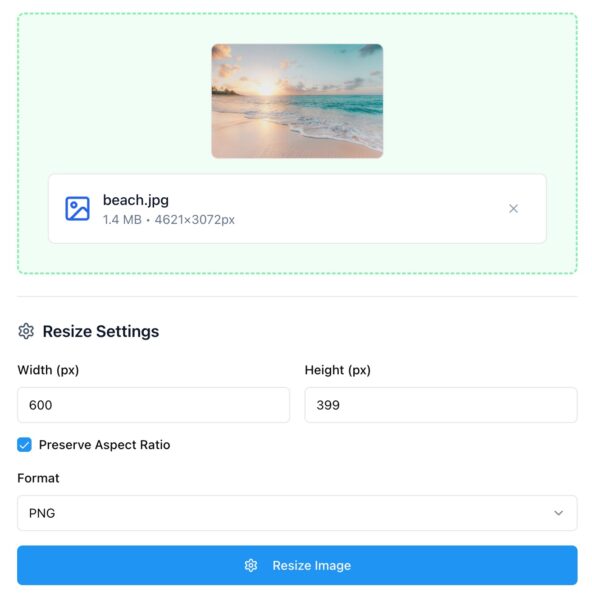
Preview and Export
Review the preview to confirm sharpness and framing. Select an output format, then export the resized image. For transparent graphics, keep PNG. For photos, JPG or WebP is usually smaller.
Why Resizing Matters
Correct sizing improves load time, layout stability, and visual clarity. Oversized images slow pages and emails. Undersized images look blurry on high density screens. Right sizing hits the balance between speed and quality.
Conclusion
Zight’s Image Resizer makes changing image dimensions fast and reliable. Upload a file, choose pixels or percentage, preview the result, and export in the right format for web, email, or slides. The process is quick, accurate, and private.
Try Zight’s Image Resizer today and keep every image the perfect size.
Frequently Asked Questions
PNG, JPG, GIF, and WebP are supported for input and export. Animated GIFs keep animation when resized within limits.
Yes. Turn on aspect ratio lock to scale proportionally when you change width or height.
Use JPG or WebP for photos and gradients. Use PNG for transparency or crisp UI elements. Keep GIF for simple animations.
Any downscale changes pixels. Zight uses high quality resampling to preserve detail, but exporting repeatedly can soften an image.
Yes, but enlarging can reduce sharpness. For big upscales, start from the highest resolution source possible.
Basic workflows focus on the image itself. If you need to strip or keep EXIF data, export with the desired setting when available.
Large files work, but very large images may take longer in the browser. Aim for common web sizes for best performance.
Yes. Everything runs on your device. Zight does not upload or store your files.












