
- Ensure clear audio and video quality: Use a good microphone, proper lighting, and quiet recording spaces.
- Organize content: Add timestamps, sections, and clear transitions to make navigation easier.
- Set response deadlines: Specify when feedback is needed to avoid delays.
- Centralize storage: Use one platform with organized folders and clear naming conventions.
- Use annotations: Highlight key points with visuals and edit out unnecessary parts.
- Follow templates: Stick to consistent video formats to save time and keep content organized.
- Secure your videos: Limit access, use passwords, and monitor activity.
- Make videos accessible: Add captions, transcripts, and ensure compatibility for all team members.
- Review performance: Use analytics and feedback to improve your video strategy.
- Integrate with tools: Embed videos into platforms like Slack, Microsoft Teams, or Jira for seamless collaboration.
How to Async Like a Pro
1. Record with Clear Audio and Video Quality
Bad audio and distracting background noise can ruin viewer engagement almost instantly. If team members can’t clearly hear or see your message, the whole point of asynchronous communication falls apart. To start, pick a recording space that keeps distractions to a minimum. Avoid noisy, cluttered areas like offices, bedrooms, or kitchens. Instead, go for a quiet room with little ambient noise. Furnished spaces or even walk-in closets work well to cut down on echo and reverb naturally. Your microphone matters a lot. An external directional microphone is your best bet because it focuses on your voice and blocks out background noise. Dynamic mics with hypercardioid or supercardioid pickup patterns are particularly effective in untreated rooms. Skip built-in or directly connected 3.5mm/USB microphones; they often add unwanted electrical noise. Mic placement is just as important. Keep the mic close to your mouth but not directly in line with your breath to avoid wind noise. Adding a pop filter can help reduce plosive sounds and breathing noises. When recording, speak clearly, enunciate your words, and slow down just a bit. This not only improves clarity but also helps with auto-captioning. If you’re using a mobile device, try to minimize movement to avoid handling noise. Once your audio is sharp, make sure your video matches. Position your camera at eye level for a natural angle, and use good lighting to illuminate your face. Natural light from a window works great, but avoid having bright lights directly behind you, as they can create harsh shadows or glare. Cleaning up background noise in your video can make your content feel more polished. If needed, use noise reduction tools during editing. For steady background sounds like an air conditioner hum, sample a quiet moment and apply gradual noise reduction instead of aggressive filtering to keep voices sounding natural. Technical clarity is the foundation of effective asynchronous communication. Tools like Zight‘s screen recording platform can capture high-quality audio and video while offering built-in editing features. Plus, with AI-powered transcription options, your async videos become even more accessible to your team.2. Organize Content with Timestamps and Sections
Once you’ve ensured your audio and video are clear, the next step is structuring your content. A disorganized video forces viewers to sift through the entire recording to find what they need, which wastes time and lowers engagement. Start by outlining the main topics you want to cover and estimating how much time each section will take. This simple planning step keeps your content focused and makes it easier to add accurate timestamps during editing. Kick things off with a brief overview that includes timestamps for each topic. For example: “Project updates at 2:00, budget discussion at 5:00, and next steps at 8:00.” This helps viewers quickly decide which sections are most relevant to them.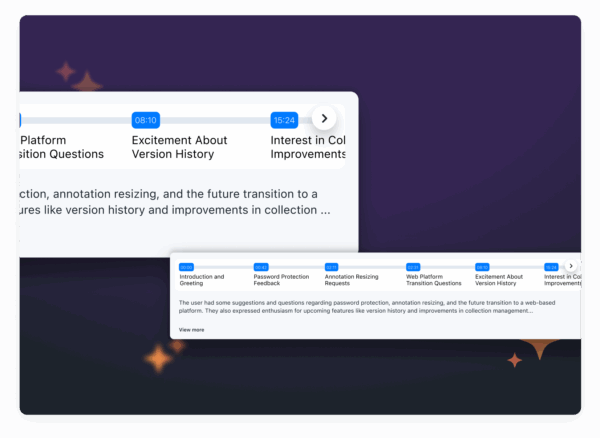 Use descriptive section titles that stand on their own, like “Q3 Budget Review” instead of something vague like “Updates.” Clear titles act as quick summaries, even for viewers skimming through the video. A well-organized video might look like this:
 - 00:00 – Introduction
- 01:15 – Project Overview
- 03:30 – Key Challenges
- 06:00 – Proposed Solutions
- 08:45 – Next Steps
3. Set Clear Response Time Expectations
When working with asynchronous videos, setting clear response times is just as important as organizing your content effectively. Without clear expectations, delays can easily occur. Be specific about when you need a response. Avoid vague phrases like “respond at your convenience.” Instead, give clear deadlines such as, “Please reply by Friday at 3:00 PM” or “Provide feedback within 24 hours”. This approach creates a clear timeline and helps everyone stay on track. Collaborate with your team to establish urgency levels. Not every message needs to be labeled “urgent.” For example, critical issues might require immediate attention, while routine updates can follow a standard timeline. For situations that truly demand instant responses, consider setting up a dedicated channel, like a specific chat group or a direct phone line. Adjust response times based on the type of video. A quick design input might need feedback within 24 hours, while a more detailed review could allow for a longer timeframe. Another helpful practice is making your team’s working hours visible, especially in distributed teams. Sharing schedules through calendars or communication profiles ensures everyone knows when to expect replies and when to avoid unnecessary interruptions. To keep things consistent, provide clear guidelines and training on response protocols. Include specific examples and deadlines, and document these standards so new team members can easily understand and follow them. When recording videos, tools like Zight allow you to embed deadlines directly into descriptions or comments, making it easy to integrate response expectations into your workflow.4. Store Videos in a Central Location
Scattered video files across multiple platforms can quickly lead to confusion and wasted time. When team members struggle to locate the videos they need, it disrupts async communication and slows down workflows. Just like structured timestamps make navigation easier, having all your videos in one place ensures your team can access them without hassle. Choose a single platform for video storage. This eliminates the chaos of digging through email attachments, cloud drives, or messaging apps. With one dedicated location, everyone knows exactly where to look, saving time and avoiding duplicate requests. Organize your videos with a clear folder structure that works for your team. Whether you sort by project, department, or date, consistency is key. Use straightforward naming conventions like “ProjectName_VideoType_Date” to make files easy to identify at a glance.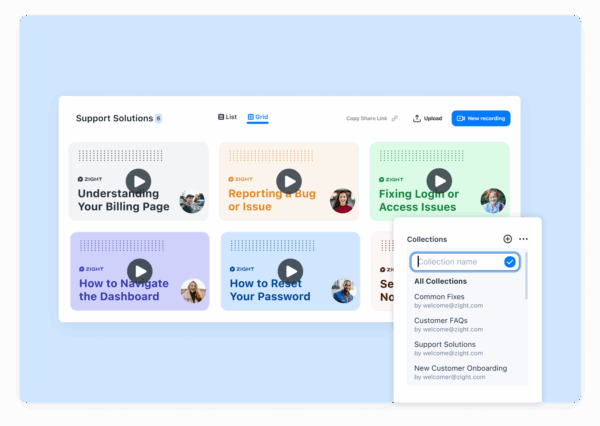 Set access permissions right away and only grant access to those who need it. Assign viewing or editing rights based on roles to keep your library secure while ensuring smooth collaboration. To make finding videos even easier, use a platform with robust search and tagging features. For example, Zight allows teams to locate videos using keywords, dates, or project tags. It also automatically organizes uploads and keeps a searchable history of all communications, streamlining the process even further. Train your team to use the storage system consistently and incorporate it into your standard operating procedures. When everyone follows the same approach for uploading and organizing files, your central repository stays functional and clutter-free. Document these steps so new team members can quickly adapt. Finally, maintain your video library by archiving old projects and removing outdated content. Set up automatic notifications for storage limits to avoid last-minute scrambles when space runs out. A little upkeep goes a long way in keeping your system efficient.
 5. Use Annotation and Editing Tools
Raw recordings often leave room for confusion and follow-up questions. To make your content more effective, here are some practical ways to enhance your annotations and edits. Start by building on clear audio and well-structured content. Add visual elements like arrows, circles, or text boxes to emphasize critical points. These cues help direct your viewers’ attention exactly where it’s needed, cutting down on miscommunication and reducing back-and-forth emails for clarification.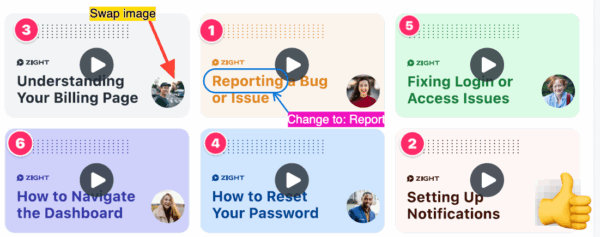 Trim out unnecessary pauses, false starts, or off-topic tangents. A concise, focused 3-minute video will always be more effective than a rambling 10-minute one. This approach saves time for your team, especially when they’re managing multiple tasks. When working with documents, spreadsheets, or presentations, highlight key sections to make important information stand out. This simple step ensures everyone stays aligned and avoids unnecessary misunderstandings. If you’re using Zight, take advantage of its built-in tools. Features like drawing options, text overlays, and basic editing (like trimming or splitting) let you refine your recordings without needing additional software. Establish a consistent color-coding system for annotations across your team. For example, use red for urgent items, blue for general notes, and green for completed tasks. This kind of visual consistency makes it easier for viewers to quickly grasp the importance and context of your messages. Finally, keep annotations simple and limited to 2–3 key points. Overloading your visuals can be distracting, while clear and intentional cues improve comprehension and engagement.
 6. Create Standard Video Templates
Using consistent video templates can save time and ensure a polished look across all your asynchronous communications. When your team sticks to a unified structure, viewers know what to expect and can easily locate the information they need. Start with a simple structure: introduction, core content, and next steps. Kick off the video by stating its purpose within the first 10–15 seconds. Then, dive into the main points, and wrap up with clear action items or deadlines. This format works well for most business scenarios, whether you’re providing project updates or creating training materials. Tailor templates for specific needs. For example, a weekly status update video might cover completed tasks, current priorities, and blockers. On the other hand, a training video template could include learning objectives, step-by-step instructions, and quick knowledge checks. Having pre-designed formats streamlines the recording process and keeps content organized. Incorporate consistent branding elements into your visual templates, such as your company logo, color palette, or branded intro slides. These details reinforce your organization’s identity while making it easy for team members to distinguish internal content from external material. To stay organized, standardize file naming conventions for your videos. Use formats like “ProjectName_UpdateType_MMDDYYYY” or “Department_Topic_Version” to make files easy to find and sort. This becomes especially helpful as your video library grows. If you’re using Zight, take advantage of its custom branding features to automatically apply your company’s visual identity to every recording. This eliminates the need to manually add logos or adjust colors, speeding up the template creation process. Share these templates with your team and provide a quick overview of when and how to use them. When everyone follows the same structure, viewers can quickly navigate to the most relevant sections, and creators spend less time planning their recordings. This approach keeps your asynchronous video communication streamlined and professional, complementing other strategies for efficient production.sbb-itb-5d91f01
7. Protect Videos with Proper Security
When dealing with videos containing sensitive information, making security a top priority is non-negotiable. A simple mistake, like misconfigured permissions, can lead to unintended exposure of critical data. Adding this layer of security complements the organizational practices discussed earlier. Control who can access your videos by fine-tuning permission settings. Avoid making videos publicly accessible or granting broad access. Instead, limit permissions to specific team members or departments. For instance, a video covering quarterly financial results should only be accessible to leadership and finance teams. Assign individual viewer permissions to ensure only the right people can view the content.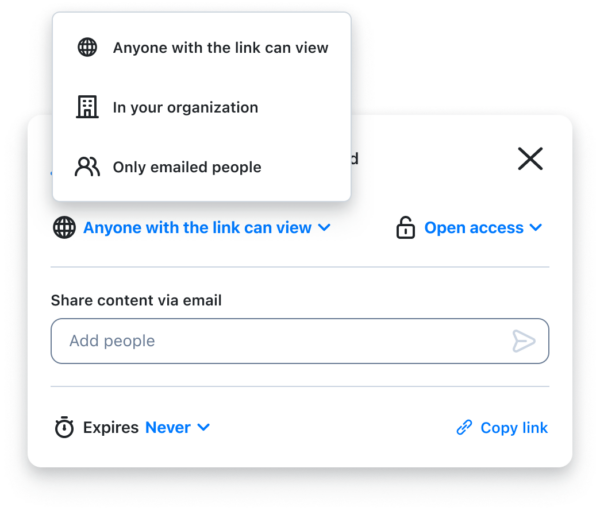 For highly sensitive videos, use password protection. Share passwords through a separate, secure channel – such as an encrypted email or direct message – rather than including them in the same communication as the video link. To safeguard time-sensitive content, set expiration dates for video links. For example, if you’re sharing a project update video that will be irrelevant in two weeks, configure the link to expire after that period. This minimizes the chance of outdated or sensitive information being accessed long after it’s no longer relevant. Monitor access and analytics regularly to catch any unusual activity. Many platforms offer detailed logs showing who has viewed a video, how long they watched, and when they accessed it. Keeping an eye on these metrics can help you spot unauthorized access or suspicious patterns. Avoid including sensitive details in video titles or descriptions. Instead of naming a video something like “Q4 Budget Cuts – Layoff Plans”, opt for a more neutral title such as “Q4 Strategic Planning Update”, and keep sensitive information confined to the video itself. Zight provides advanced security features like single sign-on (SSO), which integrates video access with your organization’s authentication systems. This ensures that permissions are automatically updated when an employee leaves the company or changes roles, keeping access tightly controlled. Match security protocols to the content. For internal training videos, basic permissions might suffice. However, for client-facing or strategic content, use stricter controls like passwords and link expirations. Clear guidelines help team members apply the right level of security without disrupting their workflow. Finally, regularly review and update video permissions to reflect changes in team structures or project scopes. A video initially shared with a small team might need broader access as the project grows or as team roles shift. Schedule regular audits – monthly or quarterly – for your most sensitive content to ensure permissions remain aligned with current business needs.
 8. Make Videos Accessible to All Team Members
Accessibility is key to ensuring your videos connect with every team member. By making your content inclusive, you can enhance engagement and create a more connected team environment. Here’s the reality: over 1 billion people globally live with some form of disability, yet 80% of online video content still lacks captions. Accessible videos not only meet legal requirements but also foster better collaboration and understanding within your team. To start, add captions and transcripts to every video. These tools make your videos usable for team members who are deaf or hard of hearing, support non-native English speakers, and even help those working in noisy spaces or who prefer reading along while watching.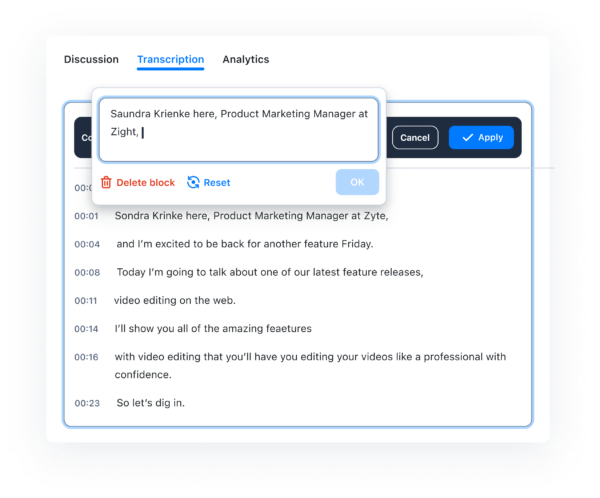 Organizing your video library is another crucial step. Use clear file names and include metadata like tags for captioned content or visual descriptions. This helps team members quickly locate accessible materials without frustration. When selecting platforms for hosting your videos, choose tools that integrate easily with your existing collaboration systems. Platforms like Zight can simplify workflows by embedding your video library directly into your team’s daily processes, ensuring everyone has seamless access. To encourage collaboration, consider adding interactive features like comments and annotations. These allow team members to ask questions, share feedback, and highlight important sections, turning your videos into dynamic, two-way conversations. This approach complements the streamlined workflows discussed earlier. It’s also important to set clear permissions and conduct regular audits to avoid accidental access restrictions. Everyone who needs to view the content should have the appropriate access without unnecessary barriers. Regularly seek feedback about accessibility. Open communication channels make it easier to identify and address any obstacles that might arise, ensuring your content remains inclusive. Lastly, think about the diverse learning styles within your team. Some people learn best through visuals, while others prefer detailed verbal explanations. By combining these approaches, your videos can resonate with a broader audience, making them more engaging for everyone.
 9. Review and Improve Your Video Strategy
Consistently reviewing and tweaking your video strategy is key to keeping it effective and aligned with your team’s evolving needs. Start by using platform analytics to track participation rates and engagement. Take a closer look at how your team interacts with your videos – are they leaving thoughtful comments or referencing specific details? If participation is low, it might signal that your content isn’t hitting the mark or that your delivery method could use some adjustments. Digging into engagement metrics can reveal whether your videos are making a real impact. It’s not just about how many people watch your videos, it’s about how they respond. Are team members asking meaningful questions or bringing up specific points? These signs of engagement matter because they directly influence productivity. In fact, engaged employees are 21% more productive. Feedback is another powerful tool. Use satisfaction surveys to understand what’s working and what’s not. Ask about content clarity, technical quality, and overall usefulness. This step is essential, especially when you consider that 86% of consumers cut ties with brands after poor experiences. While this stat focuses on consumers, the principle applies – your team needs a smooth and effective experience to stay engaged. For videos with specific goals, like training tutorials, measure outcomes with pre- and post-assessments. Did the video help team members complete tasks more efficiently? Can they demonstrate the skills covered? These checks provide concrete evidence of your content’s effectiveness. Business metrics also paint a clear picture of your video strategy’s value. Monitor changes in productivity, cost savings from cutting down on meetings, or faster project completion rates. These numbers not only justify continued investment in video but also highlight what’s working. Make regular review cycles part of your routine – quarterly assessments are a good starting point for most teams. During these reviews, examine your metrics alongside team feedback to spot trends. For example, you might find that technical tutorials perform well, while project updates lag in engagement. Use this insight to fine-tune your content and delivery methods. This ongoing evaluation ensures your video strategy continues improving over time. Tools like Zight can make this process easier by providing built-in analytics and feedback features, helping you streamline reviews and refine your approach.10. Connect with Team Collaboration Tools
Adding async videos to your everyday tools can make workflows smoother and help teams respond faster. With clear, high-quality recordings and well-organized storage, these integrations ensure videos become an active part of your team’s daily communication. Slack integration makes sharing videos effortless. Rich previews with thumbnails and key details appear directly in the workspace, so team members can watch, comment, and react without switching platforms. This setup keeps important updates front and center, avoiding the chaos of buried email threads or forgotten links. Microsoft Teams takes it a step further by embedding videos right into project discussions. For example, a developer might record a bug demonstration, or a designer could share a prototype walkthrough. These videos then become a natural part of the conversation, ensuring everyone stays in the loop. Jira integration is perfect for adding quick screen recordings to tickets. Instead of typing out lengthy descriptions, developers can use videos to show exactly what went wrong and how to reproduce the issue. This visual context speeds up bug fixes and makes collaboration more efficient. These integrations go beyond simple video embedding. By keeping videos within familiar platforms, they reduce the need to jump between tools. Automated notifications ensure team members engage with content promptly, and built-in permission controls align video security with the platform’s existing settings. Zight’s native integrations make sharing screen recordings, annotated screenshots, and video messages a seamless part of your team’s workflow. Instead of feeling like an extra task, visual communication becomes a natural extension of your team’s processes. Integrated search features tie everything together. Whether you’re looking for details about a feature or trying to solve a bug, relevant video content appears alongside other project assets. This creates a rich knowledge base that combines all types of content, making it easier to find exactly what you need.
 Comparison Table
Here’s a breakdown of asynchronous and synchronous video communication, helping you decide which approach fits your project needs.| Aspect | Asynchronous Video | Synchronous Video |
|---|---|---|
| Scheduling | No need for coordination – record and share anytime | Requires all participants to be available at the same time |
| Time Zones | Perfect for global teams with varying schedules | Difficult for distributed teams – someone often joins at inconvenient hours |
| Preparation Time | Allows for careful editing and rehearsing | Demands real-time thinking and immediate responses |
| Documentation | Automatically creates permanent, searchable records | Requires separate recording tools or meeting notes |
| Response Flexibility | Recipients can watch and reply at their convenience | Enables instant feedback and live discussion |
| Content Depth | Great for detailed explanations, tutorials, and complex topics | Best for brainstorming, quick decisions, and dynamic interactions |
| Editing Capability | Can be edited, annotated, and enhanced before sharing | Live content is fixed and cannot be altered after delivery |
| Accessibility | Easily includes captions, transcripts, and translations | Needs live captioning services for accessibility |
| Interruption Risk | No interruptions – uninterrupted delivery | Prone to technical issues, background noise, and disruptions |
| Engagement Style | Focused, individual attention from viewers | Encourages collaborative energy and immediate group dynamics |












