
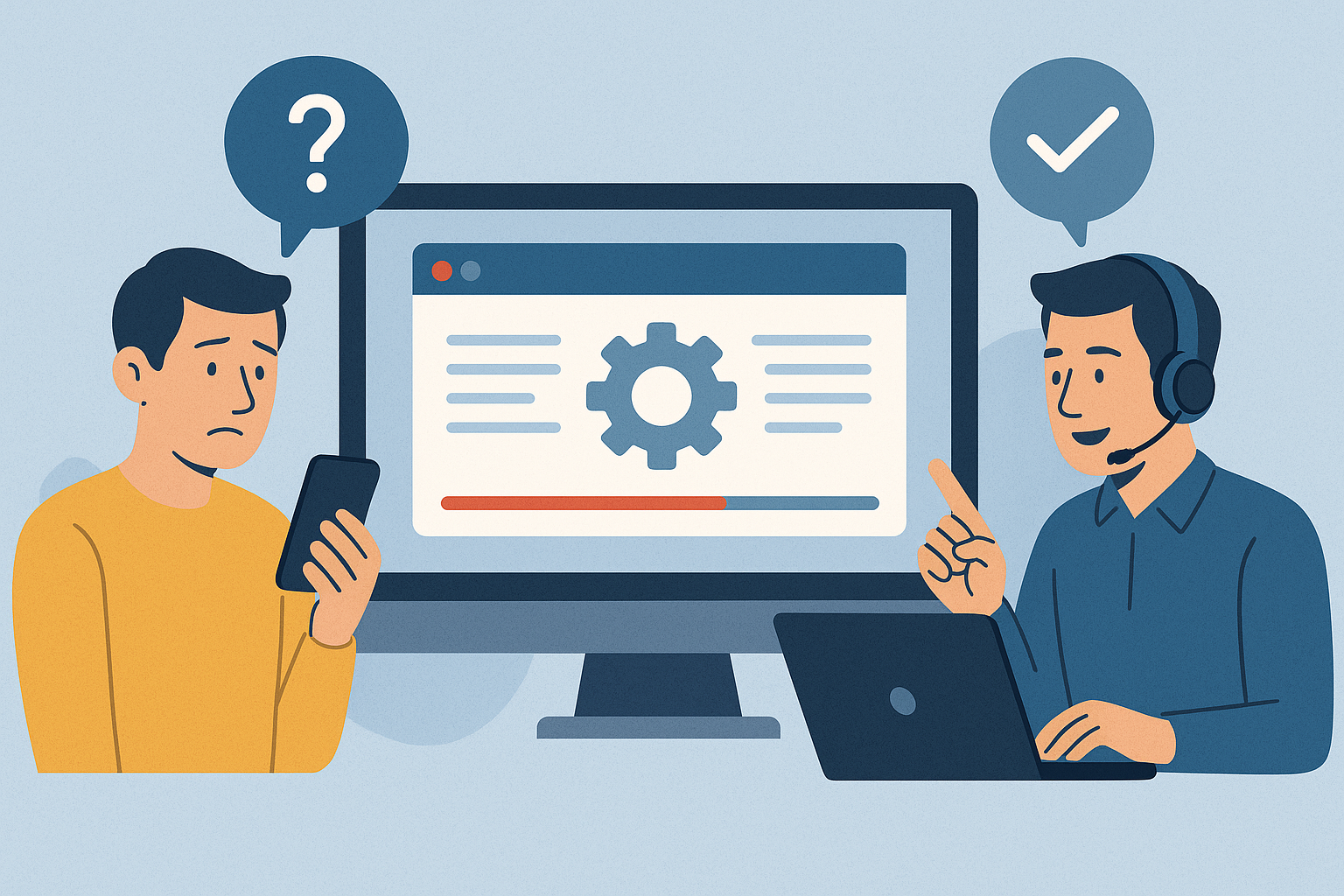
Screen recording is changing how customer support teams solve problems. Instead of relying on lengthy emails or phone calls, agents can use screen recordings to visually demonstrate solutions, making it easier for customers to follow along. This approach saves time, reduces misunderstandings, and improves customer satisfaction.
Key benefits of screen recording in support:
- Clear visuals: Step-by-step demonstrations eliminate confusion and help customers replicate solutions.
- Faster resolutions: Address issues in minutes instead of days of back-and-forth communication.
- Reusable resources: Build a library of videos for common problems to save time and maintain consistency.
- Improved collaboration: Share recordings internally to provide context for escalated issues and streamline teamwork.
- Training tool: Help new agents learn faster by showing real examples of troubleshooting in action.
Tools like Zight make this process even smoother, offering features like AI transcriptions, annotations, and integrations with platforms like Slack and Jira. By using screen recording, support teams can deliver quicker, clearer solutions while reducing frustration for both customers and agents
Benefits of Screen Recording for Troubleshooting
Screen recording addresses the challenges of traditional troubleshooting by providing clear, visual solutions that simplify problem-solving. Instead of relying solely on written or verbal instructions, it offers step-by-step visuals that make resolving issues more intuitive and effective.
Clear Solutions Through Visual Demonstrations
When customers can see exactly what to do – where to click, which buttons to press, and how the screen should appear – it removes the guesswork. This is especially helpful for navigating software interfaces that differ across devices or operating systems.
Screen recordings provide a step-by-step guide that customers can pause, replay, and follow at their own pace. This flexibility relieves the stress of trying to keep up with verbal instructions and empowers users to troubleshoot independently.
Additionally, these recordings help customers recognize when something isn’t working as expected. If their screen doesn’t match what’s shown in the video, they can immediately spot the issue and seek clarification, avoiding wasted time on incorrect steps. By visually connecting each action to the next, customers gain a better understanding of the process as a whole, rather than just memorizing isolated instructions.
This level of clarity reduces errors and leads to faster, more accurate resolutions.
Faster Problem Resolution
Screen recordings also speed up the troubleshooting process by cutting down on lengthy back-and-forth exchanges via email or chat.
Support agents can address multiple potential issues within a single recording. For example, they might show users how to check settings, locate error messages, or navigate different parts of an application – all in one video. This comprehensive approach often resolves the problem in just one interaction, saving time for both the customer and the support team.
Another advantage is the ability to build a library of troubleshooting videos for common issues. Instead of crafting new explanations every time, agents can quickly share pre-made recordings that address frequently encountered problems. This not only improves efficiency but also ensures consistent support quality.
For urgent, time-sensitive issues, screen recordings offer immediate solutions. A quick video can provide relief while more detailed fixes are developed, keeping customers satisfied even when complex problems take longer to resolve.
Better Team Collaboration
Screen recordings aren’t just useful for customers – they also enhance collaboration within support teams and across departments. They create a shared visual reference that simplifies communication and improves efficiency.
For instance, when a Level 1 support agent escalates an issue to technical specialists, a screen recording can provide clear context without the need for lengthy explanations. These videos give engineers and developers a firsthand look at how users interact with software, often uncovering usability challenges or workflow inefficiencies that might be missed in written reports. This direct insight helps teams create solutions that are more aligned with user needs.
Screen recordings are also an excellent training tool. New support agents can watch recordings of experienced colleagues to learn effective troubleshooting techniques. This visual learning approach speeds up onboarding and ensures that all team members deliver consistent support.
Additionally, these recordings help teams identify recurring issues. When multiple customers report the same problem, the visual evidence can guide product updates, reducing the likelihood of future incidents.
The benefits extend beyond the support team. Product managers can use customer-facing recordings to better understand user behavior, while quality assurance teams can apply real-world scenarios to their testing. By sharing these visual resources, organizations align their efforts and ensure that customer feedback directly informs improvements across all departments.
How to Use Screen Recording Tools for Customer Support
Using screen recording tools effectively in customer support requires a well-thought-out approach that prioritizes clarity, security, and efficiency for troubleshooting.
Getting Ready for Screen Recording
Preparation is key to building a successful screen recording process. This involves selecting the right tools, ensuring secure storage, and setting clear guidelines for your team.
- Pick the right tools: Choose software that offers features like easy editing, secure sharing, and integration with your support systems. Make sure it works seamlessly across different operating systems.
- Secure your storage: Use encrypted cloud storage with strict access controls. Since customer support videos often involve sensitive information, your storage solution must meet your organization’s security standards.
- Establish clear guidelines: Define when screen recordings should be used, keep them concise (ideally under five minutes), and ensure they target specific issues. This helps maintain focus and efficiency.
- Get consent: Always obtain documented consent from customers before recording interactions. This step ensures compliance with privacy policies and regulations.
Once you’ve set up these foundational elements, you’re ready to create and share effective screen recordings.
Steps to Create and Share Screen Recordings
Creating high-quality screen recordings requires a simple, consistent workflow to ensure your team produces clear and helpful content every time.
- Prepare thoroughly: Identify the issue, outline the steps to resolve it, and do a quick rehearsal. This ensures the recording stays focused and avoids unnecessary detours.
- Set up your environment: Close any unrelated applications, clear your desktop of sensitive content, and adjust your screen resolution so everything appears sharp and readable. Test your microphone to ensure clear audio.
- Record with clarity: Start with a brief introduction, speak slowly and clearly, and use tools like callouts to emphasize key actions. Move your cursor intentionally so viewers can easily follow along.
- Stay focused: Keep the recording centered on the specific issue. If the video is for a knowledge base and meant for multiple users, consider editing out significant errors or distractions.
- Edit responsibly: Remove any sensitive information from the recording and add captions for accessibility. Avoid over-editing, as this can make the video feel less genuine.
- Share securely: Use expiring, secure links to distribute recordings and include clear instructions for accessing them. Avoid sending files directly whenever possible to maintain security.
By following these steps, your recordings will not only address customer issues effectively but also adhere to privacy and security standards.
Privacy and Compliance Best Practices
Handling sensitive data is a critical aspect of using screen recordings in customer support. Privacy and compliance should always be top priorities.
- Get explicit consent: Always obtain clear, documented consent before recording customer interactions. This ensures compliance with legal and organizational requirements.
- Redact sensitive information: Blur or remove personally identifiable information (PII) like names, account numbers, and email addresses. For knowledge base videos, use generic accounts to avoid exposing customer data.
- Restrict access: Limit customer-specific recordings to the involved parties. Broader access may be allowed for general troubleshooting videos, but proper authentication and authorization controls are essential.
- Set retention policies: Define how long recordings are kept and delete them when they’re no longer needed. Customer-specific videos typically have shorter retention periods, while general knowledge base content can be retained longer. Document these policies and ensure consistent enforcement.
- Follow relevant regulations: Work with legal and compliance teams to ensure adherence to laws like HIPAA, GDPR, or industry-specific rules. For example, healthcare organizations must comply with HIPAA, while companies serving European customers need to meet GDPR standards.
- Train your team regularly: Equip your support staff with the knowledge to handle sensitive data responsibly. This includes recognizing sensitive content, knowing how to redact or edit recordings properly, and escalating privacy concerns when necessary.
sbb-itb-5d91f01
Using Zight for Screen Recording
Zight is more than just a screen recording tool – it’s a robust platform tailored to make customer support more efficient. By combining screen recording with advanced features, Zight simplifies troubleshooting and enhances the overall support experience.
Let’s dive into the standout features that make Zight a game-changer for support teams.
Key Features That Help with Troubleshooting
Zight tackles the common challenges support teams face when documenting and resolving customer issues. It offers screen capture, webcam recording, and GIF creation tools, giving agents the flexibility to choose the format that best suits the situation. For quick explanations, short GIFs are perfect, while more detailed issues can be addressed with full video recordings, complete with webcam overlays for a personal touch.
The platform’s AI-powered transcription and summary tools are a major time-saver. Recorded videos are automatically transcribed and summarized, cutting down on manual note-taking. This ensures critical details are easy to find for follow-ups or escalations, speeding up issue resolution and improving team collaboration.
Integration is where Zight truly shines. It connects seamlessly with Slack, Microsoft Teams, and Jira, enabling agents to share screen recordings directly within their existing workflows. For example, a troubleshooting video can be attached to a Jira ticket for the engineering team or shared via Slack to update a customer or colleague quickly, minimizing context-switching and boosting efficiency.
Another standout feature is the ability to create step-by-step guides from recordings. Agents can turn their videos into concise guides, which are great for standardizing solutions, sharing knowledge, and reducing onboarding time for new team members.
With these tools, Zight transforms how support teams approach troubleshooting.
How to Record, Edit, and Share with Zight
Zight simplifies the recording process, making it easy for agents to capture and share content. To start, agents launch Zight and select the specific screen or application window they want to record. This selective capture ensures sensitive information in other windows remains private.
While recording, agents can enable both their webcam and microphone to add verbal explanations and a personal touch. This is especially helpful when walking customers through complex processes or creating internal training materials. The platform records in high resolution, ensuring every detail – like text and interface elements – is crystal clear.
Once the recording is complete, Zight’s built-in editing tools come into play. Agents can add annotations and callouts to highlight key actions or draw attention to specific areas. These features help create polished, focused content that addresses customer issues directly.
Sharing is just as seamless. Zight generates secure, shareable links that integrate smoothly with support workflows. The AI transcription feature also creates searchable documentation, making it easy for team members to find specific solutions later and build a library of institutional knowledge.
Works on Multiple Platforms
Zight’s compatibility across Mac, Windows, Chrome, and iOS ensures support teams can stay consistent, no matter the device. This cross-platform availability is crucial for modern support operations, where agents may work remotely, use different operating systems, or assist customers while on the move.
Importantly, Zight maintains the same features across all platforms. Whether an agent is using a desktop workstation or a mobile device, they’ll have access to the full suite of tools. This flexibility allows teams to respond quickly, whether they’re in the office, working from home, or helping customers in real time.
For organizations with diverse technical setups, Zight eliminates the need for multiple tools. Teams can standardize on one platform while accommodating individual preferences and technical requirements, making training easier and reducing IT headaches.
The Chrome extension is another handy feature, allowing agents to capture browser-based content quickly. This keeps the workflow smooth during customer interactions and removes the usual hassle associated with screen recording tools.
Zight’s combination of powerful features, ease of use, and platform compatibility makes it a reliable choice for streamlining customer support.
Common Problems and Solutions for Screen Recording
Support teams often face a variety of challenges when implementing screen recording, from technical glitches to resistance within the team. Recognizing these common issues – and knowing how to address them – can help teams fully leverage the advantages of visual troubleshooting.
Fixing Technical Problems
One of the most frequent hurdles is permission and access issues. Operating systems often require explicit permissions for screen recording, and these settings can change after updates. To tackle this, create a standardized setup checklist for your team. This should include clear, step-by-step instructions for enabling permissions on each operating system. IT teams can also configure security software to ensure screen recording tools aren’t inadvertently blocked.
Another common issue is storage limitations, as high-quality recordings can quickly consume available space. To manage this, use cloud storage solutions and establish retention policies. Regularly review and archive older recordings, keeping only those that are most useful for training or reference. Tools like Zight provide automatic file management and secure access across devices, simplifying storage concerns.
For agents using dual or triple monitors, multi-monitor recording challenges can arise. Capturing the wrong screen or accidentally including sensitive information can lead to confusion or even privacy concerns. The solution lies in training agents on proper screen selection and using tools that allow for precise capture of specific windows or applications. Practicing these techniques ensures only relevant content is recorded.
Audio synchronization problems can also disrupt recordings, with delays between spoken explanations and on-screen actions causing confusion. To address this, establish a pre-recording routine that includes testing microphone levels and system audio. Regular audio checks help ensure everything is aligned for seamless recordings.
By addressing these technical issues, teams can create a solid foundation for using screen recording effectively.
Getting Your Team to Use Screen Recording
Once technical challenges are resolved, the next step is encouraging team adoption. This is essential for maximizing the efficiency and effectiveness of screen recording in support workflows.
Resistance to new technology is a common barrier, especially among experienced agents who are more comfortable with traditional methods. To ease this transition, start small. Encourage volunteers to use screen recording for internal training or complex cases. As others see the time savings and improved customer outcomes, they’re more likely to embrace the technology.
Another challenge is the lack of consistent training, which can lead to uneven results. Without proper guidance, agents may produce recordings that fail to address customer issues effectively. Offer training sessions on best practices, including editing and sharing protocols, and schedule regular refreshers to keep everyone up to date.
Agents may also worry about time concerns, fearing that creating recordings will slow them down. Demonstrate how visual explanations can actually save time by reducing repetitive questions and preventing follow-ups on the same issue. Once agents see the long-term benefits, these concerns often diminish.
Quality control challenges can arise when recordings vary in clarity or professionalism. This inconsistency can confuse customers and undermine the team’s credibility. To maintain high standards, establish guidelines for recording length, audio quality, and annotation use. Regular feedback sessions can help ensure everyone stays aligned with these standards.
Lastly, integration difficulties can make screen recording feel like an extra step rather than a natural part of the workflow. To counter this, identify points in the support process where screen recording adds value and integrate it there. Tools like Zight, which work seamlessly with platforms like Slack, Microsoft Teams, and Jira, make it easy to embed screen recording into everyday tasks, ensuring it becomes a seamless part of the team’s routine.
Conclusion: Improving Customer Support with Screen Recording
Screen recording is changing the game for customer support by replacing lengthy, text-based instructions with clear, visual guides that connect technical know-how with customer needs.
By using visual troubleshooting, support teams can resolve issues faster, cut down on unnecessary back-and-forth communication, and create reusable resources that benefit the entire team. These recordings help agents show, not just tell, which eliminates confusion and reduces frustration for customers.
Screen recordings also elevate team collaboration. They provide complete visual context for escalated issues, help onboard new team members with real-world examples, and make knowledge sharing more effective. These benefits make screen recording a powerful addition to any support workflow.
Zight offers a robust solution to meet these needs. With features like unlimited recording, 4K resolution, seamless integrations with tools like Slack, Microsoft Teams, and Jira, plus AI-powered transcription and summaries for searchable content, it’s designed to enhance both efficiency and customer satisfaction.
By adopting screen recording, businesses can deliver faster, clearer support while empowering customers to solve simpler problems on their own. This not only boosts customer satisfaction but also allows support teams to focus on more complex challenges. The result? A win-win where routine troubleshooting becomes smoother, and teams can tackle higher-level issues.
As customer expectations shift toward faster and more intuitive support, screen recording has become a must-have tool for staying competitive. Embracing solutions like Zight enables teams to deliver the kind of immediate, effective support that builds lasting customer loyalty.
FAQs
How does screen recording improve customer support compared to emails or phone calls?
Screen recording has revolutionized customer support by providing a visual snapshot of the problem, making it much easier to grasp and address issues quickly. Unlike traditional emails or phone calls that rely on detailed explanations, screen recordings show exactly what the customer is dealing with, cutting down on confusion and endless back-and-forth exchanges.
These recordings also give support teams the ability to review and evaluate interactions for training, compliance, and quality assurance. This not only boosts team efficiency but also helps improve agent performance and enhances the overall customer experience. By simplifying troubleshooting and improving communication, screen recording tools have become a must-have for today’s customer support teams.
How can customer support teams ensure privacy and compliance when using screen recording?
When it comes to privacy and compliance in screen recording for customer support, transparency is key. Make sure customers know exactly what’s being recorded, the reasons behind it, and how their data will be securely managed. This clear communication helps establish trust and demonstrates responsible practices.
On top of that, enforce strict access controls to ensure only authorized individuals can view or share recordings. Protecting sensitive information and complying with privacy laws like GDPR or CCPA are essential steps to safeguard customer data and avoid breaches. These measures not only meet legal requirements but also show a strong commitment to respecting customer privacy.
How can screen recording tools like Zight streamline customer support workflows and improve troubleshooting?
Integrating screen recording tools like Zight into your customer support processes can boost both efficiency and accuracy. With the ability to visually capture and share troubleshooting steps, agents can minimize misunderstandings and speed up resolving customer issues.
These recordings also offer valuable insights into common problems and agent performance. This information can help refine workflows, pinpoint training needs, and improve the overall support experience for your customers. Zight’s features – like screen capture, video editing, and easy sharing – make it effortless to streamline and enhance your support operations.












