
- Zight: Offers HD recording, AI-powered transcription, and seamless integrations with tools like Slack. It’s ideal for quick, efficient content creation but has limited advanced editing features in the free tier.
- Loom: Known for its simplicity and fast sharing. It supports up to 4K resolution for paid plans but lacks robust editing tools.
- Camtasia: A professional-grade tool with advanced editing, 4K/5K recording, and interactive features. Best for polished, high-quality videos but comes with a higher price and steeper learning curve.
Quick Comparison
| Feature | Zight | Loom | Camtasia |
|---|---|---|---|
| Max Resolution | 1080p (Free: 720p) | 4K (Paid), 720p (Free) | 4K (Windows), 5K (Mac) |
| AI Features | Transcription, Summaries | Limited | Noise Removal, Editing |
| Editing Tools | Basic | Basic | Advanced |
| Integrations | Slack, Teams, Jira | Atlassian, Notion, Figma | Limited |
| Platforms | Mac, Windows, iOS, Chrome | Mac, Windows, iOS, Android | Mac, Windows |
| Price | Starts at $9/month | Free tier, Paid plans vary | $249.99 (one-time) |
Comparison: Descript vs Loom for Screen Recording
1. Zight
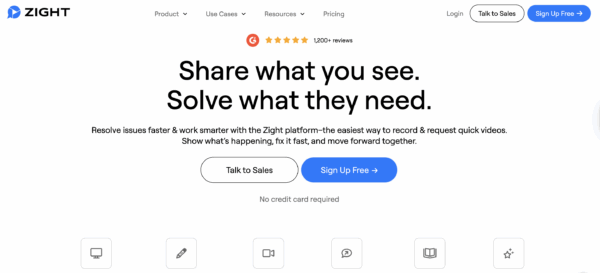
Zight is a widely-used visual communication platform, trusted by over 5 million professionals. Companies like Zendesk and Intercom rely on it for efficient feedback and seamless visual communication, showcasing its dependability in professional environments.
Video Quality and Performance
Zight supports recording in up to 4K resolution. This ensures sharp visuals and smooth playback, making it a top choice for presentations, tutorials, and product demonstrations. Users can record their entire desktop, a specific window, or just their webcam. The platform also supports simultaneous capture of the screen, webcam, and audio. Designed with efficiency in mind, Zight minimizes CPU and memory usage during recordings, even for high-resolution or extended sessions, ensuring your system stays responsive.
Editing Tools
The platform includes built-in tools for trimming, cropping, annotating, and adding text to videos, screenshots, and GIFs. These editing features are perfect for users who need to create polished content quickly. Plus, they integrate smoothly with Zight’s sharing and collaboration tools, making the entire process hassle-free.

Integrations and Sharing
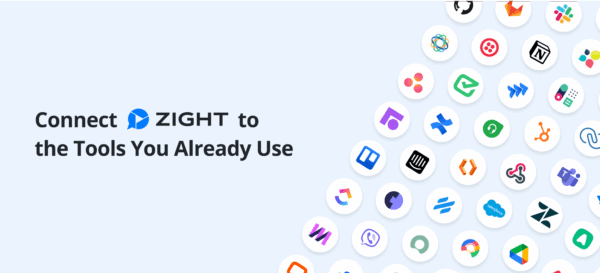
Zight works with popular collaboration tools like Slack, Microsoft Teams, and Jira. This makes it easy to share recordings, screenshots, and GIFs directly within team chats or project workflows, no need for email attachments or third-party file transfers. Zight also generates short links automatically, offering flexible sharing options such as viewable links, direct file links, or embed codes. Users can drag and drop files for quick uploading and sharing, while advanced users can take advantage of webhooks for real-time notifications and custom workflows with tools like Zapier.
AI-Powered Capabilities
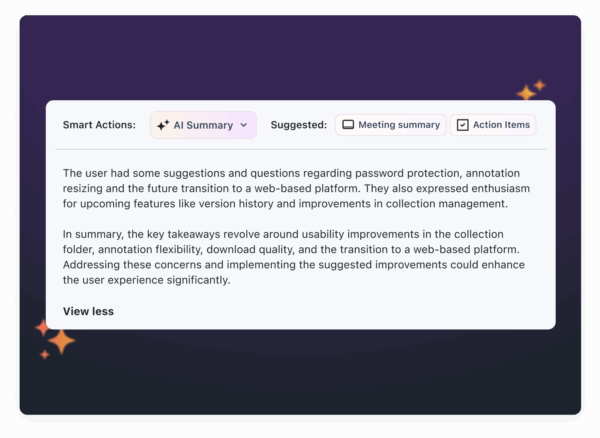
Zight uses artificial intelligence to streamline tasks like transcription, video summaries, and translation. For example, you can record a training session and instantly receive a transcript and summary, making documentation and onboarding faster and easier.
Platform Availability
Zight is accessible across Mac, Windows, Chrome (as an extension), and iOS, ensuring flexibility for both desktop and mobile users. The iOS app supports screen recording, screenshot capture, annotation, and secure sharing directly from your mobile device. To safeguard data, Zight employs encryption for data in transit and at rest, along with robust user authentication. Administrators can control permissions for viewing, editing, or downloading content. Additional features like password protection, custom branding, and custom domains add an extra layer of security for sensitive materials.
2. Loom
Loom has made a name for itself in the screen recording world, offering a user-friendly platform focused on simplicity, high performance, and easy collaboration. Its cloud-based design ensures accessibility across a variety of devices and operating systems.
Video Quality and Performance
Loom’s video quality depends on the device and subscription plan you’re using. For instance, the desktop app (available for both Mac and Windows) supports up to 4K resolution (3840×2160) for users on Education, Business, Business+ AI, or Enterprise plans. Starter plan users, however, are limited to 720p. On the other hand, the Chrome extension offers up to 1080p for paid users and 720p for Starter users. Across all platforms, Loom aims to deliver smooth playback at 30 frames per second.
To make video streaming efficient, Loom uses adaptive streaming technologies. The desktop app employs HTTP Live Streaming (HLS), while the Chrome extension relies on Dynamic Adaptive Streaming over HTTP (DASH). Here’s a quick breakdown of the key differences:
| Feature/Platform | Desktop App (Paid Plans) | Desktop App (Starter) | Chrome Extension (Paid) | Chrome Extension (Starter) |
|---|---|---|---|---|
| Max Resolution | Up to 4K | Up to 720p | Up to 1080p | Up to 720p |
| Video Codec | H.264 | H.264 | VP8/VP9 | VP8/VP9 |
| Audio Codec | AAC | AAC | OPUS | OPUS |
| Streaming Technology | HLS | HLS | DASH | DASH |
Keep in mind that factors like hardware and network conditions can affect video quality. Additionally, pausing during a recording may result in minor visual glitches.
Integrations and Sharing
Loom stands out with its strong integration capabilities and straightforward sharing options. It seamlessly connects with popular tools like Atlassian, Slack, Calendly, Salesforce, Notion, and Figma, making it easier to collaborate across different platforms.
When it comes to sharing, Loom prioritizes privacy by default. Videos can be shared directly with specific individuals via the “Shared with me” section. For broader access, users can share videos to an “All Company Space.” Business and Enterprise users can even create custom spaces to control who has access. Features like video replies, timestamped comments, and emoji reactions add an interactive layer, while notifications ensure team members stay updated.
Platform Availability
Loom is available on Mac, Windows, iOS, and Android, providing solid cross-platform support. Recordings are automatically saved to a cloud library, offering easy on-demand access. If needed, videos can also be downloaded in .MP4 format.
The desktop versions of Loom include advanced tools such as drawing features and virtual backgrounds, which are particularly useful for professional presentations or in-depth tutorials. Meanwhile, the Chrome extension is ideal for quick, informal recordings, making it a versatile option for a variety of needs.
3. Camtasia
Camtasia, developed by TechSmith, is a professional tool for screen recording and video editing. It’s designed to suit both beginners seeking simplicity and advanced users who need robust features to create polished videos.
Video Quality and Performance
Camtasia delivers exceptional recording quality with features tailored to each operating system. On Windows, it supports up to 4K resolution at 60FPS using the H.264 codec. Meanwhile, macOS users can record in 5K resolution at 60FPS, with options for H.264 or H.265 codecs.
The software records screen, camera, microphone, and system audio on separate tracks, giving users more flexibility during editing. However, achieving true 4K 60FPS performance requires specific hardware, such as a discrete GPU (e.g., NVIDIA GeForce RTX 2060 or AMD Radeon RX 5700 XT or better) and a 4K monitor with a 60Hz+ refresh rate. Integrated graphics often fall short for this level of performance.
To avoid issues like blurriness or distortion, it’s crucial to maintain consistent dimensions for recording, project, and export. For smoother editing of high-resolution content, Camtasia uses proxy videos. While these proxies may look slightly blurry during editing, the final export retains full resolution.
Once your recording is complete, Camtasia’s editing tools can help refine and enhance your content.
Editing Tools
Camtasia provides a wide range of editing features that cater to users of all skill levels. Its multi-track editor allows for drag-and-drop functionality, making it easy to add transitions, effects, and other assets. Standard editing tools like trimming, cutting, splitting, and merging clips are also included.
The software comes with an array of free, customizable assets, including animations, dynamic backgrounds, b-roll footage, callouts, and titles. Advanced users will appreciate features like cursor customization and audio editing tools, which include noise removal and voiceover recording.
For creators focused on interactive content, Camtasia supports features like quizzes, clickable links, and hotspots, making it ideal for e-learning projects. It also includes a green screen effect (Remove a Color) for replacing backgrounds.
AI-Powered Capabilities
Camtasia integrates AI tools to simplify post-production. Features include AI-generated voices, avatars, translations, text-based editing, and script writing. It also offers AI-driven options for removing background noise, eliminating filler words, and replacing video backgrounds.
These AI capabilities are especially useful for speeding up workflows, allowing creators to focus more on content rather than technical adjustments.
Platform Availability
Camtasia is available as a desktop application for both Windows and macOS, with consistent features across platforms. There’s also a free web-based version called “Camtasia Online”, designed for basic screen recording.
One standout feature is its cross-platform project compatibility. Project files (.tscproj) can be opened and edited on either Windows or Mac, and a single license allows installation on multiple devices for the same user. While some export formats are platform-specific (e.g., AVI for Windows, MOV for Mac), the core functionality remains the same.
The web-based version is ideal for quick capture and collaboration, with recordings easily transferred to the desktop editor for advanced editing. However, it has limitations, such as the inability to capture the cursor, which can affect editing flexibility.
The desktop app requires activation and online checks every 90 days but doesn’t need a constant internet connection to function. Minimum system requirements include Windows 10 (64-bit) 20H2 or later and macOS 11.0 or later.
Pros and Cons
Choosing the right screen recording tool depends on your specific needs and budget. Below is a summary of the key strengths and drawbacks of each tool, based on the detailed features discussed earlier.
| Recorder Name | Pros | Cons |
|---|---|---|
| Zight |
|
|
| Loom |
|
|
| Camtasia |
|
|
Screen recording tools are becoming essential for modern workflows. Recent data shows 85% of remote teams now use these tools to boost collaboration and productivity. Additionally, 70% of companies are adopting AI-powered video tools, leading to a 30% productivity increase.
“The right screen recording tool can make a huge difference in creating tutorials, recording gameplay, or enhancing workplace communication. Tools with AI features are particularly valuable as they automate tasks like transcription and summarization, significantly reducing the time spent on post-production.” – TechSmith Expert
Zight stands out for its AI-driven capabilities and ease of use, making it a great choice for those who value efficiency and cloud-based functionality. User Jordan Rosenberg from Vanity123 shares:
“I was searching for an alternative to Loom and found Zight to be the best option. I’m so impressed that I’m upgrading to the pro version today, even before my trial ends. It is saving me a ton of time…”
For teams needing quick and seamless communication, Loom is a solid option. Meanwhile, Camtasia is perfect for professionals who require advanced editing tools and high-quality production. These tools cater to a variety of needs, from simple screen captures to sophisticated video projects.
Conclusion
When choosing a screen recorder, it’s all about finding the one that fits your goals and workflow. Start by identifying what you need, whether it’s creating tutorials, recording gameplay, or sharing team updates. Then, make sure the software is compatible with your operating system and aligns with your budget and desired features.
Each tool has its strengths. For quick and easy team collaboration, Loom is a standout choice. With instant shareable links and a seamless recording-to-sharing process, it simplifies asynchronous communication.
If you’re looking for professional-grade content creation, Camtasia is another great option. It’s an excellent pick for educators and marketers who need polished, high-quality videos.
For those seeking AI-powered features, Zight delivers with tools like automated transcription, summaries, and translations, which can save up to 30% of your content creation time. Priced at $9/month for its Pro plan, it’s a cost-effective option with modern AI-driven capabilities and easy editing.
With growing competition in the market, screen recording tools are becoming more affordable and feature-rich than ever. Choose the one that aligns with your workflow and budget to get the best results.
FAQs
What should I consider when comparing video quality and editing features in a screen recorder?
When choosing a screen recorder, two major factors to weigh are video quality and editing tools. For sharp, professional-looking videos, opt for software that supports high-resolution recording, like 4K. Be mindful, though, some free plans might cap resolution at 720p. If top-notch video quality is a must, take a close look at the subscription options.
As for editing features, think about what you’ll need. Does the tool let you add annotations, trim clips, or even create GIFs? Built-in editing tools can be a real timesaver, especially if you regularly tweak recordings before sharing them. The best platforms strike a balance between performance and simplicity, making it easier to create polished content that meets your goals.
How do AI features in screen recorders improve productivity and efficiency for users?
AI-powered features in screen recorders have transformed how we handle video content by automating tasks that used to take up a lot of time. For instance, they can generate transcriptions, captions, and even video summaries automatically. This means less time spent on tedious manual editing and more time available for creating and sharing content.
These tools also simplify workflows by speeding up post-production tasks like organizing and fine-tuning recordings. By cutting down on repetitive work, they make it easier to produce high-quality videos in less time.
What should I look for in a screen recorder to ensure it works across platforms and integrates with other tools?
When choosing a screen recorder, make sure it works with your operating system, whether that’s Windows, Mac, or iOS, to ensure everything runs smoothly. If you switch between multiple devices, having a tool that’s available across platforms can be a huge plus.
It’s also worth checking if the screen recorder integrates with the tools you already rely on, like collaboration platforms or cloud storage services. These integrations can simplify your workflow, boost efficiency, and make sharing recordings much easier. For example, look for compatibility with tools like Slack, Microsoft Teams, or Jira to meet your professional needs.












