

- Time Efficiency: Record and watch messages on your own schedule.
- Improved Communication: Retain tone and expressions often lost in text.
- Higher Retention: Video content boasts a 95% retention rate compared to 10% for text.
- Customizable Setup: Use quality cameras, microphones, and lighting for professional results.
Quick Highlights:
- Setup: Invest in an external webcam, microphone, and lighting for polished videos.
- Recording Tips: Script key points, maintain eye contact, and use clear audio.
- Editing: Trim unnecessary parts, sync audio, and add captions or visuals.
- Sharing: Use platforms like Slack, email, or cloud links, ensuring accessibility with captions and transcripts.
- Advanced Features: Combine screen recordings, use AI tools for transcription, and personalize content for viewers.
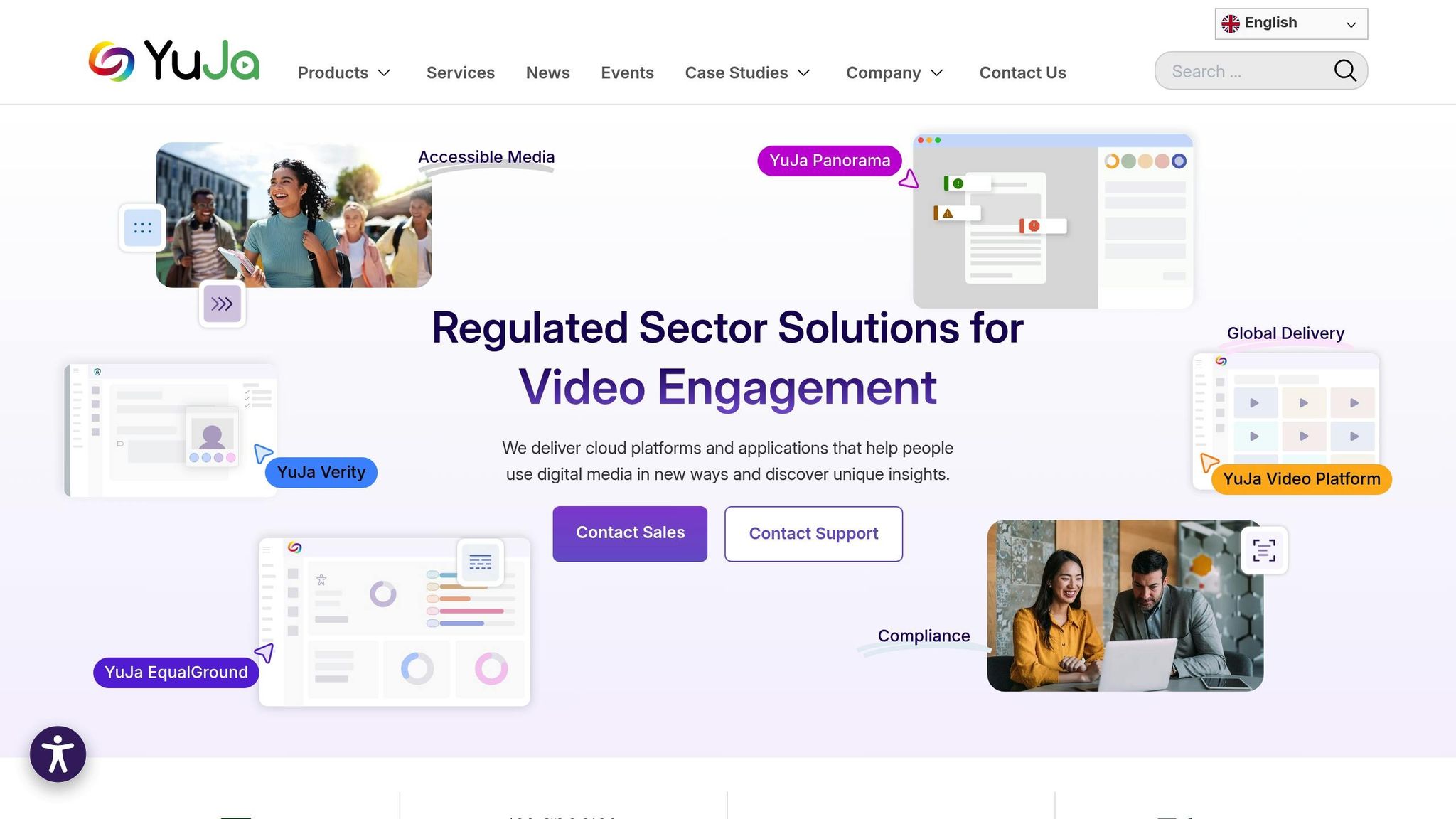
How to Record Videos in YuJa
Setting Up for High-Quality Recordings
Creating polished and engaging asynchronous webcam recordings starts with having the right setup. A well-thought-out combination of equipment, environment, and testing can make all the difference in producing professional-looking content that holds your audience’s attention.Equipment Essentials
To achieve great video quality, start with reliable hardware. A dedicated webcam, DSLR, or mirrorless camera will significantly outperform a laptop’s built-in camera. Pair this with clear audio by using an external microphone. For beginners, USB microphones work well, while those with more advanced setups might prefer XLR microphones. Lighting is equally important. Natural light works best, so position yourself near a window whenever possible. If natural light isn’t an option, consider using a desk lamp or a ring light to brighten your frame. To keep your video steady, use a tripod for stationary shots or a stabilizer/gimbal if movement is involved. Additional tools like light reflectors, spare batteries, and memory cards can be helpful as you grow more comfortable with recording. Start with the basics and upgrade your gear as needed.Optimizing Your Recording Environment
The space where you record plays a huge role in how professional your videos appear. Choose a clean, simple background – something like a plain wall or a tidy bookshelf works well. Avoid cluttered or overly busy backdrops that might distract viewers from your message. Lighting is critical for creating a polished look. Ideally, position yourself facing a window to take advantage of natural light. If that’s not feasible, ensure any artificial light is placed in front of you to avoid unflattering shadows. Camera positioning is another key factor. Use a tripod or even a stack of books to elevate your webcam to eye level, ensuring a natural and engaging perspective. Center your face in the frame, leaving a little space above your head and around your shoulders for balance. Lastly, minimize background noise by recording in a quiet space designed to reduce distractions.Testing and Fine-Tuning Your Setup
Once your equipment and environment are ready, it’s time to test and tweak your setup. Testing everything beforehand helps prevent technical hiccups during recording. Start by adjusting your video settings. Experiment with lighting, brightness, contrast, white balance, sharpness, and saturation to get the best results. If your camera allows, match the color temperature to your environment for a more natural look. For audio, check your microphone input levels to ensure your voice is clear and free of distortion. Confirm that your webcam meets HD quality standards and that your recording platform supports your hardware. Also, make sure your computer has the necessary system specs to handle recording without lag. Here are some practical ways to test your setup:- Use the test room feature on platforms like Livestorm to check your camera and microphone.
- Try free online tools to test your webcam and microphone.
- Do a quick test call to gather feedback.
- Record a short video to review your setup independently.
- Run an internet speed test to ensure your connection is stable enough for smooth recordings.
Step-by-Step Recording Process
With your setup ready to go, it’s time to tackle the actual recording process. Creating effective async videos involves careful planning, smooth recording, and thoughtful editing to ensure your message comes across clearly and professionally.Planning and Scripting
Start by focusing on one main idea to anchor your video. Supporting this idea with three key points will help structure your content in a way that’s easy for viewers to follow. Write a concise mission statement for your video to clarify its purpose. This will help you stay aligned with your core message and define what you want your audience to take away or do after watching. A mix of scripting and natural delivery often works best. Create an outline, draft a script for key points, rehearse your material, and then use the outline as a guide during recording. This approach keeps your delivery clear without feeling overly rehearsed. Storyboarding can also help you visualize your video’s flow and identify the visuals you’ll need. Tools like virtual whiteboards with sticky notes work well for mapping out sequences, especially for longer videos or those involving multiple elements like screen sharing or different camera angles. Lastly, gather any assets you’ll need – slides, documents, or extra footage – so everything is ready when it’s time to record.Recording Best Practices
With your plan in place, focus on techniques that will make your recording polished and engaging. Position your webcam at eye level, leaving just the right amount of headroom, and center yourself in the frame. Look directly into the camera to create a sense of connection with your audience. Avoid focusing on your screen, as it can make your delivery feel less personal. Wear solid, simple colors that don’t distract from your message, and speak clearly with a steady tone and volume. For audio, an external microphone is your best bet for professional sound quality. Record in a quiet space to minimize background noise. Ensure your webcam supports 1080p resolution and use a stable, wired internet connection to avoid disruptions.Editing and Improving Videos
Once your recording is done, it’s time to refine it. Start by cutting out unnecessary parts, fixing mistakes, and tightening the flow. Removing filler words, awkward pauses, or irrelevant sections can make a huge difference in keeping your audience engaged. Use noise reduction tools to clean up your audio and ensure it syncs perfectly with your video. You can also enhance the visuals with color adjustments, stabilization, and captions or text overlays to highlight key points. If you’re comfortable with advanced editing, consider adding transitions like fades or wipes, motion graphics, or even B-roll footage to make your video more dynamic. Background music can add an emotional tone, but keep it subtle so it doesn’t overpower your message. AI-powered tools can also simplify editing by generating transcriptions, summaries, or suggesting edits.Sharing and Distributing Videos
Once your video is polished, it’s time to share it. Start by creating a custom thumbnail that clearly reflects your video’s topic – it’s the first thing viewers will see. Update the title, summary, and add chapters if applicable to make navigation easier. For sharing, you can use email, cloud links, or platform-based tools. Features like annotations or embedded call-to-action buttons can provide extra context and guide viewers to additional resources. Think about your audience when choosing distribution methods. For internal teams, workplace tools like Slack or Microsoft Teams work well. For client presentations, secure links with password protection may be more appropriate. If you’re targeting a broader audience, use platforms that offer viewer analytics to gain insights into engagement. Accessibility is crucial. Always include captions for viewers who are deaf or hard of hearing, and provide transcripts when possible. Not only does this make your video more inclusive, but it also improves searchability and makes it easier for viewers to reference later. Ultimately, your goal is to make it simple for your audience to access, watch, and act on your video while ensuring security and privacy are maintained.sbb-itb-5d91f01
Advanced Features and Customization Tips
Once you’ve got a handle on the basics of async webcam recording, it’s time to dive into techniques that can take your videos to the next level. These advanced features can help you craft more engaging content, connect with your audience on a deeper level, and streamline your workflow.Adding Screen Recordings
Enhance your videos by combining webcam footage with screen recordings. This pairing is perfect for creating tutorials, product demos, and presentations that maintain a personal touch while clearly explaining your points. The trick to blending these two elements effectively is knowing when to switch between them. Start with your webcam to introduce yourself and the topic, then transition to screen recording for detailed explanations. Wrap up with your webcam for conclusions or calls to action. This flow keeps your audience engaged and ensures your message is clear. For software tutorials, picture-in-picture mode is a game-changer. You can stay visible in a corner of the screen while demonstrating features, making the experience more personal without obstructing key interface elements. This setup works particularly well for onboarding videos, where new team members benefit from seeing both the process and the person guiding them. When it comes to presentations, use screen recording to display slides while your webcam captures your expressions and gestures. This combination feels more natural and engaging than a traditional slide deck.Using AI-Powered Tools
Advanced AI tools can take your async recordings to a whole new level, offering features that save time and improve accessibility. One standout feature is automatic transcription, with accuracy rates between 90% and 99% depending on the clarity of your audio. Automatic transcription isn’t just a time-saver; it makes your content accessible to a broader audience. With projections indicating that 711 million people could experience hearing loss by 2050, providing written text alongside your video ensures inclusivity. Transcriptions also help non-native speakers by offering a written reference to improve comprehension. Real-world examples showcase the efficiency of AI tools. For instance, one company saved up to four hours per interview thanks to AI transcription, while another slashed localization time from 60% to just 10%. These tools can also generate summaries, pulling out the key points from your recordings to help viewers quickly grasp the main ideas. Translation features further expand your reach by creating subtitles or transcripts in multiple languages. To get the most out of AI transcription, reduce background noise during your recording and edit out irrelevant sections beforehand. Choose tools that support the languages your team uses and integrate seamlessly with your workflow. Zight’s AI-powered features bring transcription, summaries, and translations together in one platform, simplifying the entire process from recording to sharing.Customizing Content for Viewers
With advanced recording and editing techniques in place, the next step is to make your content feel personal. The best async videos feel like one-on-one conversations. Start by addressing viewers directly. For client communications, mentioning their name or displaying it in the video thumbnail can instantly grab attention. Referencing previous conversations or shared projects adds a sense of continuity and relevance. Tailor the length of your videos to fit your audience and purpose. Quick introductions work best under 30 seconds, while more detailed explanations should stay within 2–3 minutes. Keeping your content concise ensures you hold your audience’s attention. Match your tone and style to the relationship you have with your viewers. Internal communications can lean toward casual and conversational, while client-facing videos might need a more polished tone. Still, a genuine and authentic approach is always appreciated.“Authenticity resonates more with viewers, so aim for a tone that feels genuine. If you fumble, don’t worry – imperfections make you more relatable, which is especially valuable to customers. Think of it as a video voicemail, not a polished ad.”Thumbnails are another key element. They’re often the first thing viewers notice, so use clear, inviting images that reflect your video’s content. A warm smile and good lighting can significantly boost click-through rates. For recurring video types like weekly updates or client check-ins, consider creating templates. Consistent opening and closing segments save time and set clear expectations for your audience. When communicating with your team, referencing specific projects, deadlines, or goals makes your message feel actionable. If you’re addressing multiple people, call out individuals by name and acknowledge their contributions to keep everyone engaged.
- Covideo Team
Why Choose Zight for Async Webcam Recording
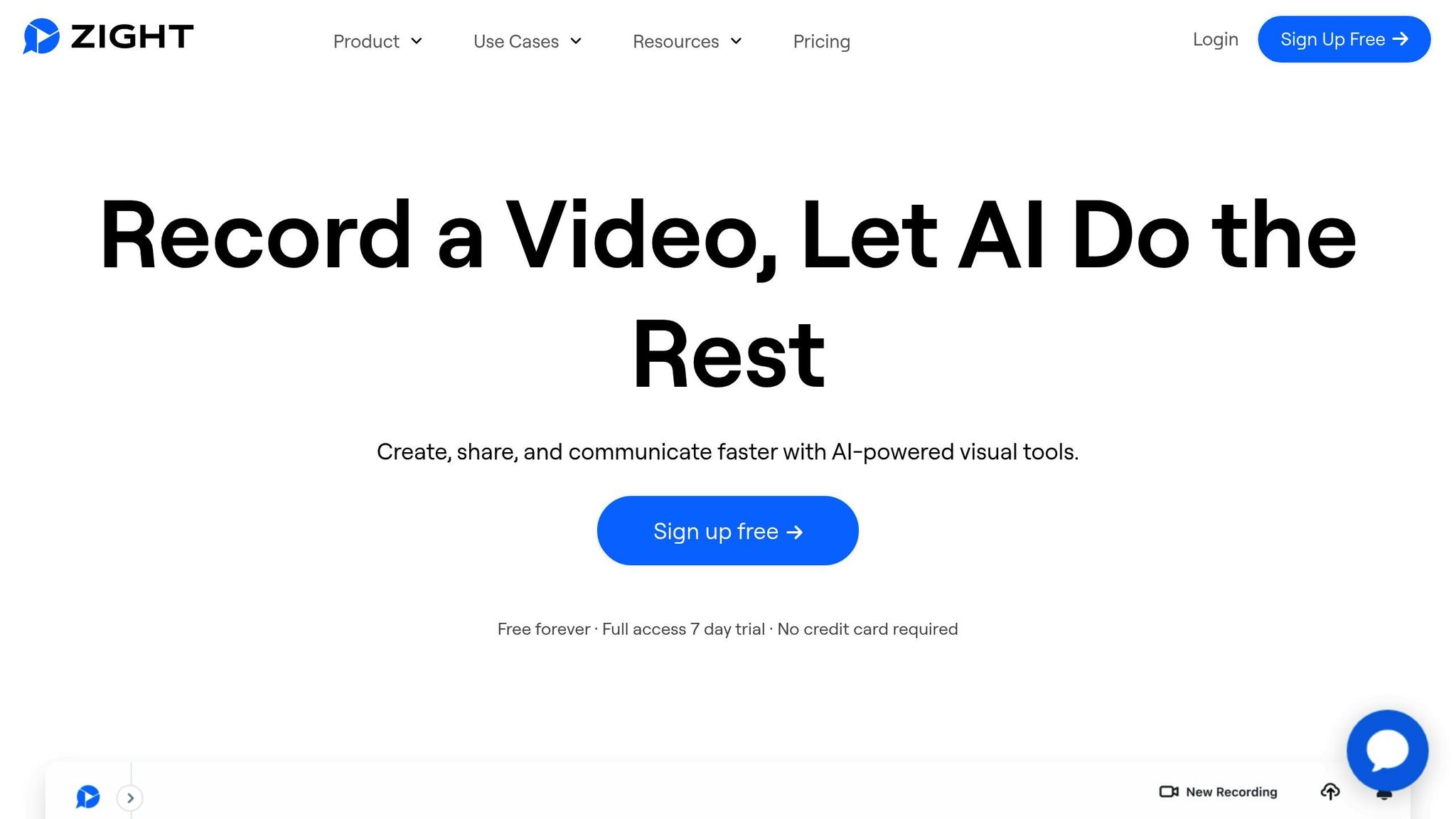 When it comes to creating professional asynchronous webcam recordings, having a reliable platform is a game-changer. Zight positions itself as a standout choice, offering a complete suite of tools for recording, editing, and sharing – all in one place. Let’s dive into what makes Zight an excellent option for async recording.
 Key Features of Zight
Zight offers a variety of tools that allow you to record both your screen and webcam simultaneously. This flexibility lets you create content that fits your specific needs, whether it’s a quick intro, an in-depth tutorial, or a detailed presentation. The platform also incorporates AI-powered features to enhance your recordings. These include smart titles, automatic summaries, auto-transcriptions with captions, and smart chapters to break down lengthy recordings into manageable sections. Plus, AI translation helps you connect with audiences worldwide. Zight works across multiple platforms – Mac, Windows, Chrome, and iOS – and even includes a Chrome extension, so you can record on the go. Its built-in editing tools eliminate the need for third-party software. You can trim videos, annotate them, and share them seamlessly. Integrations with popular platforms like Slack, Microsoft Teams, Zendesk, and Jira make collaboration effortless. For instance, you can attach quick video explanations to tasks or share updates directly in team chats. One of Zight’s most convenient features is its instant sharing capability. You can generate a link for your recording, allowing viewers to watch and comment without needing an account. This simplifies communication and keeps things moving smoothly.Zight Pricing and Plans
Zight offers pricing plans that cater to different needs, whether you’re an individual user or part of a large organization. Each plan builds upon the previous one, ensuring you get the features that match your requirements.| Plan | Price | Recording Time | Key Features | Best For |
|---|---|---|---|---|
| Free | $0 per year | Up to 5 minutes | Basic screenshot and recording tools, 15-second GIF creation, annotations, simple editing, basic sharing | Individuals testing the platform |
| Pro | $7.95 per month | Unlimited | Everything in Free, plus unlimited uploads, 4K recording, advanced editing, and enhanced sharing options | Professionals and freelancers |
| Team | $8 per user/month | Unlimited | Everything in Pro, plus basic analytics, user management, and a shared workspace | Small to medium-sized teams |
| Enterprise | Custom Quote | Unlimited | Everything in Team, plus enterprise-grade security, SSO, advanced analytics, and custom data retention | Large organizations with security needs |
Conclusion
Learning the art of asynchronous webcam recording isn’t just about picking up a new skill – it’s about reshaping how you connect and collaborate. As we’ve seen throughout this guide, the rise of async video communication is changing the way workplaces operate, driving both productivity and meaningful interaction. By 2025, an estimated 32.6 million Americans will be working remotely, with 77% of workers reporting increased productivity through async video communication. This isn’t just a passing trend. As Phil Kirschner from Forbes puts it:“The value of asynchronous messages isn’t just replacing phone calls and meetings, it’s the cumulative benefits of the life that message may have long after its first intended use.”These shifts bring real benefits to your daily workflow. Whether it’s reducing meeting overload – 68% of workers say fewer meetings improve productivity – or combating burnout – 61% of knowledge workers report feeling less burned out – async video offers a smarter way to work. Imagine replacing endless cross-time-zone meetings with a single, well-crafted update that your team can watch on their schedule. Or swapping out long, impersonal emails for video messages that convey your tone and intent more clearly. Given that 93% of communication relies on nonverbal cues, video becomes an essential tool for maintaining authentic connections. The core advantages of async video lie in its flexibility, efficiency, and ability to foster genuine human connections. It lets you work at your best times, cuts through the chaos of scheduling conflicts, and creates a more inclusive environment where everyone can contribute, no matter their location or time zone. In fact, eliminating scheduling inefficiencies could save the U.S. economy an estimated $1.85 billion each week. As remote work continues to expand, the ability to create professional async videos becomes a game-changer. It empowers remote teams, educators, leaders, and business owners to communicate effectively while respecting everyone’s time. By applying the practices outlined in this guide – whether it’s perfecting your setup, recording with clarity, or editing like a pro – you’ll be ready to excel in today’s evolving communication landscape. Tools like Zight make the process even smoother, helping you stay ahead in this new era of work. Start implementing these strategies today to strengthen your relationships, boost productivity, and embrace a more efficient way of working. The future of communication is here – make it work for you.












