
- Engagement: Learners process visuals 60,000x faster than text.
- Clarity: Simplifies complex instructions into bite-sized visuals.
- Efficiency: Less bandwidth than videos, faster loading.
- Accessibility: Works across platforms like emails, LMSs, and chat tools.
How GIFs Help with Training
What Are GIFs and Why Use Them?
GIFs (Graphics Interchange Format) are short, looping animations that sit between static images and full-length videos. They’re lightweight, easy to share, and incredibly effective for delivering visual instructions. What makes GIFs so valuable in training is their ability to play automatically and loop continuously. This repetition reinforces learning by helping viewers absorb each step of a process without needing to hit play or rewind. They’re also universally compatible, whether in emails, chat platforms, learning management systems, or help documentation, so no extra software or plugins are required. For visual learners, GIFs are a game-changer. They simplify complex instructions by showing processes in real-time, reducing the mental effort needed to interpret written directions. Breaking down tasks into bite-sized, visual steps makes even challenging concepts easier to grasp. Now, let’s look at how GIFs are being used in practical training scenarios.Common Ways to Use GIFs in Training
Training professionals have embraced GIFs for a variety of practical applications. One standout use is step-by-step tutorials. Whether it’s explaining a software feature or walking through a technical procedure, GIFs can show an entire process in one seamless, looping animation. Another area where GIFs shine is in troubleshooting guides. When users encounter technical issues, a GIF can visually demonstrate how to resolve the problem, cutting through confusion and reducing the need for lengthy text instructions. GIFs are also highly effective for process demonstrations. George Hanshaw from Los Angeles Pacific University has used them to teach both technical tasks, like removing screws, and behavioral practices, such as giving effective feedback. According to Hanshaw, learners find these visual aids especially useful for quickly grasping and applying new skills. For microlearning, GIFs are ideal. Their short format is perfect for delivering quick, focused lessons that boost comprehension. Customer support teams often rely on GIFs to visually address common questions, speeding up resolutions by showing solutions instead of explaining them in text. Additionally, GIFs are powerful tools for behavioral modeling. They can illustrate best practices for tasks like customer interactions, giving feedback, or following safety protocols. Modern tools like Zight make creating and sharing training GIFs easier than ever. With built-in screen capture, editing features, and integration with workplace apps like Slack and Microsoft Teams, trainers can quickly produce and distribute engaging and branded GIFs across multiple platforms.How to Create Good Training GIFs
Creating effective training GIFs requires a thoughtful approach and attention to detail. The difference between a GIF that educates and one that confuses often comes down to following a few key principles. Below, we’ll explore the essential steps to ensure your GIFs deliver clear and impactful training.Key Rules for Making Good GIFs
The cornerstone of a successful training GIF is brevity and focus. Aim for a duration of 5–15 seconds, long enough to demonstrate the action but short enough to hold attention. Each GIF should tackle a single concept or process to prevent overwhelming viewers with too much information. Equally important is visual clarity. Keep backgrounds simple and uncluttered so the main action remains the focal point. Use high-contrast colors to make elements stand out, and avoid unnecessary animations that could distract from the message. Ensure your GIF has a clear start and end, with a natural loop that reinforces learning through repetition. George Hanshaw from Los Angeles Pacific University highlights the importance of emphasizing key actions in each GIF. Whether you’re showing how to navigate software or complete a physical task, use visual aids like arrows or highlights to draw attention to critical areas. Once these principles are in place, the right tools can make the creation process seamless.Tools and Platforms to Create GIFs
To bring these ideas to life, platforms like Zight can simplify the process of creating and sharing training GIFs. Zight provides integrated screen recording tools, allowing you to capture workflows directly from your computer. This ensures your GIFs are accurate and relevant to the training material. Zight also offers built-in GIF-making features, transforming your recordings into animations with just a few clicks. Its annotation tools allow you to add arrows, highlights, text, and shapes to guide viewers’ attention to important details, perfect for explaining complex software interfaces or intricate procedures.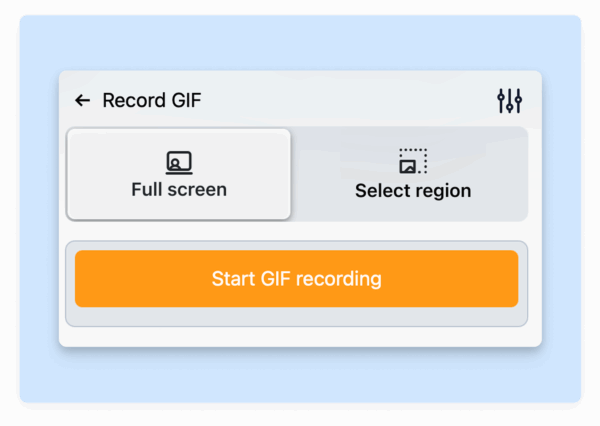 The platform’s editing tools let you trim recordings to focus on key actions and blur sensitive information, ensuring your GIFs remain polished and professional. Features like automatic cloud uploads, easy link sharing, and integrations with tools like Slack, Microsoft Teams, and Jira make distribution quick and efficient, fitting seamlessly into just-in-time training workflows.
 Best Practices for Accessibility and Engagement
To ensure your training GIFs are accessible to all learners, consider adding captions or descriptive text. These can be included as overlays within the animation or provided as accompanying text to clarify complex visuals. Pay close attention to color contrast and avoid rapid flashing, which could cause discomfort or accessibility issues. Test your GIFs with screen readers and assistive technologies, and include alternative text descriptions to provide a complete understanding of the content. Additionally, optimize file sizes for smooth playback across devices and varying internet speeds. Check platform requirements to ensure compatibility. Finally, maintain branding consistency by incorporating your company’s colors, fonts, and style guidelines into annotations and overlays. Align each GIF with clear learning objectives, and avoid unnecessary decorative elements. This approach not only reinforces your organization’s identity but also ensures a cohesive and professional learning experience.Adding GIFs to Training Programs
GIFs can be a powerful tool in training programs, offering quick, visual clarity when used thoughtfully. To make the most of them, place GIFs where they can provide immediate understanding, ensure they perform well technically, and align them with your organization’s branding.Adding GIFs to Training Materials
The key to effective GIF use is embedding them directly into your training content, rather than treating them as standalone elements. For example, in knowledge base articles, place GIFs right after introducing a concept that benefits from a visual demonstration. Imagine explaining software setup: a looping GIF that walks users through each click and menu selection can eliminate confusion and reduce the need for support tickets. Onboarding guides are another area where GIFs shine. Embedding short, task-specific GIFs, like how to access a dashboard or submit a report, can help new employees navigate their roles more confidently and quickly. Customer support FAQs are perhaps the most impactful place for GIFs. Instead of relying on long text explanations for troubleshooting, a concise GIF can visually guide users through solutions in seconds. This approach has been especially effective in manufacturing, where GIFs showing equipment setup or maintenance steps have cut down on errors and training time. Companies also incorporate GIFs into onboarding and training to demonstrate specific tasks, making the learning process smoother and more engaging. With GIF placement covered, let’s look at the technical aspects to ensure they perform seamlessly across platforms.Technical Requirements for GIF Implementation
To ensure your GIFs work well, focus on file size optimization, aim for files under 2MB for fast loading without sacrificing clarity. Stick to dimensions around 600×400 pixels to balance visibility and data efficiency, ensuring accessibility even for users with limited bandwidth. Check platform compatibility. Most learning management systems (LMSs) like Moodle, Canvas, and SAP Litmos support GIFs via uploads or links. Testing your GIFs in these environments can help avoid unexpected issues. For communication tools like Slack, Microsoft Teams, and Jira, GIFs can be added through drag-and-drop functionality or via integration with creation tools. Zight simplifies this process by allowing direct recording and quick sharing of GIFs, ensuring smooth playback across training platforms. Don’t forget mobile compatibility. Many employees access training on smartphones or tablets, so test your GIFs on various screen sizes to ensure they remain clear. For complex demonstrations, consider creating mobile-optimized versions to avoid losing important details on smaller screens. You might also explore alternative formats like MP4 or WebP, which offer better compression and quality. Review your platform’s capabilities to decide if these formats could better suit your needs. Once technical requirements are addressed, shift your focus to maintaining brand consistency in your GIFs.Keeping GIFs Consistent with Branding
To enhance trust and maintain a professional image, align your GIFs with your brand’s visual identity. This means using your company’s color palette, fonts, and iconography in annotations and overlays. For example, include your signature colors in highlights or arrows, and stick to approved fonts for any text within the GIF. Bruce Kraft J. from Beck Computer Systems Inc. highlights the value of branding in training materials:“I love the fact that I can take a branded walk-through video, and then share the video screen record grab, and then brand the landing page with my company logo. LOVE love love the branding.”Extend branding beyond the GIF itself. When users access your training materials, ensure they see your company logo and colors on the sharing platform or landing page. This consistent branding reinforces your organization’s professionalism and builds trust. To streamline the process, create templates for branded GIFs. These templates should include your brand colors, fonts, and logo placement guidelines, making it easier for team members to produce consistent visuals without needing advanced design skills. Regularly review your GIF library for brand compliance. Use a digital asset management system or a platform like Zight to organize and update your GIFs. Features like version control and tagging can help ensure only current, brand-compliant assets are in use.
Measuring How Well GIFs Work in Training
GIFs can make training materials more engaging and easier to understand, but to truly benefit from them, you need to measure their impact. Without tracking their effectiveness, it’s hard to know if learners are finding them useful.Tracking Engagement and Performance Metrics
Start by monitoring real-time engagement. Look for signs like increased participation, more note-taking, or spikes in chat activity when GIFs are used. These behaviors often tell you more about learner engagement than traditional metrics like completion rates. You can also use A/B testing to compare training modules that include GIFs with those that don’t. This method provides a clear picture of how GIFs influence learning outcomes. Platforms like Zight offer analytics tools that make tracking easier. These tools let you see how learners interact with your GIFs, from how often they’re viewed and shared to how much time is spent watching them. For example, Zight’s “See Viewer Emails” feature even allows you to identify specific individuals who accessed your GIFs, helping you spot engagement trends among different groups.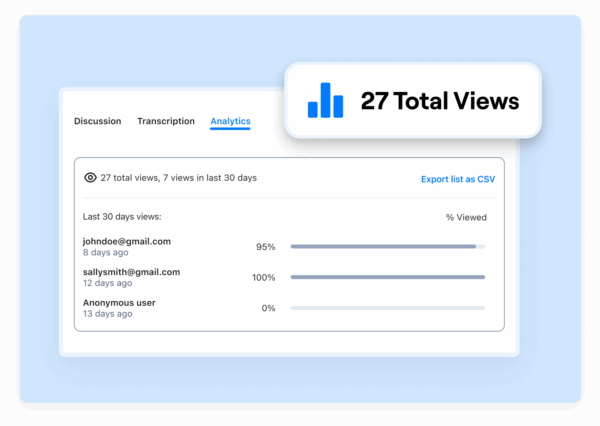 To measure effectiveness, focus on metrics like views, clicks, shares, module completions, retention rates, and feedback scores. Tracking these consistently will help you identify patterns and areas that need improvement. Zight also integrates with platforms like Slack and Microsoft Teams, which means you can gather engagement data from various training environments without switching systems. This integration gives you a more complete picture of how learners interact with your GIFs throughout the training process. Finally, pair these metrics with direct feedback from learners to refine your approach and make your training materials even better.
 Using Feedback for Continuous Improvement
While metrics provide valuable data, direct learner feedback adds depth to your analysis. Post-training surveys, for instance, can reveal which GIFs helped clarify complex ideas. Ask specific questions about their clarity and usefulness. You can collect both quantitative data through surveys and quizzes and qualitative insights via anonymous feedback or focus groups. Use the results to tweak and improve your GIFs regularly. Zight’s Version History feature makes this process easier by keeping track of changes and updates to your GIFs. If feedback suggests a particular GIF isn’t working or if engagement metrics drop, you can make adjustments and monitor how those changes affect learning outcomes over time.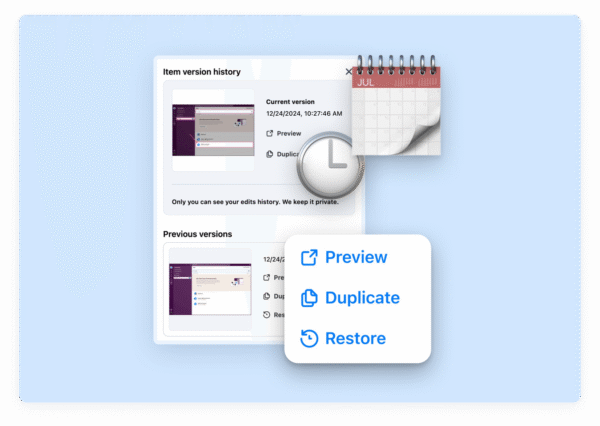 Another way to measure impact is by comparing retention rates between sessions that use GIFs and those that don’t. This provides concrete evidence of how GIFs contribute to learning and helps justify the effort and resources spent creating them. For a more objective assessment, bring in external reviewers. Having someone outside your team evaluate your GIFs can help reduce bias and provide a fresh perspective on their effectiveness.











