
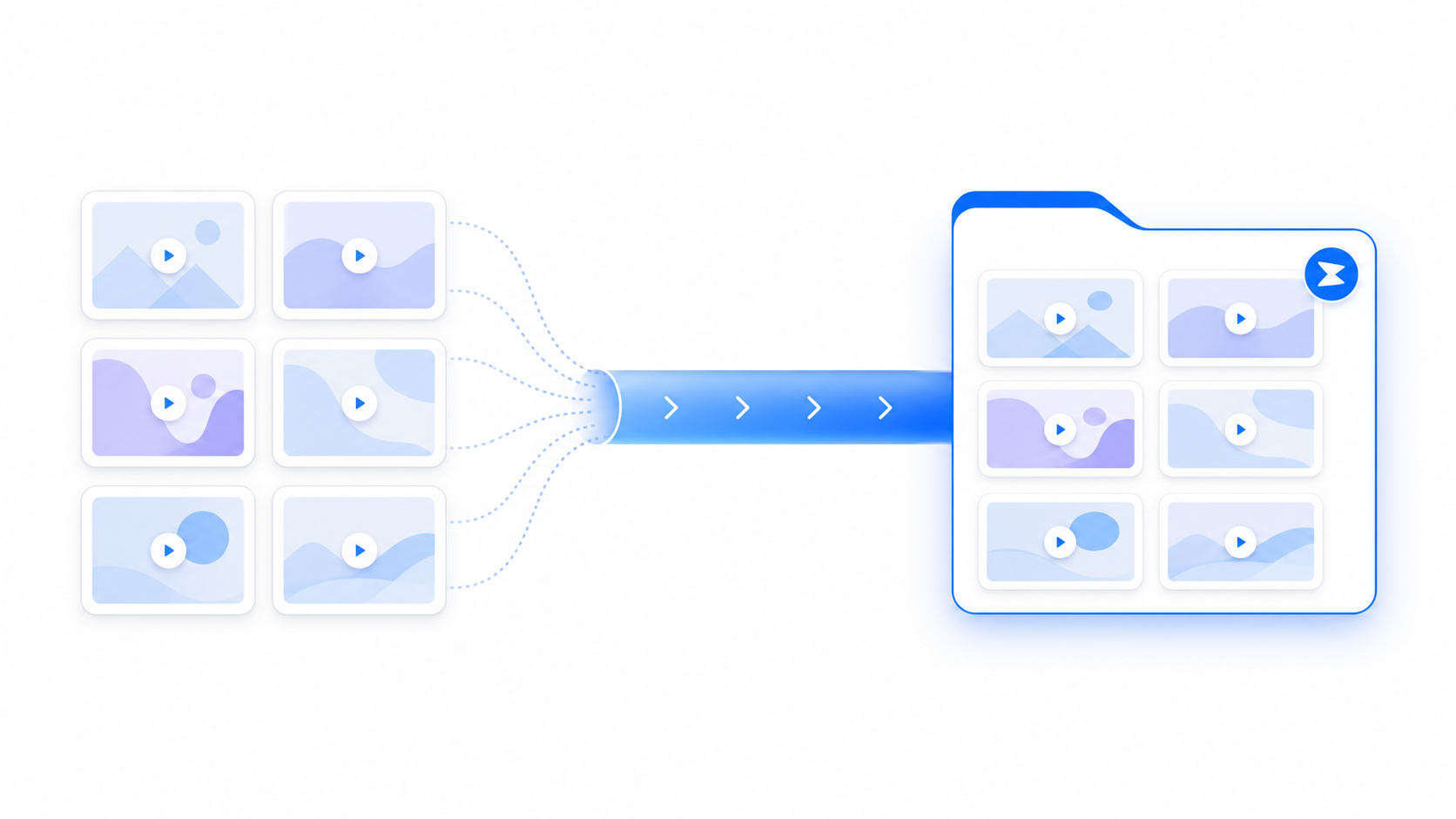
A faster way to move Loom content

Ready to move your Loom videos?
Bring existing video content into Zight with a migration workflow available by request for eligible customers.
Request Loom migration accessHow to migrate Loom videos to Zight
Use the importer workflow instead of manually downloading and re-uploading every video. Access is currently enabled by Zight Support or Customer Success.
Sign in to Zight
Use the Zight workspace where your Loom content should be imported.
Connect Loom
Connect the Loom account or workspace you are authorized to migrate.
Select videos
Choose the Loom videos or library content to bring into Zight, then keep Chrome open while the migration runs.
Can you download Loom videos?
If you own a Loom video or have permission to access it, Loom may allow individual downloads depending on your account and workspace settings. That works for one-off files, but it becomes tedious for a team library.
Zight’s Loom migration workflow is designed for eligible customers who want to move existing Loom videos into a Zight workspace without downloading and uploading every file one by one.
- One video: use Loom’s available download/export option if your workspace allows it.
- Many videos or team libraries: request Loom migration access from Zight so the move can be planned properly.
Learn more about Loom to Zight migration or request Loom migration access.
What moves from Loom to Zight
| Imported into Zight | Notes |
|---|---|
| Videos | Full Loom video files are copied into Zight. |
| Screenshots | Loom screenshots are copied into Zight. |
| Titles | Loom item titles are preserved where possible. |
| Sharing settings | Public, organization, and private sharing settings are copied where supported. |
| Folders | Loom folders become Zight collections. Nested folder structures are flattened. |
| Not imported | Notes |
|---|---|
| Descriptions | Descriptions do not transfer. |
| Transcripts | Loom transcripts do not transfer. |
| Comments and reactions | Comments and reactions do not transfer. |
| View counts and history | View counts and view history do not transfer. |
| Created dates and tags | Original Loom created dates and tags do not transfer. |
| Passwords | Password-protected Loom videos import without the original password because Loom does not expose password values. |
For step-by-step instructions, see the Zight Help Center migration guide.
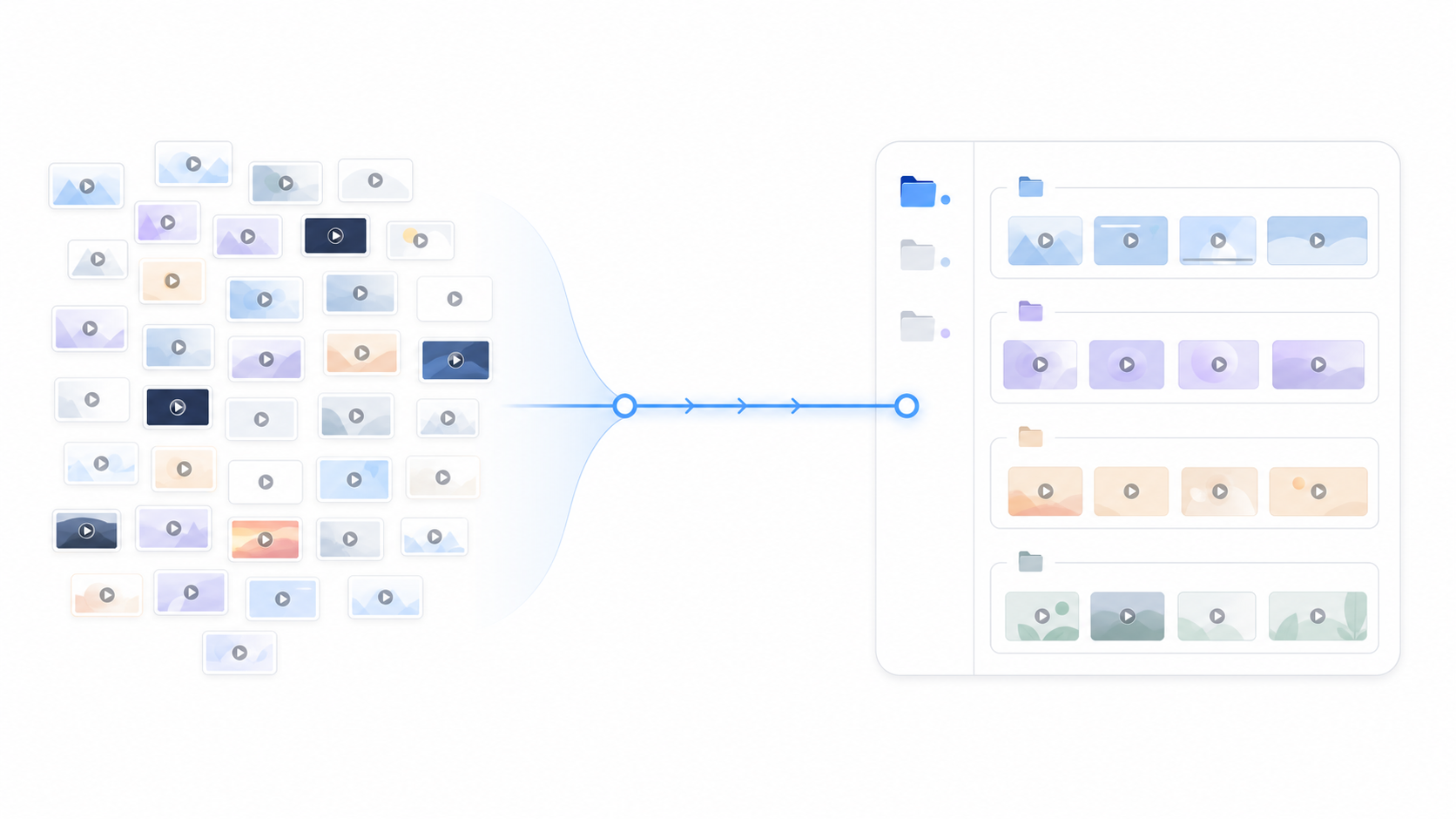
Why use a Loom importer instead of manual downloads?
Manual Loom downloads are fine for one video. They break down when a team has dozens or hundreds of recordings to move.
- Avoid repetitive download and upload work.
- Reduce the risk of missing useful videos.
- Move content into the same workspace your team will use going forward.
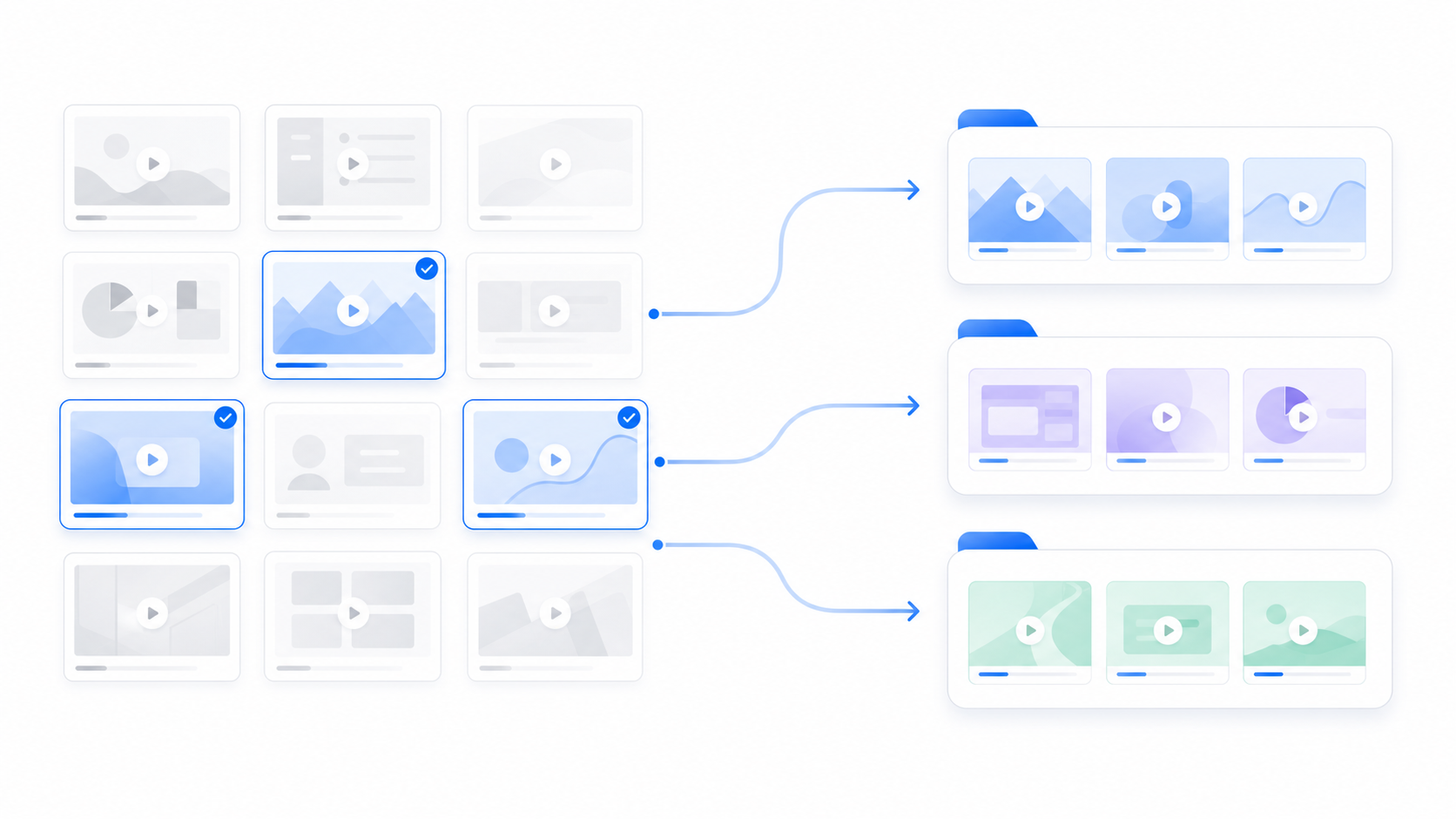
What types of Loom videos should you migrate?
Start with videos that still help customers, teammates, or new hires understand important work.
- Product demos and walkthroughs.
- Customer support answers and troubleshooting videos.
- Sales follow-ups and onboarding content.
- Training, SOP, and enablement recordings.
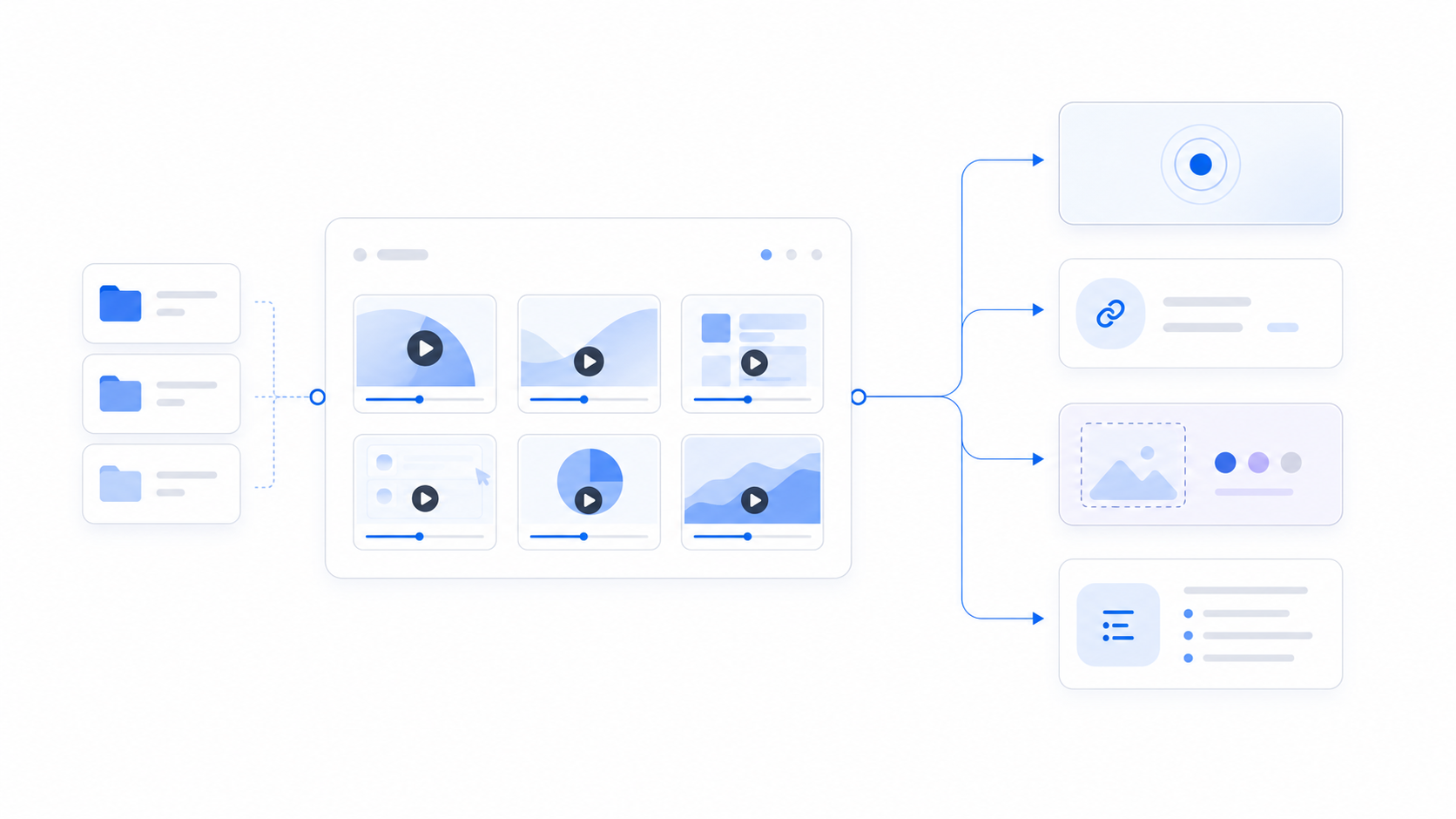
What happens after videos are in Zight?
Zight is more than a destination for old files. Once content is in Zight, your team can keep recording, sharing, and turning visual work into reusable knowledge.
- Share imported videos with Zight links.
- Record new screen videos, screenshots, and GIFs.
- Use AI-powered notes, summaries, and documentation workflows where available.
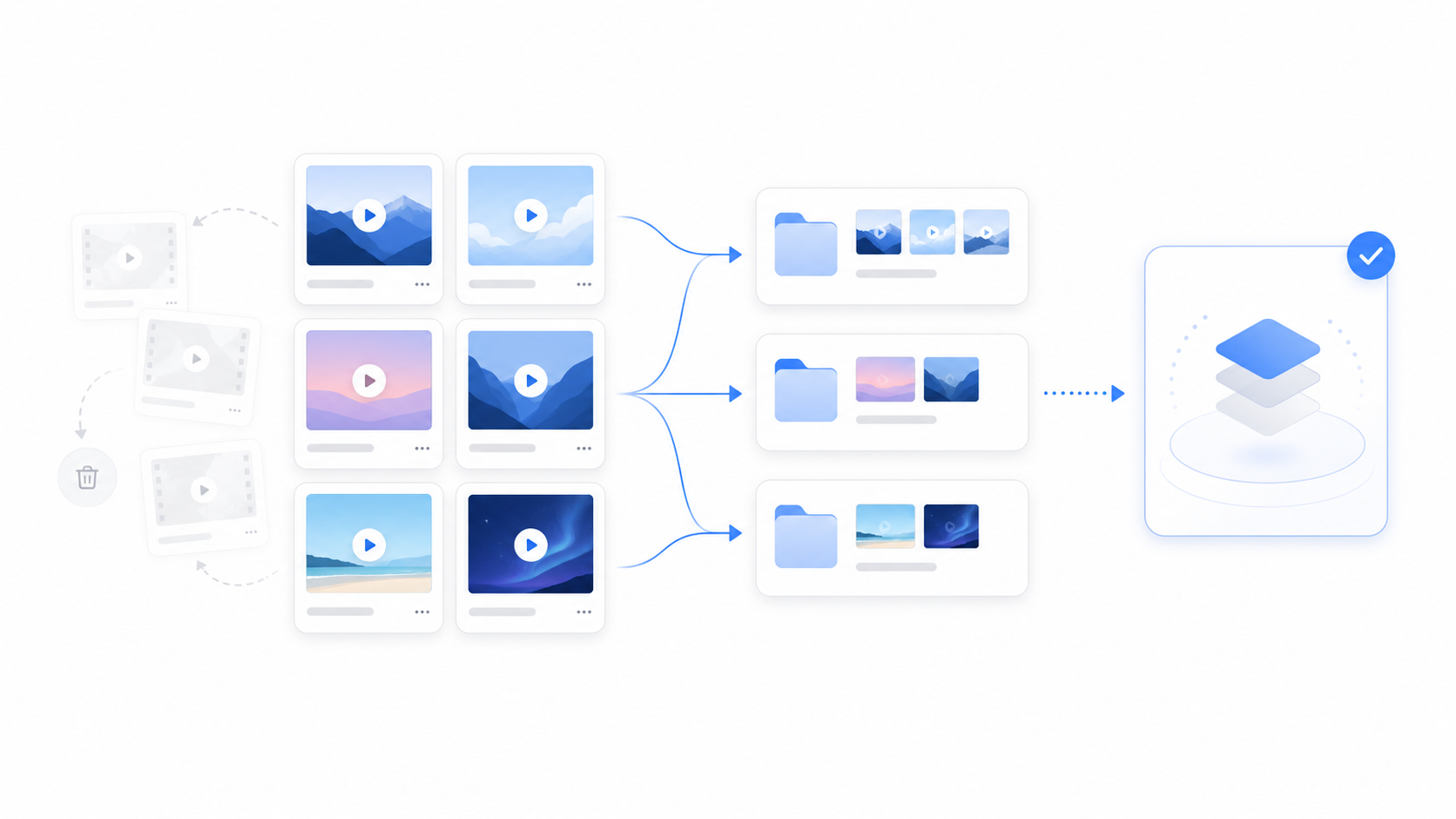
Best practices before importing
A cleaner migration starts with a little cleanup. Decide what matters before moving everything.
- Archive videos that are outdated or duplicated.
- Group important Looms by team, use case, or customer journey.
- Keep your browser active while large imports run.
Move from Loom to Zight without starting over
Use Zight’s Loom migration workflow to bring useful videos with you, then keep creating, sharing, and organizing new visual work in Zight.
Request Loom migration accessRelated Zight tools
Keep working with video after your migration.
FAQs about downloading and migrating Loom videos
Yes. Eligible Zight customers can request access to migrate Loom videos into a Zight workspace. See the Loom to Zight migration page for the migration path and limitations.
Loom downloads may produce standard video files when download is available. Zight focuses on helping eligible customers move authorized Loom videos into Zight rather than offering an anonymous public converter.
Bulk export options depend on Loom account and workspace settings. If your goal is to switch from Loom to Zight, request Loom migration access so Zight can help eligible customers move content into a Zight workspace.
If you own or are authorized to access a Loom video, use Loom’s available download or export option when your workspace settings allow it. For a larger team library, Zight’s migration workflow is designed to reduce manual download and upload work.
You can manually download individual Loom videos, but that is slow for a larger library. Zight’s Loom importer is designed to make migration cleaner for customers moving multiple videos.
Yes. The importer is a logged-in workflow so videos can be imported into the right Zight workspace.
Prioritize videos that are still useful: customer tutorials, product demos, onboarding content, support answers, and internal training recordings.
Zight can be used to create new screen recordings, screenshots, GIFs, annotations, and shareable video links after your existing Loom content is moved.
No. This page explains authorized Loom downloads and Zight’s customer migration workflow. It is not an anonymous tool for downloading arbitrary Loom links.
For larger team libraries or workspace migrations, request Loom migration access or talk to Zight Sales/Support so the migration can be planned properly.












