
Ready to Boost Your Productivity?
Save time and money while boosting your productivity with Zight — free tools for screen recording, screenshots, GIFs, and webcam capture.
Try Zight for FreeHow to Capture a Website Screenshot
Follow these simple steps to get started.
Enter the Website URL
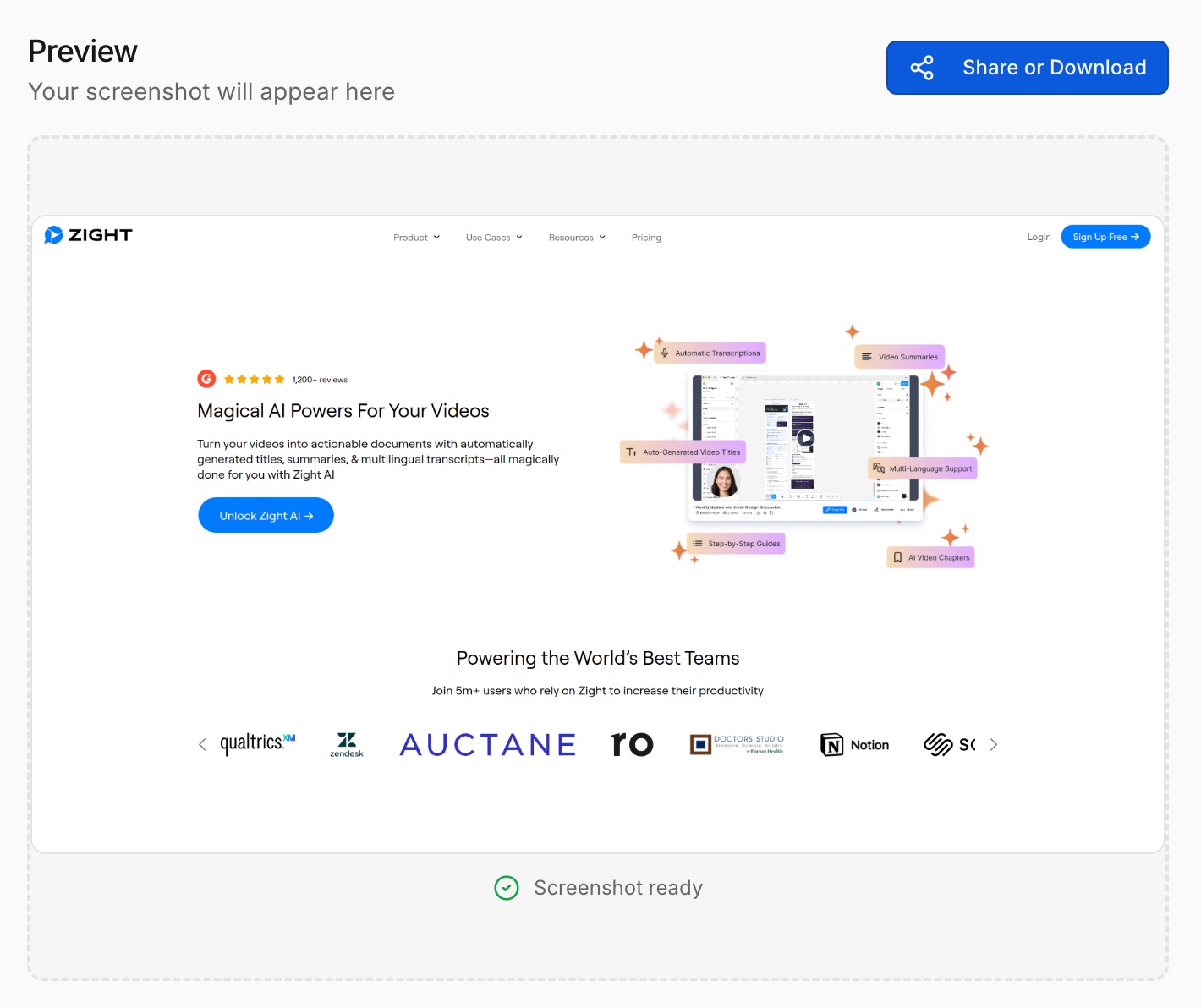
Paste the full URL of the page you want to capture. The preview panel shows how your screenshot will look as you adjust settings.
Customize Screenshot Settings
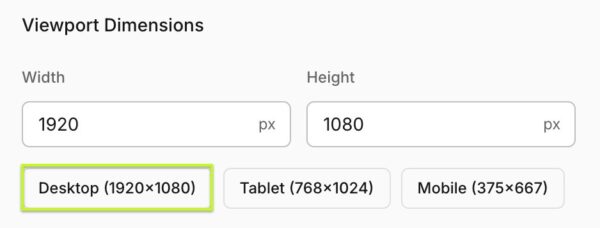
Choose your image format, image quality, and device scale factor for sharper images. Set your viewport dimensions or use presets for desktop, tablet, or mobile.
Generate and Download
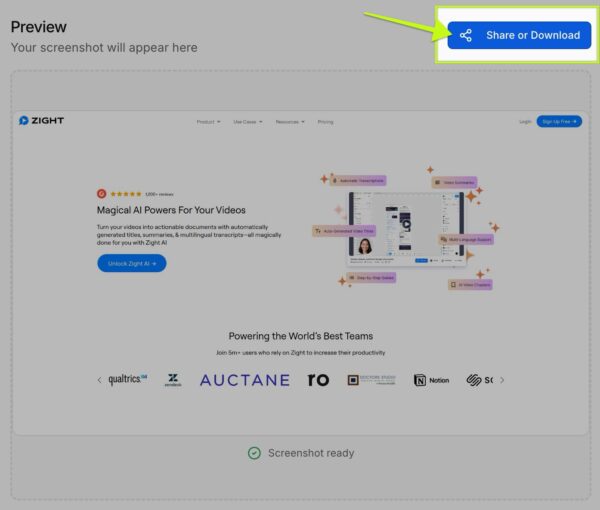
Click Generate Screenshot to capture the page. Review the preview, then share or download your screenshot with a single click.
Why Use a Website Screenshot Tool?
Screenshots are essential for documenting design, tracking changes, and communicating clearly across teams. With Zight’s Website Screenshot Tool you can:
-
Capture webpages at specific sizes for design or QA
-
Share clean visuals without browser UI or clutter
-
Document changes for sprint reviews and stakeholder updates
-
Archive views of landing pages, campaigns, or competitor sites
Why Use Zight’s Website Screenshot Tool?
Flexible output
Choose JPEG or PNG, adjust quality, and scale resolution.
Device presets
Capture desktop, tablet, or mobile views instantly.
Full page or viewport
Grab the visible area or the entire scrolling page.
Ad and banner blocking
Hide ads, cookie modals, and GDPR notices for cleaner captures.
Fast preview
See a live preview before you download or share.
No extensions needed
Everything runs in your browser.

Supported Use Cases
For Designers and Product Teams
Capture UI states, responsive layouts, and interaction flows for handoff, reviews, and documentation.
For Marketers
Archive campaign landing pages, A/B test variants, and competitor pages for future reference and reporting.
For QA and Engineering
Document visual bugs, layout issues, and cross-browser differences with consistent, high resolution screenshots.
For Customer Success and Support
Show customers exactly what to click by sharing annotated screenshots of live pages.
Ultimate Guide: Capturing Clean, Consistent Website Screenshots
Zight’s Website Screenshot Tool is built to help you generate reliable, repeatable screenshots for every stage of your workflow.
Controlling Resolution and Quality
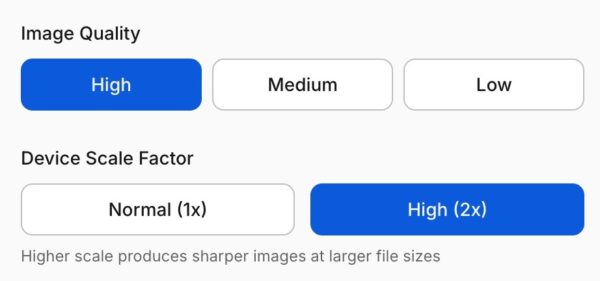
Use the image quality and device scale factor controls to match your needs. High quality with 2x scale is ideal for detailed design reviews, while medium quality at 1x keeps file sizes lighter for quick sharing.
Matching Real Devices with Viewport Presets
Desktop, tablet, and mobile presets let you test how pages look across breakpoints. You can also enter custom dimensions when you need pixel perfect captures for specific layouts or mockups.
Capturing Full Page vs Viewport
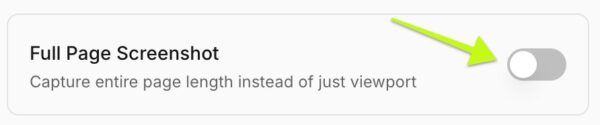
Sometimes you only need what is visible above the fold. Other times you need the entire scrolling page. Turn Full Page Screenshot on or off depending on whether you are documenting a single section or the full experience.
Cleaning Up Screenshots with Auto Blocking
Yes. Ads, cookie popups, and GDPR notices are automatically blocked whenever possible, giving you a cleaner screenshot without extra steps.

Timing Your Capture
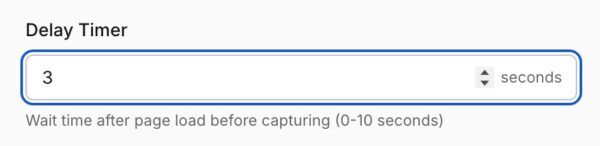
If your page loads animations, lazy-loaded content, or embedded widgets, use the delay timer to wait a few seconds before capturing. This helps ensure everything is fully rendered in the final screenshot.
Sharing Screenshots With Your Team
Once your capture looks right, use the share or download options to send it to teammates, embed it in docs, or attach it to bug reports. Consistent screenshots make reviews smoother and feedback clearer.
Conclusion
Zight’s Website Screenshot Tool gives you precise control over how you capture and share webpages. From full page archives to pixel perfect UI snapshots, you can customize format, size, quality, and blocking options, then generate screenshots in seconds.
Capture cleaner, more consistent website screenshots today with Zight.
Unlock More Tools
Expand your toolkit with these additional free tools
Frequently Asked Questions
You can capture most public webpages by entering a valid URL. Pages behind logins or paywalls may require access in the same browser session.
Yes. Enable Full Page Screenshot to capture the whole page from top to bottom.
You can export screenshots as JPEG or PNG, depending on whether you want a smaller file size or lossless quality.
Yes. Use the desktop, tablet, and mobile presets or enter custom width and height values.
The scale factor controls how sharp your screenshot looks. High (2x) produces higher resolution images that are great for design review and zooming.
Yes. Ads, cookie popups, and GDPR notices are automatically blocked whenever possible, giving you a cleaner screenshot without extra steps.
Yes. Set a delay timer so the tool waits a few seconds before capturing, which helps with animations or slow loading content.
No. The Website Screenshot Tool runs directly in your browser with no extensions or plugins required.












