
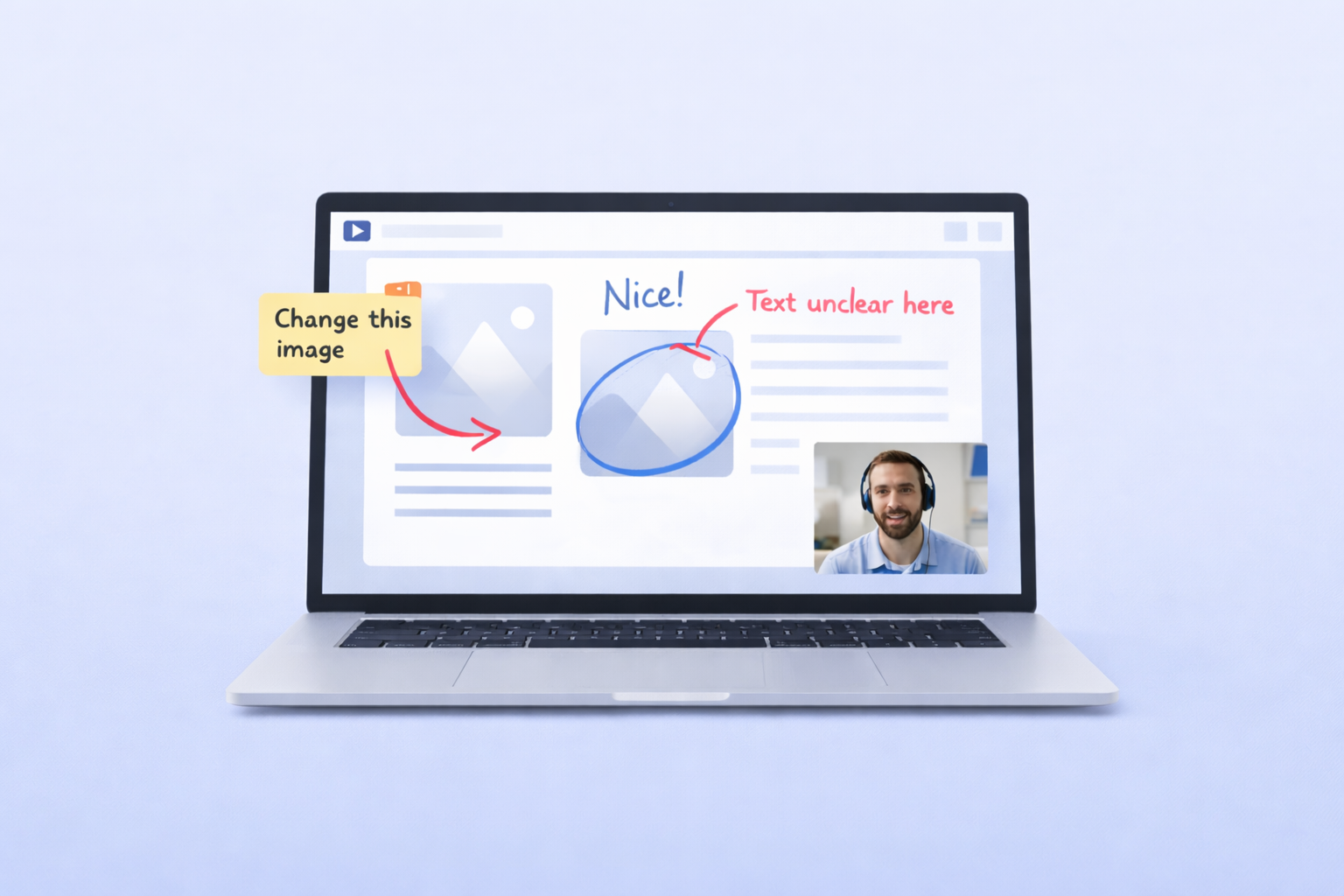
Key Benefits of Screen Recording for Feedback:
- Clarity: Combines visuals and narration to reduce misunderstandings.
- Flexibility: Works across time zones and schedules, without live meetings.
- Retention: Clients can pause, replay, and revisit recordings anytime.
- Efficiency: Speeds up feedback loops by reducing back-and-forth communication.
How Teams Use Screen Recording:
- Design Teams: Showcase visual projects, explain changes, and use annotations to highlight adjustments.
- Technical Teams: Document bugs, demonstrate features, and explain complex issues visually.
- Client Training: Create step-by-step video guides for onboarding and tutorials.
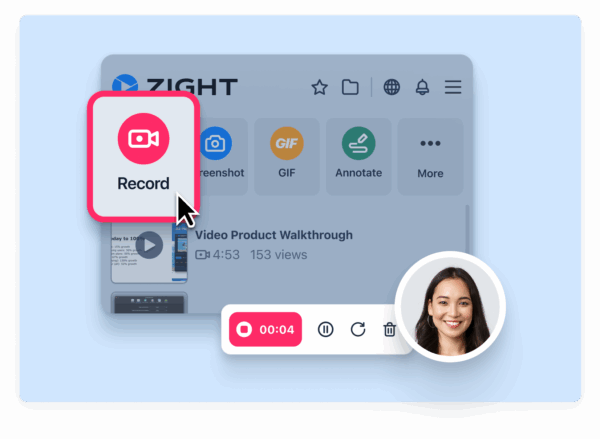
Research Shows Screen Recording Benefits for Feedback
Research confirms that screen recording is a powerful tool for delivering feedback that’s clearer, more engaging, and easier to remember.Better Clarity and Specificity
Screen recordings tackle the common problem of vague feedback that can come with traditional methods. Studies reveal that video feedback allows instructors to dive into more detailed and constructive suggestions. The combination of visuals and narration makes it easier to pinpoint issues and explain the reasoning behind them. Tools like arrows, highlighted boxes, and other visual markers ensure the message is precise and hard to misinterpret. Adding voice narration provides extra context, explaining not just what needs to change, but also why those changes are crucial.Increased Engagement and Connection
Beyond clarity, screen recordings also create a stronger sense of connection. Research by Ice et al. (2007) and Oomen-Early et al. (2008) shows that audio feedback is often seen as more effective than text, fostering better engagement between instructors and recipients. Screen recordings go a step further by mimicking real-time communication, even in asynchronous settings. The human voice adds a personal touch, making the experience feel more interactive and immediate.Better Retention and Client Satisfaction
The benefits don’t stop at engagement, screen recordings also improve retention and satisfaction. Because they engage multiple senses, recipients are more likely to remember video feedback. This format allows for deeper, more meaningful feedback, addressing complex issues like analysis and judgment rather than just surface-level corrections. Teams often find they have fewer follow-up questions, as the initial feedback is clear and comprehensive. This streamlined communication boosts client satisfaction and contributes to smoother, more successful projects overall.How Teams Use Screen Recording for Client Feedback
Screen recording has become a go-to tool for teams looking to simplify client feedback and improve communication. By offering clear and actionable insights without the need for live meetings, it allows teams to share detailed explanations at their convenience while giving clients the flexibility to review and respond on their own time. Here’s how design, technical, and training teams are putting screen recording to work to improve client interactions.Design and Creative Workflows
For design teams, screen recording is a game-changer when it comes to reviewing visual projects and explaining creative decisions. Instead of writing lengthy emails about adjustments to color schemes or layouts, designers can use recordings to visually demonstrate their work and highlight specific areas for feedback.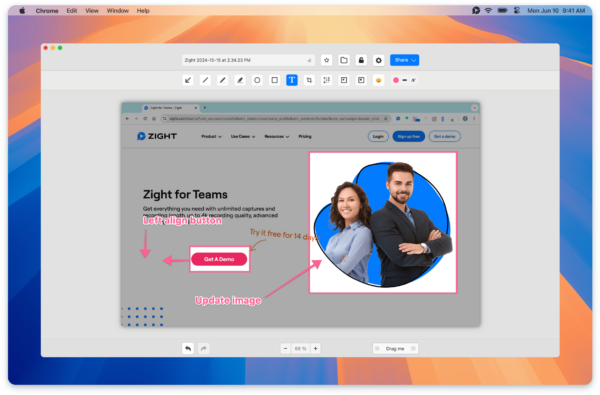 Tools like annotations – arrows, highlights, and text – make it easy to point out design changes, eliminating the ambiguity that often comes with written comments like “make the header bigger” or “adjust the spacing.”
 “It’s so easy to edit the picture, and add arrows and squares to really make your point stand. A huge plus I haven’t found in other apps is that you can ‘pixel’ all the sensitive information perhaps you don’t want to share”, says Luisa Zapata García, Strategic Customer Success Manager at Globalization Partners.Creative teams also lean on GIFs and snapshots for quick demonstrations of minor tweaks or to explain design concepts. These visual aids not only cater to clients who prefer learning visually but also cut down on back-and-forth communication, speeding up the feedback loop.
Technical Feedback for Projects
Software developers and technical professionals are also big fans of screen recording, especially for documenting bugs, demonstrating features, and explaining complex technical issues. Unlike written bug reports, screen recordings capture the step-by-step process and show issues as they occur in real time. This visual format is particularly helpful for clients who might not have a technical background. Instead of deciphering jargon, they can see the problem or solution directly on the screen, making it easier to grasp the scope of the issue or the proposed improvement. Technical teams also use screen recordings to showcase new features or guide clients through software updates. These recordings ensure clients not only understand what’s new but also how to use the updated features effectively.Client Onboarding and Training
Screen recording has transformed client onboarding and training, making these processes more efficient and engaging. Instead of relying on static documentation that can quickly become outdated, teams can create dynamic, step-by-step walkthroughs that clearly capture every detail of a process.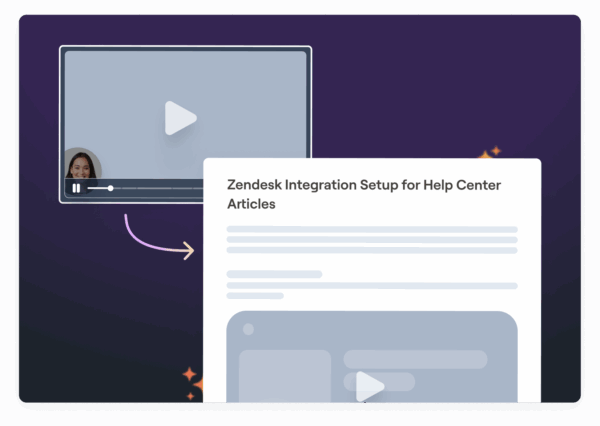 This approach saves time and ensures consistency. A single recording can be repurposed into comprehensive onboarding materials that clients can access whenever they need guidance.
 “This is the most useful implementation of AI I have ever seen. I recently recorded a different video using Zight and used Gemini to do the write-up for our onboarding manual, but this is brilliant because it captures all the nuances without me having to instruct Gemini what the nuances are”, shares Dillon Chi, UX Researcher at BeenVoyage.Features like AI-driven transcriptions, automatic chapter creation, and multi-language translations take these materials to the next level. Clients can follow along with transcripts, jump to specific sections, or access content in their preferred language, making the resources both flexible and accessible. The visual format of screen recordings is especially effective for clients who learn best through demonstration. They can pause, replay, and revisit sections as needed, making onboarding and training far more adaptable and user-friendly than traditional methods.
Best Practices for Screen Recording Feedback
Building on the advantages of using screen recordings for client feedback, the following approaches can take your efforts to the next level. Effective screen recordings go beyond simply pressing “record”, they require thoughtful techniques to ensure clarity and engagement.Keep Recordings Short and Focused
Research from Powtoon suggests that recordings between 1 to 3 minutes are the sweet spot for effectiveness. Martin Baun, a remote work productivity expert, highlights that shorter feedback videos help avoid overwhelming clients and keep them engaged. Videos exceeding five minutes often lead to skipped sections or complete abandonment. To make your recordings more impactful, focus on one main topic per video. This not only makes it easier for clients to digest the information but also allows them to revisit specific feedback without confusion. Before recording, jot down key points to stay on track and deliver clear, concise feedback.Use Visual and Audio Cues Effectively
Combining visual and audio elements makes feedback easier to understand and accommodates different learning preferences. Use tools like annotations and highlights to emphasize important on-screen details, and guide viewers with intentional cursor movements. For example, circling or underlining key areas can direct attention where it’s needed most. Pair these visuals with clear, conversational narration to provide context that visuals alone can’t offer. Case studies show that teams using these techniques often see fewer miscommunications and higher client satisfaction, as clients can easily follow along and revisit specific sections of the recording. Be mindful of pacing, allow enough time for complex information to sink in without overwhelming viewers. These strategies ensure your feedback is both accessible and actionable.Choose Tools with Advanced Features
The right tools can make or break the effectiveness of your screen recordings. Features like editing options, annotation tools, AI-powered transcription, and seamless sharing capabilities can help eliminate confusion and streamline the feedback process. For instance, Zight offers editing tools to remove unnecessary sections, annotation features to highlight key points, and AI transcription for easy reference. Its integrations with platforms like Slack, Microsoft Teams, and Jira make sharing feedback straightforward and efficient. Using tools with these advanced capabilities ensures your recordings are polished, clear, and convenient for clients to access.Zight: Complete Screen Recording for Asynchronous Feedback![]()
Zight brings together powerful tools into a single platform, making asynchronous feedback easier and more effective. Unlike basic recording tools, Zight stands out as a comprehensive solution for screen recording and communication, offering features designed to improve clarity and streamline workflows. Key Features for Asynchronous Feedback
Zight addresses common challenges in asynchronous feedback. For instance, Pro users and above enjoy unlimited recording time, removing the pressure to rush through detailed feedback sessions. With 4K high-resolution recording, even the smallest design elements remain sharp and clear, ensuring clients can easily see the finer details. The platform’s AI transcription and summary tools turn long feedback sessions into actionable, searchable text. These features automatically create written versions of verbal feedback, saving clients from rewatching recordings to find specific points. The AI-generated summaries highlight the most important takeaways, helping busy stakeholders get the gist without needing to dive into lengthy recordings.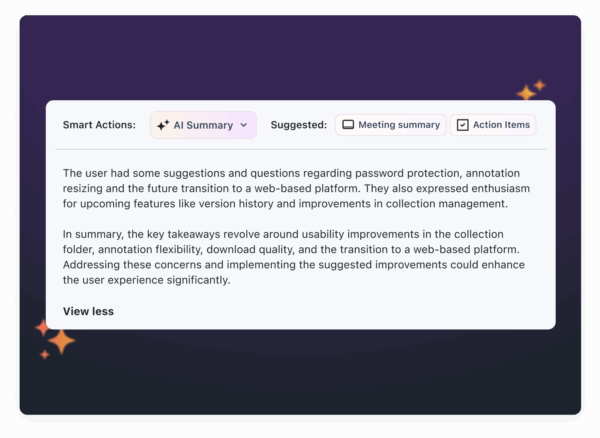 Zight also offers real-time annotation tools, enabling users to highlight, circle, or draw attention to specific elements during a recording. Combined with editing options, teams can remove irrelevant sections, ensuring feedback is concise and polished. This means clients receive focused, relevant information, free from distractions like technical hiccups or off-topic tangents. These tools integrate smoothly into existing workflows, making the process even more efficient.
 Integrations and Platform Support
Zight’s ability to connect with popular collaboration tools makes it a valuable addition for teams already using platforms like Slack, Microsoft Teams, and Jira. This seamless integration allows feedback to flow effortlessly into existing workflows, eliminating the need to adopt new communication tools. Kate Frappell, Senior Design Lead at Ofload, shared how Zight fits into her workflow:“Primarily I use it as a visual reference in Slack messages. I will write instructions or updates and link specific words to Zight screenshots to illustrate my points, which is particularly useful for quickly communicating UI mocks and design concepts.”The platform also supports multiple operating systems, including Mac, Windows, Chrome, and iOS, ensuring consistent feedback processes regardless of device preferences. This cross-platform flexibility is especially important for maintaining smooth client interactions when technical setups vary.












