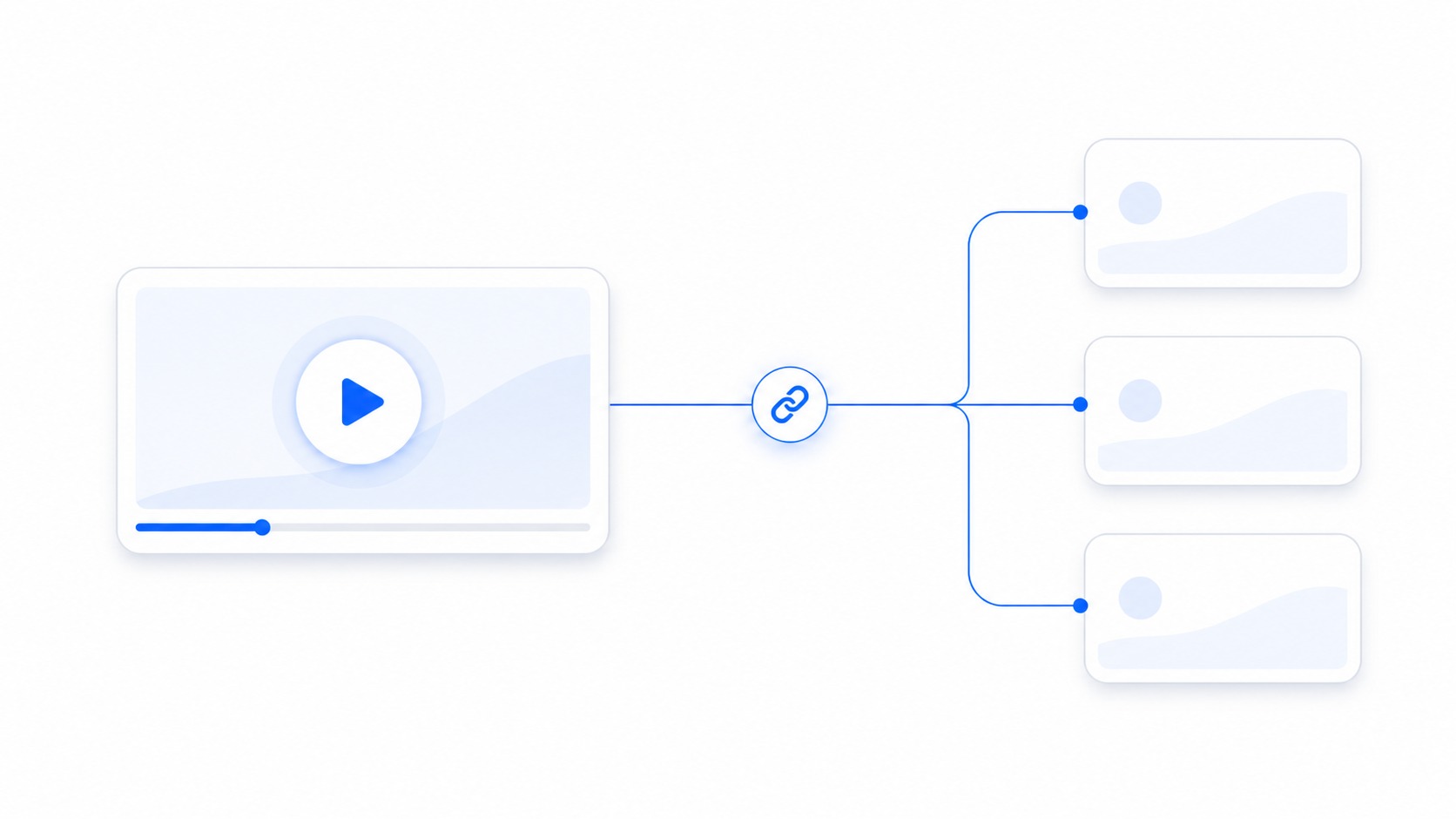
A team does not need a screen recorder only because someone wants to record a screen. The real need is usually faster support replies, clearer sales follow-up, better bug reports, product feedback, onboarding, or async updates. In all of those cases, the share link is as important as the recording.
Quick answer
The best screen recorder with share links for a team is the one that records quickly, creates a viewable URL without file-attachment friction, supports the access controls your content needs, works for internal and external viewers, and keeps recordings organized after the first send. Zight should be on the shortlist when teams want recording, screenshots, annotations, and link sharing in one workflow.
Decision table
| Team need | What to look for | Pilot scenario |
|---|---|---|
| Customer support | Fast recording, clear links, screenshots, and privacy-aware sharing. | Send a visual answer to an external test viewer. |
| Sales | Personalized walkthroughs and links that are easy for prospects to open. | Record a follow-up after a demo and check playback friction. |
| Product and engineering | Bug reproduction, annotations, and enough context for issue trackers. | Record a defect with steps, expected result, and actual result. |
| Training | Reusable walkthroughs, organization, and clear titles. | Create a short onboarding clip and file it for later reuse. |
| Leadership updates | Simple capture, polished enough playback, and permissions. | Send an async update to mobile and desktop viewers. |
Start with the link lifecycle
A recorder that creates a local file is only solving half the problem. Teams need a URL that opens for the right viewer, communicates enough context, can be governed by administrators, and can be found later if it becomes useful knowledge.
That is why the evaluation should include capture, upload or processing, playback, access, expiration, analytics, organization, ownership, retention, and deletion. The link is the workflow, not a final decorative step.
Where Zight fits
Zight’s screen recorder is a strong fit for teams that need quick visual communication across recordings, screenshots, and share links. It is especially relevant when the same team also uses annotations to clarify screenshots or recordings before sending them.
If you are comparing link behavior specifically, read the existing screen recorder with share links guide and test the workflow with your own internal and external viewers.
Evaluation criteria for team buyers
Do not start with a long feature checklist. Start with the daily scenarios. A support agent records a reply. A seller follows up after a call. A product manager shows feedback. An engineer captures a bug. A trainer updates a process. Each scenario has different risk and reuse needs.
Then score the tools on speed, viewer friction, permissions, mobile playback, screenshots, annotation, editing basics, analytics, organization, admin controls, security review, and integrations. Weight the criteria based on actual team volume.
Capture speed and recording quality
A screen recorder has to be fast enough that people use it during real work. If recording requires too many setup choices, users will fall back to long text or meetings. Test how quickly a person can record a thirty-second explanation, stop, title it, and send the link.
Quality still matters. Text should be readable, cursor movement should be visible, audio should be clear, and the final screen should confirm the outcome. A fast recording that is hard to understand simply moves friction to the viewer.
Viewer access and external sharing
The best team recorder works for more than the person who created the recording. Test links with a teammate, a clean browser session, a mobile device, and an external recipient. Note whether login is required, whether playback is clear, and whether the viewer understands what they are opening.
For one-off video files that need a URL, the video link generator can help. For ongoing team workflows, evaluate the recorder and workspace around the link, not only the link itself.
Permissions, passwords, and expiration
Different recordings deserve different access. A generic product walkthrough may be fine as a public link. A customer-specific support answer may need tighter control. An internal roadmap update may need workspace-only viewing. Ask how each access mode behaves before the team standardizes on a tool.
Password and expiration options are useful only when users understand when to apply them. Create simple rules by content type so people do not make every link public by habit.
Screenshots and annotations are part of the same workflow
A video is not always the right answer. Many issues are clearer as a screenshot with an arrow, highlight, or blur. Teams should prefer tools that let users choose the right visual format instead of forcing everything into a recording.
That is one reason Zight belongs in this category: the team can move between recording, screenshot capture, and annotation based on what the viewer needs.
Analytics and follow-through
Viewer data can help a team understand whether a recording was opened or watched. Zight’s analytics page is relevant for teams that want visibility into views and engagement. Use that signal carefully and pair it with normal customer or team communication.
Analytics should not become a substitute for a clear written summary. The viewer still needs to know why the recording was sent, what to watch for, and what action to take next.
Organization and ownership
Recordings become more valuable when they can be organized by team, project, customer, or workflow. Review team workspace controls when recordings need consistent ownership and policy. Offboarding matters because links often outlive the person who created them.
Ask what happens when a user leaves, whether recordings can be transferred, how folders or collections work, and how old content is deleted. These questions feel administrative until a critical customer link belongs to a deactivated account.
Use cases that deserve separate pages
Sales teams use screen recordings differently from engineering teams. Sales needs personalized context and low-friction viewing. Bug reporting needs reproduction steps, expected results, and annotations. Training needs reuse, clarity, and version control.
Teams with those needs can review Zight for specific workflows through screen recorder for sales and screen recorder for bug reports once those pages are published by this batch.
Common buying mistakes
The first mistake is choosing the tool with the longest feature list without testing the actual link experience. The second is ignoring screenshots. The third is treating admin controls as something to review after rollout.
Another mistake is assuming every viewer is internal. If customers, prospects, contractors, or executives open recordings, the viewing experience and access model have to work outside the creator’s normal workspace.
A practical pilot plan
Pick five real workflows: a support reply, a sales follow-up, a bug report, a training update, and a leadership note. Record each one, share it with the real audience or a test equivalent, check playback, review permissions, add a written summary, and file the asset where it belongs.
If the pilot involves buying for a team, use contact sales to confirm current packaging, administration, and security requirements rather than relying on assumptions from a single public page.
How to compare screen recorders fairly
Use the same task for every tool. Record a short support answer, a sales follow-up, a bug reproduction, and a training clip. If one product is tested with a simple internal note and another is tested with an external customer workflow, the comparison will not mean much.
Ask users to score the workflow immediately after each task. Capture speed, naming, link creation, playback, and organization are easier to judge in the moment than a week later. Include the viewer’s experience too, because the sender may think a tool is fine while recipients struggle to open the recording.
Keep procurement questions separate from user preference questions. Users can judge speed and clarity. IT and security should judge identity, retention, permissions, and vendor evidence. Both perspectives matter for a team rollout.
Use cases for share-link recording
Support teams use share links to answer visual questions without scheduling calls. The recording should be short, specific, and paired with a written summary in the ticket. If the same answer repeats, turn it into reusable knowledge.
Sales teams use share links to recap product moments and help champions explain value internally. The recording should feel personal and relevant, not like a generic demo pasted into every deal.
Product and engineering teams use share links to show defects, feedback, and design questions. The recording should include enough context for the next person to act without asking what happened before the clip started.
Troubleshooting rollout problems
If adoption is low, look at the first thirty seconds of the creator workflow. Too many prompts, unclear save locations, or slow processing can stop people from recording even when they agree video would help.
If viewers do not open recordings, review link previews, written context, and access friction. A bare link in a busy thread is easy to ignore. A link with one clear sentence about why it matters gets better attention.
If administrators are nervous, define content categories and default sharing rules. Not every recording has the same risk. A public product tip, a customer-specific account walkthrough, and an internal roadmap update should not be governed the same way.
A final review checklist
Before choosing a team recorder, verify capture speed, external playback, mobile playback, passwords or expiration where needed, ownership transfer, deletion, analytics, screenshots, annotations, and security review. Then run the same test again with a real workflow, not a sample recording.
The best choice is the product your team will actually use with the right controls. A recorder that is fast but ungoverned creates risk. A recorder that is governed but too slow creates workarounds. The right tool sits between those failure modes.
How to brief someone else before they do the work
If you hand this task to a teammate, do not just say screen recorder with share links. Give them the purpose, audience, destination, and constraint. A support reply, a public help article, an internal review, and a customer handoff all require different tolerance for file size, context, privacy, and polish.
Use the decision table as a short brief. If the job looks like Customer support, name that explicitly and explain why. If it looks more like Sales, tell the teammate what trade-off matters most. A clear brief prevents the editor from optimizing the wrong thing and creating another review cycle.
What to save for audit or reuse
Keep the source file, the delivery file, and a short note about what changed. That note does not need to be formal. It can be as simple as the page range used, the bitrate chosen, the crop reason, the compression setting, or the link destination. The point is to make the work repeatable.
This matters most when the asset supports a customer, prospect, legal review, bug report, or training workflow. Someone may need to know whether the file was edited, why a section was removed, or where the original lives. A clean delivery file plus a traceable source is easier to defend than a mystery attachment.
How to review the result with a non-expert
Ask the reviewer what they understand from the final file before explaining your choices. If they can identify the point quickly, the best screen recorders with share links for teams workflow probably worked. If they ask where to look, what changed, or why the file was sent, the asset needs more context or a different format.
Review against real conditions. For Product and engineering, test the destination where the viewer will open it. For Training, check whether the chosen format still supports the viewer’s decision. For Leadership updates, confirm that you did not accidentally replace an archive-quality source with a smaller delivery copy.
When to stop optimizing
Optimization has a point of diminishing returns. Stop when the file is clear, safe to share, accepted by the destination, and small enough for the workflow. Chasing a smaller number can waste time and damage the part of the asset that actually helps the viewer.
A useful test is whether another round of editing would change the viewer’s outcome. If it would not help them understand, approve, reproduce, or act faster, stop. Send the file with a clear note and move on to the next step in the workflow.
Documentation habits that prevent repeat mistakes
Create a tiny internal note for recurring screen recorder with share links tasks. Include preferred settings, naming examples, privacy checks, and the approved place to store originals. Teams do not need a long policy for every asset, but they do need a shared default that keeps quality consistent.
Update that note when a tool, CMS, ticket system, or sharing workflow changes. Many quality problems come from old instructions that were correct for last year’s destination. A five-minute update can prevent dozens of bad exports, oversized attachments, or confusing handoffs.
Handoff examples you can copy
For an internal teammate: I prepared this for screen recorder with share links and optimized it for review, not archiving. The source file is still available, the delivery version is the one attached or linked here, and the main thing to check is whether the viewer can understand the point without extra explanation.
For a customer or prospect: I pulled together the smallest useful version so you do not have to sort through unrelated material. Please review the visible section, file, or recording linked here and use the written note as the source for what action is needed next.
For documentation or enablement: this asset should support the written process, not replace it. Add the file near the step where it helps, label it with the product area and date, and remove it when the workflow changes. That keeps best screen recorders with share links for teams work from becoming stale visual clutter.
For support or engineering: include the context that a viewer cannot infer from the asset. Add account type, browser or device where relevant, the expected result, the actual result, and whether the file has been edited for privacy or size. The more sensitive the workflow, the more important that note becomes.
For a manager reviewing the process: judge the output by whether it reduced confusion, not by whether every possible setting was perfect. A clean, timely, well-labeled delivery file is usually better than an overworked asset that arrives after the decision has already moved on.
What good looks like after sharing
A good screen recorder with share links outcome is quiet. The recipient opens the asset, understands why it was sent, and can act without asking for a cleaner file, a missing page, a different format, or the original context. That is the standard to use when judging the final result. If the next message is a decision, approval, reproduction note, or useful question, the asset did its job.
The file should also be easy for your own team to recognize later. Clear title, clear destination, clear source, and clear owner matter more than people expect. Many teams lose time not because the asset was bad, but because nobody can tell which version should be used. Put the final version where the next person will naturally look for it.
Finally, the workflow should be repeatable by someone who was not present for the first request. If another teammate can follow the same notes and produce a similar result for screen recorder with share links, you have a working process rather than a one-off fix.
That repeatability is what separates a useful content operation from a collection of improvised exports. The goal is not to make every asset perfect. The goal is to make the next share clear, appropriately scoped, and easy to trust. When in doubt, choose the version that makes the recipient’s next action obvious.
Useful Zight workflows
- Zight screen recorder
- video link generator
- screen recorder with share links guide
- contact sales
- annotations
- viewer analytics
- team workspace controls
Frequently asked questions
What is a screen recorder with share links?
It is a recorder that creates a URL for playback so viewers can watch without downloading a large file. Team buyers should also review permissions, organization, ownership, and analytics.
Why are share links better than attachments?
Links can reduce attachment friction, support easier playback, and keep access around a central asset. They still need appropriate permissions and clear context.
Should a team screen recorder include screenshots?
Yes. Many explanations are clearer as annotated screenshots. Teams should be able to choose the visual format that fits the job.
How should we test external sharing?
Send a recording to a clean browser session, mobile device, and external test viewer. Check login requirements, playback, previews, access controls, and link expiration.
When should we talk to sales before rollout?
Talk to sales when you need plan details, security review, SSO, administrative controls, procurement support, or guidance for a multi-team deployment.
Next step
Shortlist tools by the link experience, not only the record button. To evaluate Zight for a team workflow, start with the screen recorder or talk to sales.