
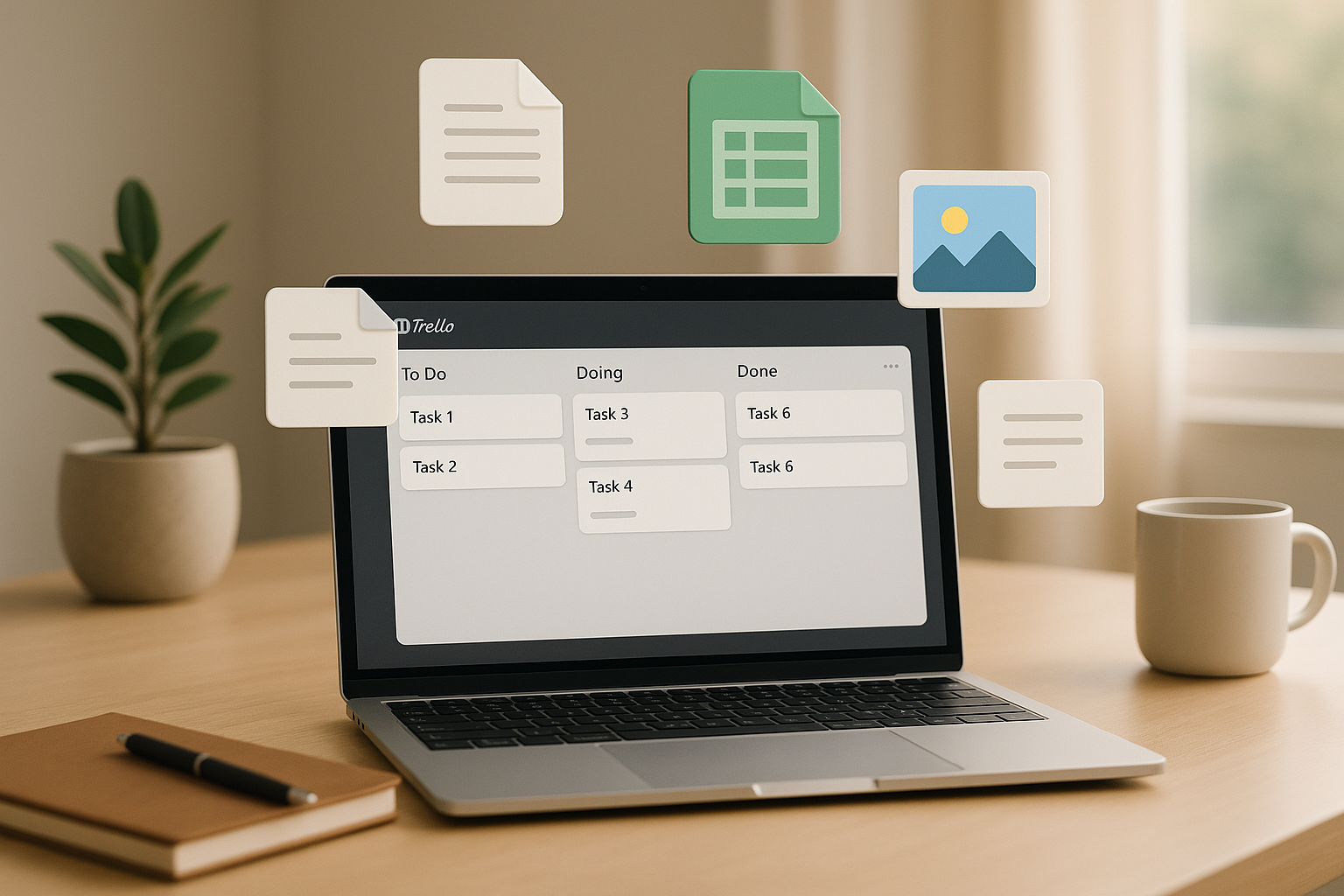
- Zight: Ideal for visual communication with features like 4K screen recording, AI transcription, and GIF creation. Pricing starts at $9/month for Pro plans.
- Trello Native Attachments: Built-in and simple, but limited to 10 MB (Free) or 250 MB (Paid) per file.
- Google Drive: Great for real-time collaboration on documents, with free storage up to 15 GB and paid plans starting at $6/month per user.
- Dropbox: Supports large files (up to 50 GB) with advanced security features. Pricing starts at $10/month for individuals.
- OneDrive: Best for Microsoft 365 users, offering seamless integration and version history. Plans begin at $5/month per user.
Quick Comparison
| Integration | File Size Limit | Key Features | Best For | Pricing (Starting) |
|---|---|---|---|---|
| Zight | Unlimited (Pro+) | Visual tools (GIFs, 4K video) | Visual communication | $9/month |
| Trello Native | 10 MB (Free), 250 MB (Paid) | Simple file uploads | Quick, lightweight tasks | Free |
| Google Drive | 15 GB (Free), Paid Plans | Real-time editing, collaboration | Google Workspace users | $6/month per user |
| Dropbox | 50 GB (Paid) | Advanced sharing, large files | Creative teams, security | $10/month |
| OneDrive | 5 GB (Free), Paid Plans | Microsoft 365 integration | Microsoft ecosystem users | $5/month per user |
How to use Trello and Google Drive Together (Quick Tutorial)
How to Choose File Sharing Integrations for Trello
To get the most out of Trello as your project management tool, picking the right file sharing integration is key. The right choice can smooth out workflows, minimize security risks, and keep your team happy. On the flip side, the wrong one can cause unnecessary headaches and slow your progress. Here’s a guide to help U.S. businesses and professionals make informed decisions when evaluating file sharing integrations for Trello.Security and Privacy
Protecting your data should always come first, especially if you’re dealing with sensitive or regulated information. U.S. companies in industries like healthcare and finance must comply with regulations such as HIPAA and SOX. Look for integrations that provide enterprise-grade encryption for data both in transit and at rest. Features like two-factor authentication, single sign-on (SSO), and audit logs are crucial for safeguarding confidential files. Also, ensure the integration offers granular permission controls, so team members can only access files relevant to their role.File Type and Size Support
File size and format limitations can impact your workflow. Trello’s native file upload limits are 10 MB for free accounts and 250 MB for paid accounts. However, linking files from cloud storage services can bypass these restrictions. Keep in mind that Trello doesn’t natively support certain file formats like WEBP, HEIC, or TIFF.Integration Features and Collaboration Tools
The best file sharing integrations go beyond basic functionality. Look for tools that offer , automatic version control, in-app commenting, and targeted notifications. These features can streamline collaboration and significantly cut down on email back-and-forth.Platform Compatibility
Your integration should work effortlessly across all the devices and platforms your team relies on. Whether your team uses Windows PCs, MacBooks, Chromebooks, or mobile devices, cross-platform compatibility ensures smooth access. It’s also important that the integration runs reliably on popular browsers like Chrome, Safari, Firefox, and Edge, without needing extra plugins or extensions. Given the rise of remote work, strong mobile support is a must for accessing, previewing, and sharing files while on the move.Pricing and Value for Money
When evaluating pricing, don’t just focus on the subscription cost. Take into account storage limits, per-user fees, and any potential hidden charges. Free plans might work for smaller teams but often lack advanced features, robust collaboration tools, or enhanced security options needed as your team grows.Zight
Zight is a platform designed to simplify visual communication by combining screen recording, file sharing, and AI tools into one user-friendly solution. It shines in creating and sharing visual content, making it easier for teams to communicate effectively on Trello. With shareable links and direct file uploads, Zight’s visual-first approach helps teams convey complex ideas far more clearly than text updates alone. Here’s a breakdown of its key features tailored for Trello users.Key Features for Trello Users
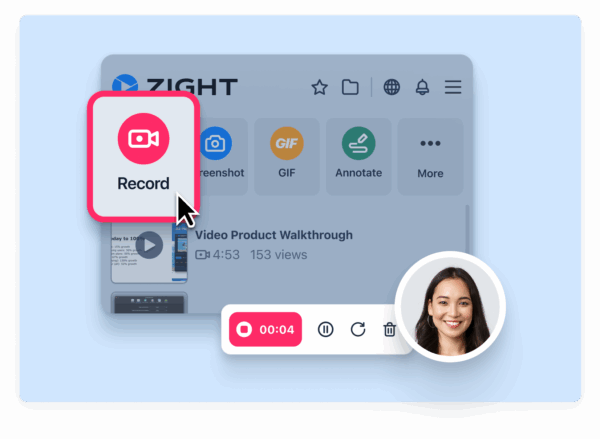
- 4K Video Recording: On paid plans, you can capture unlimited 4K videos, perfect for detailed walkthroughs or demonstrations. These recordings can be instantly linked to Trello cards via auto-generated shareable links.
- AI-Powered Transcription: Easily convert video recordings into searchable text, making it simple to retrieve specific information when needed.
- Screenshot Editing Tools: Add arrows, text, blurring, or highlights to screenshots. These tools make feedback and instructions crystal clear, reducing unnecessary back-and-forth communication.
- GIF Creation: Turn recordings into lightweight GIFs that preview directly in Trello. These are ideal for quick demonstrations, such as showing a bug or explaining a simple process.
- Secure Cloud Storage: Access your visual content anytime with secure storage that includes SSO support and customizable data retention policies.
Use Cases for Project Management
Zight’s features are versatile, making it a valuable tool for project management.- Bug Reporting: Attach screen recordings to Trello cards to visually demonstrate issues, eliminating any guesswork.
- Asynchronous Updates: Perfect for distributed teams, Zight allows you to share updates without requiring everyone to be online at the same time.
- Client Communication: Use step-by-step visual guides to improve clarity and professionalism when working with clients.
- Training and Onboarding: Store reusable workflow recordings directly on Trello boards to streamline the onboarding process for new team members.
Pricing Plans
Zight offers four pricing tiers to suit different needs:- Free Plan: Includes basic functionality, a 5-minute recording limit, and storage for the last 50 uploads.
- Pro Plan: At $9/month, this plan removes restrictions, adds 4K recording, and provides advanced editing tools.
- Team Plan: Starting at $11/month per user, this option is designed for collaborative teams.
- Enterprise Plan: Custom pricing includes advanced security features and detailed analytics tailored to larger organizations.
Trello Attachments (Native Integration)
Trello’s built-in attachment feature allows you to add files directly to cards, making it a straightforward option for file sharing across all Trello plans. For teams in the U.S. looking for an easy, no-setup solution, this feature can handle many basic file-sharing needs right out of the gate. Below, we’ll dive into supported file types, size limits, and tips for managing attachments effectively.File Type and Size Limits
Trello supports a variety of common document and image formats, offering previews for most files directly within the platform. This includes PDFs, Word documents, Excel sheets, and several image types. You can view these files without downloading them, which is a real time-saver. However, formats like WEBP, HEIC, and TIFF are not supported for native attachments. Here’s how file size limits break down by plan:| Plan Type | File Size Limit | Storage Limit |
|---|---|---|
| Free Plan | 10 MB per file | Unlimited |
| Standard Plan | 250 MB per file | Unlimited |
| Premium Plan | 250 MB per file | Unlimited |
| Enterprise Plan | 250 MB per file | Unlimited |
Managing Attachments in Trello
Uploading files to Trello cards is quick and easy. You can drag and drop files onto a card or use the attachment button to upload them. Once added, attachments are displayed in a dedicated section of the card, complete with thumbnail previews for supported image formats. For documents, Trello generates previews, allowing you to identify files at a glance without opening them. Animated GIFs under 5 MB and less than 300 pixels wide even play directly on card covers. You can also rename files after uploading, which helps keep everything organized and ensures attachments are easy to find later.Limitations and Best Practices
While Trello’s native attachment system is convenient, it does come with a few restrictions. For example, the 10 MB file size limit on the free plan can be a challenge for teams working with high-resolution images, detailed presentations, or video files. Even the 250 MB limit on paid plans might not be enough for very large files. That said, Trello doesn’t impose an overall storage cap, only per-file size limits. To make the most of native attachments, establish clear file naming conventions to keep things tidy. For larger files, consider attaching them via cloud storage links instead of uploading directly. Keep in mind that native attachments are stored on Trello’s servers. They’ll remain accessible as long as your Trello account is active, but this also means file availability is tied to Trello’s system.Google Drive Integration
The Google Drive Power-Up seamlessly combines the power of Google Workspace with Trello, making it easier for U.S.-based teams to manage projects and collaborate on documents. By connecting these two platforms, teams can keep files organized and accessible without the hassle of switching back and forth.Key Features
With this integration, you can search, attach, and even create Google files directly from Trello cards. Whether it’s linking a single document or an entire folder, the Power-Up ensures that all files relevant to a task are right where they need to be. Plus, it displays real-time previews on Trello cards, so you can quickly review content without extra steps. You can also generate Google Docs, Sheets, or Slides directly from within Trello. These newly created files attach automatically to the card, and folder previews with thumbnails make it easy to identify contents at a glance. To keep things secure, team members connect their Google Drive accounts individually, so Trello only accesses the files you choose to share. These features not only simplify file organization but also improve teamwork by keeping everything in sync.Collaboration Benefits
This integration brings Google Drive’s powerful collaboration tools right into Trello. Features like real-time editing, permission controls, document versioning, and commenting work just as they do in Google Drive. This allows team members to work on documents together while using Trello cards to track overall project progress. Trello links to your Google Drive files, while Drive itself handles sharing permissions. Since Google Drive files are private by default, you’ll need to actively share them with team members using Drive’s sharing tools. This approach aligns with enterprise-level security protocols. Additionally, the Power-Up supports real-time collaboration without requiring you to leave Trello. Google Docs comments sync instantly, and Trello cards provide the broader project context, keeping everything in one streamlined workflow.Use Cases for U.S.-Based Teams
Google Drive integration is particularly useful for U.S.-based teams managing compliance, creative projects, and remote collaboration. Enterprise teams benefit from maintaining compliance and security standards, as files stay within Google’s infrastructure. Organizations can enforce existing Google Workspace policies and manage access through familiar Google Admin tools. Marketing teams, for example, can attach campaign folders to Trello cards, keeping creative assets, copy, and performance reports in one easily accessible place. Legal and consulting firms can link case files or client documents to project cards, ensuring everyone works with the latest versions of contracts or proposals. Remote teams working across time zones also gain an advantage. Updates made to documents in Google Drive are instantly reflected on Trello cards, enabling seamless collaboration. For cross-departmental projects, sales teams can attach proposal templates to deal cards, while product teams link specification documents to development tasks, all while maintaining proper access controls through Google Drive’s permission settings.Dropbox Integration
Key Features
With the Dropbox integration, you can easily attach files and folders from Dropbox to Trello cards. File previews appear directly on the cards, making it quicker to identify the right documents. Plus, any updates made to files in Dropbox automatically sync with the attached Trello cards, ensuring everyone is always working with the latest version. The drag-and-drop feature makes it even easier, just drag multiple files onto a Trello card to upload them in one go. Need a new folder? You can create Dropbox folders directly from Trello cards, keeping everything organized as your project grows. The Power-Up also displays file thumbnails and key details like size, modification dates, and sharing status, giving teams a clear view of their resources. One standout feature is smart linking. When you attach a Dropbox folder to a Trello card, your team gets access to the entire folder structure. This is perfect for complex projects where you need to group multiple file types or versions under a single task or milestone. Beyond these tools, the integration also prioritizes security and smooth handling of large files.Security and Large File Sharing
Dropbox’s robust security features integrate seamlessly with Trello. Advanced sharing controls allow administrators to set permissions at the file or folder level, so only authorized team members can access sensitive documents. Files marked as private in Dropbox remain private, even when attached to Trello cards. For teams working with large files, Dropbox supports uploads up to 50 GB for Business and Enterprise accounts. This is ideal for handling high-resolution design files, video content, or other large assets. Thanks to incremental sync technology, only the changes made to a file are uploaded, which reduces bandwidth use and speeds up performance, especially helpful for remote teams. The integration also retains Dropbox’s version history, letting teams revert to earlier versions of files directly from Trello. This is particularly useful for creative and legal professionals who need to track edits over time. Additionally, Dropbox’s two-factor authentication and device management add extra layers of security, safeguarding confidential information.Use Cases for U.S. Teams
Across the United States, teams are using Dropbox integration to streamline their workflows:- Design agencies attach entire campaign folders to Trello cards, keeping brand assets, drafts, and approval documents in one place. Creative directors can preview multiple design variations directly from the card, eliminating the need to download individual files.
- Architecture and engineering firms rely on the integration for managing large CAD files and technical drawings. Project managers link blueprint folders to milestone cards, giving field teams mobile access to updated plans. The large file support ensures even 3D models and detailed drawings are readily available.
- Legal teams use the integration to securely manage case files and client documents. Attorneys attach discovery materials and contract drafts to case cards while controlling access through Dropbox permissions. The version history feature is indispensable during contract negotiations, allowing legal teams to track edits or revert to earlier drafts.
OneDrive Integration
Key Features
- Integrated File Picker: Attach individual documents or entire folders from OneDrive for Business or Personal accounts directly to Trello cards using the built-in file picker.
- File Previews: View attached OneDrive files along with key details like creation dates, last modification times, and file sizes, right on your Trello cards. This ensures teams always work with the latest versions.
- Direct Editing Links: Open and edit files in Microsoft 365 directly through Trello links for seamless updates.
- Folder Attachments: Share a full folder structure by pasting a OneDrive folder link into a Trello card, giving your team quick access.
- Version History: Use OneDrive’s version history feature to track changes and revert to earlier versions of documents directly from Trello.
Collaboration with Microsoft 365
Practical Benefits for U.S.-Based Professionals
These tools are designed to meet the demands of fast-paced workplaces in the U.S. By centralizing file management, offering instant metadata access, and supporting clear version tracking, they simplify collaboration and keep project workflows efficient and organized.Comparison Table of File Sharing Integrations
Comparison Table
Here’s a detailed side-by-side view of key features, limitations, and pricing to help you choose the right file-sharing integration:| Integration | File Types Supported | Size Limits | Key Security Features | Collaboration Tools | Pricing (USD) | Notable Trello Features |
|---|---|---|---|---|---|---|
| Zight | Videos, screenshots, GIFs, step-by-step guides | Unlimited (Pro+) | Enterprise-grade security, custom data retention, SSO support | AI transcription, summaries, team workspaces, analytics | Free: $0 Pro: $9/month Team: $11/user/month Enterprise: Custom | Visual communication, screen recordings up to 5 min (Free), unlimited recording (Pro+) |
| Trello Native | Images, documents, PDFs, most common formats | 10 MB per file (Free) 250 MB per file (Paid) | Basic encryption, Atlassian security standards | Comments, @mentions, activity feeds | Free: $0 Standard: $5/user/month Premium: $10/user/month | Built-in attachment management, drag-and-drop uploads, preview thumbnails |
| Google Drive | All Google Workspace formats, 100+ file types | 15 GB shared storage (Free) 100 GB – 30 TB (Paid) | 2-step verification, advanced sharing controls, audit logs | Real-time editing, comments, version history, smart suggestions | Personal: Free – $9.99/month Business: $6 – $18/user/month | File picker integration, preview cards, direct editing links |
| Dropbox | 175+ file types including CAD, design files | 2 GB (Free) 2 TB – unlimited (Paid) | 256-bit AES encryption, remote wipe, watermarking | Shared folders, commenting, review requests, team spaces | Basic: Free Plus: $10/month Business: $15/user/month | Smart Sync, file recovery, advanced sharing permissions |
| OneDrive | Office 365 formats, 270+ file types | 5 GB (Free) 1 TB – unlimited (Paid) | Enterprise-grade encryption, DLP policies, compliance tools | Real-time co-authoring, Microsoft 365 integration, Teams connectivity | Personal: Free – $6.99/month Business: $5 – $22/user/month | Folder attachments, version history, integrated file picker |












