
Ready to Boost Your Productivity?
Save time and money while boosting your productivity with Zight — free tools for screen recording, screenshots, GIFs, and webcam capture.
Try Zight for FreeHow to Blur a Video
Follow these simple steps to get started.
Upload Your Video
Select any MP4, MOV, or WebM file. Zight loads the video and prepares it for blurring.
Adjust the Blur Strength
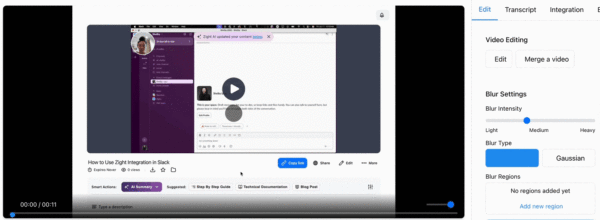
Use the blur slider to control how intense the blur appears, from subtle softening to heavy anonymizing blur.
Download as MP4
Save your newly blurred video in MP4 format, ready for sharing, uploading, or publishing.
Why Blur a Video?
Video blurring is useful in dozens of scenarios:
-
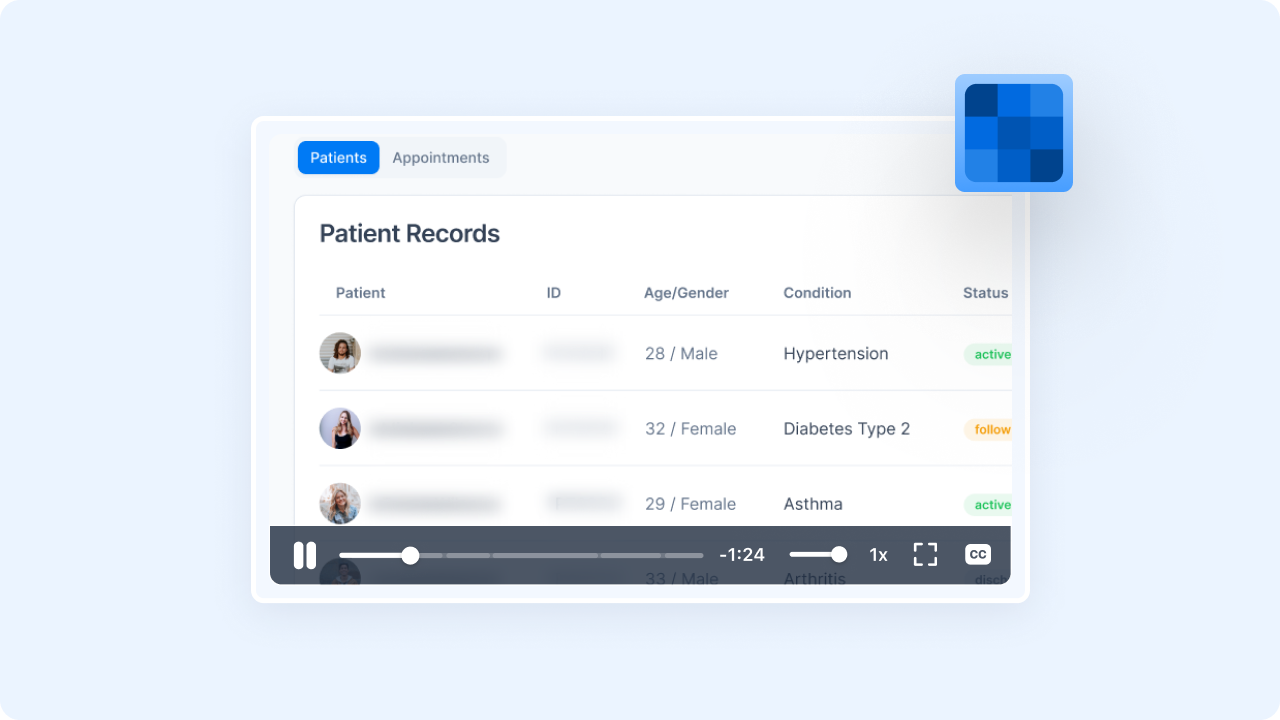
Hiding faces, names, or sensitive information
-
Obscuring documents or personal details in screen recordings
-
Creating a stylized background effect
-
Removing unwanted focus points
-
Protecting personal identity in social posts
-
Blurring branded or confidential items
Why Use Zight’s Video Blur Tool?
- Instant processing — blur videos in seconds
-
Adjustable blur levels
-
Full-video blur for quick anonymization
-
Supports MP4, MOV, WebM, and more
-
High-quality output
-
100% browser-based
-
Safe & private — files processed on your device

Supported Use Cases
For Creators & Influencers
Blur backgrounds or sensitive areas before posting online.
For Businesses & Teams
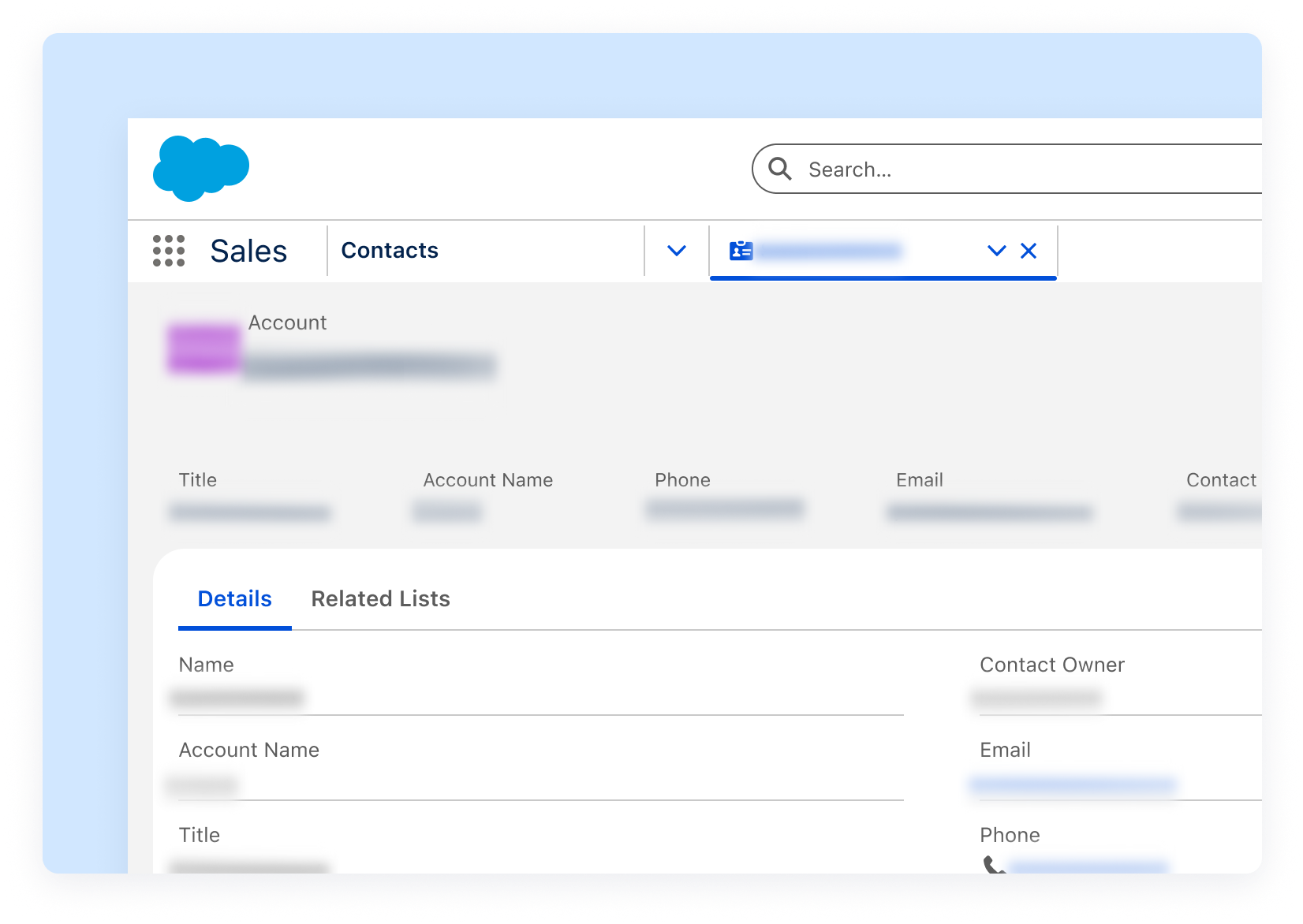
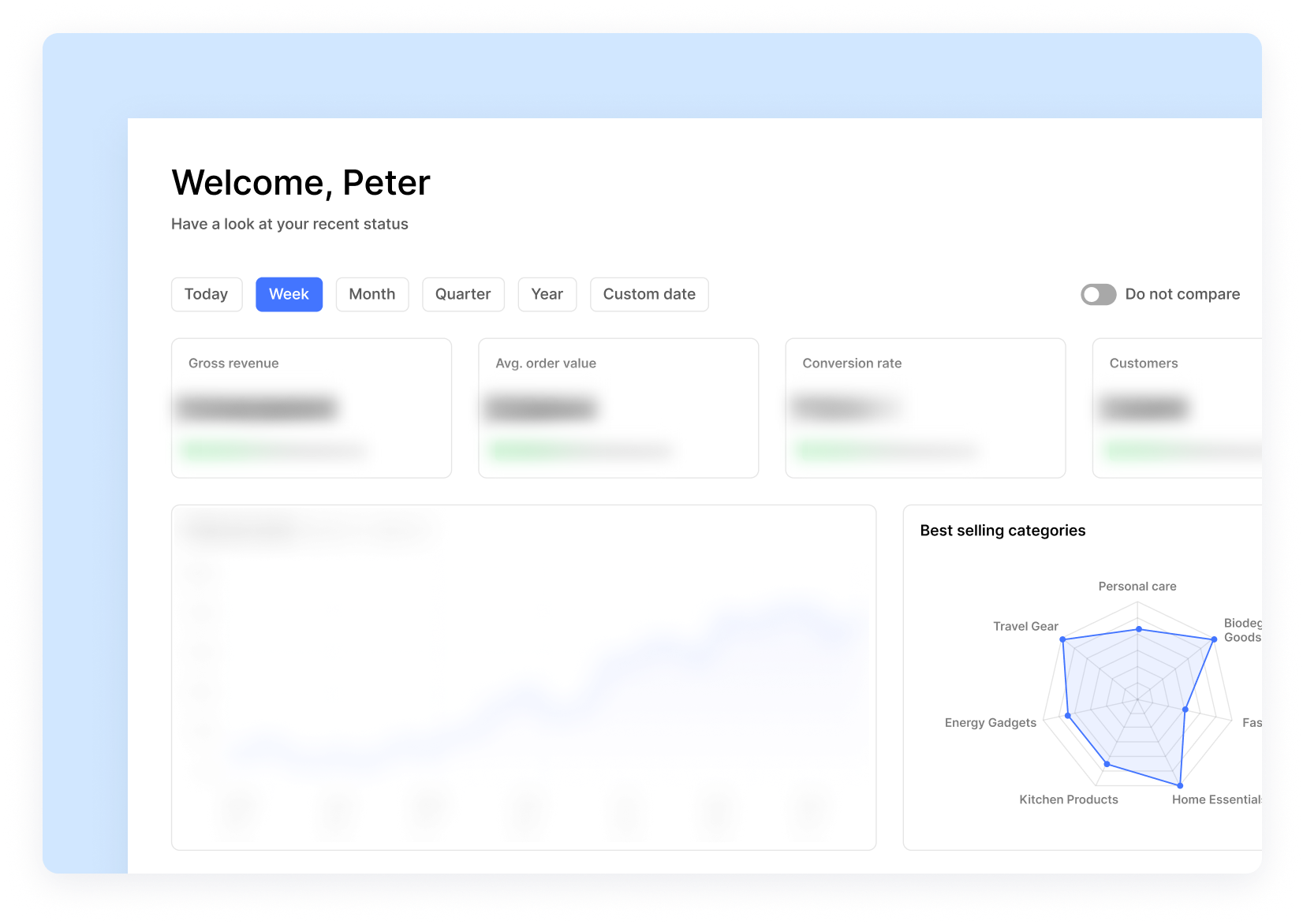
Blur customer data, dashboards, or confidential screens in tutorials or demos.
For Educators
Remove private student info from recorded lessons or demonstrations.
For Product Teams
Blur UI elements, unreleased features, or internal tools before sharing clips externally.
For Support Teams
Hide names, emails, or account details in troubleshooting recordings.
Ultimate Guide: How to Blur a Video Effectively
Whether you’re posting publicly or sharing within your team, video blurring helps you control what information appears on screen. Zight makes this fast, even without editing experience.
When Full-Video Blur Works Best
If your goal is to mask everything visible, like sensitive dashboards, IDs, or customer info, a full blur is the fastest option. You can soften or intensify the blur depending on how hidden you need the content to be.
Keeping Quality High
Blurring naturally reduces detail, but Zight makes sure the final output stays crisp, smooth, and ready for online sharing — even at strong blur levels.
Ideal for Screen Recordings
Screen recordings often contain email addresses, financial information, or internal data. Blurring keeps the message intact while ensuring sensitive content stays private.
Conclusion
Zight’s Video Blur Tool makes it simple to protect privacy, hide sensitive information, or create aesthetic effects — all in seconds. Upload your video, choose your blur level, and export a polished MP4 that’s ready to share anywhere.
Blur videos instantly and securely with Zight.
Unlock More Tools
Expand your toolkit with these additional free tools
Frequently Asked Questions
Most common formats are supported, including MP4, MOV, and WebM.
This version applies a full-video blur. If you need selective blurring, you can pair this with Zight’s screen recording and annotation tools.
Only visual detail is blurred, overall video resolution stays high.
Most videos blur in seconds, depending on size and device speed.
No, processing happens locally for speed and privacy.
Yes, the blurred video is exported as MP4 for maximum compatibility.
You can blur most standard video lengths as long as your browser can process them.
No. Everything stays on your device; nothing is saved or sent to servers.












